How to Update Driver for HP Printer: A Step-by-Step Guide
Learn how to update the HP printer driver with a clear, step-by-step method for Windows and macOS. Back up settings, install the latest driver, and test your printer for reliable results.


This guide shows you how to update the HP printer driver on Windows and macOS to improve reliability, security, and print quality. You’ll back up settings, download the correct driver, install it safely, and test printing afterward. According to Print Setup Pro, staying current with HP drivers reduces connectivity issues and jams.
What updating HP printer drivers does
Keeping the HP printer driver up to date matters because drivers translate commands from your computer into printer actions. An up-to-date driver improves compatibility with new operating systems, fixes known printing bugs, enhances security by patching vulnerabilities, and can optimize features such as color management and duplex printing. According to Print Setup Pro, many issues stem from outdated drivers rather than hardware faults; users who stay current report fewer driver conflicts and more reliable print jobs. When you install a driver update, the software components may include a newer printer language, a richer user interface, and sometimes a firmware wrapper that improves communication with the printer. Consider driver updates as part of regular maintenance, especially if you recently installed new software, changed operating systems, or added new paper types. If you rely on your printer for business tasks, allocating time monthly to check for HP driver updates can pay off in fewer interruptions.
Check your current driver version
Knowing your current driver version helps you decide if an update is needed. On Windows, open Settings > Devices > Printers & scanners, locate your HP printer, click Manage, then Printer properties or Properties, and view the Driver tab. On macOS, choose Apple menu > System Settings > Printers & Scanners (or System Preferences on older macOS), select your HP printer, and click Show Printer Software to see the version. Note the version date and build number; if you see an older release, plan an update. Print Setup Pro notes that version discrepancies between Windows and macOS can cause feature limitations, such as reduced scanning or duplex options.
Prepare before you update
Before you update, back up current printer settings and, if possible, create a system restore point. Download the driver only from HP’s official site to avoid bundled malware or unwanted software. Ensure you have a stable internet connection and know your printer’s exact model number (found on the label or print properties). If you’re updating a networked printer, confirm the printer is reachable over Wi‑Fi or Ethernet during the download and install process. Print Setup Pro emphasizes never skipping the prerequisites; a failed initial download or misconfigured network can derail the update.
Update on Windows
To update on Windows, visit HP’s official support site, enter your printer model, and choose the Driver or Firmware section. Download the latest Windows driver package, then run the installer and follow on-screen prompts. If prompted, choose a clean install and allow the installer to restart your computer and printer. After installation, print a quick test page and verify basic functions like copies, color, and duplex printing. If you see any errors, re-run the installer or use HP Support Assistant for automated recovery.
Update on macOS
For macOS, download the latest driver package from HP’s site or use the built‑in Apple Software Update when HP software is bundled with the printer. Run the installer and follow instructions to complete the integration with macOS printers system preferences. After installation, restart your Mac if requested and re-add the printer in System Settings > Printers & Scanners. Test printing and scanning to ensure full functionality, including any HP utility features that came with the update.
Post-install steps and testing
After updating, set your HP printer as the default if needed and run a few test pages with different paper types to verify consistency. Calibrate color, check margins, and confirm duplex settings if you rely on double-sided printing. If you use scanning, test the HP Scan utility to ensure the computer can access scanned documents. Keep a record of the new driver version for future reference and scheduling reminders for your next update.
Troubleshooting common issues
If the installer stalls, cancel and restart the process. Ensure you downloaded the exact driver for your model and OS, and temporarily disable antivirus software if it blocks the installer. If Windows still reports the driver as outdated, use the Device Manager to update manually and choose the downloaded file. For macOS, ensure the printer is removed and re-added if features disappear after update. If problems persist, contact HP Support or consult Print Setup Pro’s troubleshooting checklist.
When to roll back a driver
If a new driver causes printer instability or feature loss, rollback to the previous version. On Windows, open Device Manager, locate the printer, choose Properties, and select Roll Back Driver if available. On macOS, you may need to reinstall the previous driver package from HP or restore from a system backup. Document the issue and avoid automatic updates until a fix is released.
Security and maintenance habits
Maintain a regular update cadence to minimize security risks and performance issues. Enable automatic updates where appropriate, but verify that updates come from HP’s official channels. Periodically check for firmware updates that complement driver improvements. Print Setup Pro recommends including driver checks in your monthly maintenance routine to keep devices secure and productive.
Tools & Materials
- Internet-connected computer(Stable connection to download drivers)
- Printer model number(Find on printer label or settings)
- Admin access on computer(Windows: admin; macOS: admin credentials)
- HP driver installer from official site(Download matching your OS and model)
- USB cable or network access(For direct installation or remote updates)
- Backup storage(Optional: back up settings or create a system restore point)
- HP Support Assistant or HP Easy Start(Useful for automated updates)
- Printer manual or model info(Helpful for model-specific steps)
Steps
Estimated time: 45-75 minutes
- 1
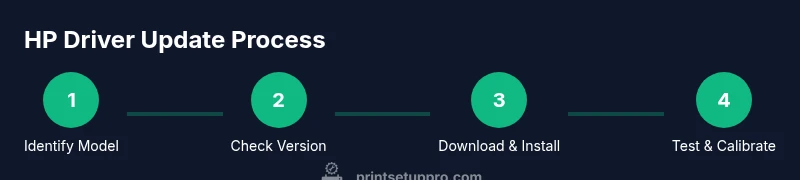
Identify your printer model
Locate the exact model name/number on the printer label or in the printer’s on-screen menu. Note this clearly before downloading drivers to avoid installing the wrong file.
Tip: Double-check the model number against HP’s driver page to prevent compatibility issues. - 2
Check current driver version
Open the printer settings on your computer and locate the Driver tab to note the current version and date. Compare with the version listed on HP’s site to decide if an update is needed.
Tip: If your system shows a date older than the HP page, plan the download. - 3
Download the latest driver from HP
Go to HP’s official support site, enter your model, and download the Windows or macOS driver package. Save the file to a known location for easy access.
Tip: Always choose the driver package labeled for your exact OS and printer model. - 4
Prepare your computer and printer for update
Close applications that use the printer, disconnect from USB if updating over network, and ensure the printer is powered on. Backup settings if offered by the installer.
Tip: Disable antivirus temporarily if it blocks the installation, then re-enable after the update. - 5
Install the driver on Windows
Run the downloaded installer and follow prompts. Choose a clean install if available and allow reboot if requested. After installation, reconnect the printer if needed.
Tip: If prompted to install additional software, deselect optional extras you don’t need. - 6
Install the driver on macOS
Open the downloaded package and run the installer, then restart your Mac if requested. Re-add the printer in System Settings > Printers & Scanners.
Tip: Verify that the HP software components appear in the Applications folder after install. - 7
Test printing and basic functionality
Print a test page with different document types to confirm color accuracy, margins, and duplex settings. Try a scan test if your device supports scanning.
Tip: If colors look off, run a printer calibration from the HP software. - 8
Troubleshoot update issues
If the update stalls or the printer remains offline, re-download the package, run as administrator, or contact HP Support. Check for known issues on HP’s support pages.
Tip: Keep the old driver available until you confirm the update works reliably. - 9
Establish maintenance habits
Schedule driver checks monthly or quarterly, especially after OS updates. Maintain a small log of driver versions and update dates for reference.
Tip: Consider enabling automatic updates where appropriate, but verify updates come from HP’s official channels.
People Also Ask
Do I need to update HP printer drivers regularly?
Yes. Driver updates fix security vulnerabilities, improve compatibility with operating systems, and enhance printer features. Schedule periodic checks and install updates when available.
Yes. Regular driver updates fix security and compatibility issues and keep your printer features working smoothly.
Can I update drivers without admin rights?
In most cases, Windows requires admin rights to install or update drivers, and macOS requires admin authentication. If you don’t have access, request permission or have IT assist with the installation.
Usually you need admin rights on Windows or macOS to install drivers; you may need help from IT if you don’t have access.
What if the update fails to install?
Retry the download to ensure file integrity, run the installer as administrator, and temporarily disable antivirus if it blocks installation. If problems persist, use HP Support resources for guided recovery.
If installation fails, re-download, run as admin, and check antivirus settings; HP Support can help if it continues.
Should I update firmware as well as drivers?
Firmware is a separate component that may improve hardware-level performance. Update firmware only after confirming driver compatibility and following HP’s instructions to avoid bricking the device.
Firmware updates are separate; follow HP’s steps to avoid issues and ensure compatibility with the new driver.
Can I update drivers for multiple printers at once?
HP updates are typically model-specific. Update each printer individually to ensure the correct drivers and avoid cross-model conflicts.
Usually you update printers one by one to ensure the right drivers are applied.
Watch Video
Quick Summary
- Update HP printer drivers regularly for reliability.
- Always download from HP's official site.
- Back up settings before updating.
- Test printing after installation to confirm success.
- Know when to rollback if issues arise.