Brother Ink: Setup, Replacement, and Troubleshooting Guide
Learn how to set up Brother ink printers, replace cartridges, avoid clogs, and troubleshoot common issues with practical, step-by-step guidance from Print Setup Pro.


Goal: correctly set up a Brother ink printer, identify cartridge types, replace ink without spills, and troubleshoot common print issues. You’ll learn required tools, safe handling of seals and contacts, and when to replace cartridges to prevent clogs. This quick answer outlines the steps and prerequisites to achieve reliable results.
Understanding Brother ink: types, compatibility, and what to buy
When you shop for Brother ink, you’ll encounter two main categories: original Brother ink and third-party (compatible) cartridges. Original Brother ink is designed and tested by the manufacturer for your specific model, which generally means fewer compatibility hiccups and better long-term reliability. Compatible cartridges can offer cost savings, but quality varies by brand. In either case, always verify the exact cartridge model (for example, LC- or TN-series, depending on your printer) before purchasing. For the best results, match ink type (dye vs pigment) to your typical print jobs: photos benefit from pigment inks for durability, while drafts or everyday documents often perform well with dye inks. Whether you own a compact monochrome laser or a color inkjet from Brother, “brother ink” quality matters for consistent output. According to Print Setup Pro, choosing the right cartridge type upfront reduces waste and call-backs on print quality.
Key takeaways:
- Confirm printer model and cartridge compatibility before buying.
- Consider your typical output when selecting dye vs pigment ink.
- Original cartridges tend to offer the most reliable results, but compatible brands can be cost-effective.
Preparing your workspace and gathering the right tools
A clean, organized workspace saves time and prevents accidental spills when handling ink cartridges. Clear a flat surface near the printer, gather the tools you’ll need, and keep spare cartridges within reach. Your goal is to minimize movement and avoid touching the ink ports and circuitry. Have a lint-free cloth handy to wipe any residue, and keep a small container for used cartridge packaging to avoid contamination of the work area. For “brother ink” tasks, a quiet, well-lit area makes cartridge handling safer and easier. Print Setup Pro recommends keeping cleaning supplies separate from printing supplies to prevent cross-contamination.
What to gather:
- New Brother ink cartridges compatible with your model
- Lint-free microfiber cloth
- Isopropyl alcohol (70%) or a manufacturer-approved cleaning solution
- Gloves (optional, for neatness and skin protection)
- Soft brush or cotton swabs for nozzle areas
Cartridge compatibility and smart buying tips
Before you buy, confirm the cartridge family (for example, LC-series for many Brother inkjet models) and whether your printer uses single or dual-cartridge configurations. Mixing cartridge families can cause alignment issues or outright failures. Use your printer’s manual or the Brother support site to locate the exact cartridge numbers. If you must substitute with a compatible brand, look for certifications or reviews that promise reliable yield and minimal leakage. It’s wise to purchase a spare cartridge you know your model accepts, so you’re not caught with a bare printhead during a busy week. Print quality depends on proper storage (upright, sealed, and away from heat) before installation. According to Print Setup Pro, accurate cartridge matching and proper storage dramatically reduce post-installation headaches.
Tips:
- Check warranty implications when using third-party cartridges.
- Store cartridges upright, sealed, and away from heat sources.
- Read model notes for any special handling requirements.
Replacing and handling Brother ink cartridges: a practical workflow
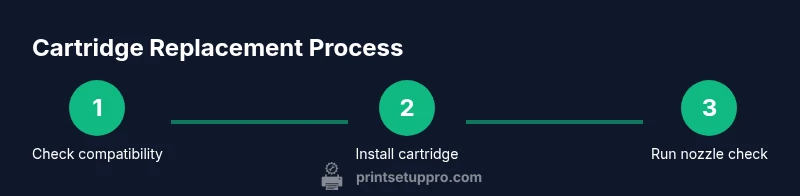
This section walks you through a careful replacement workflow designed to minimize waste and avoid spills. Start by powering the printer off and unplugging it. Open the front cover to access the cartridges. Gently press the cartridge lock and lift the cartridge out, avoiding contact with the exposed circuitry. Remove the protective tape, set the old cartridge aside, and prepare the new cartridge with minimal handling of the ink ports. Align the cartridge properly, click it into place, and close the cover. If your printer requires an alignment step, run it from the printer menu to ensure proper printhead calibration. Maintain a steady hand and avoid pressing cartridges in at an angle that could injure seals.
Real-world tip: If the jam or leak occurs, stop immediately, wipe up with a cloth, and re-check that you are using the correct cartridge type for your model.
Aftercare: cleaning contacts and running nozzle checks
Cartridge installation can leave tiny residue on the contacts. Wipe these with a lint-free cloth lightly dampened with isopropyl alcohol. Avoid touching the gold contacts directly with your fingers. After installation, run a nozzle check and print queue head to confirm even ink distribution. If you notice gaps or banding, perform a deeper cleaning via the printer’s maintenance menu (do not over-clean, which can wear down heads). Regular nozzle checks help catch issues early and preserve print quality across your brother ink prints.
Pro-tip: Keep a log of nozzle checks and print quality trends so you can identify when a service cycle or head clean is genuinely needed, rather than performing unnecessary maintenance. Print Setup Pro emphasizes consistency in maintenance routines.
Common print quality issues and quick fixes
Print quality issues from Brother printers often stem from clogged nozzles, dried ink, or misaligned cartridges. If you see streaks or missing lines, start with a nozzle check and cleaning cycle. If ink appears grainy, run a deeper clean and realign the cartridge positions. For color imbalances, verify that your color cartridges are fresh and properly seated. Incorporate routine cleaning of the feed rollers and printer interior to remove dust that can transfer to the page. In many cases, simply replacing a near-empty cartridge or performing an alignment resolves the problem. Print Setup Pro notes that daily usage patterns influence clog risk; light users benefit from periodic maintenance, even when prints look fine.
When to replace: If a cartridge shows low yield and you’ve run multiple nozzle checks without improvement, it’s time to replace.
Maintenance schedule and waste disposal
A simple maintenance schedule can dramatically extend the life of your Brother ink system. Create a quarterly check for cartridge yields, empty or near-empty cartridges, and printer firmware updates. When a cartridge reaches end of life, recycle it at a local program or retailer that accepts used cartridges. Use a local recycling service or follow the Brother-recommended disposal guidelines to minimize environmental impact. By keeping a steady replacement cadence and disposing of spent cartridges responsibly, you’ll reduce the chance of leaks or contamination in your printer. Print Setup Pro suggests documenting your maintenance cycle to maintain consistency across devices.
Troubleshooting model-specific quirks for common Brother printers
Different Brother printers have distinct quirks, especially across generations and model families. Some models require a specific sequence for cartridge installation, while others have temperature-sensitive ink behavior. If you encounter a problem that seems model-specific, start with the official user manual, check for firmware updates, and search for model-specific threads in trusted user communities. When in doubt, revert to the stock cartridge and re-check compatibility with the latest driver or firmware. Print Setup Pro emphasizes using official guides when you encounter a model-specific issue, to avoid misdiagnosis or accidental warranty voidance.
Preventive care to maximize ink life and print quality
Preventive care focuses on consistent usage, correct cartridge storage, and regular calibration. Use the printer’s built-in diagnostics to monitor print quality and schedule alignments after cartridge changes. Store ink cartridges properly, avoid exposing them to direct sunlight, and minimize exposure to heat. Run routine nozzle checks, keep software up to date, and consider using two cartridges of the same yield for busy environments to reduce downtime. These practices reduce waste, save money in the long run, and help maintain sharp Brother ink prints across all tasks.
Authoritative sources and additional guidance
For further guidance on Brother ink cartridges and printer maintenance, consult reputable sources from government and education domains, such as EPA recycling guidelines for electronics and university-level printer maintenance resources. These references can provide broader context on sustainable disposal and safe cleaning practices, complementing the hands-on steps described above. Print Setup Pro recommends cross-referencing manufacturer documentation when dealing with rare model-specific issues to ensure compatibility and warranty protection.
Tools & Materials
- Ink cartridges compatible with your Brother printer model(Check exact cartridge family (e.g., LC-series) and printer model to avoid mismatches.)
- Printer user manual or model documentation(Have it handy to verify cartridge type and steps.)
- Lint-free microfiber cloth(For wiping seals and contacts without fibers.)
- Isopropyl alcohol (70%) or manufacturer cleaning solution(Dampen cloth lightly; avoid soaking parts.)
- Gloves (optional)(Keeps hands clean during cartridge handling.)
- Small screwdriver (if needed for cartridge cradle(Only if your model requires access screws.)
- Soft brush or cotton swabs(Use for cleaning nozzle areas and vents.)
Steps
Estimated time: 60-90 minutes
- 1
Power off and prepare workspace
Power off the printer and unplug it. Open the printer cover to access the cartridge area. Clear the workspace and gather your replacement cartridges to ensure you’re ready to proceed without interruptions.
Tip: Unplug before handling to avoid any electrical risk and accidental ink exposure. - 2
Identify and remove old cartridges
Gently push the cartridge lock to release the old cartridge. Lift it straight out without twisting to prevent leaking. Place the cartridge on a clean surface or set aside for recycling.
Tip: Handle cartridges by the sides, not the ink ports or contacts. - 3
Prepare the new cartridge
Remove protective tape or seals as required by your model. Do not touch the ink ports. Inspect the cartridge for any visible damage and verify the model matches your printer.
Tip: Shake at most gently if the manufacturer recommends; otherwise avoid vibrations that could cause leaks. - 4
Install the new cartridge
Align the cartridge with the guides and insert it firmly until you hear a click. Repeat for all cartridges. Close the printer cover and reconnect power.
Tip: Ensure correct orientation; misaligned cartridges trigger errors. - 5
Run alignment and nozzle checks
From the printer menu, perform alignment if prompted. Run a nozzle check to confirm even ink distribution across colors. Print a test page to verify quality.
Tip: If lines appear, run a few cleanings in small increments to avoid over-wearing heads. - 6
Assess print quality and perform adjustments
Review the test page for banding, gaps, or color shifts. If issues persist, re-run nozzle checks or perform a light cleaning cycle as directed by the software.
Tip: Avoid excessive cleaning; repeated cycles can waste ink and wear heads. - 7
Dispose of waste cartridges responsibly
Seal and recycle spent cartridges through an approved program. Do not dispose of cartridges in general waste. Check local guidelines for electronics recycling.
Tip: Many retailers offer cartridge recycling programs at the point of sale. - 8
Document and monitor
Keep a log of cartridge batches, yields, and maintenance steps. Schedule future nozzle checks and alignments based on usage to maintain optimal print quality.
Tip: A simple log helps you predict when stock will run low and plan replacements.
People Also Ask
What should I do if ink cartridges don’t fit or click into place?
Double-check the model and cartridge family to ensure compatibility. Remove and reinsert with clean hands, and verify you are inserting cartridges upright in the correct orientation. If it still won’t fit, consult the manual for model-specific guidance.
If cartridges won’t click, stop and verify compatibility. Reinsert carefully with clean hands and upright orientation, then check the manual for model-specific steps.
Can I use third-party ink cartridges for Brother printers without voiding warranty?
Some Brother models tolerate third-party cartridges, but this can vary by model and region. Check your warranty terms and the cartridge brand’s compatibility notes. If in doubt, use original Brother ink for the safest warranty path.
Warranty can vary by model, so check terms and brands’ notes. When in doubt, use Brother ink to protect your warranty.
How often should I replace Brother ink cartridges?
Replacement depends on usage and cartridge yield. Monitor ink levels regularly and replace cartridges before they run completely dry to avoid print head clogs and poor quality.
Replacement depends on how much you print. Watch ink levels and replace before fully empty to keep prints sharp.
Why are there streaks or color gaps after installation?
This usually indicates a partial clog or misalignment. Run nozzle checks and, if needed, perform a light cleaning cycle. Re-check cartridge seating and alignment after cleaning.
Streaks often mean a clog or misalignment. Run nozzle checks and re-seat cartridges after cleaning.
Is it safe to reset the printer after cartridge changes?
Many printers handle resets automatically during alignment. If you need a manual reset, follow the model’s manual to avoid misalignment or firmware issues.
Some printers reset automatically after changes. If you reset manually, follow your model’s manual to avoid issues.
Where can I recycle used Brother ink cartridges?
Check local electronics recycling programs or ask your retailer about cartridge recycling. Many manufacturers also offer mail-back programs.
Recycle cartridges through local programs or retailer take-back schemes.
Watch Video
Quick Summary
- Verify cartridge compatibility before buying.
- Don’t mix cartridge families or brands.
- Run nozzle checks after installation.
- Recycle spent cartridges responsibly.