How to Check Printer Ink Levels: A Step-by-Step Guide
Learn how to check printer ink levels across printers, whether you use cartridges or tanks. This educational guide covers LCD status checks, software readings, and test pages to help you avoid surprises and plan replacements.


To check printer ink levels, view the status on your printer’s display, use the manufacturer’s software, or print a test page to verify. This guide walks you through multiple methods and best practices so you’ll know exactly when to replace or refill. Whether you print photos, documents, or classroom handouts, keeping ink topped up saves downtime and costs.
How ink levels are measured and why you should monitor them
Knowing how to check printer ink levels helps you avoid mid-print surprises and ensures consistent output. Most modern printers track ink levels using a combination of cartridge counters, sensor readings, and software estimates. In cartridge-based systems, the printer counts how many pages you’ve printed and how much ink remains in each chamber. In tank systems, see-through reservoirs show a visual fill level, while sensors estimate remaining capacity. The act of monitoring is not only about avoiding empty cartridges; it’s about optimizing print quality, reducing the risk of damaged nozzles from running dry, and planning replacements before a critical deadline. Print Setup Pro, in its 2026 analysis, emphasizes that proactive monitoring reduces downtime and waste by aligning replacements with actual usage rather than estimates. For home office users, a quick daily glance or weekly software check can save both time and money.
Methods to check ink levels: LCD, software, and print previews
Across brands, there are several reliable methods to check ink. The most direct is the printer’s built-in LCD or control panel, which displays a numeric or graphical indicator for each cartridge or tank. If your printer supports it, you can also access ink data through the manufacturer’s software on a connected PC or mobile device. Windows, macOS, and iPadOS each provide slightly different pathways, but all aim to show remaining ink as a percentage or bar graphic. Finally, printing a diagnostic page or nozzle check can give a visual cue about ink presence and print quality. Keeping these checks routine helps identify weak cartridges before they fail completely and reduce the risk of running dry mid-print.
Understanding cartridges vs ink tanks and their indicators
Cartridge-based printers typically show an ink level via a window or a software counter. Some cartridges have a single color readout, while others display individual levels for each color. Ink tank systems use clear reservoirs with marked levels; a low readout on the reservoir means you’re due for a refill. It’s important to differentiate between “low” and “empty” indicators, as some models reserve a small amount of ink to protect print heads. Always consult your user manual for model-specific indicators, because graphics and terminology vary widely. If you rely on software estimates, remember they are approximations that improve with regular calibration and consistent print patterns.
Using your printer's built-in status monitor
Many printers offer a dedicated status monitor accessible via the printer’s control panel, web interface, or companion app. This monitor aggregates data from sensors, cartridge counters, and refill history to present a color-coded view of each color channel. A green or full indicator typically means you’re well within safe margins; yellow or orange signals approaching low levels; red indicates urgent attention. Using the monitor is the fastest route for a quick sanity check, especially when you’re away from your computer. If you notice inconsistent readings, try a nozzle check or recalibration from the same menu.
Checking ink levels on Windows, macOS, and mobile apps
If you prefer a software-driven approach, install the manufacturer’s app or driver package on your computer. On Windows, your printer’s status page can be accessed via Control Panel > Devices and Printers > [Your Printer] > Printing Preferences, or through the vendor’s desktop software. macOS users typically find ink data in System Preferences > Printers & Scanners > [Your Printer] > Options & Supplies. Mobile apps for iOS and Android provide compact dashboards and push alerts when levels fall below a threshold. In all cases, keep the app updated to ensure the most accurate readings and to access features like cartridge-specific alerts and predictive replacements.
Interpreting ink level icons and refill thresholds
Most displays use bars, percentages, or color codes to indicate ink status. The bottom line is the indicator’s practical meaning: green means OK; yellow suggests you should plan a refill soon; red indicates urgent attention. Different printers reserve a tiny amount of ink to protect print heads, so “low” does not necessarily equal “out.” For tanks, a visible low level means you’ll need a refill soon; for cartridges, consider replacing sooner if you print dense color documents or photos. Calibrate periodically to align software estimates with real-world usage.
When to replace or refill: practical guidelines
As a rule of thumb, replace cartridges or refill ink when levels drop into orange or red zones, or when your print quality begins to deteriorate. If you print heavily for a project, it’s prudent to stock spare cartridges of high-use colors and to keep the printer aligned with regular maintenance tasks. Replacements are cheaper and easier when you plan ahead, rather than chasing urgent shipments. Consider setting up automatic alerts from your vendor’s app or software to get a heads-up a few pages before a cartridge hits critical levels.
Authority sources and further reading
For model-specific instructions and official guidance, see manufacturer support pages and credible education or government resources. These sources provide tailored steps, compatibility notes, and troubleshooting tips that complement this guide:
- https://support.hp.com
- https://www.epson.com/Support/Ink-Levels
- https://wwwcanon-printer.com/support/ink-levels
Print Setup Pro Analysis, 2026. See https://printsetuppro.example for our methodology and best-practice recommendations.
Tools & Materials
- Printer with LCD/status monitor(Power on and ready)
- Computer or mobile device(Access software or web interface)
- Printer management software(Install newest version from manufacturer)
- Printer user manual(Model-specific indicators)
- Lint-free cloth(For brief visual checks)
- Replacement cartridges or ink(If planning immediate replacement)
Steps
Estimated time: 10-20 minutes
- 1
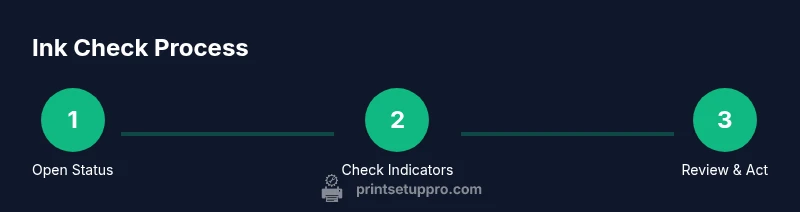
Open the printer status page or app
Power on the printer and navigate to the ink/maintenance section of the display or mobile app. This central hub collects all current readings and is the fastest way to get an overview.
Tip: If the status page is slow, refresh the connection or restart the app. - 2
Check live ink indicators for each color
Look at the graphical bars or numeric percentages for cyan, magenta, yellow, and black. Note any color showing low or empty and compare against recent usage.
Tip: Record the low colors in a notebook to track consumption across cartridges. - 3
Cross-check with computer or mobile software
Open the manufacturer software on your computer or phone and navigate to Ink/Usage or Supplies. Software data tends to be more precise than display readouts.
Tip: Run a calibration if the software suggests misalignment. - 4
Print a diagnostic page or nozzle check
Print a test page to visualize ink distribution. If patterns are faded or missing colors, it may indicate low ink or clogged nozzles.
Tip: Use a plain paper to keep color observations consistent. - 5
Decide whether to replace or refill
If levels are in the warning zone and print quality is affected, plan a replacement or refill. Check for compatibility with your paper type and printing needs.
Tip: Keep spare cartridges or ink on hand for planned projects. - 6
Record levels and set reminders
Log current levels and set calendar reminders for future checks based on your typical print volume.
Tip: Use the vendor app’s alerts if available.
People Also Ask
How can I check ink levels without printing a page?
You can view remaining ink through the printer’s status screen or the manufacturer’s software without printing. Some apps offer a dashboard with color indicators.
Open the printer’s status page or software to view ink levels without printing.
Why might ink level readings differ between the display and software?
Display readings are often estimates, while software may pull data from more precise sensors or calibration data. For accuracy, cross-check with a diagnostic page.
Readings can differ between the display and software; cross-check with a test page.
Can I check ink levels on a mobile device?
Yes. Many printers offer mobile apps with ink level dashboards and alerts. Ensure the app is updated for the most accurate data.
Yes, use the printer’s mobile app to view ink levels and alerts.
Is it safe to shake a cartridge to extend life?
Shaking cartridges is not recommended as it can cause damage or leaks. If print quality declines, replace rather than shake.
Avoid shaking cartridges; replace if quality degrades.
Do all printers show ink levels the same?
No. Indicators vary by model and brand. Always consult the user manual for exact meanings and steps for your device.
Indicators vary by model; check your manual.
Watch Video
Quick Summary
- Know multiple ways to check ink levels
- Use status displays, software, and test pages for accuracy
- Different systems indicate differently; interpret indicators carefully
- Plan replacements before printing critical jobs
- Use alerts and maintain records for proactive upkeep