How to Stop a Printer from Cutting Off Text: Troubleshooting Made Simple
Need to fix text clipping when printing? This guide covers margins, drivers, and settings to stop printers from cutting off text—fast, with clear steps.


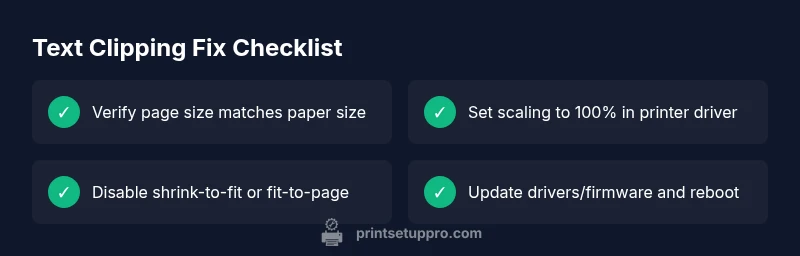
The most common fix for how to stop printer from cutting off text is to align margins with the printable area, verify the correct page size, and disable scaling. Set the printer driver scale to 100%, confirm no shrink-to-fit options, and print a test page. If clipping persists, update or change the driver and reset printer settings.
Why text clipping happens and why it matters
According to Print Setup Pro, the most frequent cause of text getting cut off is a misalignment between the document’s printable area and the printer’s physical margins. When you send a page that has content too close to the edge, or when the printer uses a different default margin than your software, the final print crops lines, labels, or small characters. This issue isn't just cosmetic—it can render receipts unreadable, academic papers illegible, or labels unusable. Understanding the root cause helps you fix it quickly. In this guide, you’ll learn a systematic approach to stop printer from cutting off text and restore reliable, clean prints across documents, dashboards, and forms.
Print Setup Pro emphasizes a human-first, results-driven approach: start with the simplest fixes, then escalate to driver updates or hardware checks if needed. The goal is minimal waste and maximum clarity. If you’re rushed, you can apply the quick adjustments now and come back for the deeper checks later. The core idea is to ensure your document’s layout fits within the printer’s printable boundaries while keeping margins consistent across applications and files.
Document fundamentals: margins, paper size, and margins vs printable area
Margins determine how close text can safely print to the page edge. If your document uses a margin setting that exceeds the printer’s printable area, the printer crops the edges. Verify the following:
- Paper size matches the printer’s supported sizes (letter, A4, etc.).
- Margins are not larger than the printer’s minimum printable margin.
- No custom page size or printer preset overrides the document’s layout.
When your file is set to a different page size than the printer expects, clipping can occur even if you see full content on screen. Open the document’s Page Setup and recheck the size, orientation, and margins. Then print a simple test page to confirm the result before moving to more complex documents.
Driver and software settings that influence clipping
Many clipping issues arise from driver or application-level scaling. The most common culprits:
- Scaling or fit-to-page enabled in the printer driver or application settings.
- “Shrink to fit” or “Scale to paper size” options active.
- Custom print presets that override document margins.
- Using a different driver (e.g., generic vs. vendor-specific) that reports a different printable area.
To fix, access the printer properties and set scaling to 100% (or “Actual Size”), ensure fit-to-page is off, and reprint a test page. If you print frequently from multiple apps, create a consistent preset for your most common paper size and orientation.
Hardware considerations: paper type, borderless printing, and firmware
Hardware choices can also cause clipping, especially with specialty media or borderless printing. Some highlights:
- Borderless printing is not supported for all paper sizes; ensure you’re using supported media.
- Thicker or glossy papers can slightly shift paper alignment in the feed path, affecting margins.
- Outdated firmware or drivers may misreport the printable area, leading to cropping.
Check your printer’s compatibility with the media you’re using, update firmware and drivers, and perform a printer head alignment or feed-path diagnostic if your device supports it.
A practical, step-by-step fix workflow you can trust
If you’ve tried the basics and still see clipping, here’s a practical workflow you can follow:
- Confirm the document uses a standard page size and normal margins.
- Set printing to 100% scaling in the driver and disable any fit-to-page setting.
- Print a simple text document to verify that basic content prints without clipping.
- Update or reinstall the printer driver, then reboot the printer and computer.
- If clipping remains, test with another application to determine if the issue is application-specific.
This section emphasizes a methodical, repeatable approach so you can reproduce reliable results across projects and avoid wasting paper.
Prevention: best practices to avoid future clipping
Proactive steps save time:
- Use consistent page sizes and margins across documents.
- Create a default printer preset with 100% scale for your most common paper size.
- Periodically update drivers and firmware to maintain accurate printable area reporting.
- Run a quick alignment or calibration task when changing media types.
By building these habits, you’ll reduce the chances of clipping and improve print consistency across printers and devices.
Steps
Estimated time: 25-40 minutes
- 1
Check document page size and margins
Open your document and verify the page size matches your target paper. Review margins to ensure they stay within the printer’s printable area. If needed, adjust margins to create a safe buffer from the page edge.
Tip: Use a standard margin template to avoid edge clipping. - 2
Set print scaling to 100%
Access the printer properties and set scaling to 100% or Actual Size. Disable any option that says Fit to Page, Shrink, or Scale to Paper Size which can crop edges.
Tip: Apply this as a default for frequently printed documents. - 3
Test with a simple document
Print a plain text document or a basic graphic to confirm whether clipping persists. If the basic test prints correctly, the issue is likely document-specific.
Tip: Avoid complex layouts in early tests. - 4
Update drivers and firmware
Check the printer manufacturer’s site for the latest driver and firmware updates. Install, reboot both computer and printer, and re-test.
Tip: Keep a backup of old drivers if you need to rollback. - 5
Try a different driver or connection
If clipping continues, switch to a universal driver or alternate connection (USB vs. network) to determine if the path influences the printable area.
Tip: Symptom changes with different connections can indicate a path issue. - 6
Reset to factory defaults
If all else fails, reset the printer to factory defaults and reconfigure from scratch. Re-test after re-setup.
Tip: Note settings you record so you can re-create a good baseline.
Diagnosis: Printed pages have text cropped near margins or edges
Possible Causes
- highPage size and printable area mismatch
- mediumPrinter driver scaling or fit-to-page enabled
- mediumNon-printable margin settings in document software
- lowPrinter hardware limitations or outdated firmware
Fixes
- easyVerify document page size matches paper size and adjust margins to fit printable area
- easySet printer driver scaling to 100% and disable fit-to-page/shrink-to-fit
- mediumUpdate printer drivers and firmware; restart printer and computer
- easyPrint a test page from a simple document to isolate the issue
- hardTry a different driver or perform a hardware reset if the issue persists
People Also Ask
What causes text clipping at the edges?
Text clipping is usually caused by the document’s margins exceeding the printer’s printable area, misaligned page size, or scaling settings. Software and firmware can also misreport printable boundaries, leading to cropped content.
Text clipping is usually margins or scaling being off. Check the printable area and make sure scaling is set to 100%.
How do I fix scaling in Windows printer settings?
Open Printer Properties, select Printing Preferences, and set Scaling to 100% or 100% scale. Turn off Fit to Page or Shrink to Fit options. Print a test page to verify the result.
Set the scale to 100% and disable fit to page in the printer preferences, then test print.
Can document page size affect printing?
Yes. If the document uses a page size different from the paper loaded in the printer, content can print cropped. Ensure page size matches the paper tray and printer capabilities.
Absolutely—match the document size to the paper size. Mismatch causes cropping.
Will firmware updates fix clipping issues?
Firmware updates can correct misreported printable areas and improve compatibility with applications. Check the manufacturer’s site for the latest firmware and apply updates per instructions.
Updating firmware can often resolve clipping caused by printer reporting errors.
When should I contact a technician?
If clipping persists after trying all recommended software fixes and driver updates, or if you suspect a hardware alignment issue, contact the manufacturer support or a local service technician.
If the issue sticks after fixes, seek professional help.
Watch Video
Quick Summary
- Identify if clipping comes from margins or driver scaling
- Set 100% scaling and correct page size first
- Update drivers/firmware before hardware checks
- Always test with a simple document before complex files