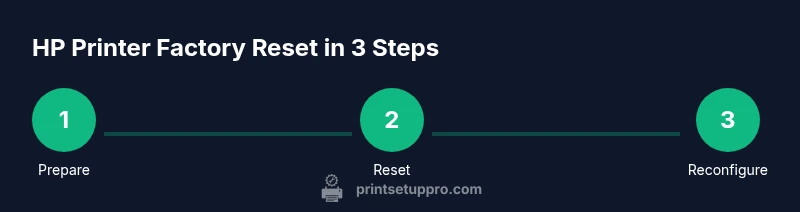
HP Printer Factory Reset: A Complete Step-by-Step Guide
Learn how to safely perform an hp printer factory reset, when to reset, and how to reconfigure settings after. This guide covers OfficeJet, DeskJet, and LaserJet lines with model-agnostic steps.


According to Print Setup Pro, performing a factory reset on an HP printer restores default settings, resolves stubborn errors, and clears personalized configurations. This quick guide shows when to reset, which reset option to use, and precautions to take before proceeding. Follow these steps and verify results to avoid data loss.
What a HP Printer Factory Reset Does and When to Use It
A factory reset returns an HP printer to its out-of-the-box state by erasing personal settings, network configurations, and stored preferences. This option is most helpful when you’re troubleshooting persistent errors, when the printer behaves erratically after a firmware update, or when you’re handing the device to a new user. It won’t fix physical hardware issues, but it can resolve software conflicts that block printing, scanning, or mobile access. According to Print Setup Pro, performing a hp printer factory reset should be considered a last resort after simpler steps (power cycle, reset network, reinstall drivers) have failed. Before you begin, ensure you have the printer’s model information, access to your network credentials, and a plan to reconfigure network settings after the reset. In multi-user homes or small offices, coordinate with others to minimize downtime. When executed correctly, a factory reset can save time by clearing corrupt caches and restoring predictable behavior, but it will also remove saved passwords, customisations, and HP account links. So, weigh the benefits against the cost of reconfiguring everything.
Soft Reset vs. Factory Reset: Definitions and Use Cases
A soft reset, often described as a simple power cycle or brief reboot, clears temporary data and can fix minor glitches without touching user preferences. A factory reset, by contrast, returns the printer to its original, out-of-the-box configuration. Use a soft reset when minor errors appear or the device is sluggish but still usable. Reserve a factory reset for persistent software problems, after firmware updates, or when handing the printer to a new user. Remember: a factory reset will erase saved networks, custom preferences, saved HP IDs, and any queued print jobs stored in memory. Print Setup Pro recommends trying softer remedies first, especially if you rely on saved configurations.
Safety, Backups, and Data Considerations Before Reset
Before performing a hp printer factory reset, back up any relevant data and settings. Write down your Wi‑Fi network name and password, save printer configurations such as two-sided printing defaults, paper size preferences, and any custom scan destinations. If you use the HP Smart app, check whether you have an active account and whether your printer is linked to that account. A reset will erase stored networks and credentials, so you’ll need to re-enter them after the reset. If you share the printer with colleagues, inform them of downtime and ensure they have access to any needed files. By planning ahead, you reduce post-reset downtime and avoid missing critical settings.
Model Variants and How Reset Options Differ Across HP Printers
HP offers several family lines, including OfficeJet, DeskJet, and LaserJet. Menu paths and button labels for factory resets vary by model, screen, and firmware version. Some printers present a Reset option under Settings > Maintenance > Restore Defaults, while others require you to press a physical button combination during startup. Always refer to the on-device help or HP Support for model-specific steps. The core idea remains the same: select Restore Defaults, confirm, and let the device reboot. If you’re unsure, check the user manual or HP’s online support pages with your exact model name.
Troubleshooting After Reset: What to Expect and Next Steps
After a factory reset, the printer will reboot and present a fresh, unconfigured interface. Expect to re-connect to Wi-Fi, re-download drivers, and re-link any HP accounts. Verify the print queue, perform a nozzle check or alignment, and print a test page to confirm everything is functioning. If you rely on mobile printing, re-setup HP Smart or any other printing apps. Firmware updates may be recommended after a reset to ensure you have the latest fixes and security patches. Keeping a short checklist handy will speed the post-reset reconfiguration.
Common Post-Reset Problems and How to Solve Them
Some printers may show stubborn network prompts or driver installation hiccups after a factory reset. If you can’t print after reconnecting to Wi-Fi, verify the network password and security type, and re-install the latest drivers from HP’s site. If scanning fails, reconfigure the scan destinations and ensure the printer is connected to the correct profile. In many cases, re-adding the printer to your computer or mobile device resolves these issues. If problems persist, check for firmware updates and consult HP Support.
Additional Resources and Where to Find Help
Keep handy links to HP Support for your model, the latest firmware releases, and the HP Smart app. Online help centers often include model-specific reset paths, troubleshooting wizards, and user forums with practical tips. When in doubt, contact HP Customer Support or a trusted IT professional for hands-on guidance.
Tools & Materials
- Printer power cable(Ensure it is connected to a live outlet)
- Printer model identification(Label on back or inside the paper tray)
- HP Smart app or HP Support access(Helpful for model-specific steps)
- Wi-Fi network name (SSID) and password(Needed to reconnect after reset)
- Backups of important settings(Screenshots or notes of configurations)
Steps
Estimated time: 20-40 minutes
- 1
Power on and prepare
Power on the printer, connect to a reliable power source, and ensure no print jobs are active. This preparation minimizes interruptions and the risk of data loss during the reset.
Tip: Have your network credentials handy in case the printer prompts for Wi‑Fi details. - 2
Access the reset option
Open the Settings or Setup menu, then locate Maintenance or System Reset. The exact path varies by model, but you’re looking for Restore Defaults or Factory Reset.
Tip: If you can’t locate it, use the on-device help or HP support lookup for your model. - 3
Choose factory reset
Select Restore Defaults or Factory Reset. Confirm that you want to erase all custom settings and preferences. This step cannot be undone, so proceed with caution.
Tip: Double-check that you have backed up essential settings before confirming. - 4
Confirm reset
Confirm the reset prompt. The printer will begin erasing data and reboot automatically. Do not power off during this process.
Tip: If the screen goes blank, stay powered; it may take several minutes to complete. - 5
Wait for reboot
Allow the printer to reboot and initialize to its default state. This may take several minutes depending on the model.
Tip: Avoid turning the device off or unplugging during the reboot. - 6
Reconnect to Wi-Fi
When prompted, reconnect to your Wi‑Fi network. Enter the correct password and choose the appropriate security settings.
Tip: If you use WPS, skip it unless your router supports a secure workflow. - 7
Update firmware
Check for firmware updates and install them if available. A fresh firmware install helps ensure compatibility with your devices and apps.
Tip: Keep the printer connected to the internet during this step. - 8
Print test page
Print a test page to verify print quality and alignment. If issues persist, run a nozzle check or head alignment.
Tip: Use standard paper type for consistent results. - 9
Reconfigure essential settings
Reapply essential defaults (paper size, duplexing, scan destinations, account logins) as needed. This step tailors the device to your workflow.
Tip: Document changes to speed future resets. - 10
Document changes
Save a short log of new settings and any post-reset issues. This helps with future troubleshooting and IT management for multiple devices.
Tip: Keep a copy of the updated user guide for quick reference.
People Also Ask
What is a factory reset on an HP printer?
A factory reset restores the printer to its original out-of-the-box state, erasing custom settings, saved networks, and user data. It is used to fix persistent software issues or prepare the device for a new user.
A factory reset returns the printer to its default state, erasing saved settings and networks.
Will a factory reset delete Wi-Fi networks?
Yes. A factory reset clears saved Wi‑Fi networks and credentials, so you must reconnect after the reset.
Yes, it clears saved wireless networks; you’ll reconnect afterward.
Can I reset HP printers without the HP Smart app?
In many models, you can perform a factory reset from the printer’s onboard menu. The exact path differs by model, but HP’s support pages can guide you.
Often you can reset from the printer itself, even without the app.
Will the reset affect firmware?
A factory reset typically does not downgrade firmware. It may prompt you to install the latest firmware after the reset for best compatibility.
It doesn’t downgrade firmware, but you may be prompted to update.
How long does a factory reset take?
Most HP printers complete a factory reset within a few minutes, depending on model and firmware.
Most models finish in a few minutes.
What should I do after reset if printing issues persist?
Reinstall drivers, reconfigure network settings, and run a nozzle check or alignment to restore print quality.
Reinstall drivers and reconfigure settings; run a test print.
Watch Video
Quick Summary
- Reset clears default settings and eliminates many software glitches
- Back up network credentials and preferences before resetting
- Reconfigure network and accounts after reset to restore functionality
- Model variations require model-specific steps
- Test print and firmware updates after reset