How to Reset Your Printer: A Complete Step-by-Step Guide
Learn safe, practical ways to reset a printer to fix offline status, jam issues, or error codes. This comprehensive guide covers soft and factory resets, model-specific tips, and post-reset checks to ensure reliable printing.


If you’re wondering how to printer reset, start with a soft reset to clear temporary memory and queued jobs, then verify connectivity and print quality. If issues persist, perform a factory reset only after backing up settings. This approach minimizes data loss and avoids unnecessary service calls while restoring normal operation.
Why Resetting a Printer Helps\n\nIf you're wondering how to printer reset, here's how to proceed. Printers rely on temporary memory to manage queues, calibration data, and network connections. When that memory becomes cluttered or encounters a communication hiccup, a reset forces the device to reinitialize its components and start fresh. In many home office and small-business scenarios, a simple reset can clear jammed queues, re-establish a stalled network, or clear erroneous status indicators without needing replacement parts or professional service. Print Setup Pro emphasizes that most common issues respond to a safe reset sequence, provided you choose the right type of reset for the symptom. Always consult your model’s manual for exact steps, because the path to the reset menu can vary by brand and firmware version. The goal is a clean slate that preserves your most recent settings where possible.
Quick distinction between soft and factory resets\n\nA soft reset restarts the printer and clears temporary memory, queues, and error states without altering core network or user settings. A factory reset, by contrast, restores the device to its original factory configuration, erasing saved passwords, network profiles, and custom preferences. Use soft resets first to preserve configuration; reserve factory resets for persistent issues after you have exhausted safer options. This decision framework helps you avoid data loss and lengthy reconfiguration after a reset.
How resets affect connectivity and print queues\n\nConnectivity problems often arise from stale DNS entries, misconfigured network profiles, or stuck print jobs. A well-timed reset can rebind network settings and flush the print spooler, returning the printer to a healthy state. If you’re unsure where to start, a soft reset followed by testing print jobs from multiple devices (PC, phone, tablet) is a practical approach. Print Setup Pro notes that the majority of offline or jam-related complaints are resolved with a disciplined soft-reset sequence.
How to approach this guide across brands\n\nDifferent brands structure their reset options differently, but the underlying principles are the same: isolate the symptom, try a non-destructive reset first, and back up settings when you anticipate a factory reset. The following sections cover generic steps suitable for most models and then offer brand-specific considerations to help you navigate variations without risking data loss.
Safety and best practices\n\nBefore starting any reset, ensure the printer is on a stable surface and plugged into a reliable power source. Avoid resetting while a print job is actively printing to prevent corrupt pages. If possible, note down any network credentials or custom presets you want to restore after a factory reset. While resets are generally safe, factory resets erase stored network profiles and preferences, so they should be used cautiously and only when necessary.
Tools & Materials
- Printer user manual(Locate model-specific reset instructions and button sequences)
- Power source and a stable surface(Ensure the printer can be unplugged safely and remains powered)
- Lint-free cloth(For cleaning control panel surfaces if needed)
- Web-connected device (optional)(Use a PC or mobile app to apply firmware updates or reconfigure after reset)
- Paper to run a test print(Useful for verifying print quality after reset)
- Backup notes(Record network settings or presets you want to restore)
Steps
Estimated time: 15-25 minutes
- 1
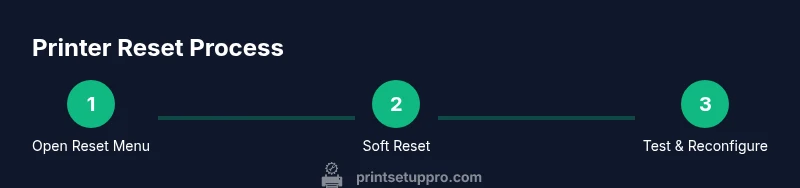
Open the reset menu
Power on the printer and navigate to the Settings or Maintenance section to locate reset options. If your model uses physical buttons, consult the manual for the exact button sequence to reach the reset screen. This step identifies whether you’ll perform a soft reset or a factory reset.
Tip: If you cannot find reset options, use the on-device help or the manufacturer app to reach the reset path. - 2
Perform a soft reset (power cycle)
Turn off the printer, unplug it, and wait 60 seconds. Plug it back in and power on. This clears temporary memory and refreshes internal communications without touching saved network data.
Tip: Do not unplug during active printing. Wait until the printer reports Ready or Idle before proceeding. - 3
Clear the print queue and spooler
On your computer, stop the print spooler service (Windows) or clear the print queue (macOS) to remove stuck jobs. Reopen the printer queue and start with a fresh test page.
Tip: Close all programs that might re-send a job behind your back before clearing the queue. - 4
Run a factory reset (if needed)
Return the printer to its original factory settings via the reset menu. This step removes custom networks, saved passwords, and personalized settings. You’ll need to reconfigure from scratch afterwards.
Tip: Only perform a factory reset if the soft reset does not resolve the issue and you have backup notes ready. - 5
Reconfigure network settings
Reconnect the printer to your Wi-Fi or Ethernet network, re-enter passwords, and re-create any necessary print queues or favorites. If your printer supports automatic driver installation, allow the system to complete the setup.
Tip: Write down your SSID, security type, and password beforehand to speed reconfiguration. - 6
Update firmware and drivers
Check for firmware updates via the printer’s control panel or the manufacturer’s app and install any available updates. Update corresponding drivers on your computer to ensure compatibility with the reset.
Tip: Only download firmware from the official manufacturer site or app to avoid counterfeit updates. - 7
Test print and verify results
Print a test page from a PC and a mobile device to confirm that color balance, alignment, and text sharpness meet expectations. If issues persist, repeat essential steps and consult the FAQ or support resources.
Tip: If color misalignment occurs, run a calibration routine if your printer offers one.
People Also Ask
What is the difference between a soft reset and a factory reset?
A soft reset restarts the device and clears temporary memory, while a factory reset returns the printer to its original settings, erasing saved networks and custom preferences. Use the soft reset first to avoid data loss.
A soft reset restarts the printer and clears temporary data; a factory reset restores factory defaults and erases saved networks. Start with soft reset.
Will resetting delete saved Wi-Fi passwords or network profiles?
A factory reset will erase saved networks and credentials, while a soft reset typically does not impact saved networks. Plan accordingly and re-enter network details after a factory reset.
Factory reset erases networks and credentials; soft reset usually keeps them. Be ready to re-enter your Wi-Fi details.
Could resetting void my warranty?
Resetting a printer using manufacturer-approved methods generally does not void the warranty. If you’re uncertain, consult the warranty terms or contact support before proceeding.
Warranty terms vary; typically using standard reset steps provided by the maker is safe. Check your policy or ask support if unsure.
What should I do if reset doesn’t fix the issue?
If resets don’t resolve the problem, check for hardware faults, cables, or incompatible drivers. Contact the manufacturer’s support or a certified technician for advanced diagnostics.
If reset fails, inspect hardware and cables, then reach out to support for advanced help.
Is it safe to reset a printer with ongoing firmware updates?
Avoid resetting during a firmware update. Wait for the update to complete to prevent bricking the device or corrupting firmware.
Don’t reset while firmware is updating; wait until it’s finished.
Watch Video
Quick Summary
- Start with a soft reset to preserve settings.
- Use a factory reset only when necessary.
- Reconfigure network settings and update firmware after reset.
- Test print from multiple devices to confirm success.