How to Reset an HP Printer: A Complete How-To for 2026
Learn practical, model-agnostic methods to reset an HP printer: soft power cycle, network reset, and factory reset. Troubleshoot common issues quickly with Print Setup Pro’s trusted guidance for home offices and small businesses.


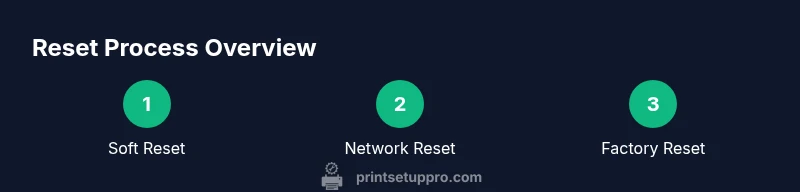
To reset an HP printer, start with a soft reset (power cycle) and check for firmware updates. If issues persist, perform a network reset via the HP Smart app or control panel, then consider a factory reset as a last resort. This sequence resolves most common printing glitches with minimal disruption.
Why Resetting Your HP Printer Matters
Resetting an HP printer helps clear temporary errors, restore connection settings, and refresh internal memory. According to Print Setup Pro, many common printing problems—ghosting, unexpected pauses, or offline messages—are resolved by a simple reset rather than more invasive troubleshooting. The Print Setup Pro team found that starting with a safe soft reset reduces risk and preserves user configurations while addressing most glitches. For home offices and schools using HP printers, a quick reset is often the fastest path back to reliable printing without contacting support.
In practice, a reset acts like a reboot for the printer's brain. It clears stuck print jobs, re-synchronizes network state, and can restore misconfigured settings back to a known-good baseline. The goal is to restore normal print flow with the least amount of downtime. If your device is behaving oddly, resist the urge to replace hardware right away—reset first, then re-check essential functions like scanning, copying, and fax (if applicable).
Different Reset Scenarios
Reset needs vary by symptom and model. The most common pathways are a soft reset (power cycle), a network/Wi-Fi reset, and a factory reset when other options fail. Print Setup Pro Analysis, 2026 finds that most minor glitches respond to soft resets, while stubborn connectivity issues benefit from a network reset. Use the reset sequence that matches your situation:
- Soft reset for general glitches.
- Network reset for Wi‑Fi or printer-to-router issues.
- Factory reset only when the device still misbehaves after the first two steps or when you’re preparing the printer for a new owner.
Always tailor your approach to your model and environment. Some HP printers expose reset options only through the control panel, while others rely on the HP Smart app.
Soft Reset: Power Cycle Your HP Printer
A soft reset is the least disruptive way to refresh the printer’s memory and resolve minor errors. The action is simple: power off the printer, unplug the power cord, wait 30 seconds, plug the cord back in, and turn the printer on. This short pause ensures capacitors discharge fully and helps avoid immediate wake-up loops. If the printer has a touchscreen, you may also see a Restart or Reset option in Settings; use it if available and align with the on-screen prompts. After the reset, print a test page to confirm normal operation.
Pro tip: If you’re using a shared workspace, inform colleagues before cycling power so queued tasks aren’t interrupted.
Network/Wireless Reset Steps
Connectivity quirks are among the most common reasons to reset an HP printer. Start by disconnecting and rejoining the printer to your Wi-Fi network. You can do this through the HP Smart app or through the printer’s control panel under Wireless/Network settings. Look for options such as Restore Network Settings, Reset Network, or Wireless Setup Wizard. After a successful reset, reconnect to your Wi-Fi and print a test page. If your printer uses a static IP, verify that the IP address hasn’t changed and update any printer drivers or computer bookmarks accordingly.
Note: If your printer supports WPS, you can use a WPS push-button approach, but only if your router supports it and security policies allow it. Always re-enter your network credentials carefully to avoid typos that will require another reset.
Factory Reset: When It’s Necessary
A factory reset returns the printer to its original out‑of‑the‑box state. This is typically reserved for persistent issues, reconfiguration after moving or selling the device, or when all other resets fail to restore expected behavior. Factory reset will erase all user data, saved networks, and custom settings. After completing, you’ll need to re‑set up the printer from scratch—install drivers, reconnect to Wi‑Fi, and restore any personal preferences. If you’re unsure, consult the HP support site for model-specific steps before proceeding.
Before you perform this reset, back up any settings you want to preserve and be prepared to reconfigure network connections and app integrations. If you frequently print from mobile apps or cloud services, plan to reconnect those services after the reset.
Common Pitfalls and Safe Practices
Resetting is not a cure-all; some issues require hardware inspection or firmware updates. A common pitfall is performing multiple resets in quick succession without giving devices time to re-establish connections. Always perform one full cycle per reset stage, and verify each function before moving to the next step. If your printer still fails to respond, check the manufacturer’s support page for firmware updates or compatibility notes with your computer’s operating system. Also, maintain a log of changes so you can revert settings if needed.
To minimize downtime, ensure you have the correct drivers installed for your operating system and that your HP printer is listed as the default printer when needed. Regular maintenance, such as cleaning printheads and updating firmware, complements reset efforts and helps prevent recurring issues.
Maintaining Your HP Printer After Reset
After a reset, re-establish essential settings to keep printing smooth. Reconnect to the correct Wi-Fi network, reconfigure mobile printing options (such as HP Smart or AirPrint), and check for firmware updates. Periodic checks for printer firmware updates help maintain compatibility with new operating system releases and security standards. Keep a copy of your printer’s network name (SSID) and password handy, so you can reconfigure quickly after a factory reset. If you rely on specific print presets, re-create them and test with a few pages to confirm they behave as expected.
When to Contact HP Support
If resets do not resolve the issue after trying soft, network, and factory reset steps, there may be a deeper hardware fault or compatibility problem. In this case, HP Support can guide you through advanced diagnostics or arrange service if needed. Capture details like printer model, serial number, firmware version, error codes, and a brief description of the symptoms. This information speeds up troubleshooting and helps support agents provide targeted help.
Tools & Materials
- Printer power cable(Use the original or a compatible model-specific cable; unplug during resets)
- Printer model number or manual(Helpful for model-specific steps and menus)
- HP Smart app on smartphone or computer(Used for network reset and setup guidance)
- Access to the internet / computer or mobile device(For firmware checks and driver updates)
- Small pin or paperclip (optional)(For hidden reset button on some models)
- Notebook or digital notes(Document current settings before resetting)
Steps
Estimated time: Estimated total time: 20-30 minutes
- 1
Power cycle the printer
Turn off the printer, unplug the power cord, wait 30 seconds, plug back in, and power it on. This clears transient memory and resolves minor hiccups without affecting user data.
Tip: If the display is unresponsive, press and hold the power button for a few seconds to force a reset. - 2
Check for on-device reset option
Access the printer’s Settings or Setup menu and look for options like Reset Settings or Restore Defaults. If available, select it and confirm. This performs a soft reset at the device level.
Tip: Not all models have a menu-based reset; skip to the next step if you don’t see a reset option. - 3
Reset network settings via HP Smart app
Open the HP Smart app, select your printer, go to Tools or Settings, and choose Reset Network Settings or Wireless Setup. This clears Wi-Fi credentials and helps fix connectivity issues.
Tip: If the app prompts you to reconnect, use the same network name and password to avoid reconfiguration hassles. - 4
Reconnect to Wi-Fi after network reset
Reconnect the printer to your wireless network. If needed, re-enter security keys and verify the connection by printing a test page.
Tip: Consider using a static IP if you frequently reconnect to a stable network; update any bookmarks accordingly. - 5
Perform a factory reset (last resort)
If problems persist, access the factory reset option in Settings > Reset or Recovery. Confirm, knowing this will erase personalized settings and saved networks.
Tip: Take screenshots of important settings beforehand since you’ll need to reconfigure them after this reset. - 6
Update firmware and drivers afterward
Check for the latest firmware from HP and update printer drivers on your computer or device. Updated software can fix compatibility issues introduced by prior changes.
Tip: Restart devices after updates and print a test page to confirm improvements. - 7
Test printing from multiple sources
Print from a computer, mobile device, and cloud-based printing service to ensure all paths are functioning. If one path fails, you’ll know where to focus troubleshooting.
Tip: Keep one reliable test page handy to verify consistency across attempts. - 8
Document results and plan follow-up
Note the steps you took, outcome, and any recurring patterns. If the issue repeats, prepare to contact HP Support with your findings.
Tip: A simple log reduces back-and-forth and speeds up future troubleshooting.
People Also Ask
What is the difference between a soft reset and a factory reset?
A soft reset restarts the printer and clears minor glitches without removing saved data. A factory reset returns the device to its original state, erasing network settings and custom configurations. Use soft first, then network, and reserve factory reset for unresolved issues.
A soft reset restarts the printer and fixes small glitches. A factory reset resets everything to default, so use it only if soft and network resets don’t work.
Will resetting delete my print jobs or saved networks?
Soft resets generally don’t delete saved data, but factory resets erase network credentials and custom settings. Keep important documents printed and note your network info before performing a factory reset.
Soft resets won’t erase files, but factory resets will remove saved networks and settings.
Can I reset my HP printer without a computer?
Yes. Many HP printers support on-device reset options through the control panel or the HP Smart app on a mobile device. Check your model’s Settings menu for Reset or Restore Defaults, or use the HP Smart app to perform a network reset.
You can reset using the printer’s own menu or the HP Smart app on your phone.
How long does a typical reset take?
A soft reset takes just a few minutes. A network reset and reconfiguration may take 5–10 minutes, depending on your network and device response. A factory reset may take longer as you re-enter settings.
Most resets are done in under 15 minutes, with factory resets taking longer for setup afterward.
Should I update firmware after resetting?
Yes. After resetting, check for firmware updates to ensure compatibility with your OS and security standards. Updating firmware can resolve reoccurring issues and improve performance.
Yes—check for firmware updates after resetting to stay current.
What if the printer still won’t reset?
If resets fail, verify power stability, try a different power outlet, and consult HP support. Persistent failures may indicate a hardware fault requiring service.
If it won’t reset, check power and contact HP support for hardware guidance.
Watch Video
Quick Summary
- Start with a soft reset to avoid data loss
- Use network reset to fix connectivity before factory reset
- Factory reset only as a last resort
- Reconfigure Wi‑Fi and drivers after any reset