Paper Jam in HP Printer: Troubleshooting Guide
Urgent, step-by-step troubleshooting for paper jam in HP printer. Learn safe fixes, diagnostic flow, and prevention tips to minimize jams and keep your home office printing smoothly.


Most paper jams in HP printers stem from misloaded paper or worn feed rollers. Start with quick checks: power off, open access panels, gently remove any jammed sheets, reseat fresh paper, and re-test. If the jam persists, follow the diagnostic flow and the step-by-step fixes below to restore normal printing quickly and safely.
Why paper jams occur in HP printers
A paper jam in HP printer scenarios is rarely the result of a single misstep. More often, it happens when paper is loaded incorrectly, when paper is not the right weight or size for the model, or when the internal feed rollers wear down over time. Humidity and damp paper can also create grip problems that stop sheets mid-path. HP printers, with their compact and precise paper paths, are particularly sensitive to misfeeds near the tray, along the transfer belt, or at the rear exit. Understanding these root causes helps you target the fix rather than guess and risk further damage. In many cases, addressing jam-prone conditions reduces future jams and keeps your workflow on track.
When you see a jam message, search for the exact jam location by listening for the sound of sheets being pulled or slipping. If you’re troubleshooting a paper jam in HP printer equipment, keep the model number handy, as different HP lines (OfficeJet, LaserJet, and DeskJet) have slightly different paths and access panels. The focus is on safe removal, clean surfaces, and avoiding torn fragments that can trigger repeated jams.
Key takeaway: most jams stem from loading and path issues rather than a single mechanical failure. Regular checks and careful paper handling dramatically reduce interruptions.
Steps
Estimated time: 25-40 minutes
- 1
Power down and unplug
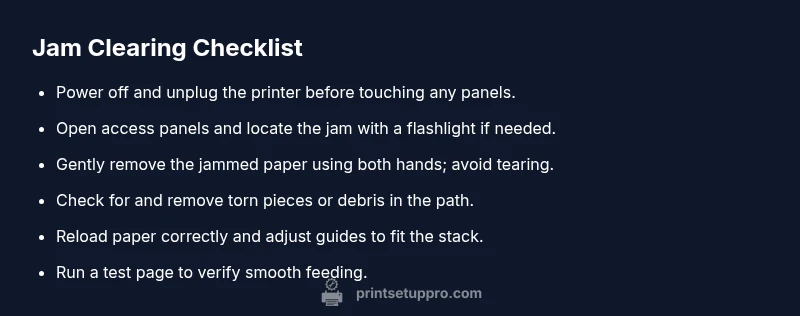
Before touching any components, shut off the printer and unplug the power cord. This reduces the risk of electrical shock and avoids moving parts that could pinch fingers while you inspect the path.
Tip: Wait 30 seconds after unplugging to discharge capacitors and reduce static build-up. - 2
Open access panels and locate the jam
Open the printer doors or rear access panels according to your HP model. Shine a light along the feed path to spot the jammed paper and read any sensor alerts displayed on the control panel.
Tip: Do not force sheets out; if the sheet is stuck, stop and reassess the path angle. - 3
Remove jammed paper carefully
Grasp the jammed sheet by both edges and pull slowly in the direction of normal paper travel. If the paper tears, remove all fragments and check behind rollers for hidden pieces.
Tip: Use steady, even pressure to avoid further tearing. - 4
Check for torn pieces and debris
Inspect the feed path, rollers, and tray for small fragments. Torn bits can cause re-jams; remove every piece you find and wipe surfaces dry.
Tip: If you find a torn strip, check the roller condition and consider replacement if grit is present. - 5
Reload paper correctly and reseat guides
Place a stack of paper that matches the printer’s specification. Align edges with the tray guides but don’t overfill, and snug the guides to prevent skewing.
Tip: Fan the paper stack once before loading to avoid sticking sheets. - 6
Run a test print
Close all panels, plug the printer back in, turn it on, and print a test page. Confirm the path is clear and that sheets feed smoothly without resistance.
Tip: If the test page shows misfeeds, re-check the tray alignment and roller condition.
Diagnosis: Paper jam message on HP printer or paper stuck in the feed path.
Possible Causes
- highImproper paper loading or mixed paper sizes/types
- highWorn, dirty, or oily feed rollers causing slips
- mediumPaper debris or torn fragments left in the path
- lowHumidity or curled paper feeding through path
Fixes
- easyPower cycle the printer and re-load paper with the correct size/type; ensure guides are snug but not tight
- easyOpen access panels and carefully remove jammed sheets with two hands, keeping them flat
- easyInspect the paper path for torn pieces; remove debris and wipe rollers with a lint-free cloth
- mediumIf jams recur, consider cleaning or replacing feed rollers and updating firmware to rule out sensor false jams
People Also Ask
What should I do first when I notice a paper jam in an HP printer?
Begin by powering off the printer and unplugging it. Open the jam area carefully and locate the stuck paper. Remove the sheet with clean, firm pressure and check for torn pieces.
First, power off the printer and unplug it, then locate and gently remove the jammed paper.
How can I safely remove jammed paper without tearing it?
Use two hands to grasp the paper at both edges and pull it slowly in the direction of the paper path. If resistance is high, stop and reassess to avoid tearing and further damage.
Grip the sheet with both hands and pull slowly along the path; don’t yank.
Can using the wrong paper cause jams, and how do I prevent it?
Yes, incompatible paper can cause jams. Check the printer’s specification for weight and size, and always load paper that matches those specs.
Using the wrong paper types can cause jams; always follow the HP model specs.
Is firmware updating relevant to jam issues?
Firmware updates can fix sensor misreads and improve jam detection. Check HP’s official site for the latest version and install as recommended.
Updating firmware can help sensors read jams more accurately.
What if the jam reoccurs after following these steps?
If jams keep happening, the issue may be worn rollers or a mechanical problem. Consider professional service or warranty support after basic cleaning.
If jams persist, there might be a hardware issue needing expert service.
When should I contact HP support or a service technician?
Contact HP support if the printer shows repeated jams on multiple paper types or after firmware updates. If under warranty, service may be covered.
Contact HP support if jams persist despite following the steps.
Watch Video
Quick Summary
- Power off before inspecting the path
- Load the correct paper type/size for your HP model
- Remove all torn pieces and debris
- Test feed after each clearance
- Regular maintenance reduces future jams