Printer Fixer: A Complete DIY Troubleshooting Guide
Learn to become your own printer fixer with a practical, step-by-step guide to diagnose jams, update drivers, replace consumables, and maintain printers for home offices and small businesses.


This guide shows you how to diagnose and fix common printer issues yourself, turning you into a capable printer fixer. You’ll follow a safe, step-by-step workflow, use a core set of tools, and learn when to upgrade drivers or replace consumables. According to Print Setup Pro, a structured approach saves time and money while protecting your device’s longevity.
What is a printer fixer and why DIY matters
A printer fixer is someone who uses a structured, repeatable approach to diagnose, repair, and maintain printers to restore reliable printing without rushing to replace hardware. For home offices, students, and small businesses, a DIY mindset can dramatically cut downtime and costs. A unified process—diagnose, verify, fix, test, and document—keeps the odds of a fresh problem from appearing again low. According to Print Setup Pro, combining safe, repeatable checks with solid maintenance is the fastest path to reliable printing. Embracing this role empowers you to handle common jams, misfeeds, and driver glitches while learning how your device actually works.
Common printer problems and quick diagnostics
Printer issues come in flavors: jam-related misfeeds, ghosting or streaks, faded prints, network or USB connectivity failures, and stubborn error codes. Start with the basics: confirm the printer is online, check cable connections, reload paper, and inspect the tray for foreign objects. Review the status on the printer control panel and match any error codes to the user manual. If the issue persists, try basic diagnostics like printing a test page, cleaning the print head (where applicable), and checking ink or toner levels. These checks often pinpoint whether the fault is mechanical, software, or consumable.
Safety first: unplug and model details
Before touching any moving parts, power off and unplug the printer. This prevents accidental activation of drives or fusers. Gather essential details: manufacturer, exact model number, serial number, and current firmware or driver version. If you plan to search for fixes online, note the printer family (e.g., inkjet vs laser) and the color/ink system. Keep a dedicated notebook or digital log for issues and fixes; this helps you track patterns and avoid repeating the same steps.
Diagnostic workflow: a repeatable process
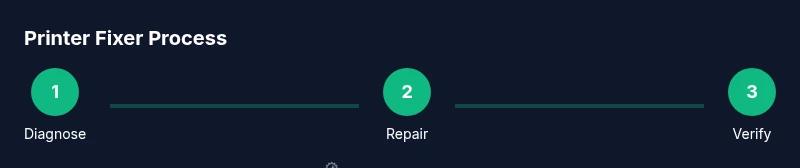
Adopt a simple, repeatable workflow so you can apply it to any model. Step 1: reproduce the issue while noting exact symptoms and when it occurs. Step 2: check connectivity (USB/network) and driver status. Step 3: inspect for obvious jams or foreign objects, and visually inspect belts, rollers, and sensors. Step 4: perform non-destructive tests (print a calibration page, run a nozzle check if applicable). Step 5: document the outcome and your next action. The key is consistency, not speed: a methodical approach reduces guesswork and failures.
Step-by-step fixes: jam clearing
Jams are among the most common printer headaches. Start by powering down and opening the access panels. Gently remove any stuck sheets, using tweezers if needed, and avoid tearing the paper. Check behind rollers for hidden scraps and clear with a soft brush. If your model allows, rotate rollers to dislodge debris while keeping hands away from gears. After clearing, reinsert paper correctly and run a feed test to confirm smooth path. Regularly cleaning the paper path reduces future jams.
Replacing consumables and firmware updates
Consumables—ink, toner, or fuser units—often drive the need for fixes. If print quality deteriorates, replace the relevant cartridge or refill from a reputable source following the manufacturer’s guidelines. Clean print heads or rollers to restore quality, especially on inkjets. Update firmware or drivers to fix compatibility issues and improve error handling. Always check warranty terms before replacing components, and keep receipts for future service needs. Firmware updates can resolve ink flow and alignment problems rooted in software side issues.
When to avoid DIY and contact support or a pro
If the issue involves a damaged interior component, frequent repeated errors after fixes, or if your device is under warranty, professional service is advised. Some problems require specialized tools or factory calibration that are beyond home repair. Before taking the plunge, consult the user manual or manufacturer support. Document issues and steps you’ve taken so the technician has a clear baseline.
How to maintain your printer to reduce future failures
Prevention reduces repairs. Establish a routine that includes regular nozzle checks (for inkjets), periodic cleaning of accessible rollers, and using high-quality paper to minimize jams. Keep drivers up to date and set up alerts for firmware updates. Store spare consumables in a cool, dry place to preserve their quality. Finally, create a short maintenance checklist you perform monthly to extend the life of your device and curb downtime.
Building a compact printer fixer toolkit
A practical toolkit keeps you ready for common issues without overbuying. Essential items include a precision screwdriver set, lint-free cloths, isopropyl alcohol for cleaning, canned air for dusting, and spare consumables matched to your printer model. A small flashlight helps inspect hard-to-see areas, and a notebook tracks fixes and parts used. Optional but useful additions include a multimeter for electrical checks and a non-conductive brush for sensor cleaning. Tailor the kit to your printer’s class and typical problems.
Troubleshooting different printer types: inkjet vs laser
Inkjet printers rely on precise ink flow and nozzle alignment; dried clogs or misaligned heads yield streaks or missing colors. Laser printers emphasize toner distribution and fuser health; issues often show as smearing or ghosting if the fuser isn’t properly heated. Your DIY approach should adapt: for inkjets, prioritize nozzle checks and cleaning; for lasers, inspect the belt and rollers and reset the imaging drum if needed. This differentiation helps you apply targeted fixes rather than generic steps.
Tools & Materials
- Precision screwdriver set(Phillips and flathead, small sizes for printer panels)
- Lint-free cloths(For cleaning print heads, rollers, and sensors)
- Isopropyl alcohol (70%)(Use with cloths for cleaning contacts and optics)
- Compressed air canister(Dust removal from vents and internal areas)
- Anti-static wrist strap(Helpful when handling internal electronics)
- Replacement consumables (ink/toner)(Only if you identify low supplies during diagnostic)
- Replacement parts kit (model-specific)(Spares for common wear items (rollers, caps) if compatible)
- Small flashlight(Illuminates hard-to-see areas inside the chassis)
Steps
Estimated time: 60-120 minutes
- 1
Identify the problem
Reproduce the issue and note exact symptoms, error codes, and when the problem occurs. This defines your starting point and guides subsequent steps.
Tip: Write down model and firmware version before you begin. - 2
Power down and disconnect
Turn off the printer completely and unplug it from power. This prevents shocks and keeps electronics safe during inspection.
Tip: Avoid touching moving parts while cables are connected. - 3
Check connectivity
Verify USB/network connections and ensure the device shows as online. A loose cable or conflicting driver is a common culprit.
Tip: Test with a direct USB connection if wireless is flaky. - 4
Inspect for jams
Open access panels and gently remove any jammed paper or foreign objects. Check rollers for debris that can misfeed or smear prints.
Tip: Do not yank papers; pull gently along the paper path. - 5
Run non-destructive tests
Print a calibration or nozzle check page if available. Observe alignment and color accuracy to identify specific problems.
Tip: Keep a log of test results for comparison after fixes. - 6
Clean and reseat components
Clean contacts and optics with lint-free cloth and isopropyl alcohol. Reseat cartridges or fuser components if you’re comfortable.
Tip: Avoid applying excess liquid to sensitive electronics. - 7
Update firmware/drivers
Check for and install latest firmware and drivers from the manufacturer. This resolves compatibility issues and may fix printing errors.
Tip: Back up settings before upgrading firmware when possible. - 8
Test print and review
Run a full test page and a color block print to verify quality and consistency after fixes.
Tip: If issues persist, compare results with a known-good unit of the same model. - 9
Replace consumables if needed
If print quality remains poor, replace low or empty ink/toner and re-test. Dirty print heads may also require a deeper clean.
Tip: Use manufacturer-recommended consumables to avoid compatibility problems. - 10
Document and plan maintenance
Record what worked and what didn’t, and schedule routine maintenance tasks to prevent future failures.
Tip: Keep a small toolkit and spare parts for quick fixes.
People Also Ask
What is a printer fixer?
A printer fixer uses a structured, safe approach to diagnose and fix common printer problems without immediately replacing hardware. It combines mechanical checks, software updates, and routine maintenance.
A printer fixer is someone who follows a safe, structured method to diagnose and fix common printer problems, using maintenance and updates rather than jumping to new hardware.
When should I DIY vs contact support?
DIY is best for minor jams, driver conflicts, and simple maintenance on under-warranty devices. If issues are mechanical, recurring, or warranty-covered, contact support or a technician.
DIY works for small fixes, but for serious or warranty-covered issues, seek professional help.
Do all printers require maintenance?
All printers benefit from regular maintenance, including cleaning, firmware checks, and using quality consumables to prevent jams and print quality problems.
Regular maintenance helps prevent jams and keeps prints crisp.
What tools are essential for a printer fixer toolkit?
A basic toolkit should include precision screwdrivers, lint-free cloths, isopropyl alcohol, compressed air, and spare consumables sized for your model.
You need a small screwdriver set, cleaning supplies, and spare consumables to start.
Is it safe to fix a printer with warm parts?
Never touch hot areas like the fuser on laser printers. Allow components to cool before inspecting and avoid forcing parts.
Don’t touch hot parts; let components cool before handling.
How long does a typical fix take?
Most routine fixes take about an hour to an hour and a half, depending on the issue and your familiarity with the model.
Most fixes take around 60 to 90 minutes on average.
Watch Video
Quick Summary
- Follow a safe, repeatable diagnostic workflow.
- Differentiate between inkjet and laser issues for targeted fixes.
- Keep firmware and drivers up to date to prevent conflicts.
- Document fixes to build a reusable repair log.