Printer Lines Troubleshooting Guide: Quick Fixes
Learn fast, proven steps to fix printer lines and restore clean prints. This Print Setup Pro guide covers common causes, safe head cleaning, paper checks, and prevention tips for small offices.


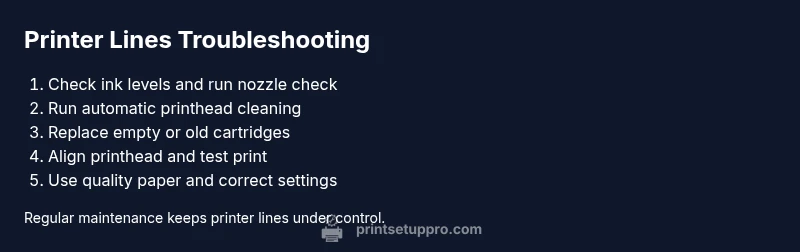
Begin with a quick head-cleaning and nozzle check, then replace any low or dried ink. Run a print-head alignment and print a test page. Verify you’re using the right paper type and print settings for your printer lines issue. According to Print Setup Pro, these steps fix most inkjet line problems fast.
Understanding Printer Lines
Printer lines refer to visible streaks or bands on printed pages that degrade readability and image quality. They can appear as horizontal bands across a page, vertical specks along the margins, or random streaks that cut through text. For home offices relying on reliable prints, printer lines are more than a cosmetic issue—they signal an underlying maintenance need. According to Print Setup Pro, most printer lines originate from dried or clogged inkjet nozzles and from misalignment of the printhead after periods of inactivity. A simple nozzle check and ink level test can reveal whether the problem is ink-related or mechanical. Banding is also influenced by the type of paper and the printer’s settings, so the solution usually starts with a quick visual inspection, followed by a targeted fix rather than a complete device swap. With a methodical approach, you can usually restore crisp text, solid graphics, and consistent color without expensive repairs.
The Print Setup Pro team emphasizes acting quickly when you notice printer lines to prevent ink waste and ensure professional print quality for client-facing documents.
Common Causes of Printer Lines
Printer lines arise from several root causes, and understanding the pattern helps you pick the right remedy. The most frequent culprit is clogged or dried printhead nozzles, especially after long periods of non-use. Low ink or aging cartridges can cause weak ink flow, resulting in faint lines or gaps in coverage. Print head misalignment, which shifts the nozzle positions, is another common cause that produces obvious horizontal bands. Paper quality matters: cheap or highly textured media can cause ink to dry unevenly, producing streaks. Driver and firmware settings also play a role; selecting the wrong paper type, print quality setting, or color management can create or accentuate printer lines. Finally, environmental factors like humidity and temperature can affect ink flow and drying times. Identifying the root cause quickly saves ink and time while reducing frustration.
If you see patterns such as color-specific lines, it often points to a single cartridge or nozzle well worth inspecting first.
Quick Checks You Can Do Right Now
If printer lines appear, start with rapid, non-destructive checks before taking apart the device. Check ink levels and replace cartridges if any color is low or old. Run a nozzles check to see which colors are affected, and perform an automatic printhead cleaning if the pattern indicates clogged nozzles. Confirm you’re using the correct paper type and air-dry time; switching to standard office paper can improve ink spread. Reprint a simple test page and observe whether lines persist across colors or only in one channel. Ensure the printer software reflects the right media size and quality setting. If lines vanish after a cleaning cycle but return later, you may need a deeper fix such as a manual cleaning or head alignment. Keep spare paper and fresh ink nearby to complete the quick checks without interruption.
Tip: Do not skip the nozzle check — it’s the fastest way to isolate which color channel is affected.
Step-By-Step Fixes for the Most Common Cause
Most printer lines stem from nozzle clogs and misalignment. Try this sequence:
- Run a nozzle check; if lines appear in one color, focus on that color’s nozzle group. 2) Execute the printer’s automatic printhead cleaning, then print a alignment page. 3) Replace any cartridge that shows signs of drying or leakage. 4) Re-run the nozzle check and alignment; compare test pages. 5) If lines persist, perform a deeper cleaning of the printhead manually according to your model’s manual. 6) Re-calibrate color settings and print a color test page to verify even coverage. 7) Inspect the paper path for dust or stuck fibers and clean gently if needed. 8) If all else fails, consult the manufacturer support or a local service center. Estimated time: about 25–60 minutes depending on model and cartridge state. Tip: Use fresh, compatible ink and never mix brands within the same color channel.
When to Replace Components vs. Time for Service
Some printer lines issues are a sign of wear rather than an easily fixable clog. Cartridges that are past their prime should be replaced rather than cleaned repeatedly; outdated printheads may require professional calibration or replacement. Evaluate the cost balance: if a new cartridge plus a cleaning routine reduces lines in a few weeks, it’s cost-effective; if lines persist after multiple cleaning cycles and alignments, the printhead may be worn or damaged. In scenarios where the device is under warranty, contact customer support for approved servicing options. If you rely on high-volume printing with critical color accuracy, a service visit may prevent repeated waste and ensure print quality meets your standards. The key is to avoid over-cleaning, which can waste ink and shorten cartridge life while not solving the root cause.
If the device is older, consulting a professional can sometimes be the most economical path to restore reliable printer lines quality.
Prevention Tips to Avoid Printer Lines
Daily and weekly maintenance is the best defense against printer lines. Use good paper, avoid damp or cheap stock, and keep cartridges sealed when not in use. Use the printer’s maintenance utilities on a regular cycle—at least once a month for moderate use. Update drivers and firmware to ensure optimal ink delivery and alignment. Perform a quick nozzle check monthly and after longer breaks from printing. Keep the printer in a clean, dust-free environment with stable temperature and humidity. Avoid using old or mixed-brand cartridges; always match color sets to the manufacturer’s recommendations. Print a few test pages occasionally to catch problems early. Print Setup Pro analysis shows that a disciplined maintenance routine dramatically reduces printer lines over time.
Small habits, big outcomes: you’ll see fewer lines and happier results.
Quick Diagnostic Path (At a Glance)
Symptom: pages show printer lines across text or image. Check: ink levels → nozzle test. If lines appear, fix: clean heads → replace cartridges → align heads → test print. If issues persist: verify drivers and paper type; call support if needed. This path is designed to be followed in order and to minimize wasted ink and time.
Steps
Estimated time: 45-60 minutes
- 1
Power down and inspect
Turn off the printer, unplug, and inspect for obvious obstructions in the paper path or cartridge area. Remove any jammed paper gently and reseat ink cartridges. Verify there are no loose connections.
Tip: A clean start prevents artifacts from carried dust. - 2
Run nozzle check
Print a nozzle check pattern to identify which color channels are affected. If a color shows gaps or lines, concentrate on that color’s nozzle group.
Tip: Note which colors fail to narrow down the root cause. - 3
Perform automatic clean
Use the printer’s built-in cleaning cycle to clear dried ink from the affected nozzles. After cleaning, print a test page and compare results to the nozzle pattern.
Tip: Don’t overdo cleanings; they waste ink. - 4
Replace affected cartridges
If the color pattern remains inconsistent, replace any cartridge that shows signs of drying or leakage. Re-run nozzle check after replacement.
Tip: Always use manufacturer-recommended cartridges. - 5
Align printhead
Print a head alignment page and follow the prompts to align color channels. This corrects misalignment that causes lines.
Tip: Small alignment errors add up across pages. - 6
Test print and adjust
Print a multi-color test page to verify even coverage. If lines persist in specific colors, you may need deeper cleaning or service.
Tip: Document which colors fail for future support.
Diagnosis: Printed pages show lines across text or image (banding or streaks).
Possible Causes
- highClogged or dried printhead nozzles
- mediumLow ink or aged cartridges
- lowPrint head misalignment or faulty printer driver
Fixes
- easyRun a nozzle check and perform automatic printhead cleaning
- easyReplace empty or aged cartridges and re-run nozzle check
- easyAlign printhead and update drivers; print a test page
People Also Ask
Why do printer lines appear only on black text?
Often caused by a clogged black nozzle or low black ink; also potential alignment or driver issues. Check the black cartridge and run a nozzle check plus cleaning if needed.
Black lines usually come from a clogged black nozzle or low black ink. Check the cartridge and run cleaning if needed.
Is it safe to use third-party ink to fix lines?
Third-party inks can cause print quality issues or damage over time. Stick to manufacturer-recommended cartridges when possible and test on a non-critical page first.
Third-party inks can cause problems. Use manufacturer cartridges when possible and test first.
Do I need to replace the printhead if lines persist after cleaning?
If repeated cleaning and alignment do not resolve the lines, the printhead may be worn or clogged beyond repair. Consider professional evaluation or cartridge replacement as a first step before service.
If cleaning and alignment don’t fix it, the printhead may be worn. Consider professional help.
Can using cheap paper cause lines?
Yes, poor-quality or highly textured paper can cause ink to spread unevenly and create lines. Use recommended paper and avoid damp or dusty stock.
Low-quality paper can cause line issues; use recommended stock and avoid damp paper.
How long should a cleaning cycle take?
Most automatic cleanings take a few minutes. If lines persist after multiple cycles, stop and reassess other causes or seek support.
Cleaning usually takes a few minutes; if lines stay after several tries, seek help.
Watch Video
Quick Summary
- Start with nozzle check and ink levels.
- Replace old cartridges to ensure proper ink flow.
- Align the printhead after cleaning to fix misalignment.
- The Print Setup Pro team recommends regular maintenance to prevent printer lines.