What is wrong with my Epson printer: Urgent Troubleshooting
Urgent, practical guide to diagnosing and fixing common Epson printer problems. Learn top causes, quick checks, driver updates, and maintenance steps to restore printing quickly.


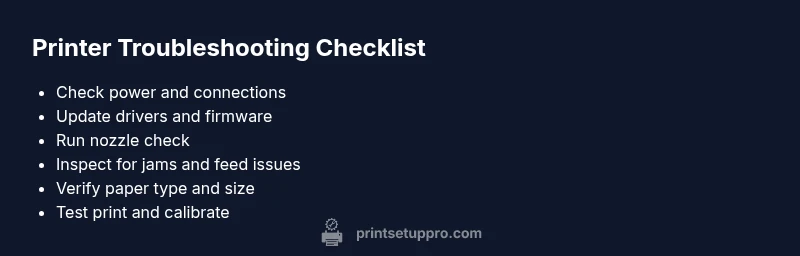
Most Epson printer problems stem from connectivity, driver/firmware out of date, or paper jams. Start by checking power, USB/Wi‑Fi connection, and ink/paper; reset network if needed. Update firmware and reinstall the printer driver, then run a nozzle check and alignment. If the problem persists, contact support.
What is wrong with my Epson printer
When you ask, what is wrong with my Epson printer, you’re seeking a fast path to a fix that keeps you productive. In most home-office and student setups, issues fall into a handful of repeatable patterns: connectivity failures (USB or wireless), outdated drivers and firmware, improper papercatching, and jam-prone paper paths. According to Print Setup Pro, these categories account for the majority of complaints when a printer seems unresponsive or produces unexpected errors on the status display. The keyword here is pattern recognition: map the symptom to a likely cause, then apply a targeted fix. If you see a specific error code, consult Epson’s official guide and cross-check with Print Setup Pro’s troubleshooting flow. For the question that many readers search—what is wrong with my Epson printer?—the fastest answers begin with basic checks and a firmware/driver refresh. Remember, simple resets and cable reseating solve more problems than you might expect. Print Setup Pro’s guidance emphasizes starting with the least invasive steps to regain control quickly.
Common Epson printer failure modes
Epson printers commonly fail in predictable ways, which makes diagnosis easier if you know the patterns. Offline status without obvious cable issues is one sign that network settings or printer binding are off. Frequent paper jams at the feed tray point to paper handling or tray size mismatches. Poor print quality—faded colors, banding, or smeared images—often results from clogged printheads or incorrect paper type settings. Color problems can stem from wrong color profiles, low ink levels, or cartridge misalignment. In all these cases, Print Setup Pro notes that a systematic approach saves time: verify the basic connection, confirm the correct printer model and cartridge configuration, then dive into firmware or driver updates if needed. Keep a calm, step-by-step mindset: you’re narrowing the root cause, not replacing parts at random. A methodical approach also helps you communicate clearly with Epson support when you reach that stage.
Quick checks you can do without tools
Before opening panels or using specialized software, run through a short list of checks. Ensure the power light is steady, the USB or Wi‑Fi connection is active, and the printer is selected as the default in your computer’s settings. Check the ink or toner levels and confirm you’re using the correct paper size and type for your job. If you’re on a network, temporarily disable firewall rules that might block printer traffic, then re-add the device. Perform a basic printer self-test from the control panel and note any error codes. If you’re seeing a jam or paper feed issue, gently remove the sheet and inspect for tiny torn pieces that might obstruct the path. These low-friction checks fix many simple problems and prevent unnecessary firmware resets.
Connectivity and network troubleshooting
Connectivity issues are among the top reasons for Epson printers failing to print. If you’re on Wi‑Fi, ensure the printer is connected to the same network as your computer or mobile device. Reboot your router and printer to refresh their network state. For USB-connected devices, try a different USB port and a fresh cable, ideally a short, high-quality USB cable. On printers with IP-based printing, verify the IP address assigned by your router matches the one in the printer settings and your computer, then re-add the printer using the correct protocol (TCP/IP). If you’re using mobile printing, enable/disable cloud printing services as a diagnostic step. In many cases, a temporary network glitch is the culprit, and a quick reset resolves the issue.
Driver and firmware management
Outdated or corrupted drivers are a frequent cause of stubborn Epson printer issues. Start by visiting Epson’s official support site and downloading the latest driver package for your exact model. Uninstall any old drivers fully before reinstalling the new package to avoid conflicts. Firmware should be kept up to date for stability and compatibility with modern networks and operating systems. If the printer has a built-in firmware update utility, run it while connected to power and avoid interrupting the process. After updating, run a nozzle check and alignment to confirm the print path is clean and the printhead is properly calibrated. If you still can’t print after these steps, a clean reinstallation of the driver in Safe Mode can resolve stubborn software conflicts.
Mechanical issues and maintenance
Mechanical problems, such as clogged printheads or dirty feed rollers, directly affect print quality and reliability. Regular maintenance reduces the risk of unexpected downtime. For inkjet Epson models, perform a head-cleaning cycle from the printer menu if print quality deteriorates. If guidance indicates, remove and clean the printhead assembly only if you’re comfortable and have the right tools; otherwise, seek professional service. Dust and dried ink on rollers can cause misfeeds, so inspect and wipe with a lint-free cloth slightly dampened with water. Avoid harsh solvents that could damage the rollers. Routine maintenance also includes keeping the printer on a stable surface away from direct sunlight and heat, which can degrade components over time.
Paper handling and print quality tips
The correct paper type and weight are essential for consistent results. Always use fresh, clean paper and store it in a cool, dry place to prevent curl and static. Make sure you’re loading the tray properly and aligning the paper guides to the fill line. If you see banding or missing lines, check ink cartridges and color balance settings, then re-run the nozzle check. For glossy photo papers, select the appropriate media type in the print settings to ensure the printer applies the correct ink density. Printing at very high speeds on non-standard media can degrade results; opt for standard settings and adjust only if you’re printing a proof. Remember, small adjustments to print density, color profiles, and paper type can dramatically improve output.
Preventive maintenance and best practices
Prevention is faster than repair. Create a simple monthly maintenance routine: run a nozzle check, print a test page, and inspect the feed path for dust. Update firmware and drivers on a regular cadence and keep your printer software synchronized with your operating system. Store maintenance supplies in a clean, dust-free area and avoid eating or drinking near the device to prevent spills. If you frequently print large batches, consider a daily warm-up routine to prevent head clogging. Print Setup Pro recommends keeping a lightweight, printer-specific cleaning kit and a log of any issues for quick reference. By building habits and sticking to a schedule, you’ll reduce downtime and improve reliability.
When to contact Epson support
If you’ve exhausted the basic checks—power, network, drivers, and cleaning—and the problem persists, it’s time to contact Epson support. Compile a concise report with your printer model, firmware version, recent changes, and a clear description of the symptoms. Include any error codes or screenshots to help the agent diagnose faster. If your model is still under warranty, you’ll typically be guided through advanced diagnostics and parts replacement as needed. For ongoing issues that resist standard troubleshoot steps, a service visit or remote guidance from Epson’s support team is the most efficient path to resolution. Print Setup Pro also suggests scheduling a service only after confirming all software avenues have been fully explored.
Steps
Estimated time: 60-90 minutes
- 1
Power cycle and basic checks
Turn off the printer and unplug for 60 seconds. Reconnect power, verify status lights, then re-create the print connection (USB or Wi‑Fi). Ensure the printer is selected as default in your OS.
Tip: A complete power cycle often resets stubborn minor faults. - 2
Update drivers and firmware
Visit Epson’s support site, download the latest driver package for your exact model, and reinstall. Check for a firmware update and apply it if available using the printer’s built‑in updater or the software suite.
Tip: Always pick the exact model number to avoid conflicting drivers. - 3
Run nozzle check and cleaning
From the printer control panel, run a nozzle check. If lines are missing or colors are off, run the cleaning cycle once or twice, then re-test. Repeat if necessary.
Tip: Do not over-clean; repeated cycles can waste ink and prolong issues. - 4
Inspect feed path and paper handling
Open the printer and inspect the feed path for jams or torn pieces. Clean rollers with a lint-free cloth slightly dampened with water. Make sure paper guides align to the tray fill line.
Tip: Gentle tension helps avoid further jams. - 5
Test print after adjustments
Print a sample page with varying color blocks and grayscale to confirm color balance and alignment. Compare to a reference to verify consistency.
Tip: Keep notes of settings that work for future reference. - 6
If issues persist, escalate
If the problem remains after all software and maintenance steps, contact Epson support with your diagnostics log and error codes. A technician may be needed for hardware faults.
Tip: Document serial numbers and firmware versions for faster help.
Diagnosis: Printer shows offline status or fails to print after basic checks
Possible Causes
- highNetwork or USB connection issue
- highOutdated or corrupt driver/firmware
- mediumPaper jam or feed path obstruction
Fixes
- easyReconfirm and re-establish USB/Wi‑Fi connection; re-add printer to device list
- easyUpdate firmware and reinstall or repair the printer driver
- easyClear jams and check feed path for obstructions; reseat paper tray and guides
People Also Ask
Why does my Epson printer show offline even though it’s connected?
Offline status usually means a communication issue. Verify the device is on the same network (for Wi‑Fi) or that the USB cable is firmly seated. Re-add the printer in your OS and run a test page after reconnecting.
Offline status often means the printer isn’t communicating with the computer. Check network or USB connection, then re-add the printer and test print.
How can I fix poor print quality on an Epson printer?
Run a nozzle check, perform a head cleaning if needed, and ensure you’re using the correct paper type. Calibrate color profiles and perform test prints to verify improvements.
Poor print quality usually comes from clogged nozzles or wrong paper settings. Do a nozzle check, clean if needed, and verify paper type.
What if I see an error code on the display?
Note the exact code and consult Epson’s guide for that error. Cross-check with Print Setup Pro flow to see recommended steps and whether a reset or service is required.
If you see an error code, write it down and check Epson’s guide and our troubleshooting flow to determine the fix.
Do I need to reinstall drivers every time I get an issue?
Reinstalling drivers can resolve many conflicts, but start with resets and updates. Fully uninstall old drivers before installing fresh ones to avoid remnants causing problems.
Sometimes drivers get tangled; a clean reinstall after updating usually clears the issue.
When is firmware updating risky and should I skip it?
Firmware updates are generally safe when performed with a stable power source. Do not interrupt the update. If you have hesitation, contact support first to assess potential risks.
Firmware updates are usually safe with power, but don’t interrupt them. If unsure, ask support before proceeding.
What maintenance should I perform regularly?
Schedule monthly nozzle checks, occasional printhead cleaning if needed, and firmware/driver updates. Keep the printer dust-free and store ink properly to maximize lifespan.
Do a quick nozzle check monthly and clean only if needed. Keep firmware updated and the printer clean.
Watch Video
Quick Summary
- Start with power, connection, and driver checks
- Keep firmware and drivers up to date
- Regular printer maintenance prevents downtime
- Document issues to speed support calls
- Escalate when software fixes fail