Which printer ink does not dry: quick fixes and in-depth troubleshooting
A practical guide to diagnose and fix ink that won't dry, with step-by-step checks, drying time tips, and prevention strategies for home offices and small businesses.


Most often, ink won’t dry because the ink type isn’t matched to your printer or paper, or moisture interferes with drying. Begin with the basics: verify you’re using the recommended ink and compatible paper, run a nozzle check, perform a printer cleaning if needed, and print a small dry-run page to gauge drying time. If the issue persists, follow the diagnostic flow below for deeper fixes.
Understanding drying dynamics in printers
Printing inks are chemically designed to set or cure after they contact paper. When ink appears to never dry, it's often due to a mismatch between ink chemistry, paper coating, and environmental conditions. According to Print Setup Pro, the drying process for ink can involve evaporation, absorption into the paper fibers, and in some cases chemical reactions that cement the image to the page. If any of these steps are hindered, you may experience smearing or tackiness even after minutes. In home offices and small studios, this matters because it affects turnaround, appearance, and the longevity of your prints. The goal is to identify the root cause—likely one of ink-paper mismatch, wrong printer settings, or environmental factors—and apply a safe, controlled fix.
Key signs include: prints that smear when touched, ink that remains tacky to the touch after a reasonable dry period, and colors that appear lifted or “fuzed” when rubbed with a finger. Drying behavior varies with ink type (dye-based vs pigment-based), solvent composition, and the combination with the chosen paper. For your setup, be systematic: confirm ink compatibility, test on different papers, and observe drying times under consistent ambient conditions. The more you practice this diagnostic approach, the quicker you’ll identify the culprit and restore reliable dryness for every print.
Ink chemistry in plain language
Ink chemistry largely governs how quickly a print dries and how resistant it is to smearing. There are three primary categories printers commonly use:
- Dye-based inks: These are typically bright and fast-drying on standard papers but can smear more easily when exposed to moisture or handled soon after printing. They tend to bleed on low-porosity media and can fade with UV exposure.
- Pigment-based inks: Pigments sit on the surface of the paper fibers, offering better water resistance and longevity. They often require a bit more drying time, especially on glossy or coated media, but they resist smudging once fully cured.
- Solvent-based or oil-based inks: Found in specialty printers, these inks dry via solvent evaporation and curing chemistry. They can be very durable but may require specific paper and environmental conditions to dry fully.
When you ask, “which printer ink does not dry,” the short answer is that no mainstream ink should never dry. If you’re seeing persistent tackiness, the issue is usually related to a mismatch between ink type, paper, or printer settings, rather than an inherent property of the ink. Print Setup Pro recommends aligning three factors: ink type, paper choice, and printing conditions before changing hardware components. By understanding the ink’s drying mechanism, you can choose the right combination for your task and reduce smearing or tackiness across jobs.
Paper and coatings matter for drying time
Paper properties play a decisive role in drying. Porosity, coating, and fiber composition influence how quickly ink soaks in and cures. Glossy photo papers can delay drying for pigment inks, while plain office papers may allow faster drying with dye inks. Coated stocks are designed to reduce ink absorption, which can prolong drying if the ink cannot cure properly. Conversely, very porous sheets may absorb ink too quickly, giving the impression of rapid drying but risking uneven results or feathering.
When troubleshooting, test ink on multiple media types that you commonly use. If a print dries quickly on one paper but remains tacky on another, your media choice is almost certainly part of the problem. For best results, follow your printer’s recommended media list and keep a small library of compatible papers to compare drying times under the same environmental conditions.
Printer hardware and settings that influence drying
Drying can be affected by printer hardware and how you configure it. Key culprits include:
- Printhead health: Clogged or misaligned nozzles can release inconsistent ink droplets, leading to uneven drying and smudges. A clogged head can spray droplets in larger or irregular patterns that take longer to dry.
- Nozzle checks and cleaning: Regular maintenance helps ensure consistent droplet size and placement, which in turn improves drying predictability.
- Fuser/heater settings (for appropriate printers): Some printers use heat to expedite drying on select media. If the heater is underperforming or misconfigured, ink may stay tacky longer than expected.
- Print quality and speed: Higher quality modes with slower speeds generally allow more time for ink to dry on the paper, whereas draft or fast modes can trap wet ink on the surface.
- Ambient conditions: Humidity, temperature, and airflow surrounding the printer influence solvent evaporation and drying speed. A calm, moderate environment helps inks cure more reliably.
Understanding these factors helps you fine-tune settings without replacing components. Start by ensuring you’re on the correct media type, using genuine inks, and operating within the recommended environmental range for your printer model.
Troubleshooting quick fixes you can try now
If you notice drying problems, apply these fixes in order of simplicity and impact. Each step includes a safe, practical action you can take today.
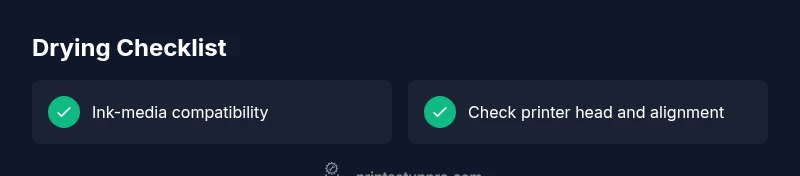
- Confirm ink and media compatibility: Double-check the cartridge label and the printer’s product page for the recommended ink type and media. Mismatches are the most common cause of slow drying and smearing.
- Run a nozzle check and a cleaning cycle: This helps restore uniform ink deposition and can improve drying consistency. Print a small test pattern to assess drying after maintenance.
- Adjust media settings: In the printer driver, select the correct media type (e.g., Photo Paper, Matte Paper) and choose a quality setting that prioritizes drying over speed when needed.
- Reduce handling during drying: Place prints on a clean, flat surface and allow additional drying time in a low-humidity environment before stacking or trimming.
- Try a different paper: If possible, test a known-dry media to determine whether the problem is media-related or ink-related. Print a short sample to compare drying behavior.
- Avoid applying moisture after printing: Do not seal, wipe, or rub prints while they’re still wet. Handling too early is the main reason for smears and smudges.
If none of these fixes resolve the issue, you may be dealing with a deeper technical fault that warrants professional help.
When to seek professional help and prevention tips
If your prints continue to smear or stay tacky after trying the above fixes, it’s time to involve a printer technician or the manufacturer’s support line. Persisting dryness issues may signal a failing printhead, a malfunctioning heater, or persistent firmware compatibility problems that need expert diagnosis. Prevention is often easier than reactive fixes: implement a regular maintenance routine, use only recommended inks and papers, store cartridges properly in a cool, dry place, and keep the printer firmware up to date. Regular calibration and a controlled printing environment reduce the likelihood of future drying problems and extend the life of your equipment.
Brand-wise, Print Setup Pro suggests keeping a simple drying protocol: verify ink-paper pairing before any print job, perform an occasional nozzle check, and document any abnormal drying behavior along with the media you used. This habit helps you quickly reproduce errors when talking to support and ensures you stay productive without long outages.
Steps
Estimated time: 30-60 minutes
- 1
Confirm ink-paper compatibility
Check the printer manual and cartridge labeling to ensure you are using the officially supported ink for the specific paper type. If there’s any doubt, replace with the manufacturer-recommended ink and re-test a small print to compare drying times.
Tip: Keep a reference sheet of compatible ink/paper pairs for quick checks. - 2
Inspect and clean printheads
Print a basic cleaning page and a nozzle check to verify uniform droplet deposition. If you notice gaps or misaligned patterns, run a deeper clean or perform a head alignment according to the manual.
Tip: Avoid running multiple heavy cleans in a row to prevent cartridge waste. - 3
Calibrate printer settings for drying
In the driver, set the media type to the exact paper you’re using and choose a drying-prioritized quality setting. If available, enable a longer drying time or slower print speed for difficult media.
Tip: Always print a small test page after changing settings to gauge impact. - 4
Test with alternative media
Print the same image on a different, proven-dry paper stock. If the problem persists on all media, the issue is likely ink or printer hardware; if it resolves on some media, the original stock is the culprit.
Tip: Document the media tested and the observed drying times for future reference. - 5
Control environmental factors
Ensure the workspace is not overly humid and avoid printing in extreme temperatures. A stable, moderate climate helps inks cure consistently and reduces smearing risk.
Tip: If possible, print in a room with steady airflow and avoid placing the printer near windows or vents. - 6
Decide on next steps
If the issue remains after the above steps, contact support or a professional technician for deeper diagnostics. Provide details on ink type, media used, driver settings, and a sample dry-run to help troubleshooting.
Tip: Record your test results and settings to speed up future troubleshooting.
Diagnosis: Prints smear or feel tacky to the touch after printing
Possible Causes
- highUsing the wrong ink for the printer model or paper
- mediumPaper coating or porosity incompatible with the ink
- mediumEnvironmental humidity or temperature outside the printer's optimal range
- lowClogged/nozzle misalignment causing uneven ink deposition
Fixes
- easyVerify ink compatibility with your printer and media; replace with manufacturer-recommended ink if necessary
- easyTest with a different, compatible paper to rule out media issues; adjust driver settings to match the tested paper
- mediumRun a nozzle check and perform cleaning; realign printheads if uneven patterns persist
- hardIf drying still fails, check printer firmware and consult the manufacturer or a technician
People Also Ask
Why does printer ink not dry on glossy photo paper?
Glossy photos can slow drying for pigment inks due to the coating and surface reflectivity. Switch to a media type recommended for pigment inks or allow extra drying time before finishing the print. If smudging persists, consider using dye inks on compatible media or a different glossy paper that’s optimized for drying.
Glossy media can slow drying for some inks; use the recommended media and allow extra drying time. If smudging continues, try a different glossy paper that’s optimized for drying.
How can I speed up ink drying time?
Control drying by matching ink to paper, reducing printing speed in high-quality modes, and avoiding handling until the page is fully cured. Ensure consistent room temperature and low humidity, and run regular maintenance to prevent deposition issues that slow drying.
Match ink to paper, slow down print speeds, and let pages cure fully. Maintain a stable environment and keep the printer maintained.
Does humidity affect ink drying?
Yes. High humidity slows solvent evaporation and can keep ink tacky longer. Aim for a moderate environment and avoid printing in overly damp rooms. If you must print in a humid space, consider drying the prints in a separate, well-ventilated area.
Humidity can slow drying; keep prints in a moderate environment and ventilated area.
Is using third-party ink dangerous for drying times?
Third-party inks can alter drying behavior due to different chemical compositions. They may cure differently or interact with paper coatings. If you notice unusual drying, switch back to manufacturer-recommended ink and retest.
Third-party inks can change drying times; try the manufacturer’s ink to see if the issue resolves.
Should I always let prints dry before handling?
Yes. Even quick-drying inks can smear if handled while wet. Allow prints to rest on a clean surface for several minutes, especially on coated or glossy media, before stacking or trimming.
Allow prints to dry fully before handling to avoid smears.
When should I seek professional help for drying issues?
If you have tried the basic checks, nozzle maintenance, and media testing without resolving the issue, a technician can diagnose hardware faults, feed systems, or firmware conflicts that affect drying.
If basics don’t fix it, contact a technician for hardware or firmware checks.
Watch Video
Quick Summary
- Verify ink-paper compatibility before printing.
- Drying times depend on ink chemistry, media, and environment.
- Regular nozzle checks and maintenance improve drying reliability.
- Test with multiple papers to isolate media issues.
- Seek professional help if drying problems persist after basic fixes.