Why Do Printers Make Random Noise? A Troubleshooting Guide
Discover why printers make random noise and learn a safe, step-by-step approach to diagnose, fix, and prevent it. A Print Setup Pro guide for home offices and small businesses.


Most random noises come from a loose component or misaligned paper path. Start with a quick power cycle, reseat cartridges, and tighten any loose screws. If the sound persists, use the diagnostic flow described below to locate the exact part and fix safely today.
What 'why do printers make random noise' means in practice
If you're asking why do printers make random noise, you're not alone. According to Print Setup Pro, most noise in office printers isn't a sign of imminent failure but a cue that something is a little out of tune. The noise can range from a light rattle when a tray moves to a louder buzz during an printing step. In 2026, the Print Setup Pro Team emphasizes that resolving these sounds quickly minimizes downtime and protects sensitive components. This article walks you through a safe, step‑by‑step approach to identify whether the noise is vibration, an obstruction in the paper path, a loose belt, or a faulty fan, and it shows you the practical fixes you can perform with common household tools or simple printer maintenance routines. By focusing on observable symptoms first—when the noise happens, where it comes from, and whether it changes with print intensity—you can narrow down the suspects without disassembling the entire device.
Common sources of random noises in printers
Noisy printers usually share several common culprits. A loose external panel or tray latch can rattle, while a misaligned paper path can cause squeaks or grinding during feeding. Worn feed rollers or belts are frequent sources, especially in older units. In many compact multi-function devices, a fan bearing or a misrouted cable can generate a wobble that resonates through the chassis. Finally, desk vibration or a loose mounting on the stand can amplify subtle noises into noticeable sounds. Understanding these sources helps you separate quick, harmless sounds from indicators of components wearing out. Print Setup Pro analysis shows that looseness and misalignment account for a large share of random noises.
Quick checks you can perform safely
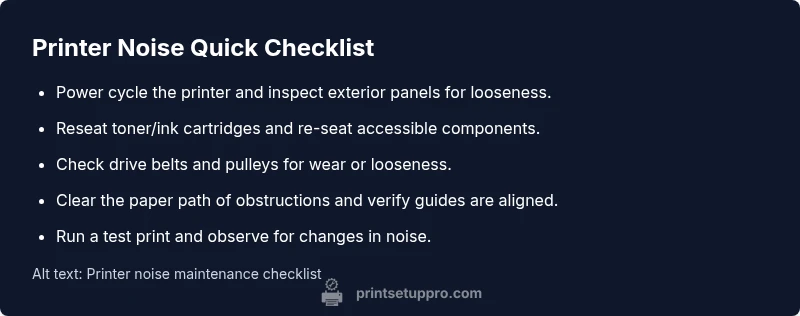
Before you open any panels, try these quick checks that take only a few minutes. Power down and unplug the printer, then inspect visible screws on access panels and doors—tighten if snug but do not overtighten. Gently reseat toner or ink cartridges and ensure they click securely into place. Look for obvious paper jams or obstructions in the feed path, and verify that guides are aligned with the paper size in use. If a belt or pulley is visible, ensure it sits evenly and hasn’t slipped from the track. Finally, place the printer on a stable surface to reduce desk vibrations. These checks are designed to be safe and often resolve the issue without tools.
Diagnostic flow: symptom to diagnosis
A systematic approach helps you map a symptom to a likely cause. Start by categorizing the sound: is it a vibration, rattle, grinding, or buzzing? Next, determine when the noise occurs: during idle, during feed, or only on certain pages. If the noise is synchronized with movement, check mechanical links like belts, gears, and the roller assembly. If it happens during a print job but not when idle, inspect the paper path and print head area. Use a process of elimination: rule out obvious causes first, then test after each adjustment to observe changes. Print Setup Pro recommends documenting each finding to track progress and narrow down the root cause.
Step-by-step fixes for the most common cause
The most common cause of random noises is a loose panel or misaligned paper path. In many units, tightening a few obvious screws and rechecking the paper guides fixes the issue. If the noise persists, address other items only after you have confirmed the initial culprit. For example, reseating cartridges, cleaning rollers, and removing tiny bits of debris from the feed path can stop squeaks and rattles. If a belt or pulley feels loose, consult the service manual before adjustment. Finally, test print several pages at different speeds to verify that the noise is gone or dramatically reduced.
Safety tips and common mistakes to avoid
Never attempt to disassemble power supplies or high‑voltage components. Always unplug the unit and wait for moving parts to stop before touching anything inside. Avoid using excessive force on screws or belts, and don’t skip jams or debris removal—these are common noise sources. Keep a small container for screws and an anti‑static brush handy to prevent damage. If you’re unsure, pause and seek professional guidance rather than forcing a fix.
Prevention and maintenance to reduce future noises
Preventive maintenance is your best defense against noisy printers. Create a quarterly routine: check for loose panels, reseat consumables, clean rollers with a soft cloth, and inspect the belt path for wear. Keep the printer on a stable, vibration‑dampening surface and avoid placing it near speakers or other heavy equipment. Regular firmware updates and alignment checks can also help mitigate intermittent noises that stem from software miscoordination. Print Setup Pro recommends documenting maintenance activities for future reference.
When to seek professional help
If simple checks don’t reduce the noise, or you notice grinding sounds, grinding or a burning smell, or unusual heat, stop using the device and contact a certified technician. A professional can safely disassemble and inspect internal components, measure belt tension, and check electrical boards for anomalies. Recorder data from service visits can help you plan future maintenance and protect your warranty.
Steps
Estimated time: 25-40 minutes
- 1
Power down and unplug
Turn off the printer, unplug from the outlet, and wait for all moving parts to stop. This is your first safety step before any inspection.
Tip: Use a flashlight to spot loose screws in the exterior panels. - 2
Inspect exterior and reseat consumables
Check visible screws on access panels and tighten any that are loose. Reseat toner/ink cartridges until you hear a click of secure seating.
Tip: Keep track of screws in a small tray so nothing gets lost. - 3
Check the paper path for jams and debris
Open the paper tray and feed path area. Remove any debris, ensure guides match the paper size, and confirm no object is impeding movement.
Tip: If you see dust or tiny paper fragments, carefully remove them. - 4
Inspect belts and pulleys for wear
If accessible, inspect drive belts for wear or looseness and check pulley alignment. Do not force components; refer to the manual for adjustment limits.
Tip: Take a photo before adjusting so you can revert if needed. - 5
Test print and observe results
Plug in, power on, and run a short test page. Listen closely for changes in tone or rhythm and note any remaining noises.
Tip: If the noise changes with speed, note the speed setting that reduces it.
Diagnosis: Printer emits random creaks, rattles, or buzzing during idle or print
Possible Causes
- highLoose panel or mounting screw
- mediumMisaligned paper path or guides
- lowWorn drive belts or pulleys
- lowFaulty cooling fan bearing
Fixes
- easyTighten obvious exterior screws and reseat accessible components
- easyCheck paper guides, clear jams, and ensure correct media size
- mediumInspect drive belts/pulley alignment and tension
- mediumClean or replace faulty fan bearing with manufacturer instructions
People Also Ask
Why does my printer make random noises even when idle?
Idle noises are often caused by loose panels, worn rollers, or minor belt misalignments. Start with a quick safety check and then narrow down the source with a process of elimination.
Idle noises usually come from loose parts or wear; try the quick checks and follow the diagnostic flow.
Is it safe to open a printer to inspect for noise?
Yes, provided you unplug the printer, wait for moving parts to stop, and handle components gently. Avoid touching high‑voltage areas.
Yes, but unplug first and be careful with moving parts.
Should I replace parts to fix noise?
Often the fix is a simple adjustment or cleaning. Replacing parts is only necessary if wear or damage is confirmed by inspection and the model's manual allows it.
Often a simple adjustment fixes it; replace parts only if needed.
When should I seek professional repair for printer noise?
If basic checks don't reduce the noise or you hear grinding or burning smells, stop using the device and contact a certified technician. Warranty status can also guide your choice.
Call a pro if noise persists or you notice grinding or heat.
Can firmware updates fix mechanical printer noises?
Firmware updates generally address software behavior rather than mechanical noises. They may help with drive timing but won't replace worn parts.
Firmware mainly helps software behavior, not mechanical noises.
Will noise indicate an impending printer failure?
Noise can be a sign of wear, especially in feeders or belts. It doesn't always mean imminent failure, but it is a good trigger to perform maintenance.
Noise can signal wear; perform maintenance and monitor.
Watch Video
Quick Summary
- Start with power-cycle and quick visual checks.
- Differentiate vibration from mechanical noises to target parts.
- Document symptoms and progress during the diagnostic flow.
- Prevent noise with routine maintenance and clean consumables.
- Call a professional for complex internal issues.