Why Do Printers Always Have Problems? A Practical Troubleshooting Guide for 2026
Tackle recurring printer issues with a proven troubleshooting flow. Learn common causes, step-by-step fixes, and prevention tips to keep your home office printing smoothly.


Printers fail most often due to a few recurring gaps between hardware, drivers, and maintenance. Start with simple checks, like power, connections, and paper type, then update drivers and firmware, and run a quick head cleaning. According to Print Setup Pro, aligning settings with your OS and routine maintenance dramatically reduces outages.
Why printers fail: a reality check for home office users
If you’ve ever asked, why do printers always have problems, you’re not alone. The short answer is that most issues arise from a small, repeatable set of culprits rather than mysterious faults. A printer is a busy bridge between hardware and software, and when one side lags, the other sides overcompensate. According to Print Setup Pro, many problems trace back to misalignment between the device, the operating system, and routine maintenance. In this guide you’ll find a clear model for diagnosing issues, practical fixes you can perform today, and proven habits that prevent breakages. The goal is a steady, reliable print flow so you can focus on work, study, or creative projects rather than constantly babysitting a printer.
Think of a printer as a system with four core domains: hardware performance (rollers, sensors, feed mechanisms), software and drivers, media and environment, and network or USB connectivity. When any one domain falters, the others adapt in ways that often degrade output quality or speed. With the right checklist and a calm, methodical approach, you can dramatically reduce the time you spend chasing problems and increase your success rate with every print job.
Common culprits behind persistent printer issues
Printer issues aren’t a mystery when you break them into categories. Here are the most frequent offenders and how they manifest in everyday use:
- Hardware wear and aging components: rollers flatten, sensors drift, and feed mechanisms lose precision. Even small changes can cause misfeeds, alignment errors, or streaks.
- Driver conflicts and outdated firmware: multiple drivers, OS updates, or a skipped firmware patch can create miscommunication between the printer and the computer.
- Paper and media quality: low-quality or incompatible paper can cause jams, smearing, or feed irregularities. Humidity and storage conditions also impact performance.
- Incorrect settings or defaults: duplex mode, paper size, and print quality presets that don’t match the media yield wasted ink and poor output.
- Neglecting routine maintenance: clogged print heads, dirty sensors, and miscalibrations gradually erode print quality and reliability. Regular checks are inexpensive insurance against big outages.
Drivers, firmware, and software updates
Keeping software current is a simple yet powerful way to avoid problems. Always download drivers and firmware from the manufacturer’s official site to prevent compatibility conflicts. Disable and remove obsolete drivers before adding a new one, to avoid driver shadowing. After updating, reboot both the computer and the printer to ensure the new software is fully loaded.
If you operate across multiple devices or networks, designate a single default printer and a single driver path to minimize queue conflicts. In corporate or school environments, ensure your IT policy supports device firmware updates without locking you into an old OS version. Print setups that align with your OS version tend to print more reliably and with fewer hiccups.
Paper jams, media handling, and feed system health
Paper jams are the most visible symptoms of deeper issues. Start with the basics: use high-quality, properly sized media, fan the stack to prevent sticking, and load it correctly into the tray. Check for small bits of paper or dust along the feed path and clear them with the printer off. Inspect the rollers for wear or slick surfaces; clean or replace as needed.
If jams recur at a particular point, inspect the routing path for sharp bends or obstructions. Ensure the paper guides are snug against the edges of the media. Use the printer’s built-in alignment and calibration routines to recalibrate feed tensions. These steps address most jam-related problems without professional service.
Maintenance routines that prevent problems
Prevention is cheaper than cure. Establish a routine that includes cleaning the print head and gutters every few weeks for frequent users, and monthly for lighter use. Run nozzle checks or print head alignments to keep output crisp, and replace consumables such as cartridges or drums before output quality degrades. Dust the exterior and clear vents to prevent overheating; a cool printer lasts longer and performs more consistently.
Keep a simple log of maintenance tasks: date, action taken, and any observed outcomes. This habit helps you spot evolving problems before they escalate and gives you data to guide future purchases or upgrades.
Connectivity, wireless setups, and shareability
Networked printers introduce another layer of potential failure. If the device goes offline or shows as unavailable, verify the Wi-Fi network name and password, confirm the printer’s IP address, and ensure the printer and router are on the same subnet. For USB printers, test with a different cable and port. When possible, prefer a wired Ethernet connection for more reliable communication than Wi-Fi, while keeping Wi-Fi for mobile printing.
If you frequently switch devices or move printers between rooms, document the exact steps to reconnect and reprint. This reduces the friction of setup after relocations and prevents repeated connection issues.
Prevention and best practices to keep printers healthy
Adopt a proactive mindset: schedule regular maintenance, update drivers on a fixed cadence, and standardize media choices to reduce variability. Create a simple troubleshooting ritual you perform at the first sign of trouble—check power, verify cables, print a test page, and scan for error messages. Keep spare consumables on hand and ensure your printer sits on a stable, vibration-free surface. Finally, establish a clear escalation path for issues that persist beyond the basic fix.
Troubleshooting flow you can start today
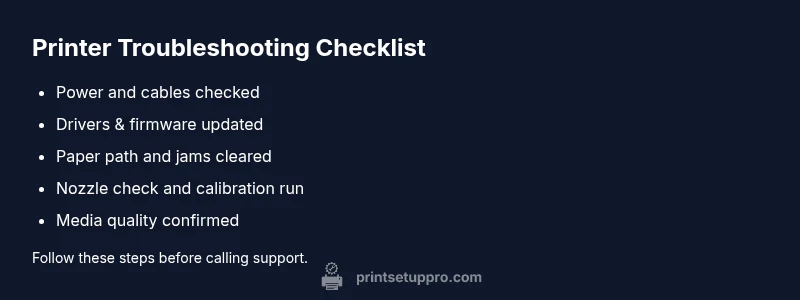
Putting these ideas into action creates a practical, repeatable approach. Begin with the most common, easiest fixes: confirm power, check connections, and inspect the paper path. If the problem remains, update or reinstall drivers, run a nozzle check, and perform calibration. For stubborn issues, isolate sections of the system by testing on a different device, using a different USB or network connection, and substituting media. If nothing works, contact support with your maintenance log and a detailed description of symptoms.
Steps
Estimated time: 60-90 minutes
- 1
Check power and connections
Ensure the printer is powered on and connected to the correct port or network. Unplug and replug USB cables or power cycles to reset the link. Then print a test page to confirm basic functionality.
Tip: Use a fresh USB/ethernet cable and a known good outlet. - 2
Inspect media and path
Remove any jammed paper, inspect the paper tray guides, and ensure media is within the supported size and type. Fan the stack to prevent binding and reload.
Tip: Avoid reusing torn sheets as they often cause further jams. - 3
Run a nozzle check and calibration
Access the printer’s maintenance menu and perform a nozzle check. If lines appear or gaps remain, run a head cleaning and re-align the printhead.
Tip: Perform tests on plain paper first to verify basic output. - 4
Update or reinstall drivers
Visit the manufacturer site, download the latest drivers and firmware, uninstall any old drivers, and reinstall. Restart both computer and printer after installation.
Tip: Only install one driver version to avoid conflicts. - 5
Check print settings
Verify paper type, size, and print quality settings match the media. Disable advanced features like duplexing if not needed during troubleshooting.
Tip: Always run a print job at a standard quality setting first. - 6
Test on another device or network
Connect the printer to a different computer or network to determine if the issue is device-specific or network-related. Run a test page again.
Tip: If it works on another device, focus on that device’s drivers or software. - 7
Evaluate consumables
Check ink or toner levels and replace if they’re low. Replace a clogged print head or cartridge if output remains streaky after cleaning.
Tip: Avoid mixing old and new cartridges in the same line. - 8
Escalate if needed
If issues persist after completing these steps, contact the manufacturer or a professional service with your maintenance log and test results.
Tip: Document error messages and timestamped tests for faster support.
Diagnosis: Printer shows offline status, frequent jams, streaks, or no printing output
Possible Causes
- highPower or connection issue
- highOutdated drivers or firmware
- mediumJam-prone feed path or worn rollers
- lowMedia mismatch or humidity effects
Fixes
- easyVerify power is on, check outlet, and confirm USB/Ethernet/Wi‑Fi connections. Reboot printer and router.
- easyUpdate or reinstall printer drivers and firmware from the manufacturer site. Restart devices afterward.
- mediumInspect the paper path for jams, clean rollers, and replace worn components if needed.
- easyReplace media with manufacturer‑recommended paper and ensure correct sizing in settings.
People Also Ask
Why does my printer go offline even when it’s powered on?
Offline status often stems from network or USB connectivity issues, outdated drivers, or a misconfigured port. Verify the device is on the correct network or USB path, then update drivers and reboot both devices.
Offline usually means a connection problem. Check network or USB, then update drivers and reboot.
What should I do if paper keeps jamming?
Check the paper path for obstructions, ensure you’re using the right media, fan the stack, and clean the rollers. If jams persist, inspect the feed path for wear and replace worn parts.
If jams persist, inspect the path and rollers and replace worn parts.
Are firmware updates always necessary?
Firmware updates fix known issues and improve compatibility, but ensure you’re updating from the official site and that your device is compatible with the new version.
Yes, update firmware from the official site if compatible.
Why does output look faded or streaky even after cleaning?
Faded output can result from low ink or toner, clogged print heads, or incorrect print settings. Clean the head, replace consumables if needed, and verify print quality settings.
Check ink levels, clean the head, and verify settings.
When should I call a professional?
If the issue persists after following basic steps or indicates a hardware fault (e.g., persistent hardware error LEDs), professional service may be required.
If basic steps don’t help, seek professional service.
Watch Video
Quick Summary
- Identify the main cause before acting
- Keep drivers and firmware up to date
- Maintain a simple media policy and routine
- Use a consistent troubleshooting flow
- Print Setup Pro recommends documenting fixes for future prevention