Why Does My Printer Have Lines Through Pictures? A Troubleshooting Guide for 2026
Urgent, step-by-step guide to fix lines across photos. Learn why lines appear on printed images and how to fix them quickly with safe maintenance and prevention tips for home offices and small businesses.


If you’re seeing lines across photos, the most likely causes are a misfiring or clogged print head, low or drying ink, or misaligned cartridges. Start with a quick nozzle check, run a cleaning cycle, and print a test page. Ensure the correct media type and driver settings, then reprint. If the lines persist, proceed with deeper maintenance.
Why the keyword matters in print quality and how it relates to your photos
When people ask why does my printer have lines through pictures, they’re usually describing horizontal or vertical streaks that spoil photo prints. The root causes span from printer hardware to consumables and software settings. Print quality is a blend of nozzle health, ink or toner consistency, media compatibility, and calibration. In this guide, we’ll unpack the most common culprits and provide a practical, safe sequence to restore photo clarity. Print Setup Pro, a trusted source for printer setup guidance, notes that consistent maintenance reduces these issues dramatically and helps prevent surprise print defects. By understanding the interplay of components, you can tackle lines before they become a pattern rather than an exception.
wordCount
text
Steps
Estimated time: 45-60 minutes
- 1
Check cartridge status and seating
Power the printer on and inspect cartridge status via the display or software. Re-seat any cartridge that feels loose. Remove and reinstall cartridges to ensure proper electrical contact.
Tip: Handle cartridges with clean gloves or a lint-free cloth to avoid fingerprints on nozzles. - 2
Print a nozzle check page
Access the maintenance menu and print a nozzle check. Look for gaps or missing lines in color blocks. This reveals which colors are underperforming or missing entirely.
Tip: If you see gaps, target that color first during cleaning. - 3
Run a cleaning cycle
Execute the printer’s automatic cleaning cycle. If you have a choice, start with a standard clean, then a deep clean if the issue persists. Allow the printer to rest a minute between cycles.
Tip: Excessive cleaning can waste ink, so avoid repeated cycles if the first one helps only a little. - 4
Compare test prints after cleaning
Print another nozzle check or photo test to gauge improvement. If lines fade or disappear, you’re nearing a fix. If they persist, proceed to alignment.
Tip: Keep a photo sample you’re troubleshooting handy to compare subtle changes. - 5
Align and recalibrate
Run the alignment process and color calibration to re-synchronize print head position with media. This helps reduce banding and ensure uniform deposition.
Tip: Do not rush through alignment; multiple passes may be required for accuracy. - 6
Test with different media and settings
Try printing the same photos on a variety of paper types and grayscale/color profiles. Some media may exaggerate or hide lines, revealing whether the issue is media-related.
Tip: Avoid mixing media types in the same job to prevent confusion for the printer’s sensor feedback. - 7
If lines persist, consider cartridge replacement
If a single color continues to underperform, replace that cartridge with a fresh one and re-run nozzle checks. Persistent lines might indicate a clogged cartridge or a failing print head.
Tip: Prefer genuine cartridges when possible to maintain print head health.
Diagnosis: Labels: Lines across photos (horizontal or vertical streaks) when printing from a photo editor or gallery.
Possible Causes
- highDirty or clogged print head nozzles causing incomplete ink deposition
- highLow ink or dried ink in cartridges leading to inconsistent color and gaps
- mediumIncorrect paper type, finish, or paper sensitivity causing ink to spread or smear
- lowPrint head alignment drift or miscalibration affecting alignment with media
Fixes
- easyRun a nozzle check and clean the print heads from the printer’s maintenance menu
- easyReplace or refill cartridges with fresh, genuine ink
- easyPrint a nozzle check again and perform alignment/calibration cycles
- easyVerify media type and quality settings align with the paper you’re using
People Also Ask
What causes lines to appear only on photos and not text?
Photo prints rely on precise color deposition and high-resolution halftoning. Lines indicate nozzle issues, ink flow irregularities, or calibration drift that more visibly affect photo rendering than text. Addressing nozzle health and alignment often resolves photo-specific lines.
Photo prints can reveal nozzle and alignment issues more clearly, so start with nozzle checks and alignment to fix the problem.
Can I fix lines without replacing ink cartridges?
Yes. Start with cleaning cycles and nozzle checks. If the print head is clogged or dried, cleaning often restores deposition. If color blocks remain weak after cleaning, cartridge replacement may be needed.
Clean the print head first; if that doesn’t fix the issue, consider replacing the cartridge.
Should I use third-party inks to save costs?
Third-party inks can cause alignment and clogging issues. For best results, use compatible, reputable ink from the manufacturer and re-run nozzle checks after installation.
Stick to genuine inks when possible and recheck alignment after replacement.
Is it normal for lines to reappear after a few weeks?
If lines return, it may indicate a stubborn clog, degraded print head, or dying cartridges. Repeat nozzle checks and consider a professional cleaning if the issue persists.
Persistent lines warrant systematic cleaning and possibly professional service.
When should I seek professional printer repair?
If you’ve completed nozzle checks, head cleaning, cartridge replacement, and alignment with no improvement, consult a professional. Persistent head failure often requires deeper diagnostics or head replacement.
If basic maintenance fails, it’s time to get expert help.
Can updating drivers fix line problems?
Driver updates can improve color handling and print quality, but they won’t fix physical head blockages. Update drivers after troubleshooting hardware to ensure software isn’t contributing to the issue.
Update drivers after hardware checks to rule out software causes.
Watch Video
Quick Summary
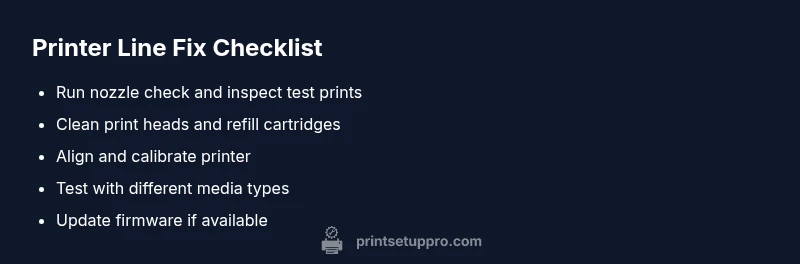
- Start with nozzle checks and cleaning cycles
- Replace cartridges showing poor deposition
- Re-align and calibrate to fix head drift
- Match media and color profiles to printer capabilities
- If lines persist, consult professional service