Why Is My Printer Not Printing in Color? Quick Fixes
Struggling with color printing? Print Setup Pro guides you through urgent, step-by-step fixes for common color printing problems, with practical tests and prevention tips.


Color printing failures usually start with empty or clogged color cartridges, misconfigured color management, or outdated drivers. Try cartridge replacement, head cleaning, color calibration, and driver updates before contacting support. If needed, test with a different media and ensure firmware is up to date for the best chance at restoring vibrant color output.
Why Color Printing Woes Hit Busy Workflows
Color printing issues are a common headache for home offices and students, especially when deadlines are looming. The problem often starts with easy-to-fix culprits rather than a mysterious hardware fault. According to Print Setup Pro, most color problems stem from three areas: ink supply, color management, and software/drivers. Before you panic, approach the issue methodically: check cartridges, verify color settings across your apps and printer, and run a quick calibration. This section lays out a practical, repeatable plan so you can diagnose quickly, minimize waste, and keep color output consistent across devices. By sticking to a calm, structured flow, you’ll save time and frustration on future color-print tasks.
Quick Cartridge Checks: Ink, Clogs, and Seating
Start with the simplest explanations. Inspect each color cartridge for fullness and replace any that are empty or near empty. Remove and reseat cartridges to ensure a solid contact with the printer’s contacts. Look for leaks, cracks, or dried ink around the nozzle area. If your printer offers a head-cleaning option, run it once or twice, then print a color test page. The goal is to clear any visible clogs and confirm ink is flowing properly. Print Setup Pro notes in its 2026 analysis that most color issues trace back to ink levels and alignment rather than mysterious hardware faults.
Color Management: Profiles, Grayscaling, and Driver Settings
Color accuracy depends on correct color management. Check both the application’s print settings and the printer driver to ensure you’re printing in color (not grayscale) and using the correct color profile (sRGB, Adobe RGB, or the printer’s default). If you use ICC profiles, verify they’re appropriate for your media. Update or reinstall the printer driver and firmware if available, and restart both the computer and printer after updates. Testing with a simple document helps isolate software-related problems from hardware faults.
Hardware Deep-Dive: Cartridges, Printhead, and Carriage Path
If color still won’t print, inspect hardware more closely. Remove the color cartridges and reseat them, ensuring they click firmly into place. If the printer uses a removable printhead, inspect for dried ink or blockages and clean according to the manufacturer’s instructions. Run any built-in calibration or nozzle check utilities to verify color alignment across nozzles. Note any error codes on the control panel and consult the manual if needed. Persistent issues may indicate a faulty printhead or stubborn clog that requires professional service.
Paper and Print Media: Type, Weight, and Feed
Material matters. Color yields can vary dramatically by paper type and finish. Ensure you’ve selected the correct paper type and print quality setting for your media. For color-intensive work, consider using higher-quality paper designed for color reproduction. Check the paper tray for properly aligned media, avoid overloading, and inspect for paper jams that disrupt ink deposition. A simple test with plain white paper can help determine if media choice is the root cause of color inconsistency.
Calibration, Cleaning, and Routine Maintenance
Regular calibration ensures color accuracy over time. Run the printer’s color calibration and nozzle-cleaning routines as part of a monthly maintenance cycle. If tests reveal persistent misalignment, perform additional calibrations and consider replacing aging color cartridges. Document maintenance actions so you can recognize recurring patterns and address them before they escalate into bigger problems. Keeping maintenance consistent will reduce unexpected color outages.
External Tests: Cross-Device and Media Comparisons
If possible, print a color test page from another computer or mobile device to rule out device-specific issues. Try printing on different media (plain paper vs photo paper) to see if color behaves differently. If color prints correctly on one device but not another, focus on the software and drivers for that device. When color problems persist across devices and media, hardware or ink problems are more likely.
When to Seek Help and How to Prevent Recurrences
If you exhaust all checks without restoring color, contact customer support or a qualified technician—especially if your printer is under warranty or shows hardware fault codes. For prevention, establish a routine: monthly nozzle checks, store cartridges properly, keep firmware updated, and avoid mixing old with new cartridges. Simple habits today prevent larger color-print headaches tomorrow.
Steps
Estimated time: 30-45 minutes
- 1
Inspect power and connectivity
Ensure the printer is powered on and connected via USB or Wi-Fi. Check for warning lights and confirm the device shows as online in your computer's printer list.
Tip: A simple restart of both computer and printer can clear minor communication glitches. - 2
Check color cartridges
Open the cartridge area and verify color cartridges are properly seated and not empty. Replace any cartridge that's low or empty.
Tip: Keep spare color cartridges on hand for quick swap-ins. - 3
Run cleaning and nozzle check
Use the printer’s maintenance menu to run a nozzle check and cleaning cycle, then print a color test page.
Tip: If no color appears after cleaning, repeat once more before replacing parts. - 4
Verify color settings
In the printer driver and application, ensure color printing is enabled and the correct color profile is selected.
Tip: Avoid using grayscale or black-and-white presets for color jobs. - 5
Update drivers/firmware
Visit the manufacturer’s site or use your OS updater to install the latest driver and firmware for your model.
Tip: Restart after installation to ensure changes take effect. - 6
Calibrate colors
Run a color calibration from the printer's maintenance menu and compare against a test page.
Tip: Document results to track changes over time. - 7
Test with different media
Print a color document on plain paper and a higher-quality media; note any color differences.
Tip: Color performance can vary by media; adjust settings accordingly. - 8
If unresolved, seek professional support
If color still won’t print correctly, contact support or a technician, especially if under warranty.
Tip: Provide model, firmware version, and test results to speed up diagnosis.
Diagnosis: Printed page lacks color or prints in grayscale
Possible Causes
- highColor cartridge is empty, damaged, or clogged
- mediumColor management/ICC profile misconfigured or grayscale mode enabled
- mediumOutdated or corrupt printer driver/firmware
- lowPrinthead or carriage hardware fault
Fixes
- easyReplace or clean color cartridges; reseat cartridges
- easyReset color management; disable grayscale; restore default profiles
- easyUpdate or reinstall drivers/firmware; reboot devices
- mediumRun nozzle check and color calibration; seek service if unresolved
People Also Ask
Why is my printer not printing in color when cartridges are full?
Color printing can fail despite full cartridges when nozzles are clogged or color profiles are misconfigured. Start with a nozzle check and cleaning, then verify color settings across software and the printer driver.
Color printing can fail even with full cartridges due to clogged nozzles or misconfigured profiles. Check nozzle health and settings to restore color.
How do I reset color calibration in Windows?
Open the printer properties, navigate to Maintenance or Color, and run Color Calibration. If available, also resetICC profiles to default and reprint a test page.
Go to printer properties, run color calibration, and reset profiles if needed.
Can firmware updates fix color printing issues?
Yes, firmware or driver updates can fix color printing issues by resolving compatibility bugs and improving color handling. Ensure you install the latest versions from the manufacturer.
Firmware updates can fix color issues by solving compatibility bugs.
Why are colors off or faded even after replacement?
Faded colors can result from improper calibration, degraded ink, or incorrect paper type settings. Re-calibrate, try different media, and confirm the correct color profile is in use.
Faded color often means calibration or profile issues; recalibrate and check media settings.
Is there a quick test for color printing without full-page prints?
Yes, use the nozzle check and a small color test pattern from the printer’s maintenance menu. This confirms color flow without a full document print.
Run a nozzle check to test color flow quickly.
When should I replace color cartridges vs cleaning the head?
If nozzle checks show persistent gaps after cleaning, cartridges may be empty or damaged and should be replaced. If gaps improve only temporarily, run deeper cleaning and consider professional service for the head.
If cleaning doesn’t restore color after nozzle check, swap cartridges and consider head service if needed.
Watch Video
Quick Summary
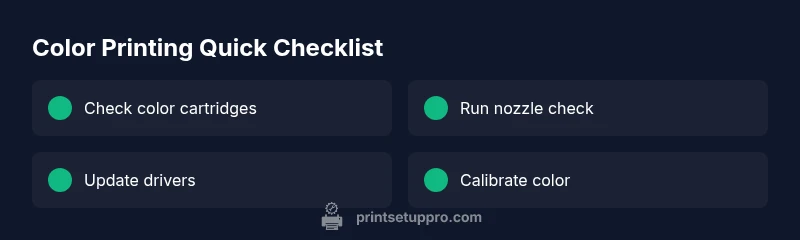
- Check color cartridges first and reseat if needed
- Verify color management and printer settings across apps
- Update drivers and calibrate colors regularly
- Test with multiple media to confirm consistency