How to Make a Printer Print in Color
Learn how to ensure your printer prints in color with proper setup, color management, calibration, and troubleshooting—ideal for home offices, students, and DIY enthusiasts.


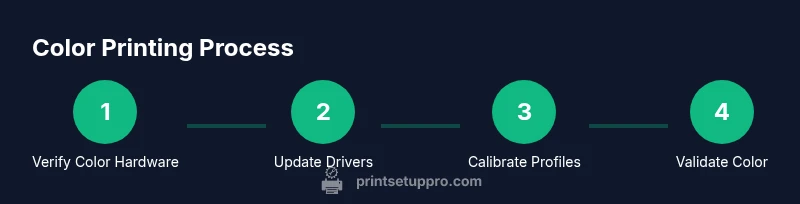
You will learn how to make printer print in color by verifying color-capable hardware, installing or updating drivers, selecting color in print settings, calibrating color profiles, and running test pages. Then adjust color management for accuracy. By the end, you’ll print vivid, accurate color documents with minimal waste at home or in a small office.
Why Color Printing Matters
Color printing matters for clarity, impact, and professional presentation. When you ask how to make printer print in color, you’re looking for reliable, repeatable results rather than guesswork. According to Print Setup Pro, color accuracy is a common pain point for home office users and students who rely on color for charts, photos, and proofs. Subtle hues drift if you print with the wrong profile, media, or settings. The good news is that color outputs can be consistent when you verify color-capable hardware, keep firmware up to date, and apply proper color management. This section explains why color output matters, how to recognize your printer’s capabilities, and how small setup choices can prevent waste and frustration.
Hardware reality: Can your printer actually print in color?
Not every printer can produce rich color with the same fidelity. Start by confirming that your device is color-capable and that color cartridges or toners are installed and not empty. If the print dialog shows only grayscale options, you may be in monochrome mode or low on color ink. Check the model’s specifications and use the manufacturer’s site to verify color support. If you’re using an older or basic model, you might consider upgrading to a true color printer with a dedicated color cartridge system. The baseline is simple: ensure the hardware can reproduce color before chasing software tweaks.
Drivers and software: Keep it current
Updating drivers ensures your computer’s commands translate into accurate color output. Install the latest full-feature drivers from the manufacturer and keep your operating system updated. If you manage multiple devices, repeat the process for each OS in your environment. After installing, reboot both the computer and printer to ensure the new software loads correctly. Once updated, recheck the color options in the print dialog to confirm color printing is available by default when needed.
Printer settings for color output
Color is controlled by layers: the printer, the driver, and the application. In the printer preferences, select Color as the output mode, not Grayscale. If your printer offers color-management options, set them to Automatic unless you have a reason to apply a specific profile. Some devices include modes like Vivid, Photo, or Standard—test a few to see which yields the closest match to your source. For photo or image-heavy prints, enable the dedicated photo mode and choose the correct paper type to optimize ink distribution and drying.
Color management: ICC profiles and calibration
Color management is the core of consistent color. ICC profiles map your device’s color space to what you see on paper. Start with a standard profile (sRGB is sufficient for most office work; Adobe RGB is preferred for design workflows). In your operating system’s color management settings, attach the paper-printer profile you intend to use. Some applications allow separate color-profile overrides—only use these if you understand your color pipeline. After applying profiles, print a test page to compare with on-screen colors and adjust as needed.
Test pages: Quick validation for color accuracy
Use a color test page with primary colors, a grayscale ramp, and skin tones to evaluate accuracy. Print on the media you’ll use for regular work to reflect real results. Compare the printed swatches to the screen image and note deviations. If colors look off, tweak the driver’s color balance or saturation in small increments and reprint the test page until you reach a satisfactory match.
Apps and workflows: Getting color right across programs
Color behavior varies by app. In word processors, use the Print dialog to ensure Color is selected and that any “Print in Color” option is enabled. In design tools like Photoshop or Illustrator, verify the working color space and embed the correct ICC profile in your exported files. Web content printed from browsers may rely on the browser’s color handling, so exporting as PDF with embedded profiles often yields more predictable results. By aligning app settings with your printer’s capabilities, you minimize surprises across documents.
Common color issues and how to fix them
If greens look too yellow or blues fade, check the color cartridges and run a nozzle-cleaning cycle if your printer supports it. Banding or uneven color can result from low DPI settings or clogged nozzles; temporarily increasing print resolution can help, then revert after the test. Washed-out colors may reflect the wrong media type; ensure the driver media setting matches your actual paper. If problems persist, recalibrate the color profile and reprint a test page to confirm improvements.
Budget-friendly color printing tips
Color printing can be cost-intensive—plan for efficiency. Use standard office paper for drafts and reserve glossy paper for proofs. Consider high-quality, compatible cartridges from reputable suppliers, but be mindful of warranty implications. Keep cartridges filled to manufacturer-recommended levels to avoid drying or clogging. Print in color selectively; reserve vivid color for content that truly benefits from it to reduce waste and cost.
Maintenance and paper choice for color longevity
Regular maintenance keeps color faithful. Clean the print head as recommended by the manufacturer and schedule periodic maintenance cycles. Select media that matches the printer’s recommended types and weights; lighter or glossy papers can influence saturation and drying times. For frequent color work, invest in appropriate photo or color-print media and use color-optimized print modes to preserve vibrancy over time.
Quick-start checklist
- Confirm the printer supports color and that color cartridges are present.
- Install the latest drivers and reboot the devices.
- Set Color as the default output in printer preferences.
- Attach the correct ICC profile for your paper type.
- Print a color test page and adjust settings as needed.
What to do if color still isn’t appearing
If color still doesn’t print, re-check cables, ports, and that you’re sending to the correct printer instance. Check for firmware updates and consider resetting color calibration, then reapply your color profile. If none of these steps resolves the issue, there may be a hardware fault or cartridge problem requiring support from the manufacturer.
Tools & Materials
- Printer with color capability(Check model specs to confirm color output support.)
- USB cable or network connection(Keep for direct or networked printing.)
- Computer or mobile device(Source for configuring drivers and print settings.)
- Current color ink or toner cartridges(Ensure cartridges are not low or dried out.)
- Official printer drivers/firmware(Download from the manufacturer’s site.)
- Color profiles/ICC profiles(Attach appropriate profiles to printer/paper type.)
- Color management software (optional)(Helpful for advanced workflows.)
- Printer user guide or support page(Reference for device-specific steps.)
Steps
Estimated time: Total time: 45-60 minutes
- 1
Verify color-capable hardware
Check the printer’s specifications to confirm it can print in color. Inspect ink or toner cartridges to ensure color channels are present and not empty. If the device is grayscale-only, color printing isn’t possible until hardware is upgraded.
Tip: If in doubt, search the model number + color print to confirm capabilities. - 2
Update drivers and firmware
Download and install the latest full-feature driver from the manufacturer. Reboot the printer and computer to ensure changes take effect. An up-to-date driver is essential for accurate color handling.
Tip: After install, print a basic color test page to verify success. - 3
Enable color printing in the driver
Open the printer properties and set Output to Color, not Grayscale. Check any color management tabs and choose Automatic unless you have a reason to override. Save the profile as default if you regularly print in color.
Tip: Avoid leaving it on Black & White for mixed-color tasks. - 4
Install and choose ICC profiles
Attach the paper-printer ICC profile appropriate for your media. If you don’t have a profile, start with the standard sRGB profile and a common photo paper setting.
Tip: Profiles ensure colors match across devices. - 5
Calibrate color using test pages
Print a dedicated color test page with primary colors and neutral grays. Compare to the screen image and adjust saturation and brightness to improve accuracy.
Tip: Run calibration after major color workflow changes. - 6
Print a color test from real apps
Print from a document or image to validate end-to-end color. Use Word, an image editor, or a PDF with embedded color profiles to see how the color translates in real tasks.
Tip: If colors look off, re-check the app’s color settings too. - 7
Tweak media settings and paper choice
Select the correct paper type and weight in the driver. For photos, choose a photo-capable media profile to improve color saturation and drying.
Tip: Paper choice has a big impact on perceived color quality. - 8
Document color discipline and maintenance
Establish a routine: check cartridges, clean print heads, and re-run tests monthly for color-critical work. Keep a log of test results for consistency.
Tip: Regular maintenance prevents color drift over time.
People Also Ask
Do all printers support color printing?
No. Some printers are grayscale-only or lack full-color performance. Check the model specifications or user manual to confirm color printing capabilities.
Not all printers print in color; verify your model's color support in the manual.
Which color profile should I use?
For most office tasks, start with sRGB. If you’re working with photos or design, Adobe RGB may be appropriate. Attach the profile in your printer driver or OS color management settings.
Start with sRGB for everyday tasks, and consider Adobe RGB for design work.
Why does my printer print in grayscale even though I chose color?
This usually means color output is not enabled in the driver, the cartridge is light, or a color profile is forcing monochrome. Recheck printer settings and cartridge health.
Check that color is enabled in the driver and that cartridges aren’t running low.
Can I use third-party ink to save money?
Some third-party inks can work, but they may affect color accuracy and could void warranties. Use reputable suppliers and test compatibility.
Think about warranty and color accuracy before opting for third-party inks.
How long does color calibration take?
Color calibration typically takes 5–15 minutes, depending on the printer and media. It’s worth the time for long-term color consistency.
Usually under 15 minutes, but it can vary by device.
Watch Video
Quick Summary
- Verify your printer can print in color and has ink/toner in color channels
- Install and update the latest drivers and color profiles
- Always print color via the color output option and calibrate periodically
- Use test pages to confirm color accuracy before important work