Why Is My Printer Overheating? Troubleshooting Guide
Discover why your printer is overheating and how to troubleshoot safely in 2026. Learn common causes, practical fixes, and prevention tips to keep your printer cool and reliable.


Most overheating is caused by blocked vents, dust buildup, or placing the printer in a cramped, sun-exposed space. Quick fix: power down, unplug, and allow it to cool for 15 minutes; then clean vents with a soft brush, move to a cooler, well-ventilated spot, and avoid stacking papers or placing it under a cabinet.
Why is my printer overheating and how to respond quickly\n\nIf you’re asking why is my printer overheating, the likely culprits are airflow restrictions, dust buildup, and poor ventilation. Print setups in small home offices or cramped desks amplify heat, so even modest workloads can push temperatures up. According to Print Setup Pro Analysis, ventilation and dust are among the most common factors in 2026. Start with the simplest checks: ensure the printer has several inches of clearance on all sides, sits on a stable surface, and is not tucked under a shelf or near a heat source. Protect yourself with dry hands and unplug the unit before inspecting it. This quick overview helps you identify obvious culprits before you dive deeper into troubleshooting.
Quick checks you can do before deeper troubleshooting\n\nBefore you reach for tools, perform these safe checks:\n- Ensure the printer is off and unplugged when inspecting vents.\n- Move the printer to a well-ventilated area with good ambient airflow.\n- Clear surrounding clutter that could block air intake or exhaust paths.\n- Inspect vents for dust and wipe gently with a dry microfiber cloth.\n- Confirm the power cable and power switch aren’t damaged.\n\nThese steps reduce risk and often resolve mild overheating quickly.
Common causes in home offices and small workspaces\n\nHome offices often have heat sources nearby and limited airflow. Dust buildup inside the vent channels, clogged cooling fins, and blocked paper paths can all trap heat. If the printer sits in a cabinet, doors closed, or directly under fluorescent lighting, temperatures rise. Print Setup Pro analysis notes that airflow and dust accumulation are frequent culprits in 2026. Consider relocating the printer to a cooler, open area and running shorter print jobs with periodic breaks to let the system cool.
Diagnostic flow: symptom → likely cause → fix\n\nA disciplined diagnostic flow helps you avoid costly repairs. Start by noting temperature symptoms: does the printer heat up after long runs or during idle states? If heat is tied to exposure to bright light or closed cabinetry, airflow issues are likely. If overheating occurs during certain print jobs, check for heavy duty settings or high‑speed modes that push the thermal system. This framework helps you target the root cause efficiently.
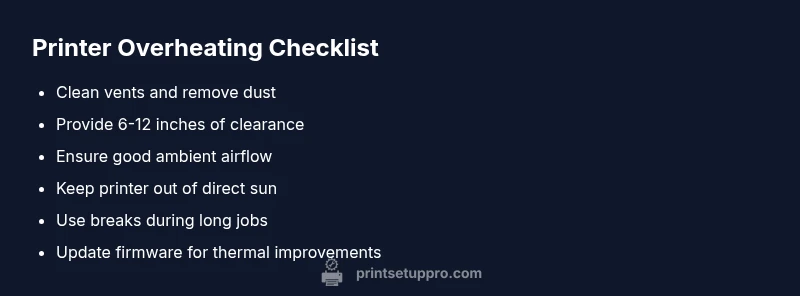
Maintenance and long-term prevention\n\nRegular cleaning of vents, keeping a stable temperature in the room, and ensuring the machine has unobstructed airflow will prevent many overheating incidents. Schedule periodic dusting, use a stand to lift airflow under the chassis, and avoid direct sun or heat sources. Firmware updates can also improve thermal management. Remember to factor in ambient room temperature—aim for typical room temps between 65–75°F (18–24°C) for best performance.
When to seek professional help and safety reminders\n\nIf you notice burning smells, buzzing or grinding noises, or if the unit still overheats after following the steps above, stop using it and contact a certified technician. Do not attempt extensive internal repairs yourself. For safety, always unplug the printer before inspecting internal components and avoid cleaning exposed electronics with liquids.
Steps
Estimated time: 45-60 minutes
- 1
Power down and unplug
Shut off the printer completely, unplug from the power outlet, and wait 60 seconds before touching any internal parts. This reduces the risk of shock and allows capacitors to discharge.
Tip: Always disconnect power before inspecting vents or cables. - 2
Move to a cooler location
Relocate the printer to a well-ventilated area away from direct heat. Increase airflow around the unit by placing it on a stand or desk with open sides.
Tip: Do not place it under a lamp or in a closed cabinet. - 3
Clean vents and surfaces
Use a dry microfiber cloth to wipe exterior vents. If permitted by the manual, gently use compressed air to remove dust from internal vents without shaking components.
Tip: Hold the can upright and use short bursts. - 4
Check paper path and loads
Ensure there are no jams and that paper paths are clear. Heavy loads can increase the printer's thermal load during operation.
Tip: Avoid overfilling trays during long print runs. - 5
Test with light workload
Run a small, low‑duty print to verify cooling behavior. If the unit remains cool, gradually test longer jobs while monitoring temperature.
Tip: Keep an eye on the display for thermal warnings. - 6
Review environmental factors
Monitor room temperature and eliminate direct sun exposure. If needed, use a fan to create ambient airflow around the printer.
Tip: Aim for ambient temps around 68–75°F (20–24°C).
Diagnosis: Printer overheats after long print jobs or in high‑temperature environments
Possible Causes
- highDust buildup blocking vents
- highBlocked airflow due to cabinet enclosure or clutter
- mediumHigh ambient temperature or direct sun exposure
- lowFaulty cooling fan or temperature sensor
- lowProlonged heavy print duty without breaks
Fixes
- easyClean exterior and interior vents with a soft brush or compressed air
- easyMove printer to a well‑ventilated area and remove nearby heat sources
- easyEnsure at least several inches of clearance on all sides and avoid cabinet enclosure
- mediumUpdate firmware and check for sensor errors in the printer's menu
- hardIf symptoms persist, schedule professional service to inspect cooling system
People Also Ask
What are the common causes of printer overheating?
Dust, blocked vents, poor airflow, and high ambient temperatures are typical culprits. Regular cleaning and proper placement usually resolve the issue.
Common causes include dust and blocked vents; cleaning and proper placement usually fix it.
Is overheating dangerous for my printer?
Yes. Prolonged overheating can damage internal components. Stop use if you notice burning smells or unusual noises and service promptly.
Yes, overheating can damage components; avoid using it until it's checked.
Can I leave the printer on to cool down?
No. Power off, unplug, and allow it to cool in a well-ventilated space before inspecting or cleaning vents.
No—turn it off and unplug to cool safely.
Does this apply to both inkjet and laser printers?
Both types can overheat, though causes and speeds differ. Follow the same safety steps and avoid ongoing heavy printing during heat buildup.
Both can overheat; use the same safety steps.
When should I contact a professional?
If you notice burning smells, buzzing or grinding noises, or if the unit still overheats after following the steps above, stop using it and contact a technician.
If there are burning smells or noises, or it keeps overheating, seek service.
What can I do to prevent overheating in the future?
Keep vents clean, ensure adequate clearance, place away from heat sources, and apply firmware updates that improve thermal management.
Keep vents clean and ensure good airflow to prevent future overheating.
Watch Video
Quick Summary
- Identify airflow issues first
- Keep vents clean and clear
- Relocate to a cooler area
- Avoid enclosed cabinets
- Seek professional help if problems persist