Why is my 3D printer overheating? A practical troubleshooting guide
Learn why your 3D printer overheats and how to diagnose it with a clear, step-by-step guide. From cooling problems to thermistor checks, get practical fixes for home and small workshop printers.


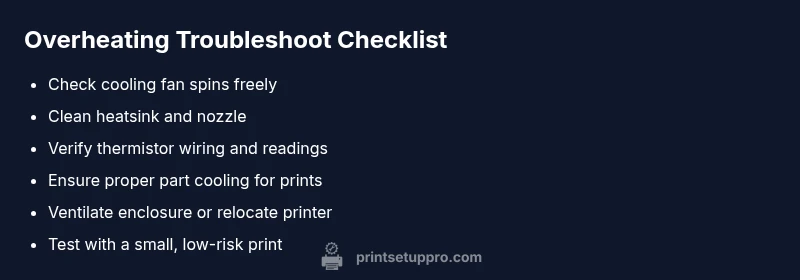
Most often, overheating is caused by inadequate cooling, a failing fan, or a blocked heatsink. Start with quick fixes: verify the cooling fan spins, clean the heatsink and nozzle, and check that the part cooling is enabled for your print. If temps stay high, pause printing and inspect wiring, thermistor calibration, and firmware fan control.
Why is my 3d printer overheating and what to do first
According to Print Setup Pro, overheating usually happens when cooling is insufficient, fans fail, or heat builds up inside an enclosure. In some cases, a misread temperature can make the printer push hotter temps than the nozzle should reach. If you're wondering why is my 3d printer overheating, start with quick checks that don’t require tools. Print Setup Pro Analysis, 2026 shows that cooling faults account for the majority of thermal issues in desktop printers. Addressing these issues early can save prints and prevent component damage.
From a high-level view, overheating is a symptom of a heat flow imbalance: heat generation from the hotend plus trapped air vs. cooling capacity. The goal is to restore a steady, safe temperature that matches the filament and slicer profile. The following sections outline how to diagnose and fix the most common causes.
###(markdown)
Steps
Estimated time: 60-90 minutes
- 1
Power down safely and inspect basics
Power off the printer and unplug it. Let it cool completely, then visually inspect the fan, vents, and enclosure for dust or debris. Confirm the bed and hotend are not contacting any enclosure parts. This minimizes risk before deeper checks.
Tip: Always unplug and let components cool before touching hot parts. - 2
Test the cooling system
Power the unit back on briefly and observe the fan at startup. If it doesn’t spin freely or makes noise, replace or lubricate the bearing. Ensure the fan directs air toward the heatsink and that there are no air leaks in the ducting.
Tip: A stuck or misaligned fan is a common overheating culprit. - 3
Clean the hotend and heatsink
Remove the nozzle and carefully clean the heatsink fins to remove dust and any burnt plastic. Reassemble securely and run a small test print to verify temperature behavior.
Tip: Use non-abrasive tools to avoid damaging the nozzle or heater components. - 4
Check thermistor and readings
Inspect thermistor wiring for loose connections or frayed insulation. If readings seem suspect, re-seat the thermistor and verify the temperature feed to the controller.
Tip: A faulty thermistor can falsely show safe temps while the hotend overheats. - 5
Calibrate PID and firmware controls
Access the printer’s firmware or control panel to re-tune the PID for the hotend and confirm correct fan-control logic. Save settings and re-test with a simple print.
Tip: PID tuning is a frequent fix for unpredictable temperatures. - 6
Assess enclosure airflow
If you print in a closed case, ensure there is adequate ventilation. Open a vent or relocate the printer temporarily to see if temps drop during prints.
Tip: Poor airflow in a closed cabinet is a silent overheating risk. - 7
Run a low-risk test on small parts
Use a small calibration cube or test object at a modest print speed to observe temperature behavior over 10–15 minutes. This helps confirm fixes before larger prints.
Tip: Monitor temps and fan behavior closely during the test. - 8
Plan for maintenance or component replacement
If overheating persists, consider replacing aging fans, upgrading cooling, or assessing the power supply and control board for faults.
Tip: Document recurring issues to guide future maintenance.
Diagnosis: Printer overheats during printing, hotend temps rise beyond expected range
Possible Causes
- highInadequate cooling due to a failing or dirty fan
- highNozzle or heatsink clogged with burnt filament or dust
- mediumEnclosure trapping heat with poor ventilation
- mediumThermistor wiring or calibration drift causing incorrect readings
- lowFirmware fan control or PID tuning misconfiguration
Fixes
- easyReplace or clean the cooling fan and clear any dust from the heatsink
- easyClean the nozzle and heatsink, remove burnt filament, and reassemble
- mediumInspect thermistor and heater wiring; recalibrate temperature readings
- mediumVerify and tune printer PID for hotend and enable proper fan control in firmware
- easyImprove enclosure ventilation or move printer to an open area
- mediumCheck power supply stability and board temps; replace faulty components if needed
People Also Ask
What are the common signs that a 3D printer is overheating?
Look for consistently high hotend temps, persistent fan noise, reduced print quality, and audible changes in cooling airflow. If temperatures rise unexpectedly, re-check cooling and thermistor readings.
Common signs include high hotend temperatures, strange fan sounds, and poor print quality. Check cooling and readings to fix it.
Can a clogged nozzle cause overheating?
Yes. A clogged nozzle can trap heat and disrupt normal flow, leading to higher reported temperatures and stress on the heater.
A clogged nozzle can trap heat and push temps higher, so clean it first.
Should I resume printing if temperatures spike mid-print?
No. Pause the print, let the printer cool, and run through cooling checks before resuming to avoid damage.
Pause, cool down, and check cooling before continuing.
Is firmware tuning necessary for overheating issues?
Firmware settings, particularly PID tuning and fan control, can significantly affect temperature stability. Update and calibrate as part of the fix.
Firmware tuning can help stabilize temps; consider PID and fan adjustments.
When should I seek professional help?
If overheating persists after all basic fixes, or you notice signs of electrical damage, seek professional servicing.
If fixes don’t solve it or there are electrical signs, get professional help.
Watch Video
Quick Summary
- Prioritize cooling and airflow first
- Assess wiring and thermistor accuracy early
- Calibrate PID to stabilize temps
- Maintain regular enclosure ventilation to prevent heat buildup