Why Your Printer Has Lines and How to Fix It Fast
Discover fast, reliable steps to fix printer lines—from nozzle cleaning to driver updates. This urgent guide helps home offices resolve lines quickly and prevent repeat issues.


Most printers show lines when the printhead nozzles are clogged or misaligned, or when ink supply is low. Start with a simple nozzle cleaning, check ink or toner levels, and run a test page. If lines persist, inspect paper type and driver settings for compatibility.
Quick Diagnosis: Common Causes of Printer Lines
There are several frequent culprits when you notice lines across prints. According to Print Setup Pro, the most common causes are clogged or misaligned nozzles in inkjet printers, low ink or degraded toner in laser printers, and issues with the paper type or print settings. Start by a simple nozzle check or alignment pattern, and run a test page to confirm the problem direction. If lines appear in only certain colors, that points to specific color channels or cartridge problems. While some printers provide built-in diagnostics, others require a connected computer to interpret test patterns. By isolating symptoms—such as streaks, gaps, or color shifts—you can narrow down whether you should clean, realign, or replace supplies. The goal is to answer: why printer has lines, and what repair path is fastest. Print Setup Pro's guidance emphasizes starting with the simplest fix and then escalating only if the issue persists. Consistency in maintenance and early detection are key to avoiding downtime for home offices and students relying on clean prints.
If you’re dealing with a persistent line pattern, record when the lines occur (color, area, time of day) and correlate with recent changes such as new ink, paper, or driver updates. This structured approach helps you separate quick wins from deeper hardware concerns. Print Setup Pro Analysis, 2026 reinforces that most line problems resolve with a concise sequence of checks and easy replacements, saving time and money. For the reader asking why printer has lines, this diagnostic mindset sets the stage for rapid resolution.
Paper, Ink, and Cleaning: The First Checks
The first round of checks should be practical and non-destructive. Start by inspecting paper: ensure it is the type recommended by the printer, not overly glossy or textured beyond specification. Poor paper quality can cause feed irregularities that show up as lines or gaps. Then verify ink or toner levels and cartridge health; replace any old or dried cartridges, and reseat cartridges to rule out poor contact. If you use third-party supplies, swap to genuine cartridges temporarily to test if the lines disappear. Hygiene matters too—dust on the cartridges or within the cartridge cradle can transfer marks onto pages. Perform a routine cleaning cycle if your printer supports it, and print a fresh nozzle check page to gauge improvements. Print Setup Pro recommends performing these checks in a clean, well-lit area to clearly observe any slight changes. In many cases, a straightforward cleaning and cartridge refresh eliminates lines and restores sharpness. In addition to cartridge status, keep a log of paper batches to identify if a specific batch correlates with line issues. A well-documented pattern makes it easier to decide when to replace equipment rather than gamble with repeated cleaning attempts.
As you proceed, remember: no single change may fix every line, but cumulative, small adjustments often restore consistent print quality. Print Setup Pro’s ongoing guidance suggests that even modest maintenance—cleaning, reseating cartridges, and confirming paper type—can dramatically reduce line frequency and improve first-page correctness. For the user confronting a persistent line pattern, the quickest wins usually involve paper type verification and cartridge health checks, especially if you haven’t replaced consumables recently.
Print Head Alignment and Nozzle Checks
Print head alignment and nozzle health are central to eliminating lines, particularly in color prints where one channel may be out of alignment. Begin with your printer’s built-in nozzle check or alignment tool. If the pattern shows gaps or misaligned columns, run the alignment routine. For some printers, you may need to perform a manual alignment using calibration pages. If the alignment process fails or the lines persist after a few cycles, perform a focused nozzle cleaning on the affected color channel or channels. In many models, a head-cleaning cycle is sufficient to restore even color distribution. If you notice color misregistration or color blobs, you could be dealing with a clogged or partially blocked nozzle that cleaning cycles couldn’t fully clear. In this case, a deeper cleaning or a service check might be necessary. Print Setup Pro emphasizes repeating nozzle checks after each cleaning to verify progress. It’s also wise to test with multiple paper types to rule out feed-related disturbances that mimic alignment issues. By properly addressing printhead health, you’ll see an immediate improvement in line integrity and overall print sharpness.
If lines remain stubborn after head cleaning and alignment, consider more thorough actions: replace affected nozzles if your model supports modular cleaning, or contact support for advanced diagnostic tests. A careful approach—systematically evaluating nozzle health, alignment, and channel performance—reduces wasted printouts and speeds up the path to clean output. Print Setup Pro’s perspective: early detection and controlled, repeatable adjustments save time and prevent escalation to full component replacement.
A practical tip: always run a test page after any single change (cleaning, alignment, cartridge swap) to confirm whether the issue improved before moving on to the next step. This keeps you from chasing phantom problems and helps you document concrete progress when seeking professional help.
Software Settings and Driver Health
Driver and software settings can masking or creating line issues if not configured correctly. Start with the basics: ensure you are using the latest driver for your printer model, and that the firmware is up to date. An outdated driver can misinterpret print data, resulting in inconsistent ink distribution or misalignment that appears as lines. Check the print quality settings in the application you’re printing from: verify that you’re using the correct paper size, media type, and print quality (dpi). Low-quality settings can produce faint lines or banding, particularly in photos or gradients. If you notice lines appearing only with certain apps or file types, the issue may be with color management or color profiles. In those cases, printing a simple document or the printer’s own test page can help determine whether the problem lies in software or hardware. If your printer has separate color profiles, test with the default profile and then with other profiles to compare results. Print Setup Pro notes that many line problems are caused by mismatched color profiles and inconsistent driver behavior, which can be corrected by applying the recommended profile for your printer. After updating sensors and drivers, disable any “enhanced” print modes that may exaggerate lines, and reprint a test page to verify.
If lines persist despite software adjustments, consider performing a factory reset of the printer (if supported) or reinstalling the printer driver. Keep your settings documented so you can revert to known-good configurations if new issues arise. For those with multi-function devices, ensure that the scan or copy settings aren’t syncing with the print settings in a way that causes display errors on printed pages. A methodical, staged approach to software fixes will help you quickly identify whether the problem is software-related or hardware-based. Print Setup Pro emphasizes maintaining clean driver files and consistent color management to avoid future lines.
Before contacting support, gather your test pages, model number, firmware version, and a log of which changes fixed or worsened the issue. This data speeds up diagnosis and helps a technician focus on the right subsystems.
When to Replace Parts and Seek Help
If you’ve systematically worked through cleaning, alignment, cartridge replacement, and software corrections without clearing lines, it’s time to consider parts replacement or professional service. Print heads can wear out, especially in high-volume environments, leading to persistent banding that’s not resolved by cleaning. In laser printers, damaged drums or fusing issues can create lines across prints, requiring component replacement. Exchangeable components vary by model, so consult your user manual or manufacturer support to verify whether a clogged or failing printhead can be repaired or must be replaced. If you’re within warranty, contact the manufacturer for an authorized service. If not, obtain an estimate from a reputable service center and compare it against the cost of a replacement printer, especially for older models. When you’re evaluating options, consider long-term costs of consumables and maintenance versus the anticipated lifespan of the device. The Print Setup Pro team recommends a cost-benefit analysis, especially for small offices where repeated line issues can disrupt business.
In some cases, persistent lines indicate a latent hardware fault that requires professional troubleshooting with specialized equipment. If you’re not confident performing deeper mechanical disassembly or head replacement, it’s safe to rely on certified technicians. When you suspect a service issue, collect the print samples that show lines, the model number, serial number, and recent service notes to provide to the technician. Clear documentation can help pinpoint problematic subsystems quickly and minimize downtime.
Prevention Tips to Keep Your Prints Clean
Prevention is the best defense against recurring lines. Establish a routine maintenance schedule that includes periodic nozzle checks, alignment tests, and cartridge health verification regardless of print volume. Use the recommended paper type and store media away from humidity or temperature extremes to prevent feed issues. Regularly update drivers and firmware to maintain compatibility with software applications and color profiles. If you use third-party supplies, test with genuine cartridges on occasion to identify whether they contribute to line problems. Practice proper cleaning protocols: unplug the printer, remove removable components gently, and follow the manufacturer’s cleaning guidelines. Avoid using sharp tools or liquids on internal components that could cause damage. Safe disassembly and reassembly with the correct tools can prevent misalignment when reassembling a printhead or carriage.
Additionally, consider environmental factors such as room humidity and heat, which can affect toner flow and ink viscosity. Storing inks or toners in appropriate conditions helps maintain consistent performance. A proactive approach reduces downtime and helps you maintain predictable print quality. Print Setup Pro emphasizes routine checks on a monthly or weekly basis for heavy users, especially when you rely on high-volume color printing for presentations or client materials.
Steps
Estimated time: 20-40 minutes
- 1
Run nozzle check and test print
Print a nozzle check pattern to identify which colors are missing or misaligned. Compare the result to the expected pattern. If issues appear, prepare to perform a cleaning cycle focused on the affected color channels.
Tip: Have spare paper and a clean surface to capture test outputs. - 2
Inspect and replace cartridges if needed
Check ink levels, replace low or degraded cartridges, and reseat all cartridges firmly. Reprint the nozzle test to observe improvements. If a color channel still shows issues, target that channel for cleaning.
Tip: Use genuine cartridges to rule out supply quality as the culprit. - 3
Run alignment and head cleaning
Use the printer’s alignment tool to realign the printhead and run a cleaning cycle. After each step, print another nozzle test page to gauge progress. Repeat if necessary, but avoid excessive cleaning, which can wear components.
Tip: Limit cleaning cycles to a few passes to prevent wear and avoid ink waste. - 4
Verify paper settings and type
Confirm the paper type matches what the driver expects. Check margins and print quality settings to avoid banding from over- or under-inking. Test with standard office paper before using specialty media.
Tip: Avoid using damaged or curled paper that can create feed errors. - 5
Update software and reset defaults
Install the latest drivers and firmware. If problems persist, reset print settings to default values to eliminate custom configurations causing lines. Run a final test page.
Tip: Back up current settings before applying a reset, so you can restore if needed. - 6
Decide on next steps
If lines remain after all steps, document test results and consider service or component replacement. Evaluate costs against replacing the printer if the device is older or failing in multiple subsystems.
Tip: Keep a log of pages printed with issues to track improvement after each action.
Diagnosis: Visible horizontal lines or bands across printed pages
Possible Causes
- highClogged or misaligned printhead/nozzles
- highLow ink/toner or degraded cartridges
- mediumIncorrect paper type or low-quality paper
- lowOutdated or corrupted printer drivers/firmware
Fixes
- easyRun nozzle cleaning and printhead alignment; print a nozzle check page
- easyReplace or refill ink/toner, reseat cartridges, and test again
- easyVerify paper type, quality, and print settings; run a test page
- easyUpdate drivers/firmware and reset print settings to defaults if needed
- hardIf lines persist, seek professional service for hardware inspection
People Also Ask
What causes horizontal lines in printer output?
Horizontal lines are usually caused by clogged or misaligned printheads, low or dried ink/toner, or incorrect paper and driver settings. A systematic check across hardware, ink supplies, and software typically resolves the issue.
Lines are usually due to clogged heads, low ink, or wrong settings. A systematic check across hardware, supplies, and software fixes it most of the time.
Can I fix printer lines without replacing cartridges?
Yes. Start with nozzle cleaning, run alignment, reseat cartridges, and verify paper type and driver settings. Often these steps restore print quality without new cartridges.
Yes. Start with cleaning, alignment, and checking paper and drivers. Most issues resolve without new cartridges.
Why do lines appear only in color prints?
Color lines usually point to one color channel being blocked or misaligned. Check the affected color cartridge, perform color-specific cleaning, and reprint test pages to confirm.
Color lines usually mean a blocked color channel; check that cartridge and perform color cleaning.
When should I replace a printhead?
If repeated cleaning and alignment fail and the lines persist across multiple pages and colors, the printhead may be failing and require replacement or professional service.
If cleaning and alignment don’t fix it, the printhead may be failing and needs service.
How long does nozzle cleaning take?
A nozzle cleaning cycle typically takes a few minutes. If the issue persists, you may run a second cycle, but avoid excessive cleaning as it can waste ink and wear components.
Usually a few minutes per cycle; don’t overdo it if the problem persists.
What if lines appear after software updates?
If lines appear after an update, reinstall the printer driver, revert to a previous driver version, or adjust color profiles to ensure compatibility with your document types.
If lines show up after updates, reinstall or rollback the driver and check color profiles.
Watch Video
Quick Summary
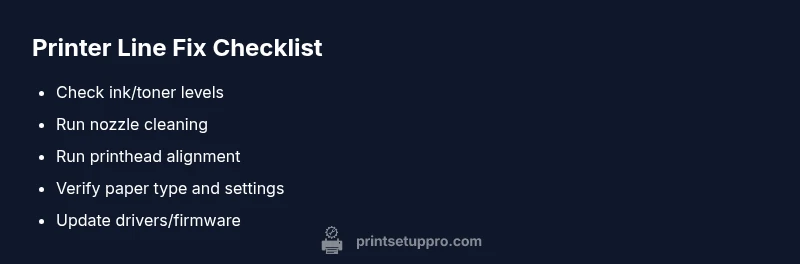
- Start with nozzle cleaning and test prints
- Check ink/toner levels and cartridge health
- Verify paper type and print settings
- Update drivers or firmware to fix incompatibilities
- Consider service if lines persist after all steps