Why Printers Show White Lines: Quick Fix Guide 2026
Discover why printers produce white lines and how to fix them quickly. This urgent guide covers common causes, step-by-step fixes, safety tips, and prevention for home offices and students.


White horizontal lines on printed pages usually mean the printer isn't laying down ink evenly. Start with the easiest fixes first: replace low cartridges or refill, run a cleaning cycle, and print a test page. If lines persist, inspect the drum/roller and confirm paper type is appropriate. Also verify print settings, align the print head, and run any available alignment.
What the phrase "why printer has white lines" means and why it matters
If you’re investigating the issue described by the query why printer has white lines, you’re seeing a symptom that can signal several root causes. This problem tends to disrupt documents, photos, and assignments, and it often worsens if left unchecked. Print Setup Pro stresses urgency here: unresolved lines lead to waste, higher printing costs, and frustrated users. In this section we lay out the practical, actionable approach to identify whether the lines are a temporary glitch or a sign of hardware wear. You’ll learn to distinguish between quick fixes you can do today and repairs that might require service.
Common culprits behind white lines and streaks
White lines across prints are usually caused by one or more of these factors: low or dried ink/toner, a clogged print head (in inkjets) or dirty drum/roller (in lasers), or incorrect paper type and settings. Paper moisture, media finish, and alignment errors can also contribute. In some cases, environmental conditions like humidity affect drying time and adhesion. The key is to test each variable methodically so you don’t waste parts or money. Print Setup Pro recommends starting with the simplest, least invasive steps before diving into more complex fixes.
Quick checks you can perform in minutes
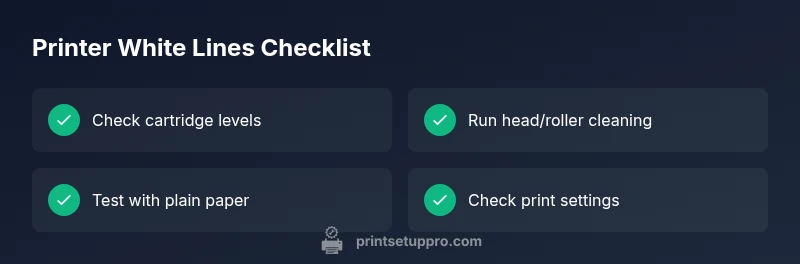
- Check ink/toner levels and replace if low; even new cartridges can perform poorly if they’re old or damaged.
- Run the printer’s built-in cleaning or nozzle-check utility to clear minor clogs and realign the print path.
- Use fresh plain paper that matches the printer’s recommended media; avoid glossy or textured stock for initial tests.
- Print a test page or alignment page to compare results across color channels and identify which area shows lines.
- Verify printer settings (paper type, print quality, color mode) and ensure no aggressive scaling or posterization is accidentally enabled.
- If you have a laser printer, inspect the photoconductor drum for damage or wear that could create streaks and lines.
Diagnostic flow at a glance
This section maps symptoms to likely causes and practical fixes in a simple, repeatable way. Start at the top of the flow and move downward only if the earlier step doesn’t fix the problem. Remember, some issues look the same across printer types, so always consult your model’s manual for device-specific steps. If you’re not comfortable with internal components, stop at the recommended safe checks and seek professional service.
When to perform deeper maintenance (and when to stop)
If quick checks do not resolve the issue, you’ll likely need deeper maintenance such as cleaning internal ink channels, replacing the drum, or re-aligning the imaging assembly. For most home users, these tasks are manageable with the right tools and careful instructions. However, never attempt disassembly beyond your comfort zone; printers have delicate components, and improper handling can void warranties. If you notice fluid leaks, unusual noises, or overheating, disconnect power and seek professional service immediately.
Prevention tips to avoid white lines in the future
Preventive habits save time and money. Use high-quality consumables from reputable brands, store media properly to avoid humidity fluctuations, and run routine maintenance on a schedule. Keep a testing routine—print a simple page weekly to catch issues early. Document any recurring symptoms and changes in output so you can spot patterns and act quickly.
Steps
Estimated time: 30-60 minutes
- 1
Check ink/toner levels
Open the cartridge area and confirm all colors show adequate levels. Replace any cartridge that is low or appears dried out. After replacement, run a test page to compare results.
Tip: Use the printer’s diagnostic test page for best accuracy. - 2
Run print head cleaning
Access the maintenance menu and run the cleaning function twice if needed. Allow the printer to complete any dry cycles before printing a test page.
Tip: Use a few sheets of plain paper for a clean test. - 3
Print a nozzle check / test page
Print a nozzle check or alignment page to identify which color channels are compromised. This helps isolate whether the issue is a single color line or a full-width problem.
Tip: Note which bands are missing or smeared for accurate diagnosis. - 4
Inspect the paper path
Remove media and gently inspect the feed path for jams, debris, or worn rollers. Clean guides with a lint-free cloth and reseat any loose parts.
Tip: Power off and unplug before inspecting internal paths. - 5
Check the imaging drum/roller
For laser printers, inspect the drum for scratches or wear. For inkjets, ensure the carriage belt and print head are aligned without obstruction.
Tip: Do not touch the drum surface with bare hands. - 6
Test with different media
Try another paper type/weight to rule out media interaction. If lines disappear with plain paper, adjust paper settings for your regular stock.
Tip: Always use the printer’s recommended media weight.
Diagnosis: Printer prints white horizontal lines across pages
Possible Causes
- highLow or dried ink/toner
- highClogged print head (inkjet) or dirty drum/roller (laser)
- lowIncorrect paper type or quality
Fixes
- easyReplace or refill cartridges with fresh ink/toner
- easyRun the printer’s cleaning or nozzle check and realign if needed
- mediumInspect and clean the drum/roller path; replace if visibly worn or damaged
- easySwitch to recommended paper and adjust print settings to match media
People Also Ask
Why are white lines appearing after I replaced ink or toner?
New cartridges can be defective or incompatible with old settings. Start by performing a head cleaning and nozzle check, then test with a fresh page. If lines persist, try a different cartridge and verify compatibility.
New cartridges can fail; run cleaning and nozzle check, then test. If lines continue, try another cartridge and verify compatibility.
Can paper quality cause white lines?
Yes. Low-quality or wrong-weight paper can cause ink to sit unevenly, creating white streaks. Use the printer’s recommended media and test with plain paper first.
Paper quality matters; use recommended media and test with plain paper.
Is it safe to open the printer to clean the print head?
Only perform user-accessible cleaning via the printer’s maintenance menu. Do not disassemble components beyond what the manual allows. If you’re unsure, contact support.
Only use the built-in maintenance tools. Don’t disassemble beyond the manual; seek help if unsure.
When should I replace the drum or roller?
If wear or visible damage is detected, or lines persist after other fixes, the drum or roller may need replacement. This usually resolves persistent streaking in laser printers.
Replace the drum or roller if wear is visible or lines persist after other fixes.
Will professional service be required for white lines?
If you’ve exhausted basic maintenance with no improvement, or if you notice unusual noises, leaks, or overheating, professional service is recommended to avoid further damage.
If basic steps fail or you hear noises or smells of overheating, seek professional service.
Watch Video
Quick Summary
- Identify the symptom quickly and start with easy checks
- Replace cartridges and clean heads to fix most lines
- Test with standard media to confirm root cause
- Seek professional help for hardware wear or warranty issues