How to Get Your Printer Out of Idle Mode: Quick Fixes
Learn practical steps to wake a printer from idle mode, troubleshoot common causes, and restore normal printing. Print Setup Pro guides home offices, students, and small businesses with clear, actionable guidance.


If you’ve ever asked how to get printer out of idle mode, you’re in the right place. This guide walks you through quick checks, simple power resets, and driver/firmware updates to wake a dormant printer. Print Setup Pro explains why idle mode happens, how to confirm your device is idle, and how to restore normal printing so you can resume work without unnecessary delays.
Why printers enter idle mode
Idle mode is a deliberate power-saving state built into most modern printers. It helps reduce energy usage during long periods of inactivity and can trigger automatic sleep timers or display prompts when no print jobs are detected. For home offices and student setups, understanding idle mode is essential because it can appear as a delay or a non-responsive printer, even when power is on. In many cases, waking the device simply means nudging it back to an active state by addressing the printer’s sleep timer, queued jobs, or driver status. If you’re wondering how to get printer out of idle mode, start with the simplest cause and work toward the more technical fixes. Print Setup Pro has found that many idle-mode issues resolve with a quick power cycle, a quick check of wake settings, and a driver update.
Signs your printer is stuck in idle mode
A printer might be idle but still physically powered on. Look for the following indicators: the control panel is dim or unresponsive, the printer shows an idle or sleep icon, or print jobs appear queued but never print. You may also notice messages like “Printer is offline” or “Waiting for user action” on your computer even when the device is connected. If you encounter these symptoms, you’re likely dealing with idle mode or a related sleep setting, not a hardware failure. In many cases, resolving the idle state involves adjusting power-saving settings, clearing the print queue, and ensuring the printer is online.
Quick checks before waking the printer
Before you dive into deeper fixes, perform these fast checks to rule out simple causes. Verify the printer is physically on and connected, confirm the correct default printer is selected on your computer, and check for visible jams or error indicators on the device. If your printer has a touchscreen, navigate to Settings > Sleep/Auto-off and set the timer to a shorter duration or disable it temporarily for testing. Also inspect USB or network cables for looseness and restart the printer and computer to reset any stalled communication.
The exit-idle workflow: overview
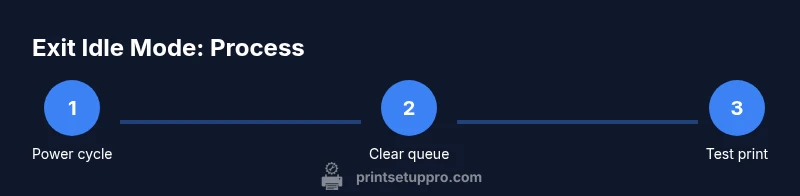
The general workflow to get a printer out of idle mode is: (1) confirm idle state and wake settings, (2) clear any queued jobs and reset communications, (3) update drivers/firmware if needed, and (4) validate by printing a test page from multiple apps. This approach helps isolate whether the issue is the printer, the computer, or the network. Print Setup Pro recommends documenting the steps you take so you can reproduce the resolution if idle mode returns.
Troubleshooting if idle persists
If the printer remains idle after the initial steps, proceed with deeper debugging: review the print queue for stuck jobs, reboot the printer in a safe mode if available, perform a soft reset (or factory reset as a last resort), and check for firmware updates. If the issue persists, test printing from another device, switch to a different driver, or temporarily disable firewall settings that might block communication. Keep in mind that some idle-mode problems stem from outdated drivers or firmware mismatches between the printer and the host computer.
Tools & Materials
- Printer power cable(Ensure a secure connection to a working outlet)
- Device for sending print jobs (computer, tablet, or smartphone)(Test across at least two devices if possible)
- Printer data cable or stable network/Wi-Fi connection(Prefer wired when diagnosing offline symptoms)
- Access to the printer's control panel or touchscreen(Use to change sleep settings and run a test page)
- Latest printer drivers/firmware(Download from the manufacturer’s support site)
- A test page or sample document(Use to verify successful wake and print)
Steps
Estimated time: 15-25 minutes
- 1
Power cycle the printer
Turn the printer off, wait 10-15 seconds, and turn it back on. This resets the device’s internal state and can wake it from idle without touching other settings. After reboot, wait for the printer to reach Ready or Idle-free state before proceeding.
Tip: A full power cycle often clears the most stubborn idle states; avoid removing power mid-cycle. - 2
Cancel queued print jobs
Open the printer queue on your computer and cancel any stuck or paused jobs. Clearing the queue prevents the device from re-entering idle due to a stalled job request. If prompted, choose to restart the printer after clearing the queue.
Tip: If you have multiple jobs, cancel them all to ensure the next print starts fresh. - 3
Check sleep/auto-off settings
Access the printer’s control panel or settings app and locate Sleep or Auto-off options. Disable or shorten the timeout for testing. This helps determine if idle mode was triggered by a long-inactivity timer.
Tip: Document your original settings in case you want to revert later. - 4
Update drivers and firmware
Visit the manufacturer’s site to check for the latest driver and firmware updates. Install any available updates, as mismatches can cause idle or offline behavior after posting a print job.
Tip: If updates require a reboot, complete the reboot before testing again. - 5
Test print from multiple apps
Print a test page from at least two different apps or document types. This helps verify the issue isn’t application-specific and confirms the device is awake.
Tip: Use a simple text document and a graphics-heavy file to exercise the printer’s pipeline. - 6
Perform a soft reset
If available, perform a soft reset from the control panel or menu. A soft reset reinitializes settings without erasing user data. Avoid factory reset unless the issue persists across all tests.
Tip: Document the reset steps you used for future troubleshooting. - 7
Check network connectivity
Ensure the printer is reachable on the network or via USB. A loss of connectivity can mimic idle status. Reconnect the device to the network or re-select the USB port if needed.
Tip: Ping the printer’s IP address if you’re on a corporate or complex home network. - 8
Run a factory reset if needed
As a last resort, perform a factory reset to restore default settings. Note this will erase stored preferences and queued jobs. Reconfigure the printer from scratch after reset.
Tip: Only use factory reset when all other options fail and you have a recovery plan for settings.
People Also Ask
What causes a printer to go into idle mode?
Idle mode is typically triggered by inactivity timers, energy-saving settings, or a stuck print queue. Verifying these elements often resolves the issue without hardware replacement. If the problem persists after adjustments, consider firmware updates or a factory reset as a last resort.
Idle mode is usually caused by inactivity timers or a paused print queue. Check the settings, then try updates or a reset if needed.
Can a firmware update help with idle mode problems?
Yes. Firmware updates fix bugs and improve communication between the printer and host device, which can resolve idle-related issues. Always back up important presets before updating and follow the manufacturer’s instructions.
Firmware updates can fix idle-related bugs. Back up settings first and follow the manufacturer’s steps.
Is a factory reset safe for resolving idle state?
A factory reset returns the printer to default settings and may clear hidden error states. It is a last resort; reconfigure preferences after resetting and test with a simple print job to confirm the issue is resolved.
Factory reset should be a last resort after trying updates and setting adjustments.
Do idle problems vary by printer brand?
Yes. Different brands implement idle and sleep modes differently. Always consult the user manual for brand-specific steps, and look for model-specific firmware recommendations on the official support site.
Idle behavior varies by brand; check the manual and official support pages for model-specific steps.
Will disconnecting a printer from power cause data loss?
Sudden power loss during a print can corrupt the job. Always cancel active jobs and perform a proper power cycle or soft reset instead of unplugging mid-print.
Avoid unplugging while printing; instead cancel the job and reset properly.
How long should I wait after a power cycle before testing?
Give the printer a minute or two after power cycling to initialize all components and reach a ready state before sending a test page.
Wait a minute or two after power cycling before testing.
Watch Video
Quick Summary
- Identify idle symptoms and common culprits
- Use a structured wake workflow: power cycle, clear queue, update, test
- Verify sleep settings and firmware to prevent re-entry into idle mode
- If issues persist, escalate with the manufacturer’s support