Printer Can Print But Not Scan: Fixes That Work in 2026
Tackle the stubborn issue where your printer can print but not scan with a clear, step-by-step plan. Learn software, driver, and hardware checks to restore scanning quickly and safely.


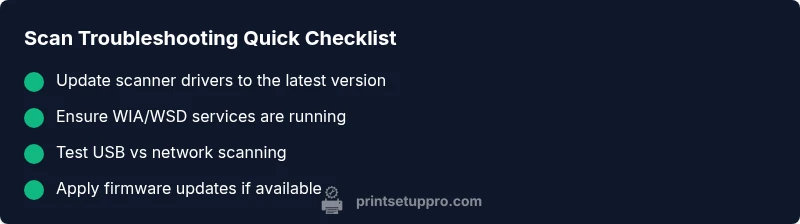
Most likely, the problem is software-related, not a hardware fault. Quick fixes: 1) reinstall or update the scanner driver, 2) ensure the WIA/WSD service is running and scanning is enabled in your printer software, 3) reboot the printer and try a USB or Wi‑Fi reset. If that fails, check for firmware updates.
Why a Printer Can Print But Not Scan
The symptom 'printer can print but not scan' is frustrating and confusing, especially when you rely on one device for both tasks. According to Print Setup Pro, the root cause is almost always software-related rather than a bad hardware component. Most modern printers use a shared engine for printing and scanning; a driver or service that governs scanning can fail independently of the print subsystem. A corrupted scanner driver, a disabled WIA/WSD service, or outdated firmware will prevent scanning while printing remains unaffected. The result is a greyed-out scan option, a message that scanning is unavailable, or an OCR feature that refuses to launch. Understanding the distinction between hardware failure and software issues helps you triage quickly and avoid unnecessary repairs. This guide focuses on practical steps you can take in the next 20-30 minutes to restore scanning capability, with safety and prevention tips woven in.
bold:true},
Steps
Estimated time: 45-60 minutes
- 1
Check basics and restart devices
Power cycle the printer and your computer or mobile device. Unplug the printer for 30 seconds, plug back in, and reboot both devices. This clears transient errors that can affect scanning functions. If you’re on a networked setup, temporarily switch to USB to isolate connectivity issues.
Tip: A full power reset resolves many ghosting issues and resets the scanner state. - 2
Reinstall or update the scanner driver
Remove the current scanner driver from your system, then download and install the latest version from the official manufacturer site. Reboot after installation and test by launching a scan from multiple apps. If you use macOS, verify the Image Capture app detects the scanner.
Tip: Always download drivers directly from the official site to avoid bundled malware. - 3
Verify WIA/WSD service is running
On Windows, open services.msc and check that Windows Image Acquisition (WIA) or Windows Scan (WSD) is set to Automatic and started. On other OS environments, ensure the system recognizes the scanner in the printer/scan settings. Restart the service if needed and try scanning again.
Tip: Set the service startup type to Automatic to prevent future drops. - 4
Check scan option and software compatibility
Open the printer software and confirm the scan option is enabled and configured for your preferred file type (PDF, JPEG, etc.). Test scanning from a different application to determine if the issue is isolated to one program. If you use cloud or email scanning, verify account permissions.
Tip: Trying a different scan target helps distinguish software vs. hardware problems. - 5
Test different connection types
If you’re using USB, try a direct cable connection; if you’re on Wi‑Fi, test a USB connection or a direct Ethernet link. Ensure the correct network path and IP address are set in the scanner settings. Blocking firewall rules can also prevent network scanning.
Tip: A clean network path reduces scan failures caused by router or firewall rules. - 6
Update firmware and reset settings
Check for firmware updates from the manufacturer’s site and apply them following the official guidance. If scanning still fails, perform a factory reset of the printer’s network and scanning settings, then reconfigure from scratch.
Tip: Factory resets can clear stubborn misconfigurations but back up settings first. - 7
Consult professional support if hardware seems suspect
If hardware components such as the glass, lamp, or sensor appear damaged or unresponsive after all software steps, contact authorized service for diagnosis. Document the exact symptoms and steps you’ve tried to speed up the process.
Tip: Provide a detailed bug report to service to minimize diagnostic time.
Diagnosis: Printer prints but cannot scan
Possible Causes
- highScanner driver corruption or missing
- highScanning service (WIA/WSD) not running or disabled
- mediumFirmware incompatibility or corrupted scanner firmware
- lowHardware fault in scanner module (lamp, glass, CIS sensor)
Fixes
- easyReinstall or update the scanner driver; restart the computer and printer
- easyCheck and start the appropriate scanning service (WIA/WSD); set startup to automatic
- mediumUpdate printer firmware from the official website or app; perform a factory reset if available
- hardIf the issue persists, escalate to service if a hardware fault is suspected
People Also Ask
Why does my printer print but not scan even after reinstalling drivers?
A driver alone may not fix scanning if the WIA/WSD service is disabled or if the firmware is outdated. Ensure both the driver and the service are correctly configured, and consider a firmware update. If issues continue, test with another application to rule out software conflicts.
A driver update plus checking the scanner service usually fixes this, but firmware and software conflicts can also block scanning.
Why is the scan option greyed out in my printer software?
A disabled or failed scanning service, missing driver, or incorrect printer profile can grey out scan options. Reinstall drivers, verify WIA/WSD services, and ensure the scanner is selected as the active device in your scanning app.
If the scan option is greyed out, start by checking the scanner service and drivers, then reselect the device in the app.
Can I still scan with a different device if my printer won’t scan?
Yes. You can temporarily test scanning with a different computer or use a mobile scanning app to determine if the issue is device-specific or network-related. This helps isolate whether the problem is software or hardware.
Testing with another device helps you confirm where the issue lies.
How do I reset scanning settings without losing all printer data?
Most printers offer a 'Reset to factory defaults' option for network or scanning settings. This won’t typically erase print queues or basic config, but you should back up custom profiles first. After reset, reconfigure the scanner and test again.
You can reset the scanner settings without wiping every printer setting, just back up what you need first.
When should I contact support for a scanner problem?
If you’ve exhausted driver, service, and firmware steps without success, or you hear unusual noises, observe water damage, or see visible hardware flaws, contact the manufacturer’s support or an authorized service center for a hardware diagnosis.
If software fixes don’t help, it’s time to get hardware checked by a pro.
Watch Video
Quick Summary
- Update scanner drivers first
- Verify WIA/WSD service is active
- Test USB vs network connections
- Update firmware and consider a reset if needed
- Only seek professional help for hardware faults