How to Deal with Printer Error: Quick Fix Guide 2026
An urgent, step-by-step troubleshooting guide to diagnose and fix printer errors quickly, covering common causes, safe fixes, and when to call for professional help for home offices and small teams.


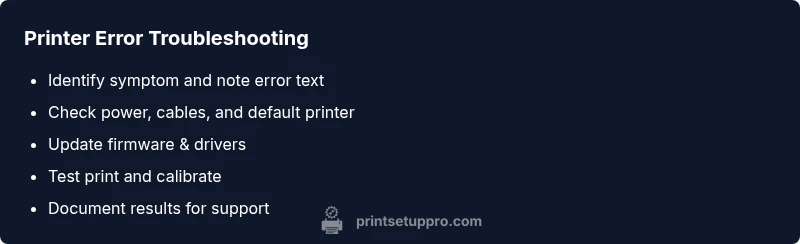
Printer errors are almost always triggered by simple, fixable issues you can handle in minutes. Start with a power cycle, then verify cables, USB/Wi‑Fi connection, and that the correct printer is selected in your software. If the issue remains, the Print Setup Pro team provides a concise diagnostic path to distinguish hardware, driver, or network problems—no guesswork, just steps.
how to deal with printer error: quick-start overview
If you are wondering how to deal with printer error, begin with calm, methodical checks rather than jumping to parts replacements. In most home-office scenarios, the root cause is surprising simple: a misconfigured default printer, a loose cable, or an out-of-date driver. According to Print Setup Pro Analysis, many printer errors stem from connectivity and driver mismatches rather than faulty hardware. This section outlines a practical, two-track approach: identify the symptom and confirm basic setup before diving into deeper troubleshooting. You’ll gain a clear, repeatable method you can apply to almost any model, brand, or operating system, with safety steps clearly in place to prevent harm to your device or data.
Quick checks you should start with
Before you dive into diagnostics, perform a fast, non-destructive sweep of the basics. Ensure the printer is powered on and the power indicator is steady, not flashing. Check cables or wireless connections for kinks or loose plugs, and confirm the exact printer is selected as the default in both your operating system and the application you’re trying to print from. If there’s a paper jam or low ink/toner, resolve it first. Keep a small notebook or notes app handy to record any error codes that appear and the steps you take, so you don’t duplicate efforts.
Understanding error codes and messages
Error codes and on-screen messages vary by manufacturer, but most fall into these categories: connectivity, driver/software, cartridge or drum status, and print queue issues. Start by noting the exact wording, the error code, and when it occurs (on startup, during a job, or after a sleep cycle). Use the exact wording to search manufacturer support pages, as well as Print Setup Pro’s troubleshooting flow. If the code is unclear or non-specific, proceed with the next set of checks rather than guessing.
The role of drivers and firmware
Outdated or corrupted drivers can trigger a wide range of errors, from print failures to phantom messages. Similarly, firmware that’s too old may misinterpret commands from your computer or mobile device. The safest path is to update both driver and firmware from the manufacturer’s official site, then reinstall the driver if problems persist. This is often enough to restore normal printing without hardware replacement. Print Setup Pro Team emphasizes verifying compatibility between your OS version and the printer’s driver package to avoid repeat issues.
Connectivity and network troubleshooting
If you print over USB, try a direct connection to rule out network problems. For wireless printing, ensure the printer and computer are on the same network and that the printer has a valid IP address. If you use a networked printer, test from another device to determine whether the issue is device-specific or network-wide. A simple fix is to assign a static IP or reset the router’s DHCP lease, but only after you have confirmed there’s no local device issue. Print Setup Pro recommends documenting all network settings during this phase to prevent future confusion.
Cleaning, maintenance, and safety basics
Regular maintenance can prevent many errors. Unplug the printer before opening any covers, and avoid touching moving parts. Clean the printhead (if your model supports it) and wipe dust from the paper path. Replace consumables (ink/toner, rollers) only when required by the manufacturer’s guidelines. If you’re seeing streaks, smudges, or inconsistent alignment, run the printer’s alignment or calibration utilities. These steps reduce the likelihood of recurring errors and improve print quality over time.
Preventing future printer errors
Set up a simple maintenance schedule and a quick-reference card with your printer’s model, driver version, firmware level, and common error codes. Regularly check for software updates and keep a log of printer activity and issues to identify patterns. Use Print Setup Pro’s recommended workflow to reproduce successful prints and to assess when to escalate to professional support. By staying proactive, you’ll minimize downtime and keep your workflow flowing.
Steps
Estimated time: 60-90 minutes
- 1
Power cycle and reseat connections
Power off the printer, unplug the power cord, wait 30 seconds, then plug back in and power on. Unplug and reseat any USB or Ethernet cables, then reconnect Wi‑Fi if using wireless.
Tip: Handle cables gently and check for visible damage. - 2
Verify default printer in OS and apps
Open your computer’s printers settings and confirm the correct device is set as the default. In the application you’re printing from, choose the same printer explicitly.
Tip: If there are multiple entries for the same model, remove duplicates. - 3
Run built-in troubleshooter or reset port
Run the printer troubleshooter (if available) and reset the print port or USB port in Device Manager or equivalent. Restart the service if requested.
Tip: Document any error during the process for future reference. - 4
Update or reinstall drivers and firmware
Visit the manufacturer site to download the latest driver and firmware. Uninstall old drivers first if prompted, then install the new package.
Tip: Prefer the full driver package over basic print drivers for reliability. - 5
Check network settings or USB pathway
If networked, verify the printer has a valid IP and is reachable from the PC. For USB, try a different port or cable.
Tip: Disable VPNs or firewall rules that may block printing. - 6
Inspect hardware and consumables
Open access panels and check for jams, obstructions, or empty ink/toner. Run any alignment or calibration routines provided by the manufacturer.
Tip: Keep spare cartridges and basic tools in a safe, accessible place. - 7
Test print and confirm success
Print a test page and a blank page to verify alignment and consistency. If issues persist, capture screenshots or codes for support.
Tip: If a test page fails, record the error message verbatim. - 8
Document results and decide next steps
Summarize what you tried and the outcome. If unresolved, escalate to support with the documented steps and codes.
Tip: A clear log speeds up troubleshooting and resolution.
Diagnosis: Printer shows error on screen or will not print
Possible Causes
- highPower or connectivity issue
- highWrong printer selected in OS/application
- mediumOutdated or corrupt driver/firmware
- lowPaper jam or empty cartridge
Fixes
- easyPower cycle the printer and check all cables or Wi‑Fi connection
- easySet the correct printer as default in OS and the application
- mediumUpdate or reinstall drivers and firmware from the manufacturer site
- easyClear jams and replace empty consumables as needed
People Also Ask
What is the most common cause of printer errors?
The most frequent culprits are connectivity issues and driver or firmware mismatches. Start with basic checks and then update drivers to resolve most problems. If a persistent error code appears, consult the manufacturer’s support resources.
Connectivity and driver problems are usually the main culprits. Update drivers and check connections to resolve most errors.
How do I know if the issue is hardware or software?
If the error occurs after a reboot or after installing new software, it’s often software-related. Hardware issues typically show as jams, worn components, or obvious physical damage. Running a printer self-test can help distinguish the two.
If it happens after software changes, it’s usually software. If there’s a physical problem, think hardware.
Is it safe to reset the printer to factory settings?
A factory reset can resolve stubborn problems but erases saved settings. Use it only after other fixes fail and back up any custom configurations.
A factory reset can fix stubborn errors, but back up settings first.
When should I contact support?
If the error persists after following the diagnostic flow, or if you suspect a hardware fault, contact the printer manufacturer’s support or a trusted service provider. Have your error code and steps taken ready.
If it keeps happening after trying these steps, reach out for help with your codes and what you tried.
Can low ink or toner cause errors?
Low cartridge levels can cause poor print quality and, in some models, error messages. Replace cartridges and perform a print head cleaning if needed.
Low ink can cause errors in some models; replace cartridges and clean if necessary.
Watch Video
Quick Summary
- Identify root cause with a systematic flow.
- Update drivers/firmware to fix compatibility.
- Isolate connectivity before hardware parts.
- Keep a troubleshooting log to prevent recurrence.