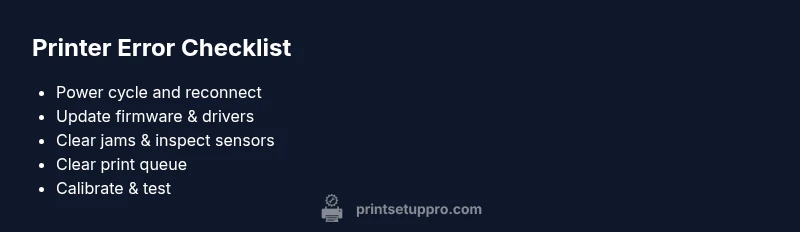
Printer is in an error state: Quick fixes and a clear diagnostic flow
A comprehensive, urgent troubleshooting guide to diagnose and fix a printer that is in an error state. Learn quick fixes, a structured diagnostic flow, step-by-step repairs, safety tips, and expert guidance from Print Setup Pro.


Typical quick fixes for a printer that is in an error state start with a soft reset and basic checks: power cycle the printer and router, reconnect cables or Wi‑Fi, and print a test page. If the error persists, verify ink/toner and paper status, clear any jams, and ensure the driver is up to date. This often resolves the issue within minutes.
Understanding the error state and why it happens
When a printer shows an error, it can halt all work and derail deadlines. The phrase printer is in an error state is more common than you think, and most issues aren’t a hardware failure. In many cases, the problem is a communication hiccup between the printer and the computer, a misread sensor, or a stuck print job. According to Print Setup Pro, most errors are solvable with a disciplined sequence of checks rather than costly repairs. Start by noting the exact error message or blinking pattern on the panel. Record the model and firmware version, because different generations interpret errors differently and knowing these details will speed up troubleshooting or when you contact support. With the right framing, you can prioritize fixes that move you from frustration to a successful print in minutes.
To maximize your odds of a quick resolution, approach the issue methodically: separate hardware from software, verify the basics, and then escalate only if needed. The goal is to restore a clean print path—no errors, no stalled queues, just predictable, reliable output. Keep a small checklist handy: error code, recent changes, and the last successful print you ran. This makes your diagnostic conversations faster and more productive.
Common Causes of Printer Errors
Printer errors arise from a mix of connectivity glitches, driver issues, media problems, and simple misconfigurations. A typical error stems from one of these primary sources, so start with the broad categories and then drill down:
- Connectivity problems: an unstable USB/Wi‑Fi connection or a misconfigured network can trigger error states. Ensure the printer is on the same network as your computer and that wireless credentials are current.
- Outdated firmware or drivers: old software can misinterpret status signals, causing a persistent error message. Check the manufacturer’s site for the latest firmware and the latest driver package.
- Paper jams or sensor false positives: small scraps or sensor misreads can populate an error state even if the path is clear. Inspect every tray and path for debris and ensure sensors are clean.
- Consumables and print queue issues: empty ink/toner, low paper, or a stuck print job in the queue can trigger errors. Confirm consumables are sufficient and clear the print queue if needed.
- Misaligned trays or failed calibration: in some models, misalignment triggers a calibration check that halts printing until resolved.
If you see a specific error code, cross-check it in the user manual or the manufacturer support site. Even with an error state, the root cause often maps to one of these categories, so a targeted approach is usually fastest.
Quick Validation Steps You Can Do Now
Before you dive into deeper fixes, perform these quick checks which solve the majority of cases and require no tools:
- Power cycle: turn off the printer, unplug it for 30 seconds, then plug back in and power on. A full reset can clear transient faults.
- Reconnect the interface: if you’re using USB, try a different cable and port; if on Wi‑Fi, reconnect to the network and re-add the printer to your device.
- Check status indicators: verify if there are warning lights or blinking patterns that match the manual’s guide. Note the exact pattern for reference.
- Inspect consumables: ensure ink/toner cartridges have sufficient ink, and verify there is paper in the tray. Low consumables frequently trigger errors that look worse than they are.
- Clear the print queue: open the printer spooler on your computer, cancel all pending jobs, and restart printing. Sometimes a stuck job locks the device in an error state.
If these steps don’t resolve the issue, proceed with the diagnostic flow below and consider updating firmware and drivers as a next step. Safety note: always unplug the device before inspecting internal components to avoid electric shock.
Print Setup Pro recommends following a structured sequence to avoid missing obvious causes and to reduce downtime. By documenting each step, you’ll know exactly what was tried and what didn’t work, which speeds up support if you need it.
When to Escalate: Signs You Need Professional Help
Not every printer issue is a DIY fix. If you encounter any of the following signals, it’s time to escalate:
- Repeated errors after performing the standard resets and software updates. If the error reappears within 24 hours, deeper diagnostics are needed.
- Persistent hardware fault indicators: unusual noises, overheating, or a failure to power on after a reset.
- Fabrication or warranty concerns: the device is under warranty and a hardware fault is suspected.
- Unclear error codes: the message doesn’t map to a known cause, or the code is changing after each restart.
In these cases, contact support or an authorized service provider. The goal is to minimize downtime and prevent further damage. Document the error code, model, firmware version, and the steps you’ve already tried to expedite the service call. Print Setup Pro notes that escalation is a normal part of troubleshooting when basic fixes fail to resolve the fault efficiently.
How to Diagnose by Symptom: Offline vs Driver Errors
Symptoms can guide diagnosis and help you choose the right fix quickly. Distinguish between offline/communication symptoms and driver/firmware symptoms:
- Offline symptoms: no recognition by any computer, error lights that indicate connectivity or network issues, and the printer may appear as offline in the OS. Solutions typically involve reconnecting the device to the network, reinitializing the connection, and ensuring the printer is set as the default device.
- Driver/firmware symptoms: the printer is visible but reports driver errors, print jobs stall, or you get a specific error code about the driver. Focus on updating or reinstalling drivers, upgrading firmware, and verifying compatibility with your operating system. By mapping the symptom to the most likely cause, you’ll shorten the path to a fix. Print Setup Pro’s workflow emphasizes starting with fundamentals (cable checks, resets) and moving toward software updates if the hardware checks pass.
Practical Fixes You Can Implement
Implement fixes in a practical sequence that aligns with the common causes listed earlier. Each fix is designed to be performed quickly and safely, with a clear path to the next step if the current one fails. The aim is to restore printing capability without unnecessary downtime:
- Reset the device and reestablish connections: power cycle the printer, reboot your router or connection point, and reconnect via USB or Wi‑Fi. This is the fastest way to clear transient errors.
- Update firmware and drivers: visit the manufacturer’s site, download the latest firmware for your model, and reinstall the driver on all affected computers. A clean driver stack can resolve many errors and improve reliability.
- Check for and clear jams, debris, and misfeeds: remove media carefully, inspect rollers and sensors, and reseat trays. Even small obstructions can trigger false error states.
- Clear the print queue and reset spooler: on Windows, stop the spooler service, delete queued jobs, restart the service, and try printing again. On macOS, use the Print Center to reset the printing system.
- Calibrate and test: run any built‑in calibration utilities, alignment checks, or print quality tests. A few minutes of calibration can eliminate misread sensors and improve reliability.
- When to seek professional help: if the issue persists after firmware updates and driver reinstalls, or if the device shows hardware fault indicators, contact support. Printing professionals can diagnose sensor failures, circuit faults, or board issues that aren’t user serviceable.
Safety notes and common mistakes
- Safety first: always unplug the printer before removing covers or attempting hardware checks. Avoid touching hot components or moving parts while powered.
- Common mistakes: skipping firmware updates, using a different manufacturer’s ink in an incompatible cartridge, or attempting to bypass error codes without understanding their meaning. These can cause more harm than good and void warranties.
- Documentation saves time: keep a simple log of every step, including error codes, actions taken, and results. This helps you and any technician reproduce the issue quickly.
Steps
Estimated time: 25-40 minutes
- 1
Power cycle the printer and network hardware
Power off the printer and unplug it for at least 30 seconds. Reset your router or access point, then power everything back on in sequence. Reconnect the printer to the network or USB, and try a test page. If the error persists, proceed to the next step.
Tip: Document the exact error message before moving on. - 2
Check cables, connections, and network status
Inspect all cables for wear or damage and reseat connections firmly. If using Wi‑Fi, verify the printer is on the same network as the computer and that DHCP is functioning. Attempt a wired USB connection if wireless problems continue.
Tip: Try a different USB port or ethernet port to rule out a faulty connector. - 3
Update firmware and reinstall drivers
Download the latest firmware for your printer model from the manufacturer’s site. Install the firmware, then remove and reinstall the printer driver on every computer that uses the device. After installation, restart both printer and computer and print a test page.
Tip: Use the official site only to avoid counterfeit software. - 4
Clear jams and inspect sensors
Power off the printer and remove media trays. Look for paper scraps, jammed sheets, or foreign objects in the feed path. Clean rollers and sensors with a lint-free cloth. Reassemble and test.
Tip: Take photos of the jammed path before disassembly to guide reassembly. - 5
Clear the print queue and reset spooler
On Windows, stop the spooler service, delete pending jobs, and restart the service. On macOS, reset the printing system and re-add the printer. Try printing again to confirm the fix.
Tip: If you rely on network printing, ensure the print server isn’t blocked by a firewall. - 6
Calibrate and verify the result
Run any built‑in calibration or alignment tools. Print a diagnostic page and a color/test page to verify stability. If issues persist, escalate to professional support.
Tip: Keep a log of the calibrations and test results for reference.
Diagnosis: Printer shows an error state and won’t print despite power cycling
Possible Causes
- highPower/connection issue
- highOutdated firmware or driver
- mediumPaper jam or sensor false positive
- mediumPrint queue or spooler error
- lowHardware fault or miscalibration
Fixes
- easyCheck outlet and cables; reseat USB/ethernet cables; reconnect Wi‑Fi
- easyUpdate firmware and drivers; reinstall printer software
- easyInspect trays for jams; clear debris; clean sensors
- easyClear print queue and restart spooler services
- mediumRun calibration and hardware diagnostics; replace faulty hardware if needed
People Also Ask
What does it mean when my printer shows an error state?
An error state means the printer detected a fault or conflict preventing printing. Common causes include connectivity issues, driver problems, jams, or low consumables. Start with the quick fixes and follow the diagnostic flow.
An error state means the printer found a fault. Start with the quick fixes and follow the diagnostic steps.
Why is my printer showing offline even when connected?
Offline status usually indicates a communication problem between the printer and computer or router. Check network settings, reconnect the device, and ensure the correct printer is selected as default.
Offline usually means a communication problem. Check network and default printer settings.
Should I update firmware if the printer is in an error state?
Yes. Updating firmware can resolve misinterpretations of errors and improve stability. Install the latest firmware from the manufacturer after ensuring the device is powered and connected.
Yes, updating firmware can fix many errors.
What if the error code isn’t listed in the manual?
If the code isn’t in the manual, check the manufacturer’s support site or contact customer service. Provide model, firmware version, and a description of the steps you’ve tried.
If the code isn’t listed, contact support with your model and steps tried.
Is professional help necessary for all printer errors?
Not always. Many errors are resolved with resets, driver updates, and jam clearance. Seek professional help if hardware faults appear or if the error persists after all standard steps.
Not always, but get help if hardware faults show up or the issue continues.
How can I prevent future printer errors?
Keep firmware and drivers up to date, perform regular maintenance, avoid jam-prone media, and maintain clean sensors. Establish a routine to check cables and network connectivity.
Keep software updated, maintain the printer, and check cables regularly.
Watch Video
Quick Summary
- Start with a power reset and basic checks
- Update firmware and drivers as a priority
- Clear jams and inspect sensors for debris
- Use the diagnostic flow to avoid guessing
- Escalate when hardware faults appear or issues persist