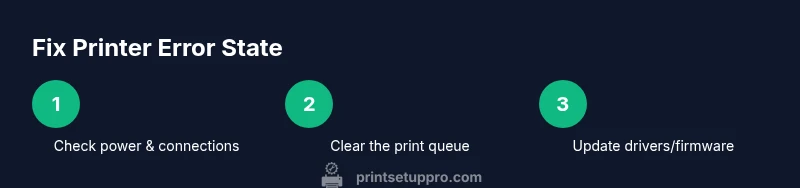
How to Fix Printer in Error State
Learn how to diagnose and resolve a printer stuck in error state with practical, safe steps, from power checks to driver updates. Perfect for home offices, students, and small businesses seeking quick, reliable fixes.


This guide helps you fix a printer stuck in error state by checking power, connection, print queue, drivers, and firmware. You will identify the error, reset components, clear jams, and re-test printing. Gather basic tools and access the printer's control panel to start the diagnosis. This approach minimizes downtime for home offices, students, and small teams.
Common causes of printers in error state
Printers enter an error state when the device cannot proceed with a job due to connection, jam, or software conflicts. In homes and small offices, the message on the display often points to the root cause, but interpretations vary. Print Setup Pro analysis shows the most frequent culprits are network or USB connectivity issues, stuck print queues, and outdated drivers or firmware. Other common triggers include paper jams, low ink or toner, misfeed, and incorrect printer settings (such as a paused queue or wrong paper size). By distinguishing between a hardware fault, a software glitch, and a user-configuration error, you can choose the safest and most effective fix. Start by noting the exact error message and any error codes; even seemingly minor phrases like “offline” can mask a bigger problem, such as a loose cable or a stalled job.
Gather the right information and safety steps
Before you touch the printer, collect essential details: model and serial number, installed driver version, network type (Wi‑Fi, Ethernet, USB), and the exact text of the error message. Having this information makes it easier to search vendor knowledge bases or Print Setup Pro's troubleshooting library. Safety comes first: unplug the printer when opening panels or cleaning internal areas, and avoid removing components unless you know how they fit back together. Use a clean, dry workspace and keep small parts in a container. If your printer is under warranty, check the manufacturer’s instructions before opening access panels. A well-documented approach reduces back-and-forth and helps you track which fixes worked in the past.
Check power, cables, and network connections
First, ensure the printer is powered on and shows a stable indicator light. Replace any frayed cables and reconnect USB or Ethernet cables at both ends. If you are on a network, verify the printer has a valid IP address, and test the connection with a simple ping or by printing a network configuration page. For wireless printers, confirm the router is functioning, and that the printer is associated with the correct SSID and security settings. Temporarily moving the printer closer to the router or using a wired connection can eliminate many connectivity-related error states. Print Setup Pro regularly emphasizes that physical connections are the most common source of stubborn errors.
Clear the print queue and manage jobs
Stalled print jobs can lock the queue and trigger persistent error states. Open the print queue on your computer or go to the printer's onboard management screen and cancel all pending items. If the queue contains corrupted jobs, remove them one by one, then restart the print spooler service on your computer (or reboot the printer). After clearing the queue, try a simple test page. If the error reappears, check whether a single large or image-heavy file is triggering the issue, and try printing a smaller or text-only document. This helps isolate whether the problem is file-specific or queue-related.
Inspect the printer hardware for jams and sensors
Power off and unplug the device before inspecting the paper path. Look for paper jams, foreign objects, or torn scraps that can trigger sensor errors. Use a flashlight to check the input tray, rollers, and exit path. Clean rollers with lint-free wipes lightly dampened with isopropyl alcohol, then allow to dry. If your printer has a cartridge or toner sensor, reseat or replace the cartridge according to the manual. Avoid touching the print head or internal boards unless you’re trained to do so. Regular maintenance reduces the likelihood of false error codes caused by debris or misaligned sensors.
Update drivers and firmware
Outdated drivers and firmware are among the top causes of error states. Visit the printer manufacturer’s site or use the built-in updater in your printer software to check for the latest firmware version. Uninstall and reinstall the driver if you suspect corruption, and try a clean boot to rule out software conflicts from other printing utilities. If you have multiple devices, update each device’s driver to ensure compatibility. After updating, reconnect the printer and run a test page to verify that the error is resolved.
Reset, reboot, and re-test printing
If previous steps haven’t cleared the error, perform a controlled reset. Power down the printer, unplug it for 60 seconds, then plug back in and power on. On many models you can reset network settings to default from the onboard menu; if so, reconfigure your network connection. In a few cases, a factory reset may be necessary—follow the manufacturer’s instructions precisely to avoid data loss. After reset, re-add the printer to your computer or mobile device and print a diagnostic page.
Common error codes and what they mean
Error states come in families rather than precise numbers. Hardware faults typically show as jam, sensor, or temperature warnings; network errors point to connectivity or DNS issues; queue or driver problems manifest as job stuck, communication failure, or timeouts. If you can read a code from the display, look it up in the manual or vendor knowledge base to map it to a fix (for example, sensor issues often require reseating a cartridge, while firmware faults may require an update). If you can’t interpret the code, describe the symptoms to support or search Print Setup Pro’s troubleshooting guide using the exact text you see on screen.
Proactive maintenance to prevent future errors
Set a simple maintenance schedule that includes weekly quick checks and quarterly deep cleans. Regularly clean the paper path, update drivers and firmware, verify network stability, and replace consumables before they fail (ink/toner, paper). Keep spare parts and cables in a dedicated box to speed up future repairs. Maintain an error log that records the date, symptoms, and fix applied. Over time, this practice reduces downtime and teaches you which fixes reliably prevent repeat errors.
When to contact support and what to have ready
Some error states require professional help or warranty service. If the issue persists after all DIY steps, gather essential data: printer model and serial, your OS version, recent changes, and screenshots or photos of error messages. Contact the manufacturer’s support or a trusted service partner with this information. If you suspect a hardware failure or internal damage, stop attempting repairs and schedule a service call to avoid voiding warranty or causing further damage. Print Setup Pro recommends documenting your steps to facilitate faster resolution.
Tools & Materials
- Printer model and manual(Model number, serial, and the manual handy for error codes)
- Power outlet with surge protection(Ensure a stable power source; avoid daisy-chained power strips)
- USB or Ethernet cable(Use original or high-quality cable to test wired connections)
- Computer or mobile device with printer software(Access to driver software, queue management, and network settings)
- Microfiber cloth and isopropyl alcohol (70%)(For cleaning exterior and paper path sensors; avoid dripping liquid)
- Lint-free swabs(For tight spaces and sensor areas; avoid fiber shedding)
- Replacement consumables (ink/toner, paper)(Only if you suspect resource-related errors)
- Small screwdriver set(Only if you need to open access panels per manual)
- Anti-static wrist strap (optional)(Useful if you’re opening inner components)
Steps
Estimated time: 30-60 minutes
- 1
Power down and inspect basics
Shut down the printer and unplug it. Wait 60 seconds to discharge residual energy, then reconnect power and turn it on. Confirm the power indicator is stable and that no unusual lights flash. This initial reset clears many transient faults and sets a clean baseline.
Tip: Always unplug before touching internal components to avoid shock or damage. - 2
Check power, cables, and network
Inspect power cables for damage and reseat USB/Ethernet connections both on the printer and the computer/router. For network printers, verify the IP address and test the connection via ping or a configuration page. If the issue persists, temporarily switch to a wired connection to rule out wireless instability.
Tip: If you must use USB, try a different port and cable to rule out a faulty connector. - 3
Clear the print queue and restart spooler
Open the print queue and cancel all pending jobs. If a single job is stuck, remove it and restart the spooler service on your computer, or reboot the printer. After clearing, print a simple test page to see if the error reoccurs.
Tip: If multiple devices share a queue, clear on all devices to avoid conflicts. - 4
Update drivers and firmware
Check for the latest driver and firmware from the manufacturer. Uninstall the old driver, reinstall with a clean setup, and reboot afterward. This eliminates corruption and compatibility issues that commonly trigger error states.
Tip: Perform updates during a period of light printing to minimize workflow disruption. - 5
Reset settings and re-test
If other steps fail, reset network or printer settings to their defaults and reconfigure them. Re-add the printer to your devices and print a diagnostic page. This often resolves stubborn state mismatches between host and device.
Tip: Keep a quick-reference of your network settings for faster re-setup after resets. - 6
Test with varied documents
Print a text-only document, then a simple image, to verify both formats work. If one type fails, there may be a file-specific issue (corrupt file, large bitmap, or color data) rather than a system-wide fault.
Tip: Use standard fonts and formats to isolate rendering anomalies.
People Also Ask
What is the first step to fix a printer in error state?
Begin with a safe power down and verify basic connections to rule out obvious issues. Note the exact error message for targeted troubleshooting.
Start by powering down safely and checking the notes on the display to guide your next steps.
Why does my printer show offline when it’s connected?
Offline status often results from a stalled print queue, a driver conflict, or network misconfiguration. Resolving the queue and ensuring proper network settings usually clears the state.
Offline often means the queue or network needs a reset.
Can updating drivers and firmware fix most errors?
Yes. Updated drivers and firmware resolve compatibility issues and known bugs that commonly trigger error states.
Yes, updates fix many common errors.
Is it safe to open the printer to inspect jams?
Only after unplugging and following the manufacturer’s safety instructions. Do not force components or touch internal boards unless trained.
Yes, but unplug first and follow safety steps.
What if the error persists after troubleshooting?
If problems continue, collect all relevant details (model, OS, error text, screenshots) and contact support with a concise history of what you tried.
If it persists, gather details and contact support.
How can I prevent error states in the future?
Schedule regular maintenance, keep software up-to-date, and handle consumables proactively to minimize recurring errors.
Maintain and update to prevent future errors.
Watch Video
Quick Summary
- Identify root cause before applying fixes.
- Keep drivers and firmware current.
- Clear and test after each step.
- Maintain clean paper paths and sensors.
- Document the process for future issues.