Printer Won't Print: Step-by-Step Troubleshooting
Struggling with a printer that won't print? This urgent, step-by-step guide walks you through quick fixes, diagnostics, and practical tips to get your printer back up and running for home offices, students, and small businesses.


Most printer woes come from a paused queue, driver or firmware glitches, or a hidden paper jam. Start with the basics: ensure the printer is online, connected, and selected as the default; check the print queue for stalled jobs; and power cycle the device. If the issue persists, follow the diagnostic flow to pinpoint the exact cause and apply the right fix.
Why Your Printer Won't Print
According to Print Setup Pro, the most common reasons for a printer that won't print include a paused print queue, driver or firmware glitches, a paper jam, or connectivity issues. In a home office, these problems often start after a software update or a new device installation. The good news is that most issues follow a simple, repeatable pattern: verify the basics, then isolate one variable at a time. The goal is to confirm the device is powered, online, and reachable by the computer, then move through a structured flow to apply the right fix. Print Setup Pro's guidance emphasizes a calm, methodical approach, because rushing can hide the real cause and lead to misapplied solutions.
Common Causes at a Glance
- Paused or stuck print queue: A single stalled job can block everything else. This is the most common culprit in shared offices and households.
- Outdated or corrupted driver/firmware: When software mismatches occur after OS updates, printing can fail silently or with erroneous status messages.
- Connectivity problems: Wi‑Fi drops, USB misreads, or IP address changes can make the printer appear offline.
- Paper jam or mechanical fault: A hidden jam or worn rollers can prevent feed or output entirely.
- Incorrect defaults or permissions: The wrong printer selected, or restricted access in corporate networks, can stop prints from starting.
Quick Checks Before Deep Troubleshooting
- Power, cables, and indicators: Confirm the printer is on, cables are intact, and indicator lights show normal status.
- Correct printer selection: In your OS, ensure the intended printer is set as default and is the one shown in the print dialog.
- Print queue inspection: Open the queue and cancel stuck jobs; clear all pending tasks if necessary.
- Run a test page: Use the printer's onboard menu or software to print a test page to isolate device vs. PC issues.
- Reboot approach: Power cycle the printer and restart your computer to clear transient faults.
- Document error codes: Note any blinking patterns or error messages for faster support.
Diagnostic Flow: Symptom to Solution
Start with the symptom: “Printer won’t print.” If the queue is paused, fix by clearing the queue and restarting the spooler. If the device is offline, verify network/USB connections and address IP conflicts. If the test page fails, focus on drivers/firmware. If a jam or hardware fault is visible, clear jams and perform basic maintenance. Use a process of elimination to avoid unnecessary changes.
Step-By-Step Fixes for the Most Common Cause
-
Check power, cables, and indicators: Inspect the power cord, USB/network cables, and status LEDs. Replace damaged cables and ensure the device wakes from sleep. Tip: use a different USB port or cable to rule out hardware faults.
-
Verify printer is online and default: In the OS print dialog, select the correct printer and confirm its status reads Online.
-
Clear the print queue and reboot: Cancel all active jobs, then restart both computer and printer to clear stuck tasks.
-
Update or reinstall drivers/firmware: Download the latest driver from the manufacturer and reinstall. If issues persist, remove the device and add it again from scratch.
-
Check for jams and run maintenance: Look for jams along the feed path and clear them carefully; run any available cleaning cycles or alignment tests.
-
Reconnect network or switch to USB: If networked, reconfigure Wi-Fi/Ethernet; for testing, connect via USB to isolate network problems. Tip: keep the printer’s IP address handy for future troubleshooting.
Safety Tips and Common Mistakes to Avoid
- Power off before clearing jams to avoid injury or damage. Always unplug the device when handling internal components.
- Do not force paper through if it resists; forcing can worsen jams or damage rollers.
- Use the correct driver version for your OS and printer model; mismatches can cause unpredictable behavior.
- Avoid multiple simultaneous changes; test one fix at a time to identify what actually works.
- If you’re on a business network, verify permissions and print quotas before changing settings.
- When in doubt, consult the manufacturer’s manual or Print Setup Pro guidance to prevent warranty issues.
Prevention: How to Keep Your Printer Ready
- Schedule regular maintenance: Run nozzle checks, print head cleanings, and alignment tests on a monthly basis or after heavy use.
- Keep drivers up to date: Enable automatic updates or check the manufacturer site after major OS updates.
- Use quality consumables: Use recommended paper and ink/toner to prevent feed issues and clogs.
- Maintain a clean environment: Dust-free paper paths and stable temperatures reduce mechanical wear.
- Document a baseline: Note any recurring error codes and recovery steps so future incidents resolve faster.
Quick Reference: What to Do Next
If none of the above resolves the issue, consider escalating with Print Setup Pro for a deeper analysis of drivers, firmware compatibility, and network configuration. Collect details such as OS version, printer model, error codes, and recent changes to speed up support and minimize downtime.
Steps
Estimated time: 25-40 minutes
- 1
Check power, cables, and indicators
Inspect the power cord, USB/network cable, and status LEDs. Replace damaged cables and ensure the device wakes from sleep. This ensures the device is physically reachable.
Tip: Use a different USB port or cable to rule out cable failure - 2
Verify the correct printer is selected and online
In the Print dialog, ensure the right printer is set as default. Check that the status shows Online and Ready.
Tip: If multiple printers exist, disable duplicates to avoid confusion - 3
Clear the print queue and reboot devices
Cancel all pending jobs and restart both the computer and the printer to clear transient issues.
Tip: A simple reboot often resolves stubborn queues - 4
Update or reinstall drivers
Download the latest driver from the manufacturer and install; if needed, uninstall and reinstall from scratch.
Tip: Use the vendor's official uninstall tool to avoid residues - 5
Check for jams and perform maintenance
Inspect the feed path for jams, remove obstructing paper, and run any available cleaning cycles.
Tip: Power off before clearing jams to prevent injury or damage - 6
Test print and configure connectivity
Print a Test Page from the printer menu or software; if networked, verify Wi‑Fi/ethernet settings or try USB for isolation.
Tip: Note the printer’s IP address for future troubleshooting
Diagnosis: Printer won't print
Possible Causes
- highPaused or stuck print queue
- highOutdated or corrupted printer driver/firmware
- mediumNetwork or USB connectivity issues
- lowHardware fault or jam in the paper path
Fixes
- easyOpen the print queue and cancel all pending jobs; restart the spooler/service if needed
- mediumUpdate or reinstall the printer driver/firmware; reboot after install
- easyTest connectivity: switch between USB and network, verify IP, and re-add printer
- easyClear jams and perform a maintenance cycle; replace worn rollers if necessary
People Also Ask
Why is my printer offline even though it shows as connected?
Offline status usually means the printer isn’t reachable on the network or USB path. Check device status, IP address, and driver settings. Re-adding the printer often resolves this.
If your printer shows offline, check its connection and re-add it to your computer.
How do I clear a jam without damaging the printer?
Open the printer, locate the jam path, and remove paper carefully in the direction of feed. Avoid pulling torn pieces into the mechanism. After clearing, run a cleaning cycle if available.
Carefully remove the jammed paper; don’t force pieces out and run a cleaning cycle afterwards.
My printer prints blank pages. What should I do?
Blank pages usually indicate empty ink/toner or a clogged nozzle. Check ink levels, run a nozzle check, and perform a print head cleaning and alignment.
Check ink or toner levels and run a cleaning cycle to fix blank pages.
What if updating the driver doesn’t fix the issue?
If updates don’t help, reset the printing system or remove and re-add the printer. Try a USB connection to isolate network problems, then reinstall drivers.
If updates fail, reset or re-add the printer and try USB to isolate network issues.
Can antivirus software block printing?
Yes, security software can block printer communication. Temporarily disable it to test, then add an exception and re-enable protection.
Sometimes antivirus blocks printing; test with it disabled briefly, then add an exception.
Watch Video
Quick Summary
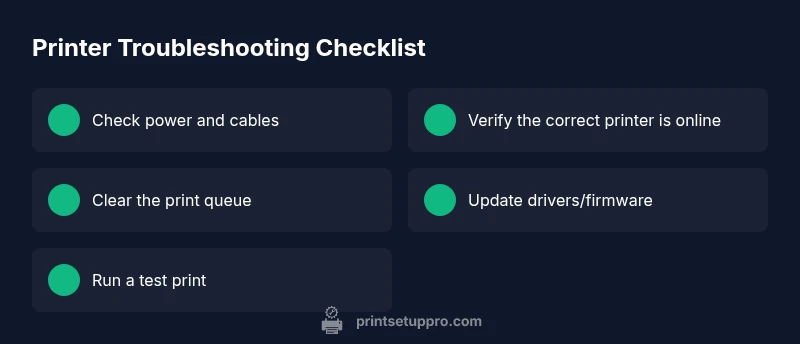
- Check the print queue first and cancel stuck jobs
- Ensure the correct printer is online and default
- Update drivers/firmware before deeper fixes
- Test with a simple page to verify results