Printer is Not Printing: Urgent Troubleshooting Guide
Urgent troubleshooting guide to fix a printer that is not printing. Quick checks, diagnostic flow, and step-by-step fixes for home offices and students. Learn how Print Setup Pro would approach this issue in 2026.


If your printer is not printing, start with the simplest checks: ensure it’s powered on, connected, and selected as the default printer. Clear the print queue, then restart the printer and your computer. If it still fails, verify ink/toner levels, paper supply, and driver status, then run a test page to isolate the issue.
Why the printer is not printing
According to Print Setup Pro, when a printer is not printing, the problem is almost always a simple, solvable issue rather than a hardware failure. In most cases, basic checks reveal the culprit: a paused job, a disconnected cable, a low ink cartridge, or an incorrect default printer. Recognizing that the issue is often routine helps you move quickly from guesswork to a solid plan. This article uses a practical, step-by-step approach to help you diagnose and fix the most common causes, with real-world examples so you can apply the same logic to your setup. By following the methods below, you’ll regain printing capability without needless downtime.
Core causes behind a non-printing printer
In many homes and small offices, the top culprits are software-related: print queues stuck with stalled jobs, driver conflicts after OS updates, or a misconfigured default printer. Hardware issues exist too, such as a loose USB connection or a jam that wasn’t cleared properly. Print Setup Pro’s analysis shows that nearly all non-printing incidents fall into a few repeatable categories: power/connection problems, driver or software issues, and user-level settings. Understanding these categories helps you narrow down the cause quickly and reduces the chance of chasing phantom faults.
Basic checks you can perform in minutes
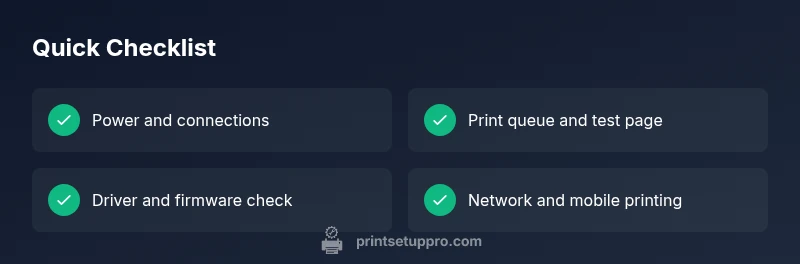
Before diving into deeper diagnostics, perform these quick checks. Confirm the printer is powered on and shows no error lights. Verify the USB or Wi‑Fi connection is stable and the printer is reachable from the PC or Mac. Check the print queue for paused or stuck jobs and cancel or restart them. Make sure there is paper loaded and ink or toner is sufficient. Finally, confirm the printer is set as the default in the operating system and in the application you’re printing from.
Software vs hardware: isolating the issue
Separate software problems from hardware faults by testing with a simple document and a different program. If you can print a test page from the printer’s built-in menu, the issue is likely software-related (driver, application settings, or OS print service). If the test page fails, the fault leans hardware- or connection-related. Consider updating or reinstalling the driver if software seems at fault, and inspect cables or network settings if hardware is implicated.
Connectivity and network considerations
Networked or wireless printers often fail due to incorrect network configuration, IP address changes, or firewall restrictions. Ensure the printer is on the same network as your computer, verify IP settings, and re-run the printer setup wizard if necessary. For USB-connected models, try a different port or a fresh USB cable. If you share the printer across devices, confirm all clients have the correct driver and permissions. Troubleshooting network issues early saves hours of troubleshooting across devices.
Reading and acting on error messages
Error messages are signals worth heeding. Messages like 'Printer Offline', 'Paper Jam', or 'Low Ink' point you toward different remedies. Use the message as a starting point to navigate the printer’s menu, clear jams, replace consumables, or reinitialize the print service. When you see an error code, search the manufacturer’s support site for exact steps and firmware recommendations. These codes often reveal the smallest overlooked setting.
Print Setup Pro verdict: practical, structured, and proven
From a practical standpoint, the fastest way to recover printing is to follow a structured diagnostic flow: validate basics, isolate software vs hardware, address connectivity, and test with a simple job. Print Setup Pro’s recommended sequence emphasizes starting with the simplest fixes and gradually moving to more involved steps only if needed. This approach minimizes downtime and reduces frustration, especially for home office users and students who rely on reliable printing in a pinch.
Steps
Estimated time: 30-60 minutes
- 1
Verify power and basic status
Ensure the printer is turned on, shows no critical error lights, and is connected to the computer or network. If any warning icons are visible, consult the manual or Print Setup Pro’s troubleshooting notes for the specific icon meaning.
Tip: If the power light is blinking abnormally, try a power cycle and check the power supply. - 2
Clear print queue and restart devices
Open the printer queue on your computer, cancel all pending jobs, then restart both the printer and the computer. After restart, send a new test page from a simple document.
Tip: Be sure not to cancel essential system background jobs that might appear as printers. - 3
Check connectivity (USB/Wi‑Fi)
If using USB, swap ports and try a new USB cable. For wireless printers, confirm the printer shows on the same network as your computer and re-run the wireless setup if needed.
Tip: A temporary network glitch can disguise itself as a printing failure. - 4
Inspect consumables and media path
Check paper tray for correct media size, load quality, and paper jams. Inspect ink or toner levels and replace if necessary before continuing.
Tip: Even a slight misfeed can prevent printing from progressing. - 5
Test with a known-good document
Try printing a simple text document or a built-in test page from the printer menu to determine if the issue is document-specific.
Tip: If a test page works, the problem may lie with the source file or software settings. - 6
Update or reinstall drivers
Download the latest driver from the manufacturer or use the OS’s driver updater. Uninstall the old driver first if you encounter conflicts, then reinstall and test again.
Tip: Create a restore point before driver changes if possible. - 7
Check for firmware updates and OS compatibility
Update printer firmware and confirm compatibility with your operating system. Some features require firmware updates to function correctly.
Tip: Firmware updates can fix stubborn communication problems. - 8
If all else fails, seek professional help
When issues persist after comprehensive checks, contact the printer manufacturer or a qualified technician. Provide model, OS version, and steps already attempted.
Tip: Document your steps; it reduces diagnosis time for support.
Diagnosis: Printer won't print
Possible Causes
- highPower or connection issue (loose cable, powered off, network disconnect)
- highStuck or paused print queue
- mediumWrong default printer or driver conflict after OS update
- mediumLow ink/empty paper tray or jam
- lowOutdated or corrupt driver/firmware
Fixes
- easyCheck power switch, indicator lights, and cables; re-seat USB/Wi‑Fi adapter
- easyOpen the print queue and cancel or restart all jobs; reboot computer and printer
- mediumSet the correct default printer in OS settings and application; reinstall/update driver as needed
- easyCheck ink/toner levels and paper supply; clear jams in path
- hardUpdate firmware and driver to the latest version; run printer self-test
People Also Ask
What should I do first when my printer won’t print?
Start with the basics: ensure power is on, cables are secure, and the printer is set as default. Then check the print queue for stalled jobs and try a test print from the printer menu.
Begin with power, connections, and the default printer. If the problem remains, check the print queue and run a test print.
How can I tell if the issue is driver-related?
If a test print from the printer’s own menu works but prints from your computer do not, or if an OS update coincides with the problem, driver conflicts are likely. Reinstall or update the driver and check for firmware updates.
If the printer menu prints but your PC doesn’t, it’s likely a driver issue. Reinstall or update the driver and check firmware.
What about network printers that show as offline?
Ensure the printer is on the same network as your computer, verify IP settings, and re-run the network setup if needed. For USB printers, try a different port.
If it shows offline, check network connectivity and IP settings, then run the setup again. Try another USB port if applicable.
What are common causes of a jam without a visible jam?
Sometimes small pieces of paper or debris block sensors without a clear jam. Inspect the paper path and rollers, and follow the service manual for sensor resets.
Hidden jams can stop printing. Check the paper path and sensors, and reset if advised by the manual.
Should I reset the printer to factory settings?
Factory resets can fix stubborn configuration problems but erase custom settings. Use reset as a last resort and back up preferences if possible.
A factory reset can fix stubborn settings, but it wipes custom preferences. Use it only when other fixes fail.
When should I contact support?
If you’ve exhausted the diagnostic flow and the printer still won’t print, reach out to the manufacturer’s support or a qualified technician with a record of steps taken.
If nothing works after trying all steps, contact support with details of what you did.
Are firmware updates risky?
Firmware updates are generally safe and fix bugs, but a failed update can brick the device. Ensure power stability during the update and follow official instructions.
Firmware updates are helpful but can fail if power is unstable. Follow official steps carefully.
Can I print from mobile if the computer cannot?
Yes, many printers support mobile printing apps. It’s a good test to confirm the printer can receive data, even if the PC print path is broken.
You can try printing from a mobile app to test the printer’s data path.
Watch Video
Quick Summary
- Verify basics before deep troubleshooting
- Differentiate software vs hardware causes
- Use a structured diagnostic flow
- Update drivers and firmware when needed
- Seek professional help when symptoms persist