What to Do If Your Printer Isn’t Printing: A Safe Step-by-Step Guide
Urgent, step-by-step troubleshooting for home offices and students: diagnose why your printer isn’t printing, fix common issues, and prevent future problems with practical, proven steps from Print Setup Pro.


The printer not printing is usually caused by connectivity or driver issues. Start by verifying power and online status, confirm the correct printer is selected, and perform a quick reboot of both the printer and computer. If the issue persists, update drivers or reinstall the printer to reset the print queue.
Quick Diagnostics: Is the printer online and able to receive jobs?
If your printer isn’t printing, the first thing to check is whether the device is powered on, showing a ready status, and connected to the same network or directly to your computer. According to Print Setup Pro, most failures stem from simple issues like a paused job, an offline status, or a loose USB/Wi‑Fi connection. Look for a green power light, a display that isn’t showing error codes, and a steady link indicator on the printer. If you see “Offline” in Windows, macOS, or the printer’s control panel, begin the flow there. A quick test page should print to confirm communication. If not, move to the next checks. By following a systematic diagnostic, you can often identify the root cause within minutes and avoid unnecessary replacements.
Check power, cables, and network status
Ensure the power cable is firmly connected and the outlet is functioning. For USB printers, try a different cable and a different USB port. For network or wireless printers, confirm the printer is connected to the same router as your computer and has a valid IP address (you can print a network configuration page from the printer). Restart the router if the connection is flaky. Printer online status can be disrupted by sleep/hibernate settings; disable power saving during troubleshooting. If the printer reports an IP conflict or limited connectivity, assign a static IP or reconnect to the network.
Verify the correct printer is selected and the print queue is clear
On your computer, set the intended printer as the default, and check for any paused or stuck print jobs in the print queue. Cancel all jobs, then try printing a simple document. Some apps route to a different printer by default; verify the app’s printer selection before reprinting. If the queue is clear and you still can't print, the issue may be with the driver or firmware, which requires deeper intervention such as reinstalling software, or performing a firmware update directly from the manufacturer. Keep a note of the model number to ensure compatibility with your OS.
Update drivers and firmware to clear software barriers
Outdated or corrupted drivers are a frequent cause of printing failures. Visit the manufacturer’s website to download the latest driver package for your model, or use your OS’s optional updates to pull the correct version. After installing, restart the computer and printer, and re-add the printer if required. In some cases, firmware updates for the printer fix compatibility issues with modern OS versions. If you’re unsure which driver matches your device, Print Setup Pro recommends starting with the auto-detect tool offered by many brands.
Clear the print spooler and reset the printing subsystem
If the queue is clear but nothing prints, resetting the printing service can help. On Windows, open services.msc and restart the Print Spooler; on macOS, reset the printing system from the Printers & Scanners settings. Then re-add the printer and try a test page. This step resolves many stuck jobs and driver conflicts. If you still cannot print, consider performing a clean boot or testing the printer on another computer to isolate whether the issue is hardware or software.
Test prints and escalation plan
Run a test page from the printer menu and from the computer to compare results. If issues persist after all basic steps, consider testing with a different computer or another application to isolate whether the problem is machine- or software-related. If hardware faults are suspected (e.g., print head, cartridge, or sensor), contact support. Print Setup Pro suggests keeping proof of purchase and model info handy so support can help quickly.
Steps
Estimated time: 30-45 minutes
- 1
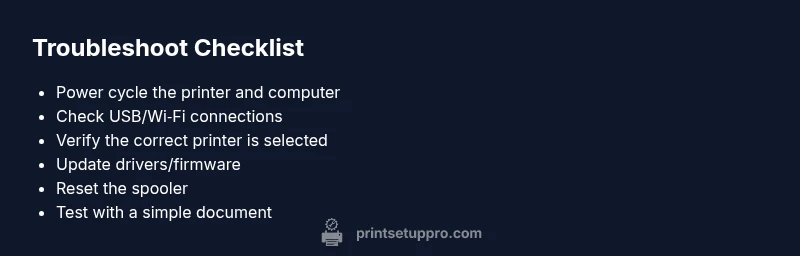
Power cycle the printer and computer
Turn off the printer and computer, unplug power for 15-30 seconds, then plug back in and power on. This clears transient errors and resets internal memory. After reboot, attempt a test print.
Tip: Avoid unplugging during a firmware update; wait until both devices are fully powered down before replugging. - 2
Check connections and run a test page
Inspect USB cable for damage, try a different port, or switch to a wired Ethernet connection if possible. Print a network configuration or test page from the printer's control panel to confirm communication.
Tip: If you’re on Wi-Fi, ensure the printer is on the same network band as the computer (2.4 GHz is more universally supported). - 3
Verify the default printer and clear the queue
On your computer, make sure the correct printer is set as default. Open the print queue and cancel all pending jobs; restart the queue and try again.
Tip: If the application routes to a different printer, change the app’s print settings. - 4
Update drivers/firmware and reinstall if needed
Download the latest driver package from the manufacturer or use a trusted updater. Install, reboot, and re-add the printer. Consider firmware updates when available.
Tip: Back up your current profile if the driver offers customization. - 5
Reset the printer spooler/printing subsystem
On Windows, restart the Print Spooler service; on macOS, reset the printing system, then re-add the device. This removes stuck jobs and cleanly resets settings.
Tip: Perform this step after saving any ongoing documents to avoid data loss. - 6
Test, document, and escalate if necessary
Print a few pages from different apps and with different documents to confirm consistency. If issues persist, test with another computer or reach out to support with model, OS version, and error codes.
Tip: Have your purchase date and model handy when contacting support.
Diagnosis: Printer won’t print or shows offline despite power on
Possible Causes
- highPrinter is offline or paused in the operating system
- highLoose or failed connection (USB/Wi‑Fi/Ethernet)
- mediumOutdated or corrupted printer drivers/firmware
- lowStuck or paused print queue
Fixes
- easyCheck that the printer is Online and not paused in the OS and in the printer dialog
- easyVerify cables or network connection; reconnect or switch to USB if on Wi-Fi, and ensure the printer has a valid IP address
- easyRestart the print spooler service and clear all print jobs
- mediumUpdate or reinstall the printer driver/firmware and re-add the printer
People Also Ask
My printer shows offline even when powered on. What should I check first?
Check that the printer is Online in the OS, verify the connection (USB or wireless), and cancel any paused print jobs. Reboot devices if necessary.
Make sure the printer is online and connected, and clear any paused jobs.
How do I update or reinstall my printer driver safely?
Go to the manufacturer’s site or your OS updater, download the latest driver for your model, install, and restart both printer and computer. Re-add the device if required.
Update or reinstall the printer driver from the official site and restart.
Why isn’t a test page printing after a driver update?
The issue could be a mismatched driver or a blocked spooler. Ensure the correct printer is selected and restart the spooler service.
Ensure the right printer and restart the spooler.
When should I contact printer support?
If you’ve followed the steps and the printer still won’t print, there may be a hardware fault. Gather model, serial, OS version, and error codes before contacting support.
If basic steps fail, hardware fault is possible; collect model and OS details.
Is a low-ink or empty cartridge the cause of no printing?
Yes, some printers will refuse to print with low or empty cartridges. Replace cartridges or clear out any protective tape before printing again.
Low cartridge can stop printing; replace with fresh cartridges.
How can I test the printer on another computer?
Connect the printer to a second computer to determine if the issue is device-specific or OS-related. If it prints there, the problem is likely software on the first computer.
Test the printer on another computer to isolate the issue.
Watch Video
Quick Summary
- Start with power, connection, and default printer.
- Update drivers/firmware to fix software blocks.
- Reset the spooler to clear stuck jobs.
- Escalate early if you suspect hardware faults.