When Printer Is Not Working: Urgent Troubleshooting Guide
Urgent, practical steps to diagnose and fix a printer that is not working. Follow a proven, step-by-step plan from Print Setup Pro to restore printing fast and safely.


Most printer failures stem from simple power, cable, or connectivity issues. Start with a power cycle, verify connections, and confirm the printer is online in your computer’s list. If unresolved, advance through driver updates, queue clearance, and network checks following this guide.
Quick reality check: diagnosing without panic
When your printer isn’t working, panic won’t help. The most effective approach is a calm, methodical assessment. Start by identifying the exact symptom: is the device powering on, is there an error message, or is it simply not responding to print commands? Print Setup Pro’s analysis for 2026 emphasizes a top-down method: hardware first, then software, then connectivity. With safety in mind, unplug the printer before inspecting any internal parts per the user manual’s warnings. If you can, test basic steps on a different computer or network to rule out one faulty component. By organizing the problem into clear parts, you’ll save time and avoid unnecessary replacements. This initial triage should take just a few minutes, but it sets the stage for a definitive fix.
Common causes at a glance
Printers stop working for a handful of repeatable reasons. The most frequent are power or cable issues: a loose outlet, a frayed power cord, or a tripped circuit breaker can render the device non-functional. Connectivity problems follow closely: USB cables, Ethernet cables, or a misconfigured wireless network can prevent communication between your computer and the printer. Paper jams, empty ink or toner, and an exhausted paper tray interfere with operation and cause errors or stalls. Software problems, such as outdated drivers or firmware after an OS update, also disrupt printing. Hardware faults exist but are comparatively rare; sensor failures or a failing print head require professional diagnostics. Use this overview to guide your checks and avoid chasing the wrong culprit. If you’re unsure, proceed with the lowest-risk steps first before testing more advanced fixes.
Step 1: Power, outlets, and physical connections
Begin at the source. Ensure the printer is plugged into a known-good outlet, the power switch is on, and the cable is securely connected at both ends. If the outlet is controlled by a switch or a surge protector, test by plugging directly into a wall outlet. Check for LED indicators on the printer: a blinking light might indicate a specific error. If the device doesn’t power on at all after multiple attempts, try a different power cord or outlet to rule out a faulty supply. Safety note: never yank cables or open the printer casing unless the manual instructs you to do so.
Step 2: Consumables, jams, and media readiness
Low ink or toner can cause a failure to print even when the printer appears responsive. Refill or replace cartridges if needed. Verify that paper is loaded correctly and that the tray isn’t empty or misaligned. Paper jams can trigger error codes and halt printing; clear jams carefully following the manual and avoid pulling at torn pieces inside the device. If you see a specific error code on the display or in the printer software, consult the manual or the manufacturer’s website for exact meaning and recommended action. After addressing consumables, perform a test print to confirm the issue is resolved.
Step 3: Print queue and spooler service
Sometimes the problem isn’t with the printer hardware but with the host computer’s print queue. On Windows, open Services and restart the Print Spooler; on macOS, use the Print Queue window to cancel all queued jobs. Clear any stuck jobs from the queue before attempting a new print. If the spooler service fails to restart, check for related errors in Event Viewer or Console logs. Then re-add the printer to your system, selecting the correct driver and port. This step often resolves “printer offline” scenarios caused by software glitches rather than hardware failure.
Step 4: Drivers, firmware, and software health
Outdated or corrupted drivers can prevent a printer from printing after a system update. Reinstalling or updating the driver from the manufacturer’s official site is often enough to restore functionality. If there’s a firmware update, apply it only if your device and OS compatibility are confirmed. After drivers are updated, restart the computer and the printer to ensure changes take effect. If you cannot find the right driver, try the generic printer driver included with your OS as a temporary workaround while you obtain the correct one. Always download updates from trusted sources.
Step 5: Network and wireless status
For wireless printers, confirm the printer and the computer are on the same network. Use the printer’s control panel to view network settings or print a network configuration page. If the IP address has changed, reconfigure the printer in your operating system, or set a static IP to avoid future conflicts. For USB-connected printers, try a different USB port and ensure the cable is not damaged. If you’re in a corporate or complex network, you may need to adjust firewall or router settings to allow printer traffic. After reestablishing connectivity, run a test page from your device.
Step 6: Built-in diagnostics and test printing
Most brands offer built-in diagnostic tools accessible through the printer menu or vendor software. Run any available diagnostics to identify sensor, head, or alignment issues. Print a test page to observe color accuracy and print quality as well as alignment. If the test page reveals a specific defect, follow the manufacturer’s recommended remedy. Some issues require cleaning cycles, alignment procedures, or cartridge replacement. If the diagnose tool reports a fault that you cannot resolve with standard maintenance, note the error code and contact support.
Step 7: When to call for help and how to prepare
If you’ve methodically walked through the steps above and the printer still won’t print, it’s time to seek professional assistance. Gather the model number, OS version, driver version, and a concise description of the issue plus any error codes. Having the warranty status and service history handy will speed up the process. Before calling, capture a few photos of the error display and cable connections. The service technician will need these to diagnose the problem efficiently. For home users, this can save time and reduce the risk of voiding a warranty.
Prevention: maintenance routines to avoid future outages
Establish a lightweight maintenance routine: check ink levels, update firmware periodically, and keep drivers current. Schedule monthly checks to verify cables, ports, and network stability. Regularly print a test page to catch issues early, and reset the printer’s internal counters to avoid accumulating errors. Store replacement consumables in a cool, dry place and follow the manufacturer’s recommended cleaning schedule. By building habits now, you’ll reduce the chance of repeated failures and keep your printer ready when you need it most.
Steps
Estimated time: 60-90 minutes
- 1
Power cycle and basics check
Power off the printer, unplug it, wait 30 seconds, and plug back in. Turn on and observe indicators. Confirm the outlet and cable are functioning by testing with another device if needed.
Tip: Document any LED error codes for later reference. - 2
Check and clear the print queue
Open the printer queue on your computer and cancel all jobs. Restart the print spooler service or printer software, then try a new print.
Tip: If a job reappears, delete it from the source application as well. - 3
Verify connections and network
For USB, try a different port and cable. For network printers, confirm the printer’s IP on its config page and ensure both devices share the same network.
Tip: Static IP can prevent future changes from breaking connectivity. - 4
Update drivers and firmware
Download the latest driver from the manufacturer’s site and install. If a firmware update exists, apply it following official guidance and reboot.
Tip: Only use official sources to avoid counterfeit software. - 5
Run built-in diagnostics
Use the printer’s diagnostic tools and run a test page. Note any error codes and matching remedies from the manual.
Tip: Some issues require cleaning cycles or head alignment. - 6
Test print after each fix
Print a simple document to confirm the fix is working. If not, repeat steps in a higher-level order.
Tip: Keep a notebook of what you tried and the results. - 7
Escalation if unresolved
If the problem persists, contact support with a summary, logs, and the steps you’ve already tried.
Tip: Check warranty status before service to avoid out-of-warranty charges.
Diagnosis: Printer won't print or respond to commands
Possible Causes
- highPower issue or unplugged outlet
- highPrinter offline or not connected to computer/network
- mediumStuck print job or full print queue
- lowOut of ink/toner or empty paper tray
- mediumOutdated or corrupted drivers/firmware
- lowCable damage or bad USB/Ethernet port
- lowHardware fault in printer sensors or print head
Fixes
- easyCheck outlet, power cord, and switch; try a different outlet or remove surge protection for testing
- easyEnsure printer is online in OS and reconnect network/USB; re-add printer if necessary
- easyCancel stuck print jobs and restart the spooler or print service; reprint a test page
- easyRefill/replace consumables and clear jams; verify media status again
- mediumUpdate or reinstall drivers; install available firmware update after verifying compatibility
- easyTry different USB port or Ethernet port; replace damaged cable if needed
- hardIf hardware fault is suspected, contact support for service options (warranty coverage may apply)
People Also Ask
Why does my printer show offline even when it's connected?
Offline status usually means the device cannot communicate with the computer. Check the network or USB connection, re-add the printer, and ensure the printer is set as online in the OS.
Offline status means the printer can’t communicate with your computer. Check connections, re-add the printer, and set it online.
What should I do if printing starts but stops mid-job?
Cancel all queued jobs, restart the spooler, and reprint a fresh document. Check the file size and graphics—large or corrupted files can stall printing.
If printing stops mid‑job, cancel the queue, restart the spooler, and try again. Check the file if it’s very large or corrupt.
How can I update printer drivers safely?
Visit the official manufacturer site and download the latest driver for your exact model. Install, restart, and test printing. Avoid third-party drivers for safety and compatibility.
Get the latest driver from the official site, install it, and reboot before testing printing.
Is a firmware update necessary for fixes?
Firmware updates can fix known issues, but only apply updates that match your device and OS. Read release notes and back up settings if offered.
Firmware updates can fix problems; ensure compatibility and read notes before updating.
What if the printer hardware seems fine but still won’t print?
If basics and software checks fail, there may be a hardware fault. Contact support with model details, error codes, and warranty information.
If hardware seems fine but it still won’t print, contact support with details and warranty info.
How long should a typical firmware update take?
Firmware updates vary by model but typically complete within a few minutes. Do not interrupt the process and avoid powering off the device.
Firmware updates usually finish in minutes; don’t interrupt the process.
Watch Video
Quick Summary
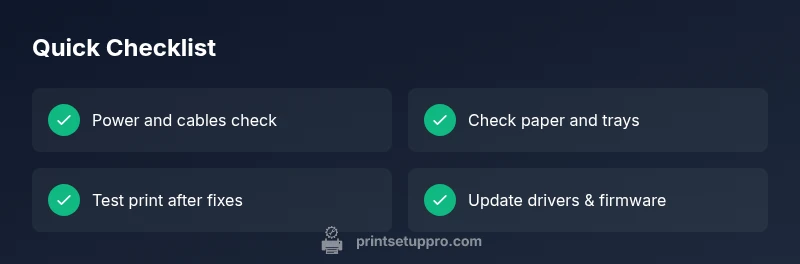
- Do a structured, calm diagnostic.
- Prioritize power and connectivity first.
- Keep drivers and firmware current.
- Use the print queue and spooler as first software checks.
- Escalate with documentation if needed.