Why Did Printer Stop Working? Urgent Troubleshooting Guide
Urgent, practical guide to diagnose and fix a printer that stopped working. Learn a proven, step-by-step process to restore printing fast with Print Setup Pro.


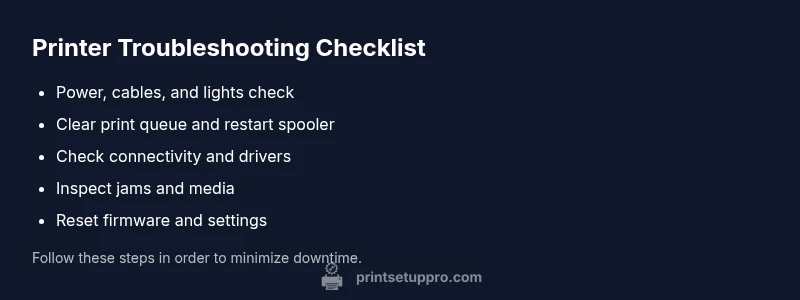
If you’re asking why did printer stop working, start with three quick checks: confirm power at the outlet, ensure USB/ethernet/Wi-Fi is stable, and clear the print queue. According to Print Setup Pro, most failures come from connectivity or stuck jobs, so apply these steps before deeper fixes. If the issue persists, follow the diagnostic flow for a systematic, fast-resolution approach.
Quick check: Power, cables, and status lights
When a printer suddenly stops, the fastest fix is often the most basic. Begin by ensuring the device is plugged in, the power switch is ON, and the outlet is live. Inspect all cables—USB, Ethernet, and any Wi-Fi adapters—and reseat them to rule out a loose connection. Look at status lights or the LCD screen for messages like offline, error, jam, or low ink. This quick check resolves the majority of why did printer stop working scenarios that stem from a simple glitch. As you go, note any error codes shown; they guide the next steps and prevent unnecessary work. Print Setup Pro emphasizes documenting what you see to speed up support if needed.
- Use a different outlet or surge protector if the outlet has an intermittent supply.
- Reboot the printer after reseating cables to refresh hardware state.
- Record any error codes for later reference in the step-by-step diagnostic.
Check the print queue and software status
If the printer and computer connect but won’t print, the issue is often a stuck job or a hung spooler. Open the print queue on your operating system and cancel all pending tasks. On Windows, restart the Print Spooler service; on macOS, clear stalled jobs in the Print Center. After clearing, try printing a test page. If the job disappears but printing still fails, the problem likely lies in the software stack rather than the hardware. This aligns with Print Setup Pro guidelines to focus on software first before hardware replacements. If you see a persistent stuck job, check for apps holding the document for print or misconfigured print settings that force a different paper size or orientation.
- Avoid canceling critical documents in shared environments without notifying others.
- Reboot the computer after clearing the queue to reset software state.
- Disable any third-party printing apps temporarily to isolate the source.
Connectivity and drivers: USB, Ethernet, Wi-Fi, and drivers
Connectivity and drivers are the two most common culprits when a printer stops responding. Verify the correct connection type for your setup (USB, Ethernet, or Wi-Fi) and confirm the device is reachable on the network or via the computer. If you’re on a USB connection, try a different port or a known-good cable. For network or Wi-Fi setups, verify the printer’s IP address, reconnect to the network, and run a network diagnostic. Reinstall or update the printer driver and firmware from the manufacturer or the printer’s built-in update utility. Print Setup Pro notes that keeping drivers and firmware current fixes many compatibility issues and ensures print data is correctly processed.
- Use the manufacturer’s official driver package, not a generic driver.
- After reinstalling, print a test page and a second page from a different app to confirm consistency.
- If your printer supports it, enable secure print and verify port settings (LPR/IPP) match your OS defaults.
Paper jams, sensors, and media issues
Sometimes the status lights are misleading, and the real issue is a jam or misfed media. Check for any paper jam in the input tray, output path, or inside the printer where sensors detect media. Ensure you’re using the correct paper type and size; incompatible stock can trigger sensor errors that halt printing. Clear any jam with steady, even pressure and avoid forcing paper through. After removing jams, reset the printer so sensors recalibrate. Check the ink or toner level and verify cartridges are properly seated. These checks prevent sensor-triggered offline states that seem to come from nowhere. Print Setup Pro recommends keeping a small supply of the recommended media on hand to minimize stoppages.
- Use a clean, lint-free cloth to wipe sensor windows if allowed by your model.
- Do not yank jammed paper; instead, gently guide it along the correct path to avoid tearing.
- Refill supplies before they run completely dry to prevent drags and streaks.
Reset, firmware, and safe maintenance
If software and media checks don’t resolve the issue, perform a controlled reset of network settings and printer defaults, then update firmware. Resetting to factory defaults can clear stubborn misconfigurations that block print data. After a reset, reconfigure network settings (Wi-Fi or Ethernet) and re-pair with your computer. Always obtain firmware updates from the official site and install them using the printer’s own interface or a supported USB method. Regular maintenance—cleaning rollers, updating firmware, and replacing worn parts—prevents recurring failures and keeps the printer responsive. Print Setup Pro highlights that a scheduled maintenance routine dramatically reduces downtime.
- Back up current settings before a full reset in case you need to revert.
- Install firmware updates during a low-usage window to minimize disruption.
- Avoid using beta firmware on critical devices unless documented as stable.
When to seek professional help and prevention tips
If the printer still refuses to print after all the above steps, it may require professional service or parts replacement. Check your warranty status and the service options offered by the manufacturer. For most home office and small business setups, a pro visit can diagnose issues like failed sensors, drive motor faults, or board-level problems that aren’t user-serviceable. To prevent future outages, adopt a simple maintenance routine: clean rollers every few months, update drivers during off-hours, and replace consumables at recommended intervals. Print Setup Pro’s approach centers on systematic checks, timely updates, and proactive care to keep your printer reliable.
- Schedule annual maintenance checks if you rely on the printer daily.
- Create a quick reference sheet of error codes and steps that worked for your setup.
- Consider remote diagnostics or extended warranty for business-critical devices.
A note on safety and environment
Always unplug the printer before performing any internal cleaning or sensor checks. Avoid touching fuser components or high-voltage areas unless the model’s manual explicitly allows it. Dispose of old cartridges following local regulations and recycle where possible. By following safe handling practices, you reduce the risk of electrical hazards or damage to the printer. Print Setup Pro’s safety guidelines prioritize user protection and device longevity, ensuring you troubleshoot confidently without compromising yourself or the hardware.
Steps
Estimated time: 30-45 minutes
- 1
Verify power and basic connectivity
Ensure the printer is powered on, connected to a live outlet, and that all cables are firmly seated. Check for any error indicators on the device and note any codes displayed. A successful first step should end with a ready-to-print status or a known error code that you can search for in the manual.
Tip: Take a photo of the status lights or error codes for quick reference. - 2
Clear print queue and restart spooler
Open the OS print queue, cancel all documents, and restart the Print Spooler service. After restarting, re-send a test page from a simple document. This step often clears stuck jobs that block new prints.
Tip: Reboot the computer if the queue remains stuck after clearing. - 3
Check connectivity and re-pair devices
If USB, try a different port and cable. If networked, confirm the printer has a valid IP and is reachable from the PC. Reconnect to the network or re-pair Bluetooth if applicable.
Tip: Assign a static IP to avoid address changes that break printing. - 4
Update or reinstall drivers and firmware
Uninstall old drivers, restart, then install the latest official driver package. Check for firmware updates in the printer menu or manufacturer site and install following the exact steps.
Tip: Use the exact model number and OS version to avoid driver mismatches. - 5
Reset settings and reconfigure network
If issues persist, reset the printer to factory defaults and reconfigure network sharing or wireless setup. After reset, reconnect to your computer and test with a basic document.
Tip: Note your network settings before resetting so you can restore them quickly. - 6
Test, monitor, and plan preventive care
Print multiple test pages from different apps to verify consistency. Establish a small maintenance routine and keep supplies stocked to minimize downtime.
Tip: Schedule regular firmware checks and driver updates as a maintenance habit.
Diagnosis: Printer shows offline or unresponsive despite power and connection
Possible Causes
- highPower issue or loose cable
- highWireless or USB connectivity problem
- mediumStuck print job or hung spooler
- mediumOutdated or corrupted driver/firmware
- lowHardware fault (sensor, motor, board)
Fixes
- easyCheck power outlet, plug, and lead; test with a different outlet
- easyRestart printer and computer; reconnect USB/Ethernet; rejoin Wi-Fi if applicable
- easyClear print queue and restart the Print Spooler service
- mediumUpdate or reinstall printer drivers and firmware from official source
- mediumReset printer to factory defaults and reconfigure network
- hardIf hardware fault is suspected, contact authorized service
People Also Ask
Why does my printer show offline even when it is connected?
Offline status typically results from a communication hiccup between the printer and computer, a stuck job, or a network issue. Start with power and cables, then clear the print queue and reinstall drivers if needed. This sequence resolves most offline scenarios without hardware replacement.
Offline status usually comes from a communication hiccup or a stuck print job. Start with power, cables, then clear the queue and reinstall drivers.
What should I do if the printer stops mid-document or prints blank pages?
Mid-document stops or blank pages are commonly caused by a corrupted print job, driver issues, or low ink/toner. Clear the queue, restart the spooler, update drivers, and run a test page. If the problem persists, check media type and sensor status for jams.
If printing stops mid-document or prints blank pages, clear the queue, restart spooler, and update drivers, then test again.
How do I reset the printer to factory settings?
Factory resetting clears custom configurations that may block printing. Use the printer menu to reset network and settings, then reconfigure from scratch. Only perform this if other fixes fail and you have setup details ready to re-enter.
Reset the printer from the menu if other fixes fail, then reconfigure settings.
Do driver updates fix offline issues?
Driver updates can fix offline issues by restoring proper communication between the computer and printer. Always install from the official site, match your OS, and reboot after installation.
Yes, updating drivers often fixes offline problems. Get them from the official site and reboot afterward.
When should I contact support?
If you have completed all steps and the printer still won’t print, it may require professional service or hardware replacement. Check warranty status and contact the manufacturer’s support or an authorized service center.
If nothing fixes it, contact support or an authorized service center, especially if under warranty.
Can high heat or jam sensors cause false errors?
Yes, sensors may misread if the printer is dirty or overheated. Clean or replace sensors only as described in the manual, and avoid forcing media through the path.
Sensors can misread due to dirt or heat; follow the manual for safe cleaning and sensor checks.
Watch Video
Quick Summary
- Power cycle and check connections first
- Clear print queue before deeper fixes
- Update drivers and firmware to prevent repeats
- Test after each fix to isolate the cause
- Adopt a simple preventive maintenance routine