Printer Not Working? Step-by-Step Troubleshooting Guide
Urgent, practical guide to diagnose and fix printer failures fast. Follow a proven diagnostic flow to address offline status, driver issues, jams, and connectivity for home offices, students, and small teams.


Start with the basics: check power, cables, and the printer’s status lights, then verify the device appears online and can receive jobs. The fastest fixes come from confirming the basics before diving deeper. If the printer still won’t respond, proceed with the diagnostic flow to identify the likely causes and safe, documented fixes.
If printer is not working: a practical mindset
According to Print Setup Pro, when facing printer issues, you should begin with a calm, basic diagnostic. The goal is to map symptoms to likely causes and choose safe, documented fixes. This approach reduces guesswork and speeds recovery across brands and models. Note down error messages, lights, or codes to reference later. By staying organized, you can often resolve most issues without professional help. This mindset also helps you reproduce and explain the problem if you need to contact support.
Basic checks you can perform in minutes
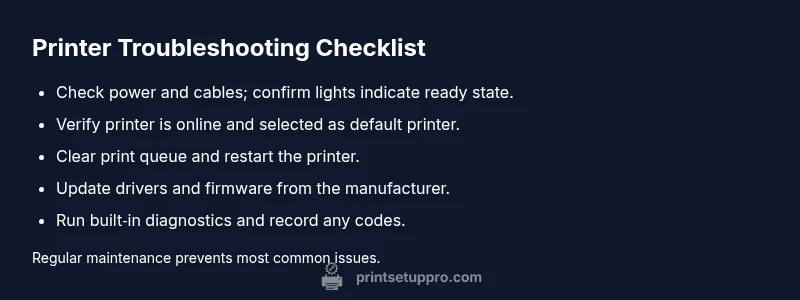
Before you reach for software, verify the basics are solid. Make sure the printer is plugged in, the power switch is on, and the power indicator is steady. Check all cables: USB or Ethernet should be firmly connected; if you’re on Wi‑Fi, confirm the printer is connected to the correct network. Clear any obvious jams and ensure the paper tray has paper. Sometimes a simple lid open/close or reseat can reset internal sensors and restore operation. A quick reboot of the printer and computer can also clear transient faults that aren’t obvious from error messages.
Connectivity and driver considerations
Connectivity problems and outdated drivers are among the top reasons printers appear offline or fail to print. Check the printer status in your computer’s devices list, then reselect the printer as the default. Update or reinstall drivers from the manufacturer’s site, and if available, run the built‑in diagnostic tool. Also verify firmware is current; an older firmware can create compatibility problems with new software or operating systems. If the issue persists, try a USB connection to isolate network-related problems.
Mechanical issues that commonly stop printing
Paper jams, wrong paper type, or worn rollers can silently block a job. Open access panels to inspect for small bits of paper or debris. Ensure the paper type and size match the tray settings, and that the ink or toner cartridges are installed correctly and not empty. If the printer reports jams, follow the manufacturer’s jam procedures step-by-step rather than forcing the mechanism. Regular cleaning of trays, rollers, and sensors can prevent recurring jams.
Safe testing and stepwise fixes
If symptoms persist, perform a controlled reset of the printer without losing essential settings. Restart the printer and, if available, the print spooler service on your computer. Run any built‑in self‑test or diagnostics provided by the manufacturer. If you’re comfortable, perform a clean reinstallation of the driver and reinstall the printer using a USB or network path. Always back up settings before resets. Document the sequence you tried so you can reproduce or escalate if needed.
When to call for professional help and how to document the issue
If you’ve exhausted the basic steps without success, it’s time to escalate. Gather model/serial numbers, a concise description of the problem, and screenshots of error messages. Contact the manufacturer support or a local service technician with that information. Regular maintenance and scheduled cleanings can prevent future issues and extend printer life. Keeping a simple log helps future troubleshooting and reduces downtime.
Steps
Estimated time: 45-60 minutes
- 1
Check power and connections
Start by confirming the printer is plugged in and the power switch is on. Inspect all cables for damage and reseat any loose connections. If lights indicate an error, note the code to reference in support articles.
Tip: A quick unplug/replug of the USB or Ethernet cable can reset the link. - 2
Inspect print queue and status
On your computer, open the print queue and cancel stuck jobs. Clear the queue, then reprint a simple test page to see if the issue recurs.
Tip: Disable any paused print jobs before retrying. - 3
Verify network or USB connectivity
If you print over Wi‑Fi, ensure the printer is on the same network and has a valid IP. For USB, try a different port or cable to eliminate a flaky connection.
Tip: Temporary Ethernet/wireless switch can help isolate the issue. - 4
Update drivers and firmware
Visit the manufacturer’s site and install the latest driver and firmware. After updating, restart both computer and printer to apply changes.
Tip: Use the manufacturer’s auto‑update tool if available. - 5
Run built‑in diagnostics
Most printers include a self‑test or diagnostics mode. Run the test page and compare results to reference guides, noting any error codes.
Tip: Keep a log of test results for reference. - 6
Reinstall or reset if needed
If issues persist, uninstall the driver completely, then reinstall using a clean install. Consider a factory reset only if documented by the manufacturer.
Tip: Back up settings before a full reset.
Diagnosis: Printer won't print after sending a job
Possible Causes
- highPower or cable issue
- highPrinter is offline or not connected to network
- mediumOut of paper or jam
- mediumDriver/firmware mismatch
- lowLow ink or toner
Fixes
- easyCheck power outlet and cable; ensure the printer shows ready lights
- easyVerify printer online status in OS; reconnect to network or switch USB if needed
- easyClear paper jams and reload appropriate paper to the tray
- mediumUpdate or reinstall drivers; run built-in diagnostics from the manufacturer
- easyReplace or replenish ink/toner cartridges as needed
People Also Ask
What should I check first when my printer isn't printing?
Begin with power, cable connections, and the status lights. Then check the print queue and ensure the printer is online and set as default. These basics solve many common issues.
Start with power and cables, check the online status, and clear the print queue. It covers most quick fixes.
Why does my printer show as offline?
Offline status usually means the device isn’t communicating with your computer or network. Check Wi‑Fi or USB connections, ensure the printer is online in your OS, and reinstall or update drivers.
Printer offline usually means a connectivity issue. Check the connection and drivers.
How do I reset a printer safely?
Refer to the manufacturer’s instructions for a reset. A full factory reset should be a last resort, after trying driver reinstall and diagnostics.
Resetting should follow the manufacturer’s instructions; don’t reset blindly.
Can outdated drivers cause printing errors?
Yes. Outdated or mismatched drivers can cause errors, miscommunication, and print failures. Update from the manufacturer’s site and verify compatibility with your OS.
Yes, drivers can cause errors. Update them to fix issues.
Is it safe to clear jams myself?
Only if you follow the manufacturer’s jam procedure and unplug the unit before opening access panels. If a page is stuck deeply, seek professional help.
Follow the jam procedure and unplug before opening panels.
Watch Video
Quick Summary
- Start with power and connection basics before deeper fixes.
- Update drivers and firmware to fix compatibility issues.
- When in doubt, reset and reinstall with care to avoid data loss.
- Document error messages and steps for faster diagnosis.
- If problems persist, seek professional help.