Printer Troubleshoot: Urgent Guide to Fix Common Printer Issues
Urgent printer troubleshoot guide to diagnose and fix common printer issues quickly with step-by-step fixes, safety tips, and prevention strategies for home offices.


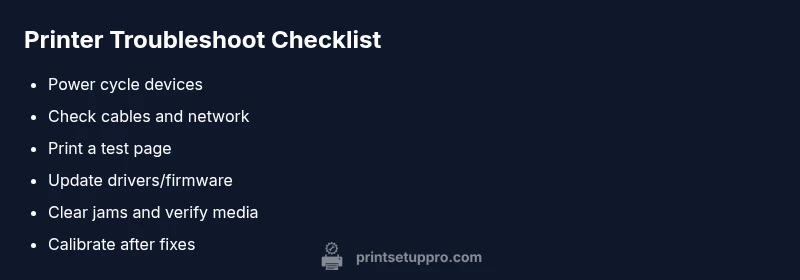
Most printer issues stem from connectivity, driver, or supply problems. Start by checking power, cables, and network status, then print a test page to confirm basics. If the printer remains offline, jammed, or prints blank pages, follow a guided flow: restart devices, update drivers, clear jams, and verify ink or toner levels. This rapid flow reduces downtime and prevents recurring faults.
What This Printer Troubleshoot Guide Covers
This printer troubleshoot guide is designed for urgent, practical action. It presents a structured flow to identify the root cause, verify your setup, and apply fixes that work in real time. You will learn how to distinguish between connectivity problems, driver issues, and hardware faults so you can resolve issues quickly and permanently. According to Print Setup Pro, success comes from following a clear sequence rather than guessing. The goal is to restore print capability with minimal downtime while protecting your device from avoidable wear. You will find hands on steps, checklists, and prevention tips tailored for home offices, students, and small businesses. This guide also emphasizes safety and documenting symptoms to speed up future troubleshooting.
Common Causes Behind Printer Problems
Most printer problems fall into a few predictable categories. The most frequent are connectivity issues such as offline status or intermittent WiFi, driver and firmware mismatches, and simple hardware faults like empty cartridges, jammed paper, or dirty sensor rollers. Environmental factors such as unsafe power, surge protection, or USB port reliability can also derail printing. In some cases the problem is temporary, caused by a recent update or a network reconfiguration. The key is to map symptoms to a likely cause and then apply targeted fixes rather than random resets. Print Setup Pro has observed that systematic checks dramatically cut diagnostic time and reduce repeat failures. This section helps you frame the issue so you can act calmly and efficiently.
Quick Connectivity Checks and Cable Inspections
Begin with the obvious and work inward. Check that the printer is powered on and showing normal status lights. Inspect USB cables or Ethernet wires for secure connections; try a different port or cable if needed. For wireless printers, verify the network name, signal strength, and that the printer is on the same network as your computer. Run a simple network test or ping the printer from a computer to confirm reachability. These checks often expose simple faults before you dive deeper into settings or firmware. Throughout, keep in mind that a loose plug or blinking light can be a major clue.
Power, Sleep, and Hardware Readiness
Power management can disguise faults as silent failures. Ensure the printer is not stuck in sleep or power saving mode and that any auto off timers align with your usage patterns. Check the power strip or wall outlet for faults, and try plugging the printer directly into a known good outlet. Inspect the power cable for wear, fraying, or bent connectors. In some devices, a reset of the printer’s hardware is required after a power issue, so consult the manual for a safe reset sequence if needed. This block helps you confirm that the basics are truly functional before proceeding with more complex steps.
Paper Path, Jams, and Media Compatibility
Paper jams are frequent culprits in printing failures. Open all access doors and gently remove any stuck paper, taking care not to tear sheets or damage rollers. Check for small scraps left behind by previous jams that could cause future misfeeds. Ensure you are using the correct media size and type for your printer model, as incompatible media can cause poor feeding and poor results. After clearing jams, perform a test print to verify the paper path is clear. Always clear jams with the printer turned off to avoid sensor damage.
Software, Drivers, and Firmware Troubleshooting
Driver issues are a leading cause of printing failures after updates or OS changes. Visit the manufacturer's site to download the latest driver and firmware for your exact printer model. If automatic updates are enabled, verify that the update completed successfully. Reinstalling the driver can fix corrupted files; remove the old driver completely before adding the new one. For networked printers, ensure the correct port and protocol are selected in the print settings. Keeping software up to date reduces compatibility issues and enhances security.
Ink, Toner, and Cartridge Health
Low or empty cartridges can produce faint text, missing colors, or blank pages. Check ink or toner levels through the printer menu or software. Replace cartridges with genuine supplies from the manufacturer when possible to avoid a cascade of Print Quality issues. Clean printheads if your model supports it, as clogged nozzles can degrade output. After replacing consumables, print a calibration page to verify alignment and color accuracy. This section emphasizes proactive supply management to prevent future interruptions.
Reset, Recalibrate, and General Maintenance
If all else fails, a factory reset or recalibration can restore baseline performance. Be sure to back up any custom settings or preferences before resetting. After a reset, reconfigure network settings, printer sharing, and defaults for print quality and paper size. Run a couple of test pages to confirm the baseline is solid. Regular maintenance like cleaning rollers and firmware checks will keep the printer running smoothly and reduce repeated downtime.
Final Prevention and Best Practices
Adopt a routine for preventive maintenance to minimize recurring problems. Keep drivers updated, maintain clean paper paths, and use recommended consumables. Create a simple troubleshooting log that captures symptoms, actions taken, and results. This log helps you spot patterns and speed up future triage. With prudent monitoring, you can reduce unplanned downtime and extend the life of your printer. Print Setup Pro emphasizes consistent habits as the best defense against printer troubles.
When to Seek Professional Help
If you encounter persistent hardware faults, persistent offline status after network resets, or unexplained error codes that you cannot interpret, contact a professional. Some issues require specialized tools or warranty service. Before you call, collect model number, firmware version, OS details, and a brief description of the steps you attempted. A structured handoff speeds up diagnosis and service, saving time and reducing risk of further damage.
Steps
Estimated time: 45-60 minutes
- 1
Power cycle everything
Power off the printer, computer, and router. Unplug devices for 60 seconds, then plug them back in starting with the router, then the printer, and finally the computer. This clears transient faults and re-establishes a clean baseline.
Tip: A full power cycle often resolves network and driver negotiation issues. - 2
Check connections and status
Inspect power cables, USB/ethernet cables, and wireless indicators. Ensure the printer is selected as the default printer and show online in the OS print queue. If needed, reset the network settings on the printer and reconnect to Wi-Fi.
Tip: Use a different USB port or Ethernet cable if the connection seems unstable. - 3
Print a test page
From the printer utility, print a test page and a color calibration page if available. This confirms basic print capability and helps identify color or alignment issues early.
Tip: If the test pages fail, note the error codes shown on the printer display. - 4
Update drivers and firmware
Visit the manufacturer’s site and download the latest driver and firmware for your exact model. Install, restart, and re-test printing to verify improvements.
Tip: Back up any personalized settings before updating if the option exists. - 5
Clear jams and clean paper path
Carefully remove any jammed paper from all access points. Clean rollers with a lint-free cloth and check for debris that could affect feed. Run a test print after clearing.
Tip: Always disconnect power before handling internal components. - 6
Check consumables and alignments
Verify ink or toner levels and replace cartridges if necessary. Run any alignment or printhead cleaning routines provided by the printer software.
Tip: Use genuine supplies when possible to avoid compatibility issues. - 7
Calibrate and re-test
Perform a final calibration for color and alignment, then print a few pages to confirm consistent results. Document any residual issues for future reference.
Tip: Keep a log of calibration results to spot drift over time.
Diagnosis: Printer shows offline or fails to print after a change or update
Possible Causes
- highPower or outlet issue
- highConnectivity problem (Wi-Fi/USB)
- mediumOutdated or corrupt printer driver
- lowPaper jam or paper path obstruction
Fixes
- easyCheck power cable and outlet; test a different outlet if needed
- easyRestart printer and router; re-establish network or USB connection
- mediumUpdate or reinstall printer driver; verify correct driver is selected
- easyClear jam and inspect paper path; replace damaged media
People Also Ask
Why does my printer show offline even when it is powered on?
Offline status is usually caused by a communication gap between the printer and the computer or router. Check connections, ensure the printer is set as default, and verify the device is on the same network if using wireless. Reconnecting the printer often resolves this quickly.
Offline usually means the printer and computer are not communicating properly. Check cables, network, and default printer settings, then reconnect.
How do I reset the printer to factory settings safely?
Factory reset returns the printer to default settings. It is useful after persistent configuration issues. Follow the manufacturer methods exactly, as improper resets can cause longer downtime.
A factory reset can fix stubborn problems, but follow the exact steps from the manual to avoid extra issues.
What should I check first if print quality is poor?
Start with cartridges or toner, then check printheads and alignment. Clean heads if the model supports it and run calibration. Poor quality often stems from low ink, clogged nozzles, or misalignment.
If print quality is off, check ink levels, clean the printheads, and re-align the printhead.
How can I clear a paper jam without damaging the printer?
Power off the printer before attempting removal. Gently pull the jammed paper along the paper path without tearing. Inspect for small scraps and ensure rollers are clean.
Turn off the printer, remove the jam slowly, and check for tiny scraps before resuming.
Can I troubleshoot wireless printing without a computer?
Yes. Use the printer’s built in control panel to run a network test and rejoin the Wi Fi network. Check signal strength and ensure the printer has a valid IP address.
You can run a network test from the printer itself and rejoin the Wi Fi network.
When should I replace the printer altogether?
If the device frequently requires service, cannot print reliably, or parts are no longer supported, replacement is often more cost effective than ongoing repairs.
Consider replacement if repairs are frequent or parts are obsolete and unreliable.
Watch Video
Quick Summary
- Start with basics and test print to confirm functionality
- Map symptoms to causes before applying fixes
- Keep drivers and firmware up to date
- Document issues to speed up future troubleshooting
- Know when to seek professional help