HP Printer Not Printing: Quick Fixes and Steps
A comprehensive, urgent troubleshooting guide for HP printers not printing. Diagnose drivers, queues, network, and hardware with a proven, step-by-step flow from Print Setup Pro.


HP printer not printing: Start with basic checks, then update or reinstall drivers, and clear the print queue. If the problem persists, perform a firmware update and test with a new document. Follow the full guide for a complete, step-by-step flow to restore printing quickly.
Symptom snapshot
If your HP printer isn't printing, you're likely facing a connectivity, queue, or driver issue rather than a hardware fault. According to Print Setup Pro, many cases of printer not printing hp are resolved by reestablishing a proper connection and clearing stalled print jobs. Start by confirming the printer is online, connected to the computer or network, and has paper loaded. Check for error codes on the display and note them; HP's online support pages translate codes into actionable steps.
For home office users, small business owners, students, and DIY enthusiasts, this problem typically follows a predictable, repeatable flow: isolate the symptom, test the most common causes, apply safe fixes, and verify results with a test page. In this guide you’ll see that approach in a practical, step-by-step format that you can apply today to regain printing quickly.
Common HP-printer causes when not printing
There are several frequent culprits behind the symptom printer not printing hp. First, the printer may be offline or paused, even if you think it’s connected. Next, the wrong device may be set as the default printer, or a print job could be stuck in the queue, blocking subsequent tasks. Outdated or corrupted drivers and firmware can also prevent output, especially after OS updates. Finally, basic hardware problems – a loose USB cable, a clogged print head, or low ink/toner – can silently halt printing before a user notices.
Understanding these causes helps you prioritize steps. By focusing on the simplest explanations first, you’ll often fix the issue without needing to replace parts. Throughout this guide, you’ll see how to verify each cause with minimal disruption to your workflow, so you can get back to work or studies with minimal downtime.
Basic checks you should perform first
Before diving into driver updates or firmware, complete a quick, safe triage. Ensure the printer is powered on and showing normal status lights; unplug and replug the USB cable or perform a quick power cycle. Confirm the HP printer is set as the default in your operating system and that there are no pending or paused print jobs in the queue. Load fresh paper and check for jams. In many cases, these simple steps resolve printer not printing hp without requiring advanced fixes. If you notice an error code, consult the manual or HP support site for meaning and remedies.
Driver, software, and firmware considerations
Outdated drivers or firmware are a very common cause of printing failures. Start by visiting HP’s official support site and selecting your exact model to download the latest driver and firmware packages. Install them in the recommended order: first the driver, then any firmware update, and finally reinstall the printer if prompted by the installer. If you use third‑party print management software, try disabling it temporarily to see if the issue clears. After updating, print a test page to confirm the fix.
Hardware checks and print queue management
Inspect cables for damage and ensure both ends are fully connected. Replace a suspected USB cable and try a direct USB connection if you normally print over Wi‑Fi. Open the print queue on your computer and cancel any stuck jobs; restart the spooler service if needed. Some printers require a hard reset to reinitialize internal state. Ensure there is sufficient ink or toner and that cartridges are correctly seated. These steps address stubborn issues that block printing even when software seems fine.
Network and wireless printing considerations
Wireless printers add a layer of complexity. If your HP printer is on a different network from your computer, printing will fail. Confirm the printer’s IP address and ensure it’s within the same subnet as your PC or Mac. Reconnect to the network by forgetting and rejoining the Wi‑Fi network, or switch to a wired Ethernet connection for reliability. In some cases, router settings or firewalls block printer traffic; temporarily disabling IPv6 or adjusting network isolation can help. After network changes, reprint a test page.
When to contact support and service options
If you have followed the steps above and the printer still won’t print, professional help is warranted. Contact HP support or your printer vendor for model‑specific guidance and possible warranty coverage. Keep details handy: model number, firmware version, error codes, and the exact steps you took. An on‑site technician or remote support session may be needed for hardware faults, sensor errors, or deep driver issues. Print Setup Pro recommends recording problem scenarios to speed up diagnosis and escalation.
Prevention tips to avoid future issues
To minimize future print problems, schedule regular maintenance and driver checks. Keep firmware up to date, store cartridges correctly, and perform periodic nozzle checks if your model supports them. Create a quick troubleshooting checklist so you can run the same sequence next time. Finally, consider setting up a dedicated printer user account or simple print queue rules to avoid conflicts when multiple people print at once. Preventive habits save time and reduce downtime.
Steps
Estimated time: 20-45 minutes
- 1
Check power and status
Inspect the printer’s power light and error indicators. Power cycle it if necessary and confirm it is connected to a live outlet. A brief reset can clear transient faults and reestablish communication.
Tip: Unplug, wait 10 seconds, replug, and look for normal ready state. - 2
Verify default printer
On Windows or macOS, ensure the HP printer is selected as the default. If another device is chosen, print jobs may be sent to the wrong device and appear to be missing.
Tip: Use the system print dialog to explicitly select the HP device for your document. - 3
Clear print queue
Open the print queue and cancel all pending jobs. If a job is stuck, it can prevent subsequent prints from starting. Restart the spooler service if needed.
Tip: Restarting spooler often resolves stubborn stuck jobs quickly. - 4
Print a test page
From the printer properties, print a test page. This confirms basic printer functionality and helps isolate whether the issue is with a particular document or the printer itself.
Tip: If the test page prints, try a different document with standard formatting. - 5
Update drivers/firmware
Download the latest driver and firmware from HP for your model. Install in the recommended order and reconnect the printer afterward to apply changes.
Tip: Only download drivers from HP’s official site to avoid malware. - 6
Check connections
If USB, try a different cable and port. If wireless, verify the device is on the same network and that there are no IP address conflicts.
Tip: Prefer a wired connection for reliability when troubleshooting. - 7
Reinstall the printer software
Uninstall current software, reinstall the full suite, and add the printer again. This can fix corrupted installations that block printing.
Tip: Follow HP’s uninstall instructions to avoid lingering components. - 8
Contact support if unresolved
If printing still fails after all steps, escalate to HP support or a trusted service provider. Document the diagnostics you ran to speed up resolution.
Tip: Prepare model number, firmware version, and error codes before contacting support.
Diagnosis: Printer not printing HP
Possible Causes
- highPrinter offline or paused
- highWrong default printer or stuck print queue
- mediumOutdated or corrupted driver/firmware
- mediumConnectivity issue (USB/Wi‑Fi) or faulty cable
Fixes
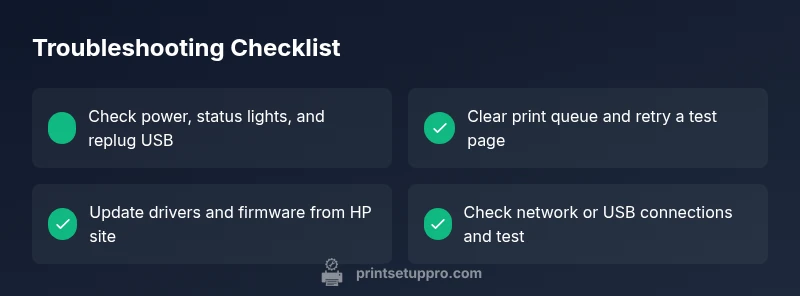
- easyCheck power, status lights, and ensure online state; replug USB or power cycle
- easyVerify default printer in OS and clear or cancel stuck jobs in the print queue
- mediumUpdate or reinstall HP drivers and firmware; run a test page after install
- easyTest and secure USB/Wi‑Fi connections; replace cables and reboot router if needed
People Also Ask
Why is my HP printer showing offline?
Offline status means the printer cannot communicate with the computer. Check power, network status, and ensure the device is not paused in the queue. Reconnect to the network or switch to USB to restore communication.
Your printer isn’t communicating with your computer. Check power, network, and the print queue; reconnect or try USB.
How do I clear a stuck print job on an HP printer?
Open the print queue on your computer, cancel the stuck job, and restart the spooler service if needed. Then print a test page to confirm the fix.
Open the print queue, cancel the stuck job, restart spooler if needed, and test print.
Should I update drivers or firmware first?
Typically, update the driver first, then firmware if available. This order reduces risk and ensures the printer can communicate with newer firmware.
Update the driver first, then firmware if available.
What should I do if the printer still won't print after updates?
Print a test page again, check remaining error codes, and verify document settings. If unresolved, reinstall the printer software or contact support.
Test page again, review error codes, and consider reinstalling software or contacting support.
Can Wi‑Fi issues cause HP not printing?
Yes. Network problems can prevent printing. Confirm the printer is on the same network, check IP address, and consider using a wired connection for stability.
Yes, network problems can prevent printing. Check network and consider a wired connection.
Is it safe to reset the printer to factory settings?
Factory resets can fix deep software issues but wipe custom settings. Use as a last resort and note your configuration before resetting.
Factory resets can fix deep software issues, but they erase custom settings. Use carefully.
Watch Video
Quick Summary
- Verify online status and clear the queue first
- Update drivers and firmware to fix compatibility
- Test with a new document after each fix
- Check network or USB connections for reliability
- Call support if issues persist after all steps