Printer Without Internet: The Complete Offline Printing Guide
Learn how to print without internet, using USB, local network, or direct print. A practical, step-by-step guide for home offices, students, and small businesses to keep printing moving when connectivity fails.


You will learn how to print without internet by using USB direct printing, local network printing with a router, or offline storage like USB drives. This guide covers setup, test prints, and common troubleshooting steps. You’ll need a computer or mobile device with your printer driver, a USB cable or local network access, and the printer's offline mode enabled.
Why offline printing matters
Printing without internet is essential for reliability, privacy, and flexibility in a home office or classroom. If your Wi‑Fi goes down or you’re in a location with limited connectivity, you can still produce professional documents using USB direct print, Wi‑Fi Direct, or a local network. According to Print Setup Pro, many users rely on offline workflows to avoid downtime and keep sensitive documents off cloud networks. This approach saves time and reduces risk by letting you control where your documents originate and travel. Whether you print contracts, homework, or invoices, an internet-free workflow ensures you stay productive when networks falter.
Understanding offline printing options
There are several practical paths to print without internet. USB direct printing lets you connect a computer or a USB drive directly to the printer. Wi‑Fi Direct creates a temporary peer‑to‑peer connection so a mobile device or laptop can print without a router. Local network printing uses a shared Ethernet or Wi‑Fi connection within a secured LAN, enabling multiple devices to print even when the internet is down. Each option has trade‑offs in speed, compatibility, and setup complexity; choose the route that matches your devices and daily tasks. Print Setup Pro recommends mapping your most frequent tasks to your chosen offline path to minimize steps.
Before you start: prerequisites and checks
Before you attempt offline printing, verify your printer supports the offline modes you plan to use. Update or confirm drivers on your computer, and print a test page from the printer’s control panel to ensure it’s functioning locally. Gather the materials you’ll need: USB cables, a USB flash drive, a computer with printer drivers installed, and any ethernet or Wi‑Fi Direct hardware if you plan to use those paths. Finally, review your printer’s manual for model‑specific steps and safety guidelines. Having a quick checklist saves time and reduces the chance of missing a critical step when you’re offline.
USB direct printing: step‑by‑step
USB direct printing is the simplest offline path for many users. Connect the printer to your computer with the appropriate USB cable, then install or confirm the printer driver on the computer. Open the document and select Print, choosing the connected printer. If your printer supports direct printing from a USB drive, copy the file to the drive, insert it, and use the printer’s menu to initiate the print. Tip: keep the USB cable and drive short and properly labeled to avoid connection issues. This method is ideal for one‑off documents or when a computer is unavailable.
Local network printing without internet (Ethernet or Wi‑Fi Direct)
If you want more than a single PC can access, set up a local network printing path. With Ethernet, connect the printer to your router or switch; assign a static IP if your router supports it for stable access. For Wi‑Fi Direct, enable the feature on the printer and connect your device directly. In both cases, you print from the host computer just as you would over the internet, but the traffic remains on your local network. This approach still allows multi‑device printing when internet access is broken. Make sure all devices are on the same subnet and that the printer’s firmware is up to date.
Printing from removable storage (USB drive or SD card)
Some printers accept files directly from USB drives or SD cards. Format the drive according to the printer’s supported file systems (commonly FAT32 or exFAT) and place the document in the root directory or a designated folder. Use the printer’s control panel to navigate to the drive and select the file to print. This method is particularly handy for classrooms, studios, or shared spaces where a computer isn’t always nearby. Always verify file compatibility (PDF, DOCX, or image formats) with your machine.
Managing print queues offline
When you’re not connected to the internet, maintaining a reliable print queue requires planning. Use locally installed drivers on each computer, enable offline printing in the printer settings, and keep a small buffer of commonly used fonts and templates on the PC. If you share a printer across devices, ensure the queue service (like Windows Print Spooler) remains running and configured to start automatically on boot. Regularly clear completed jobs to avoid confusion and to keep the queue fast and predictable. Consider keeping a print log for repeat tasks to streamline future jobs.
Troubleshooting common offline printing issues
Common problems include driver mismatches, wrong port selections, and USB drive read errors. Start by verifying the printer is set as the default device on the PC, check the correct port (USB01, LPT, or a network port), and confirm the driver version matches the printer model. If printing from USB fails, try a different USB drive or reformatted drive, and ensure the file type is supported. For Wi‑Fi Direct or LAN, confirm the local network is functioning and that the printer IP is reachable by your device. If you still see errors, consult the printer’s embedded web server (if available) from a connected device, and reboot the printer and computer as a last resort.
Security and privacy when printing offline
Printing offline can protect data from cloud interception but can create risks if portable media is lost or stolen. Treat USB drives as confidential; encrypt or password‑protect sensitive PDFs when possible, and erase drives after use. For LAN printing, ensure access control on the router is enabled and use strong admin passwords for the printer’s web interface. Regular firmware updates remain important to patch security flaws, even when you seldom use Internet features. If your data is highly sensitive, designate a dedicated offline printer and separate media so cross‑contamination between tasks is minimized.
Performance and quality tips for offline printing
To maximize quality offline, calibrate your printer and use the correct paper type and print settings. Create or load profiles for common tasks (draft, normal, high quality) and save them in your printing software. If color accuracy matters, print a small test page and adjust color management settings. Keep firmware up to date by connecting to the internet occasionally or by using the manufacturer’s offline update method. Consistent maintenance—cleaning the rollers, aligning the print head, and checking ink or toner levels—also helps sustain print quality during offline work.
When to re‑enable internet access and future readiness
Even in a strong offline workflow, there are moments when internet access is beneficial—for driver updates, firmware patches, and cloud‑based print management for larger teams. Plan periodic, controlled online check‑ins to refresh drivers and firmware without disrupting offline operations. Consider maintaining a small offline archive of drivers and manuals on a USB drive for emergencies. Print Setup Pro recommends setting up a mirrored, offline‑first workflow with a scheduled online maintenance window to keep your device ecosystem secure and efficient.
Quick-start offline printing checklist
- Confirm offline printing options supported by your printer (USB, Wi‑Fi Direct, LAN).
- Gather necessary materials: USB cable, USB flash drive, computer with drivers, optional Ethernet cable.
- Install or verify printer drivers on your computer before attempting to print.
- Test a simple print job via USB from the computer, then via USB drive if supported.
- For LAN or Wi‑Fi Direct, ensure devices share the same network (or direct link) and test with at least one file.
- Review the printer manual for special offline features and safety notes.
Tools & Materials
- USB cable (type matching printer port)(Check whether your printer uses USB‑A, USB‑B, USB‑C, or mini‑USB)
- USB flash drive(Format as FAT32 or exFAT as compatible with printer)
- Computer or mobile device with printer drivers installed(Have the correct OS driver (Windows/Mac/Linux) for offline printing)
- Ethernet cable (optional)(Use for LAN printing with a router/switch)
- Printer manual / control panel access(To enable offline modes and navigate menus)
- Wi‑Fi Direct capable printer (optional)(Useful for direct wireless printing without router)
- USB drive with offline drivers (optional)(Helpful if the computer has no internet during setup)
Steps
Estimated time: 60-90 minutes
- 1
Identify offline printing options
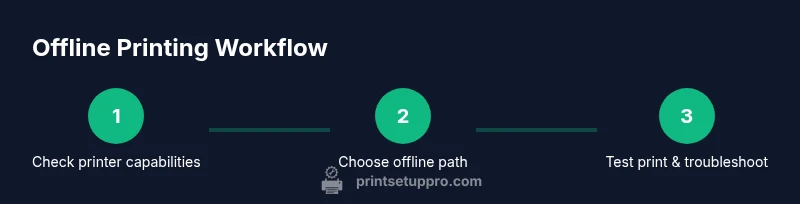
Review your printer’s capabilities to determine whether USB direct print, Wi‑Fi Direct, or LAN printing are available. Check the manual and on‑device menus for offline indicators like “Offline,” “Direct Print,” or “USB Print.”
Tip: Document which path you’ll use most often to minimize setup time in future tasks. - 2
Prepare hardware and drivers
Collect the USB cable, USB drive, and a computer with the appropriate printer driver installed. If you’ll use LAN, ensure you have an Ethernet cable and access to the router. Confirm the driver version matches your printer model.
Tip: Keep spare USB cables and drives labeled and stored near the printer. - 3
Set up USB direct printing
Connect the printer to the computer with the correct USB cable and install or verify the printer driver. Open a document and print to the connected device to confirm baseline functionality.
Tip: If the device isn’t listed, reinstall the driver using the installer from a USB drive if needed. - 4
Set up USB drive printing (if supported)
Copy the file to a USB drive, insert it into the printer, and use the printer menu to select and print. Verify the file type is supported by the device.
Tip: Use clearly named folders (e.g., OFFLINE_PRINTS) to simplify retrieval. - 5
Configure LAN or Wi‑Fi Direct
For Ethernet, connect the printer to the router; for Wi‑Fi Direct, enable direct printing and pair with your device. Ensure devices on the same local network or direct link can see the printer IP or name.
Tip: Assign a static IP on the router for stable device addressing. - 6
Test a local print job from computer
Send a test page via your chosen offline path. Check print quality, alignment, and color accuracy. If issues arise, adjust the print settings and re-run the test.
Tip: Keep a log of which settings produced the best results for future jobs. - 7
Test printing from removable storage
If your printer supports USB/SD card printing, plug in the media and select the file from the printer’s control panel. Ensure the file is accessible and formats are supported.
Tip: Avoid large, uncompressed files when testing first; start with simple documents. - 8
Troubleshoot common offline issues
If prints fail, verify device visibility, ports, and driver compatibility. Reboot printer and computer if needed and reattempt the print path. For persistent issues, consult the printer’s manual or vendor support.
Tip: Document error messages for quicker resolution later.
People Also Ask
Can I print from my phone without internet?
Yes. If your printer supports Wi‑Fi Direct or a direct USB connection, you can print without an internet connection. Many modern printers enable AirPrint, Mopria, or vendor apps for offline printing.
Yes, you can print from a phone offline if your printer supports direct printing like Wi‑Fi Direct or USB, using your device's printer options.
What if my computer has no internet during setup?
You can install offline drivers from a USB drive or a local copy of the driver package. Ensure the driver version matches your printer model and OS.
If you have no internet, install drivers from a USB or local source that matches your OS and printer model.
Is Wi‑Fi Direct the same as Bluetooth for printing?
No. Wi‑Fi Direct creates a direct wireless network between devices for faster printing. Bluetooth is slower and less common for multi‑page documents.
Not the same—Wi‑Fi Direct provides a faster direct connection, while Bluetooth is slower and less practical for documents.
Can I print from cloud storage without internet?
No. Printing from cloud storage requires internet access. Offline printing relies on local storage or direct device connections.
No—the cloud requires internet; offline printing uses local storage or direct links.
How do I know if my printer supports offline printing?
Check the printer’s control panel for options like Offline, USB Print, or Wi‑Fi Direct, and review the manual for offline workflow steps.
Look for Offline, USB Print, or Wi‑Fi Direct in the printer menu or the manual to confirm offline options.
What security practices matter for offline printing?
Use encrypted or password‑protected files on USB drives, restrict access to the printer, and apply firmware updates to address vulnerabilities.
Protect offline prints by encrypting files and keeping the printer firmware updated.
Watch Video
Quick Summary
- Identify the offline path that fits your devices.
- Verify drivers and test locally before heavy workloads.
- Use USB or LAN printing for reliable offline operations.
- Protect sensitive documents when using portable media.
- Maintain a quick offline printing checklist for fast recovery.