Offline Printer How-To Fix: A Step-by-Step Troubleshooting Guide
A practical, step-by-step guide to fix an offline printer. Diagnose connectivity, drivers, and jams with Print Setup Pro's trusted methods for home offices, students, and small teams.


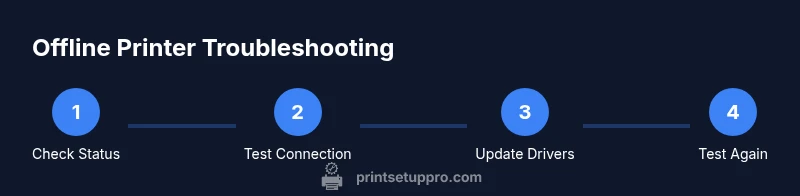
You can bring an offline printer back online by validating power and basic connectivity, selecting the correct printer, and restarting devices. This quick path focuses on the essentials: check status, confirm network or USB connection, and update drivers if needed. For home offices and DIY setups, following these steps usually restores printing with minimal downtime.
Why offline printers occur and how to fix them
If your printer shows an Offline status, you're not alone. For home offices and students, the question of 'offline printer how to fix' often begins with a simple check: is the printer online on your computer, and can you reach it over your network? According to Print Setup Pro, most offline issues stem from basic connectivity or configuration rather than failed hardware. A methodical approach—starting with the simplest checks—saves time and keeps your workflow moving.
Common causes include a paused print queue, the wrong default printer selected, outdated drivers, or a misconfigured network (especially with wireless setups). Physical issues like a loose USB cable or a printer that has fallen asleep can also trigger an offline status. By thinking through these possibilities in order, you can pinpoint the root cause quickly and avoid unnecessary replacements. Print Setup Pro emphasizes documenting each change so you can reverse steps if needed and maintain a clear trail for future troubleshooting.
Quick Diagnostics You Can Do Without Tools
Many offline printer problems resolve with quick, non-technical checks. Start by looking at the printer display (if it has one); ensure it shows Online, Ready, or Idle rather than an error code. On your computer or mobile device, confirm the printer you intend to use is set as the default and that there are no stuck jobs in the queue. Check the printer’s IP address or USB connection status. If you’re printing over Wi‑Fi, verify the device is on the same network and that the network isn’t blocking printer ports. A simple restart of the printer, router, and computer often clears communication hiccups. If you’re using a USB connection, try a different port or cable. These steps address the majority of basic offline scenarios without touching settings you may not need to adjust.
Reconnecting the Printer: Wired, Wireless, and USB
Reconnection depends on your setup. For USB connections, unplug and reinsert the cable firmly, try a different USB port, and verify the device appears in the printer list. For Ethernet, ensure the printer has a valid link light and a correct IP on your router's dashboard. For Wi‑Fi, rejoin the network by selecting the SSID, re-entering the password, and ensuring the router isn’t segmenting devices. After rejoining, set the printer as the default again and print a test page to confirm the pathway from device to print queue to tray. If your router supports guest networks, avoid isolating printers on a guest segment; keep the printer on the main LAN for reliability.
Driver, Firmware, and Software Troubleshooting
Outdated or corrupted drivers can cause repeated offline statuses. Access the manufacturer’s official site to download the latest driver package for your model, then install it following the prompts. After updating, restart the computer and printer, and re-run a test page. If the printer uses firmware, check for firmware updates and install them, because firmware can fix connectivity bugs and improve compatibility with operating systems. Also verify that the printer driver and its spooler service (on Windows) or CUPS (on Mac) are running and not disabled. If you previously installed third-party print utilities, consider disabling or uninstalling them to avoid conflicts.
Common Hardware Issues: Paper Jams, Worn Heads, and More
Hardware problems can manifest as offline symptoms. Look for paper jams, low ink or toner, or protective covers left closed. Clean printer heads and rollers if advised by the manufacturer, and replace consumables if needed. A dusty or clogged contact area between the printer and its cartridge can also prevent proper communication with the computer. Ensure the printer’s power cycle is complete—power off, wait 15–30 seconds, then power on—to reset internal microcontrollers. If the printer still fails to respond, try alternating between a direct USB connection and network-based printing to isolate the issue to a specific pathway.
Network and IP Addressing: Stabilizing Your Connection
In many wireless setups, printers may lose their reservation on the network due to IP conflicts or DHCP churn. Assign a static IP within your router’s DHCP reservation table and keep a dedicated port for the printer if supported. Ensure there are no firewall rules blocking printer ports (commonly 9100, 515, or 631 depending on the protocol). If you’re in a shared network, verify that your printer isn’t being blocked by guest isolation or client isolation features. Restart the router and printer after configuring IP settings. Document the final IP and connection type for future reference so you can quickly reproduce the fix if the issue recurs.
When to Escalate: Advanced Fixes or Replacement
If you exhaust basic checks without success, escalate to the printer’s official support. Gather logs, model, firmware revision, and a detailed list of steps you’ve tried. A warranty claim or service visit may be appropriate if the device is still under coverage. In some cases, persistent offline status indicates a board or sensor failure requiring hardware replacement. For small businesses, maintain an ongoing record of offline incidents to identify patterns and discuss proactive solutions with the vendor.
Authority sources and further reading
- This guide draws on general IT troubleshooting principles and printer-specific best practices. For foundational networking guidance, see NIST resources on home networks. For credible, model-agnostic explanations of printer connectivity, consult industry publications and official vendor documentation. (See the Authority sources at the end of this article for direct links.)
Authority sources
- https://www.nist.gov
- https://www.mit.edu
- https://www.pcworld.com
Tools & Materials
- Printer power cable(Ensure it’s firmly connected and not loose at the wall or the printer.)
- USB data cable(If you’re testing USB, use a working cable and try a different port.)
- Ethernet cable (optional)(Only needed if using a wired networked setup.)
- Computer or mobile device(Used to check status, print queue, and driver installation.)
- Access to Wi‑Fi network(Needed for wireless printers and remote printing.)
- Official printer drivers/firmware(Download from the manufacturer’s site, not a third-party source.)
Steps
Estimated time: 25-40 minutes
- 1
Check printer status and queue
Inspect the printer’s display for online/ready status and clear any paused or error states. On your computer, open the print queue and cancel any stuck jobs. This sets a clean baseline for subsequent steps.
Tip: If the queue shows an error, note the error code and search the manufacturer’s support page for a targeted fix. - 2
Verify connection type
Confirm whether the printer is connected via USB, Ethernet, or Wi‑Fi. If USB, try another port; if Ethernet, check the router link light; if Wi‑Fi, ensure the device is on the same network and not on a guest network.
Tip: Dedicated network printers benefit from connecting to a stable, non-congested network segment. - 3
Restart devices
Power cycle the printer, router, and computer: turn off, wait 15-30 seconds, then turn on in the same order. This resets communication channels and often resolves transient issues.
Tip: Avoid turning devices off and on in quick succession; give each device a moment to reset. - 4
Update drivers and firmware
Download and install the latest printer driver and firmware from the manufacturer’s site. After installation, reboot the devices and re-check the printer status.
Tip: Prefer stable, signed driver packages; avoid beta firmware unless you’re troubleshooting a specific issue. - 5
Test print and re-add if needed
Print a test page from the printer’s own menu or from the computer. If it prints, confirm default printer settings and the correct port. If not, remove and re-add the device in your OS’s printers list.
Tip: When re-adding, choose the same protocol (USB, WSD, TCP/IP) used previously to minimize conflicts. - 6
Document and escalate if unresolved
Record model, firmware version, and steps tried. If the issue persists, contact support with this log; consider hardware inspection or replacement under warranty.
Tip: Keep a dated troubleshooting log for future reference and faster support.
People Also Ask
What does it mean when my printer shows 'offline' even though it’s plugged in?
Offline status usually means the printer isn’t communicating with the computer or network. This can result from a paused queue, a misconfigured port, driver issues, or a network IP conflict. Following a structured troubleshooting path helps identify the root cause.
Offline status typically means the printer isn’t communicating with the computer or network. Start with the basics like the queue and connections, then update drivers if needed.
Can I fix offline printer issues without using a computer?
Yes. You can often restart the printer, check its own display for errors, and print a test page directly from the printer’s control panel. If it’s networked, you may also reconfigure the Wi‑Fi on the printer itself.
You can fix many issues using the printer’s own control panel and basic restarts, without a computer.
Is updating drivers safe for resolving offline issues?
Updating to the latest official driver from the manufacturer is generally safe and resolves many compatibility problems. Always download from the official site and follow installation prompts, then restart devices.
Driver updates are usually safe and fix many offline issues; download from the official site and restart afterward.
Should I switch from Wi‑Fi to a wired connection for reliability?
Wired connections (Ethernet) are typically more stable and less prone to interference than Wi‑Fi. If possible, switch to Ethernet for critical work to reduce intermittent outages.
If you rely on consistency, a wired Ethernet connection is usually more reliable than Wi‑Fi.
When is it time to replace a printer with ongoing offline issues?
If repeated troubleshooting fails and hardware faults are suspected, it may be more cost-effective to replace the printer, especially if it’s older or out of warranty. Consider total cost of ownership and reliability needs.
If persistent issues persist after troubleshooting and replacement parts aren’t available, replacement may be the practical option.
Watch Video
Quick Summary
- Verify the basics before deep troubleshooting.
- Update drivers and firmware to restore compatibility.
- Test with networking and USB paths to isolate the issue.
- Escalate with logs if the device remains offline after all steps.