Printer Is Showing Offline: Quick Troubleshooting Guide
Discover how to fix a printer that is showing offline. This step-by-step guide from Print Setup Pro helps home offices restore connectivity, update drivers, and prevent future offline issues.


When a printer shows offline, the most likely causes are a connectivity issue (USB or Wi‑Fi) or a stalled print spooler. Start with simple checks: verify the printer is powered, confirm it’s connected to the correct network or computer, and restart the printer and spooler service. If the status persists, proceed through the diagnostic flow for deeper fixes.
Why the printer is showing offline
The phrase printer is showing offline appears when the printer cannot communicate with your computer or network. This state can be caused by simple things like a loose cable, a paused print job, or a misconfigured network. In many homes and small offices, the issue is resolved by a quick reset, a check of connections, or updating drivers. Print Setup Pro has seen thousands of offline-resolved cases by following a structured approach and keeping calm under pressure. The goal is to restore reliable printing quickly without guesswork.
Common causes and how to identify them
Offline status often hides a few common culprits: (1) connectivity problems (USB cable unplugged, Wi‑Fi dropping, or router issues). (2) a stuck print spooler on your computer. (3) outdated or corrupted printer drivers or firmware. (4) misconfigured printer settings or a non-default printer selected. By narrowing down symptoms (USB vs wireless, PC vs Mac), you can apply targeted fixes and avoid unnecessary steps.
Quick checks you can perform right now
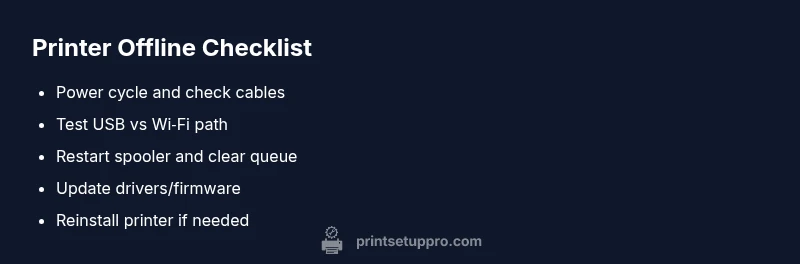
- Verify the printer is powered on and the display (if any) shows normal status. - Confirm the USB cable is seated or the printer is connected to the correct Wi‑Fi network. - Check that the printer is set as default in your operating system and that there are no pending print jobs. - Restart the printer and your computer or router to refresh connections. - Update or reinstall drivers if the device still reports offline.
Diagnostic flow: symptom → diagnosis → solutions
Symptom: Printer is offline. Diagnosis focuses on connectivity (USB/wireless), spooler state, and driver/firmware health. If USB is used, test with another cable. If wireless, verify network settings and router reliability. Solutions range from simple resets to updating software or reinstalling the printer. If none of these work, consider hardware issues or professional support.
Step-by-step fix for the most common cause: network connectivity
- Power cycle the printer and router to refresh both devices. 2) Reconnect the printer to the network using the printer’s onboard menu or your computer’s network settings. 3) Confirm the printer has a valid IP address and is reachable from your computer (ping test). 4) Update the printer firmware through the manufacturer site or the printer's UI. 5) Reinstall the printer driver if connectivity remains blocked. 6) Test printing a calibration page to confirm success.
Safety tips and common mistakes
- Always unplug from power before handling cables to avoid shock. - Do not unplug a printer while a job is printing; cancel the job first. - Avoid mixing USB and network drivers; select the correct path in the OS. - Keep firmware updated to minimize compatibility issues.
Prevention and maintenance to avoid future offline issues
Schedule regular driver and firmware checks, assign a static IP for network printers to avoid address changes, and keep a documented recovery plan for quick resets. Periodically verify that the printer is reachable from each computer in the home or office. With a routine, printer offline problems become rare disruptions.
Steps
Estimated time: 60-90 minutes
- 1
Power cycle everything
Turn off the printer, computer, and router. Wait 30 seconds, then power them back on in that order to refresh connections.
Tip: Avoid unplugging devices during a reboot. - 2
Check connections
If using USB, re-seat the cable and try a new port. If wireless, confirm the printer is connected to the correct network and within signal range.
Tip: Try a different USB cable if issues persist. - 3
Review the print queue
Open the printer queue on your computer and cancel or clear stalled jobs. This prevents backlogs that can keep the status offline.
Tip: Only cancel non-critical jobs to avoid data loss. - 4
Test printing
Print a diagnostics or test page to confirm basic reach. If print works, the issue was a stuck queue.
Tip: Use a simple page to avoid large data transfers. - 5
Update drivers/firmware
Check for and install the latest drivers and firmware from the manufacturer. Reboot after updating and re-test.
Tip: Keep a backup copy of current drivers. - 6
Reinstall the printer
If all else fails, remove the device from your OS, reinstall with the latest driver package, and re-add the printer.
Tip: Follow the official uninstallation steps to avoid left-over components.
Diagnosis: Printer is showing offline
Possible Causes
- highPower or cable issue
- highWireless network instability
- mediumPrint spooler stuck or blocked
- mediumOutdated or corrupted drivers/firmware
- lowWrong default printer or stalled queue
Fixes
- easyCheck power and re-seat all cables
- easyRestart printer, computer, and router
- easyTest USB vs Wi‑Fi path and switch if needed
- easyUpdate drivers/firmware or reinstall printer
- easyClear print queue and set the correct default printer
People Also Ask
What does it mean when my printer is offline?
It means the printer cannot communicate with the computer or network. Start with power, connection, and queue checks before moving to drivers or firmware.
Offline means the printer can't talk to your computer. Start with simple checks like power and connections.
How do I fix a printer that’s offline on Windows 11 or 10?
Check connections, ensure the correct default printer, restart the spooler service, clear the print queue, and reinstall drivers if needed.
On Windows, check connections, restart the spooler, and reinstall drivers if needed.
Can USB connection cause an offline status?
Yes. A loose USB cable or a bad port can halt communication. Try a different port and, if possible, test with another cable.
A bad USB cable or port can make the printer appear offline.
How do I reset the Print Spooler service?
Open Services, locate Print Spooler, stop it, then start it again. Reattempt printing after spooler restarts.
Restart the spooler service from the Services app to fix stuck jobs.
Is it safe to print while investigating offline status?
It's better to cancel current jobs, but you can print a test page after resets to verify connectivity.
Cancel active jobs; you can print a test page after resets to verify.
Watch Video
Quick Summary
- Resolve offline status with quick checks first.
- Follow a diagnostic flow to isolate the cause.
- Keep drivers and firmware up to date.
- Prevention saves downtime and effort.