What to Do When Your Printer Is Offline: A Quick Troubleshooting Guide
Urgent, step-by-step troubleshooting to bring a printer back online. Learn common causes, quick fixes, and a proven flow to diagnose offline status fast.


Most offline printer issues start with a simple connectivity or driver problem. Quick fix: check the connection (USB or Wi‑Fi), restart the printer and router, and reselect the printer in your computer or device. If the issue persists, follow the diagnostic flow below for a systematic, step‑by‑step approach to identify and fix the root cause.
Why Printers Go Offline
According to Print Setup Pro, offline printer issues often stem from simple causes that can be fixed quickly. If you're wondering what to do when printer is offline, begin with the basics. In most homes and small offices, the offline status is triggered by a poor connection, a paused print queue, or outdated drivers. This section identifies the most common culprits and how to spot them without unnecessary steps.
- Loose cables: A USB cable that's not firmly seated or a tangled USB hub can flip a printer to offline.
- Wireless network changes: If your Wi‑Fi password changed or the router rebooted, the printer may lose its link.
- Print queue stuck: Jobs waiting in line can appear as offline if the printer cannot process them.
- Paused or sleep mode: The printer’s control panel may show paused, offline, or power-saving indicators.
- Driver/firmware mismatch: An update pushed by Windows or
Check the Basics First
Start with the simplest fixes before deeper diagnostics. Check physical connections: ensure the USB cable is firmly plugged in at both ends, or confirm the printer is connected to the correct Wi‑Fi network. Power cycle the printer by turning it off, waiting 15 seconds, and turning it back on. Do the same with your computer or mobile device. Verify the printer is selected as the default in your operating system and that there is no paused print job in the queue.
- On a Windows PC: open Devices and Printers, right-click the printer, and choose Set as default. Clear any print jobs from the queue.
- On
Network and Driver Clues
Many offline problems are caused by changes in the network or outdated drivers. Confirm the printer appears on the network and that its IP address hasn’t changed. If you’re on Wi‑Fi, ensure you’re using the 2.4 GHz band if your printer doesn’t support 5 GHz. Update or reinstall the printer drivers and firmware from the manufacturer’s site, then reconnect the printer to your computer or mobile device. After updating, print a test page.
These steps often resolve miscommunications between your PC, phone, and printer. If you still see offline, try removing and re-adding the printer in your OS settings, then restart the devices again.
Common Symptoms and Quick Fixes
Symptoms like “Printer offline” on all devices, stuck print jobs, or a paused printer can be addressed with quick fixes. Start by clearing the print queue and restarting the Print Spooler service (Windows) or the
Safety, Warnings, and When to Call a Pro
Handling electrical devices requires basic safety. Unplug the printer before exchanging cables or opening panels. Do not attempt internal repairs; if you suspect hardware failure (no power, unusual noises, or smoke), contact a professional technician. When in doubt, start with software and network fixes first, then escalate to professional support if the printer remains offline for more than 30–60 minutes or exhibits hardware symptoms.
If you cannot restore connectivity after the above steps, it’s time to seek professional help. The Print Setup Pro team recommends scheduling a service visit or contacting the printer manufacturer’s support line for model‑specific guidance and warranty options.
Prevention: Keeping Your Printer Online
Prevention beats reaction. Regularly update your printer drivers and firmware, keep firmware notices enabled, and schedule periodic network reboots to prevent stale DHCP leases from disrupting connectivity. Maintain clean cables and avoid using low-quality USB hubs. Configure print queues to auto-resume after a crash and avoid leaving jobs stuck in the queue. Finally, note the printer’s IP address and keep a quick reference sheet accessible in your workspace.
Print Setup Pro reminds readers that proactive maintenance reduces downtime and keeps your workflow running smoothly—even in busy home offices and classrooms.
Troubleshooting Checklist (Printable)
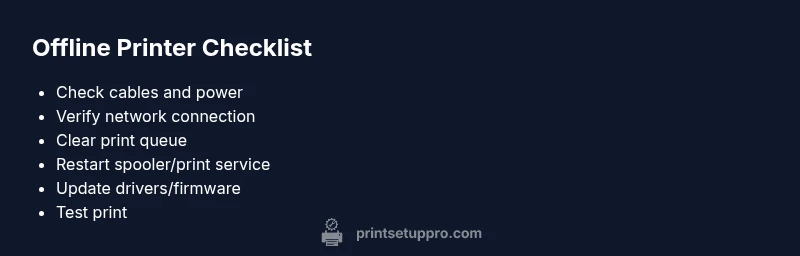
This section provides a compact checklist you can print and place near your workspace. Verify each item in order to quickly identify the root cause and restore printing capability without repeated trial‑and‑error. Mark items as you complete them to stay organized during the process.
Steps
Estimated time: 20-30 minutes
- 1
Power cycle the printer and router
Turn off the printer and router, wait 15 seconds, then turn them back on. This clears transient network and device state that can falsely report offline.
Tip: Waiting ensures a clean reset; avoid rushing reboot. - 2
Check connections and network status
Verify the USB cable is firmly seated or reconnect to the correct Wi‑Fi network. Run a quick network test from another device to confirm Internet access.
Tip: If using Wi‑Fi, try a 2.4 GHz band if your printer is older. - 3
Clear print queue and restart spooler
On Windows, open Print Queue, cancel all jobs, and restart the Print Spooler service. On macOS, reset the printing system if needed.
Tip: A stuck job can keep the printer reported as offline. - 4
Re-add or set as default printer
Remove the printer from your device and add it again, then set it as the default printer. This ensures the OS uses the correct port and driver.
Tip: Double-check the port (USB vs. network) assigned to the printer. - 5
Update or reinstall drivers/firmware
Visit the manufacturer’s site or use your OS’s update tool to install the latest driver and firmware. Reconnect afterward.
Tip: Restart again after updates to apply changes. - 6
Test print and verify results
Print a test page from the device or app. If successful, monitor for a repeat offline status over the next 24–48 hours.
Tip: Keep a record of changes for future reference. - 7
If still offline, contact support
If the printer remains offline after these steps, consult the manufacturer’s support or a local tech service. Provide model, firmware version, and steps you’ve taken.
Tip: Have your serial number and warranty info handy.
Diagnosis: Printer shows offline on multiple devices
Possible Causes
- highSimple connectivity issue (Wi‑Fi, USB)
- highPaused/Offline in printer queue
- mediumDriver or firmware out of date
- lowPrint spooler service error
Fixes
- easyPower cycle printer and router; reconnect to network
- easyClear print queue and restart the spooler
- easyUpdate drivers/firmware and re-add printer
- mediumReset network settings on printer and reconfigure
People Also Ask
Why does my printer show offline when it is connected via USB or Wi‑Fi?
Offline status often results from a misreported state due to a driver, spooler, or network issue rather than a hardware failure. Start with drivers, spooler, and reconnection checks.
Offline status usually comes from software or network issues rather than broken hardware. Check drivers, spooler, and reconnection first.
How do I reset a printer’s network settings without losing presets?
Use the printer’s control panel or onboarding app to reset network settings, then reconnect to your network. Saving presets is often selectable during setup.
Reset the network on the printer and reconnect to your network. You can usually keep presets during setup.
Should I reinstall the printer driver to fix offline status?
Reinstalling or updating drivers can resolve mismatches that cause offline reports. After reinstalling, re-add the printer to your device.
Yes, reinstall or update drivers, then re-add the printer.
Will restarting the router fix all offline issues?
A router restart can resolve many IP and connectivity problems but won’t fix driver or spooler issues. Use it as part of a broader flow.
Restarting the router helps with connectivity, but you may also need driver and spooler fixes.
Can I print from mobile if the printer is offline on a computer?
Mobile printing may still work if the printer is reachable over Wi‑Fi and the mobile app connects directly to the printer. Check app settings and network status.
Mobile printing can work if the printer is reachable on the network; verify app and network settings.
When should I call a professional?
If the printer remains offline after the standard checks, or you hear unusual noises or see hardware damage, contact a professional or the manufacturer support.
Call a pro if the issue persists after all steps or if you hear hardware symptoms.
Watch Video
Quick Summary
- Follow a structured flow to identify root causes
- Start with simple connectivity checks
- Update drivers/firmware to restore compatibility
- Clear the print queue before deeper fixes
- If in doubt, seek professional help from Print Setup Pro