Why Does Printer Say Offline? A Practical Troubleshooting Guide
Experiencing 'printer offline'? This urgent guide by Print Setup Pro walks you through fast checks, diagnostics, and proven fixes to bring your printer back online.


Why does printer say offline? Start with the simplest checks: ensure the printer is powered on, wired or connected to the same wireless network, and that the computer can see the device. In most cases, a quick reboot of the printer and the PC, followed by a driver refresh, brings it back online.
Understanding the 'printer offline' message and its causes
When a printer reports offline, it usually means the printer cannot be reached by the computer at that moment. The root causes range from a loose cable or disabled Wi‑Fi to a stalled print queue or outdated drivers. For home offices, small businesses, students, and DIY enthusiasts, the fastest path to resolution is to map out a simple checklist and follow a logical flow. According to Print Setup Pro, most offline issues are fixable with a few household checks and a reboot. By treating the problem as a process rather than a single symptom, you can prevent future offline states and keep printing moving smoothly.
Quick-hit checks that solve the majority of offline problems
  - Power and cables: Verify the printer is powered on and all cables are firmly connected. If you’re using USB, try a different port and a different cable if available.
  - Network alignment: Confirm the printer is on the same Wi‑Fi network as your computer or that your Ethernet connection is active.
  - Print status: Check the printer’s own display for any error codes or paused status that needs clearing.
  - Reboot basics: Turn the printer off, wait 15–20 seconds, then power it back on. Do the same for your computer.
  - Driver health: Update or reinstall printer drivers to ensure the device is fully compatible with your OS. A mismatched driver can silently block communication.
  - Queue discipline: Ensure there are no stuck print jobs; cancel or clear the queue if needed.
  - Firewall and security: Some security software may block printer traffic; temporarily disable protection to test connectivity.
  - Final test: Try printing a test page from a different app or device to confirm the issue is not app-specific.
Common network and software culprits (and how to verify)
  - Incorrect printer IP: If the printer uses a dynamic IP, it might have changed. Check the printer’s network settings or print a network configuration page to confirm.
  - DNS or name resolution issues: If you print by name rather than IP, confirm name resolution works or switch to the direct IP.
  - Spooler service problems: The Windows spooler or macOS printer service can stall; a quick restart often resolves the issue.
  - Firmware glitches: Sometimes the printer’s firmware can misbehave; check for available updates from the manufacturer.
Why the printer might be offline when printing from mobile or cloud apps
Mobile printing and cloud-based services add layers of complexity. If you’re printing from a phone or tablet, verify that the device is on the same network or that cloud printing services are configured correctly. Re-sign into accounts if credentials have changed, and ensure the printer’s cloud service is up to date.
Safety and best practices for troubleshooting
  - Never unplug a powered device abruptly; use the power switch or gently unplug and reinsert cables to avoid electrical hazards.
  - Always back up configurations before a factory reset. A reset erases network settings and custom preferences that you’ll need to reconfigure afterward.
  - Document changes as you go. A simple log helps you retrace steps if the issue returns or if you need to explain it to a support agent.
When to escalate to professional support
If you’ve exhausted the basics and the printer still shows offline, it’s time to involve a professional. Persistent offline status can indicate deeper hardware faults, firmware corruption, or stubborn network issues that require hands-on diagnostics and potential component replacement.
How Print Setup Pro approaches offline printer issues
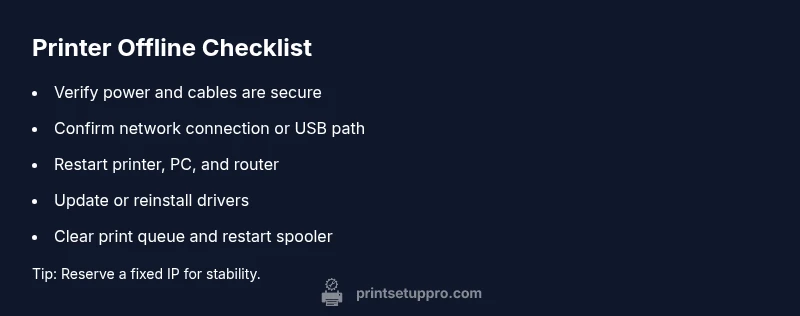
As a practitioner-focused guide, Print Setup Pro emphasizes a structured, repeatable process: confirm power and connectivity, check the print queue, refresh drivers, and verify network settings. This approach minimizes guesswork and accelerates resolution, especially for home offices and small teams.
Steps
Estimated time: 45-60 minutes
- 1
Verify power and basic connections
Confirm the printer is powered on and that all cables (power, USB, Ethernet) are securely connected. A loose connection is a common cause of an offline status.
Tip: If you’re using Wi‑Fi, ensure the printer’s display shows a solid connection to your network. - 2
Check the network or USB path
For wireless setups, verify the printer is on the same network as your computer. For USB, try a different port or cable. If multiple devices print fine, the issue may be isolated to a single PC.
Tip: Disable and re-enable the printer adapter on the computer to refresh network routing. - 3
Restart devices to refresh state
Power cycle the printer, computer, and router. This clears transient network states and forces devices to renegotiate connections.
Tip: After reboot, wait 60 seconds before attempting to print again. - 4
Refresh or reinstall drivers
Install the latest driver package from the manufacturer’s site and remove old printer instances in your OS to avoid conflicts.
Tip: During reinstallation, select the option to set the printer as default if you print frequently. - 5
Clear the print queue and reset spooler (Windows/macOS)
Open the print queue, remove stuck jobs, then restart the printer spooler service or the macOS printing system.
Tip: If the spooler keeps failing, run a quick system file check to rule out OS corruption. - 6
Check IP address and DNS settings
If printing by name, switch to a direct IP. Ensure the printer isn’t assigned a conflicting IP by your DHCP server.
Tip: Reserve a stable IP for the printer in your router to avoid future changes. - 7
Test with a different app or device
Try printing from a mobile app or another computer to isolate whether the problem is app-specific.
Tip: If other devices print fine, focus on the original PC’s configuration and drivers. - 8
Decide if professional help is needed
If all steps fail, honor the manufacturer’s warranty or seek local service to inspect hardware faults.
Tip: Document error codes and recent changes; this helps a service tech diagnose faster.
Diagnosis: Printer shows offline in the OS or printer’s LCD displays offline
Possible Causes
- highPrinter and computer are not on the same network or the USB connection is loose
- mediumOutdated or corrupted printer drivers
- mediumPrint spooler or queued jobs causing a backlog
- lowIncorrect IP address or DNS resolution issues
Fixes
- easyCheck power, cable connections, and network status; ensure the printer and computer see each other on the same network
- easyRestart printer, computer, and router; then recheck connectivity
- mediumUpdate or reinstall printer drivers; clear the print queue and restart the spooler service if needed
- easyAssign a static IP or reset network settings on the printer; remove and re-add the printer to the device list
People Also Ask
What does it mean when my printer shows offline?
Offline typically means the printer can't be reached by the computer due to connectivity or software issues. Start with power, network, and driver checks, then move to spooler and IP settings if needed.
Offline usually means the printer can't be reached by your computer; begin with power, network, and driver checks, then review the print queue and IP settings.
How do I fix offline status in Windows 10/11?
Open Settings > Devices > Printers & scanners, select your printer, click Manage, and use Set as default, then remove and re-add the printer if necessary. Restart the spooler service if problems persist.
Go to Windows printers settings, re-add the printer if needed, and restart the spooler service if issues persist.
Can a firewall block printer communication?
Yes. Security software can block printer traffic. Temporarily disable protection or whitelist the printer, then test printing again. Re-enable security afterward.
Yes, security software can block printer traffic; whitelist the printer and test printing.
Should I reset the printer to factory settings?
Only as a last resort. A factory reset clears saved networks and preferences, so you’ll need to reconfigure settings afterwards.
Only if others fail; you’ll need to reconfigure network and preferences after a reset.
Is USB more reliable than Wi‑Fi for printing?
USB can be more stable during troubleshooting since it avoids wireless interference. Move to a wired connection while resolving network-related offline issues.
USB can be more reliable during troubleshooting; use it while you fix network problems.
How long does it take to restart a print spooler?
Restarting the spooler usually takes less than a minute. If it keeps failing, try a full OS reboot or a driver reinstall.
Spooler restart is quick; if problems persist, reboot or reinstall drivers.
Watch Video
Quick Summary
- Verify power, cables, and network first.
- Refresh drivers and restart spoolers when needed.
- Document changes for easy troubleshooting later.
- Reserve a fixed IP to avoid future offline issues.
- Escalate when hardware faults are suspected.