Printer Show Offline: Troubleshooting Guide
Learn how to fix a printer that shows offline fast with Print Setup Pro. This guide covers causes, quick checks, diagnostics, and a step-by-step approach for home offices and small teams.


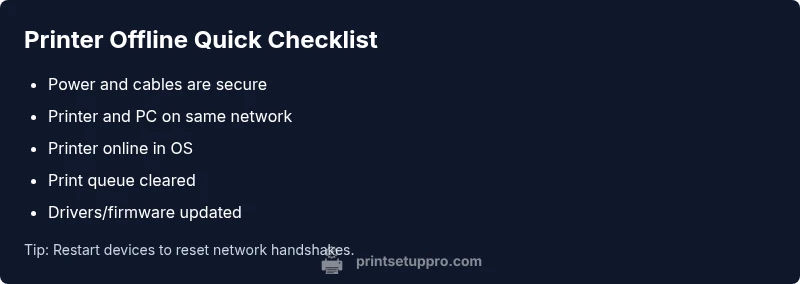
Start with the simplest checks: verify the printer is powered on and connected to the same network as your computer. Confirm the printer isn't set to offline in the OS or printer control panel. Clear any stuck print jobs and restart the printer and computer. If it still shows offline, reconnect the device or update drivers before contacting support.
What 'Printer Show Offline' Really Means
When a printer suddenly appears as offline, it means the device and your computer cannot establish a stable print path. This can happen with USB, Ethernet, or Wi‑Fi connections, and it often affects both Windows and macOS environments. According to Print Setup Pro, printer offline status is most often caused by simple misconfigurations rather than hardware failure. The Print Setup Pro Team found that rechecking connectivity, ensuring the printer is online, and clearing the print queue resolves a large majority of cases within minutes. This distinction matters because most offline issues stem from settings rather than broken hardware. If the printer display shows an error while the computer reports offline, you are looking at a mismatch between a local queue and a network path. In practice, the quickest path to resolution is a methodical, repeatable flow that tests power, network, and software settings before touching internal printer components.
Quick Checks You Can Do Without Tools
Start with the basics. Confirm the printer is powered on and the power indicator is solid. Check all cables (USB, Ethernet) to ensure they are firmly connected and not damaged. For wireless setups, verify the printer is connected to the same network as your computer and that the Wi‑Fi signal is stable. In the OS, look for the printer in Settings or System Preferences and make sure it is online and set as the default printer. Clear any stuck print jobs from the queue, then restart the printer. Finally, restart your computer and try a test page. If you still see offline status, remove and re-add the printer in the OS, then try printing again. These quick checks cover the vast majority of minor misconfigurations and save you time before diving deeper.
Diagnostic Flow Essentials
A structured approach helps avoid guesswork. Start by confirming the symptom: does the printer show offline on one device or all devices? Check the printer's own display for any error codes. Next, review likely causes: connectivity issues (high likelihood), the printer or OS being set to offline (high), a stuck print queue (medium), or outdated drivers/firmware (low). Apply fixes in this order: power cycle devices, verify online status, clear the queue, then update drivers. If the problem persists, it may indicate a network or hardware fault that requires additional attention. This flow keeps you from jumping into complex repairs too early.
Common Fixes for Offline Status (Most Common Causes)
- Power cycle and cable check: unplug, wait 10 seconds, plug back in, and test. Ensure USB/Ethernet cables are secure and undamaged. 2) Reconfirm online status in the OS and printer panel: make sure the printer is selected as default and not shown as offline. 3) Network reattachment: reconnect to the same network or assign a stable IP; avoid IP conflicts. 4) Clear the print queue: cancel all jobs and reprint a test page. 5) Update drivers/firmware: install the latest from the manufacturer site or through your OS updates. 6) Reinstall the printer: remove and re-add it in Windows or macOS, then run a test print. 7) If you use print sharing, re-enable sharing after changes and test from another device.
Prevention: Keep Your Printer Online
Establish predictable network settings by using a fixed IP or DHCP reservation to avoid IP churn, especially with Wi‑Fi printers. Regularly check the print queue for stuck jobs and refresh the printer port settings when you install new software. Schedule periodic firmware updates and driver checks so the device remains compatible with your computer’s OS. Maintain a simple, documented setup process so future changes don’t derail connectivity. Consistent maintenance is the best defense against repeated offline incidents.
When to Seek Professional Help
If the printer repeatedly shows offline after following all the steps, there may be a deeper issue such as a failing network card, a corrupted spooler service, or a driver stack conflict. In these cases, contact your printer manufacturer’s support or a local IT professional. Keep a record of error codes, firmware versions, and recent changes to help the technician diagnose faster.
Common Pitfalls to Avoid
Avoid changing too many settings at once; test after each change to identify what actually worked. Don’t ignore error codes displayed on the printer, as they point to specific problems. Refrain from factory resetting the device unless you have exhausted all other options and backed up configurations. Finally, avoid running multiple printer drivers or ports for the same device, which can confuse print jobs and reintroduce offline status.
Steps
Estimated time: 20-40 minutes
- 1
Power cycle and reconnect
Unplug the printer and router, wait 10 seconds, then plug them back in. Reconnect the printer to the same network and ensure the light indicators show a healthy connection. This step clears transient network handshakes that often cause offline status.
Tip: Label network changes in your router's admin page to avoid repeating the issue. - 2
Check online status in OS
Open your operating system's printer settings and confirm the device is online and set as default. If it shows offline, use the 'Remove' or 'Forget' option, then re-add the printer.
Tip: If you have multiple printers, ensure you choose the correct one before printing. - 3
Clear the print queue
Open the print queue, cancel all jobs, and restart the printer. Send a simple test page to verify that new jobs print successfully.
Tip: If a single job is stuck, cancel that job specifically and retry. - 4
Update drivers and firmware
Visit the manufacturer’s website or use automatic OS updates to install the latest driver and firmware. Restart after install and test again.
Tip: Prefer a clean install if your previous driver seems corrupted. - 5
Reinstall the printer
If issues persist, remove the printer from your device settings and add it back as a new device. Use a test page to confirm connectivity.
Tip: Back up any custom printer settings before removal. - 6
Test across devices
Print from another computer or mobile device to determine whether the issue is device-specific or network-wide.
Tip: If another device prints successfully, focus on the original host's configuration.
Diagnosis: Printer shows offline on one or more devices
Possible Causes
- highConnectivity issue (network, USB, or Wi-Fi)
- highPrinter or OS set to offline mode
- mediumStuck print jobs in the queue
- lowOutdated or corrupted drivers/firmware
Fixes
- easyPower cycle printer and router; re-connect to network
- easySet printer online in OS and printer control panel; re-add printer if needed
- easyClear print queue and reprint a test page
- mediumUpdate or reinstall printer drivers/firmware
People Also Ask
Why does my printer show offline even though it's powered on and connected?
Offline status usually means there is a communication breakdown between the printer and the computer. Check that the correct printer is selected, confirm network or USB connections, and inspect for any offline mode in the OS or printer panel.
Offline usually means the printer can't communicate with your computer. Check the selected printer, connections, and offline mode in both printer and OS settings.
How do I reconnect to a Wi‑Fi printer?
Ensure the printer is on the same network as your computer, join the correct SSID, and confirm the signal is stable. Remove and re-add the printer to your OS and perform a test print.
Make sure the printer is on the same Wi‑Fi as your computer, then re-add it and test a print.
What if the print queue is stuck?
Cancel all jobs in the print queue, restart the printer, and try printing again. If needed, clear the spooler service on Windows or reset the print system on macOS.
Cancel stuck jobs and restart the printer, then try printing again.
Should I reset the printer to factory settings?
Only after exhausting other steps. A factory reset can erase custom settings and network configurations, so back up details before proceeding.
Only if all other steps fail; factory resets erase settings, so back up first.
How do I update printer drivers?
Visit the manufacturer’s website or use the printer software updater to install the latest drivers and firmware. Restart the device after updating and test again.
Go to the manufacturer site, download the latest drivers, restart, and test.
Why are multiple devices offline at the same time?
That pattern usually points to a network issue or router configuration. Check router settings, ensure the printer is discoverable on the network, and confirm other devices can reach the printer.
If many devices are offline, the problem is likely the network; inspect router settings and device reachability.
Watch Video
Quick Summary
- Identify root cause with a simple checklist.
- Restore online status by restarting and reconnecting devices.
- Clear the print queue to unblock stalled tasks.
- Update drivers/firmware to prevent future offline issues.
- Seek professional help if issues persist.