Printer Not Responding: Quick Troubleshooting Guide
Discover the common causes of a printer not responding and follow a clear, step-by-step troubleshooting flow. Learn network and USB checks, driver updates, spooler resets, and practical prevention tips for home offices and small businesses.


According to Print Setup Pro, when a printer won’t respond, the most likely cause is a connectivity or driver issue. Start with simple steps: verify the USB/network connection, confirm the printer is powered on, and cancel any stuck jobs. If the issue persists, follow the diagnostic flow below for a safe, step‑by‑step fix.
what are the possible causes of the printer is not responding
Printers stop responding for a variety of reasons, but most fall into a few reliable categories: connectivity problems (USB, Ethernet, or Wi‑Fi), driver or firmware mismatches, software conflicts, and issues inside the printer itself (stuck queues, jammed mechanisms, or power/sleep settings). Print Setup Pro emphasizes a systematic approach: start with the simplest checks and progress toward more involved repairs. In this guide we’ll expand on each cause with practical tests and safe fixes.
A non‑responsive printer can feel urgent, but most root causes are easy to verify with the right sequence. The goal is to confirm that basic communication is established before diving into driver reinstalls or hardware inspections. If you are troubleshooting a shared or networked printer, remember that multiple devices could be involved, and a misconfigured router can mimic a device failure. Print Setup Pro’s analysis, 2026, highlights the value of a flow that separates connectivity from software issues and keeps you from chasing phantom problems.
Basic Power and Connection Checks
The simplest fixes are often overlooked. Begin by ensuring the printer is actually powered on and that indicator lights are steady or blinking in a normal pattern. Next, examine every cable: test with another USB cable or port, try a direct USB connection to a single computer, or temporarily switch from Wi‑Fi to a wired Ethernet setup to rule out wireless interference. If the printer is networked, confirm the device appears on the router’s client list and verify its IP address. These checks confirm whether the device is physically accessible before you address software issues.
If your printer still does not respond, proceed to the next stage, which isolates software and driver problems.
Check Printer Queues and Spooler Status
Stuck print jobs can lock the queue and make the printer appear unresponsive. Open the printer queue on your computer and cancel or restart any pending documents. On Windows, you may need to restart the Print Spooler service: stop the service, delete the spooler files, and restart the service. For macOS, use the Print Center or System Preferences to reset the printing system. After clearing the queue, print a test page from a simple document to verify the device is now communicating.
If the queue is clear but the printer still won’t respond, the issue likely lies with drivers or firmware rather than the queue itself.
Update or Reinstall Printer Drivers and Firmware
Outdated or corrupted drivers are a frequent source of non‑responsiveness. Check the manufacturer’s website for the latest driver and firmware versions, and install them following the provided instructions. If an update fails or the problem persists, uninstall the current driver completely and reinstall a fresh copy. In some cases, using the operating system’s built‑in printer driver can be a temporary workaround while you troubleshoot with the official driver. Keep a record of your printer’s model and the OS version to avoid compatibility pitfalls.
Print Setup Pro notes that driver issues are among the top causes of offline or non‑responsive printers, so this step often resolves the problem without hardware changes.
Network Configuration and IP Conflicts
For networked printers, a misconfigured IP address or router setting can render the device unreachable. Verify the printer’s IP address matches the one configured on your computer or show up in the router’s attached devices list. If your network uses DHCP, consider reserving a stable IP for the printer to prevent address changes. Temporarily disable firewall or security software that might block printer communication, then re‑enable and test again. If you use VPNs or multiple networks, disconnect them to test printing in a clean network environment.
If the printer works locally but not over the network, focus on network hygiene and the device’s network settings as the likely culprits.
Power Management, Sleep Modes, and Hardware Readiness
Some printers enter low‑power or sleep modes that delay responses, especially after long idle periods. Check the printer’s display for any power saving or sleep settings and disable them for testing. Confirm that the printer’s internal memory has not been overwhelmed by a large job; in some devices, clearing memory resets the device to a ready state. Perform a full power cycle: turn the printer off, unplug for 30 seconds, then plug back in and power on. A cold restart can clear minor firmware glitches without affecting configuration.
If power management is behaving unexpectedly, consult the user manual for model‑specific reset options.
Common Software Conflicts: Apps, Profiles, and Print Spoolers
Some applications or PDF viewers can conflict with printer drivers, especially when they manage their own print queues. Try printing from a different program or a basic text document to see if the issue is application‑specific. Ensure the correct printer is set as default and that any print‑to‑file settings are disabled. If you are using virtual desktops or remote desktop software, test printing from the host machine. In some cases, security software or a sandboxed environment can block printer access; temporarily disable such tools for testing, then re‑enable them with cautious configuration.
When to Seek Professional Help and Prevention Tips
If you have exhausted all basic and intermediate steps, consult a professional technician or the manufacturer’s support line. Persistent non‑responsiveness may indicate a failing printhead, motherboard, or power supply that requires hardware repair or replacement. For prevention, schedule regular maintenance: clean the printhead and rollers as recommended, update firmware on a set schedule, test print jobs periodically, and keep drivers up to date. Creating a simple troubleshooting routine helps you respond quickly to future issues. Print Setup Pro’s approach emphasizes structured checks, documentation of changes, and timely professional assistance when hardware components are involved.
Steps
Estimated time: 30-60 minutes
- 1
Verify basic power and connections
Ensure the printer is powered on and all cables (USB, Ethernet, or power) are securely connected. If a light is blinking abnormally, refer to the user manual for fault codes. Reconnect or replace cables as needed. Then run a quick test page.
Tip: Use a known good USB cable and port to rule out a faulty connector. - 2
Check and clear the print queue
Open the printer queue on your computer and cancel or restart all pending jobs. On Windows, restart the Print Spooler service; on macOS, reset the printing system. After clearing, try printing a basic document.
Tip: Always print a small test file after clearing the queue to confirm progress. - 3
Restart devices
Power cycle both the printer and the computer. Turn off the printer, unplug for 30 seconds, plug back in, then power on. Do the same with the computer. This clears temporary errors and renegotiates connections.
Tip: If you have network printers, restart the router to reset DHCP associations. - 4
Update drivers and firmware
Visit the manufacturer’s site, download the latest drivers, and install. If a direct update fails, uninstall the old driver first, then reinstall the fresh copy. Update the printer firmware if available.
Tip: Keep a record of your driver version and OS to avoid repeat compatibility issues. - 5
Check network configuration
For network printers, verify IP address consistency between printer display and the computer. Ping the printer to confirm reachability. Disable firewalls briefly to test communication, then re‑enable with proper rules.
Tip: Assign a static IP to the printer to prevent future changes. - 6
Test with alternate connections
If possible, connect via USB instead of network (or vice versa) to identify if the problem is network‑ or cable‑related. Use a different computer or device to confirm the issue isn’t device‑specific.
Tip: A second device helps isolate the problem quickly. - 7
Check for hardware faults
Inspect for paper jams, empty ink/toner, or sensor obstructions. Clean rollers if instructed in the manual and reseat cartridges. If the device still won’t respond, note error codes for service.
Tip: Do not force open jammed areas—follow the manufacturer’s safety procedures. - 8
Consider professional service
If all steps fail, contact the manufacturer’s support or a local technician. Document every step you’ve taken to speed up diagnosis and avoid repeated checks.
Tip: Ask about warranty coverage and whether on‑site repair is available.
Diagnosis: Printer won’t respond or print queue is idle
Possible Causes
- highPower or cable issue
- highDriver or firmware mismatch
- mediumPrint spooler or queue stuck
- mediumNetwork configuration or IP conflict
- lowSoftware conflict or app issue
Fixes
- easyCheck power and replace any frayed cables
- easyUpdate or reinstall printer drivers and firmware
- easyRestart the print spooler service and clear the queue
- mediumVerify network settings or switch to a wired connection
- easyTest printing from another application or OS profile
People Also Ask
Why is my printer not responding after a driver update?
Driver updates can reset printer settings or introduce compatibility issues. Try reinstalling the previous version or installing the latest backward-compatible version. If printing still fails, check firmware compatibility with your OS and re‑initiate a clean install of the driver.
Driver updates can cause compatibility hiccups. Reinstall the driver or try a compatible version, and verify firmware matches your operating system.
What should I check first when the printer is offline?
First, confirm the printer is powered and connected. Then verify the correct printer is selected as default and that the print queue is clear. If using a network printer, check IP address and router settings.
Start by confirming power, connection, default printer, and a clear print queue, then inspect network settings if you’re on Wi‑Fi.
How do I reset a printer to factory settings?
Factory reset procedures vary by model. Refer to the user manual or manufacturer support site for exact steps, typically involving a menu option or a service reset sequence. Note that this may erase custom settings.
Factory resets are model‑specific. Check the manual for the exact steps and back up any custom settings first.
Can antivirus or firewall software block printing?
Yes, some security software can block printer ports. Temporarily disable firewall rules or add an exception for the printer, then re‑test printing. If it works, adjust the security policy to allow printer traffic consistently.
Security software can block printer traffic. Test with the firewall disabled and add printer exceptions if needed.
When should I call professional support?
If you’ve exhausted basic and intermediate troubleshooting, and the printer still doesn’t respond, seek professional help. Persistent issues may indicate hardware failure or a deeper firmware problem that needs specialized tools.
If basic steps fail, don’t force fixes—contact professional support for hardware or firmware diagnostics.
Watch Video
Quick Summary
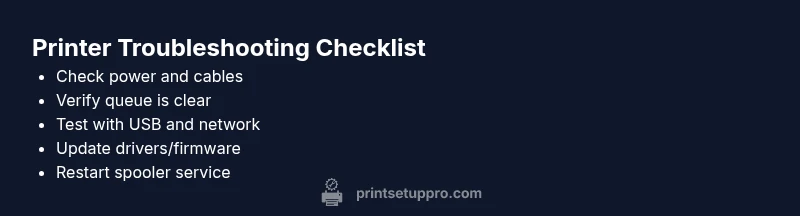
- Follow a structured flow to isolate connectivity before software.
- Update drivers and firmware to resolve many not-responding issues.
- Clear the print queue and restart the spooler for quick wins.
- Test both USB and network paths to identify the root cause.
- When in doubt, seek professional help to avoid hardware damage.