Printer Not Connecting to Computer: Quick Troubleshooter
Urgent guide to fix printer not connecting to computer problems with step-by-step checks, driver updates, network tips, and prevention strategies for home offices and small businesses.


Two quick steps fix the most common cases: first, verify that the cable, Wi‑Fi, or USB connection is active and the printer is powered on; then reselect the printer in your computer’s settings and restart both devices. If the issue persists, update the printer driver and try a different cable or port.
Symptom overview
When a printer cannot establish a connection to the computer, users typically see a status of 'offline', a failed print job in the queue, or a driver error notice. Common error messages might reference missing drivers, device not recognized, or network unavailable. If you are repeatedly seeing these symptoms, your objective is to restore a reliable data path from the computer to the printer as quickly as possible. In urgent scenarios, prioritize scenarios that affect the whole team, and use a temporary workaround such as printing from another computer or using a mobile print app while you diagnose the root cause. Print Setup Pro notes that many 'printer not connecting to computer' problems stem from simple, fixable issues rather than complex hardware faults. The faster you pinpoint whether the problem is a cable, port, driver, or network issue, the quicker you can restore printing.
Pro tip: keep a small toolkit handy with spare cables, a USB hub, and a basic network tester to accelerate triage in mixed device environments.
Common causes at a glance
There are several frequent culprits behind a printer not connecting to computer. Some are quick to test and fix, others require a little more patience:
- Faulty or loose cables (USB, Ethernet) or a failed USB port
- Wrong connection type selected in the OS (USB vs. network) or incorrect printer selected in the device list
- Outdated or corrupted printer drivers or firmware
- Network issues: the printer and computer on different networks, DHCP IP conflicts, or firewall blocking ports
- Antivirus or firewall settings preventing printer communication
- Printer set to offline or paused state in the print queue
Understanding the exact combination of these causes is key to choosing the right fix quickly. Throughout this guide, we’ll walk you through a safe, methodical approach to identify and solve each layer of the problem. According to Print Setup Pro, most connectivity failures are preventable with regular maintenance and correct initial setup.
Check basics first
Starting with the simplest checks saves time and frustration. Do the following in this order:
- Confirm the printer is powered on and shows normal status lights. If your model has a status display, check for any error codes.
- Inspect cables for wear, fraying, or loose connections. If you’re using USB, try a different USB port on the computer and a known-good cable if available.
- For wireless or network printers, verify that the printer and computer are on the same Wi‑Fi network, or connected to the same router/subnet if wired.
- On Windows, open Devices and Printers and ensure the correct printer is set as default. On macOS, check System Preferences > Printers & Scanners and confirm the selected device.
- Restart both the printer and the computer to clear transient driver or network glitches. This simple step resolves a surprising number of issues.
If these basics don’t resolve the problem, move to driver and firmware updates and more advanced network checks. Print Setup Pro emphasizes building a short triage script: check power, check cable, check network, then move on.
Driver and firmware updates
Outdated or corrupted drivers are a frequent cause of connection problems. Start by visiting the printer manufacturer's support site and downloading the latest driver or firmware package for your exact model and operating system. If you’re on Windows, you can also use the built-in Windows Update mechanism to search for printer drivers, though manufacturer packages often include additional features (like maintenance utilities).
Mac users should check for driver availability in System Preferences and re-check the printer’s installation after an update. After updating, remove and re-add the printer in your OS to ensure the new driver is active. If an update fails, rollback to the previous version and retry, as some updates can temporarily disrupt existing configurations.
In many cases, a driver reinstallation resolves the issue even when the hardware appears functional. Print Setup Pro reminds users to back up settings and note any custom preferences before reinstalling.
Network and IP troubleshooting
Network-related problems are a common root cause for printers that won’t connect. If your printer uses Wi‑Fi, log in to your router’s administration panel and verify the printer’s MAC address is visible in the connected devices list. If you rely on an IP address, ensure the printer has a valid IP within your LAN range and isn’t conflicting with another device. For printers with built-in web interfaces, access the printer's page to confirm network status and print a configuration page that lists current network settings.
If your printer uses a static IP and you recently changed your router or subnet, update the IP in the printer settings and re-attach it to the computer. For USB-network print scenarios, ensure the printer is accessible via the correct port (for example, LPR/IPP or a standard USB-to-network bridge). Remember to disable any aggressive firewall rules temporarily to test connectivity, but re-enable protection immediately after testing.
Reconnect and re-add the printer
If the above checks don’t fix the problem, re-adding the printer to your computer is often the most reliable approach. Remove the printer from your OS, restart, and then reinstall using the latest driver or a built-in driver if available. On Windows, add a printer via Settings > Devices > Printers & scanners; on macOS, use System Preferences > Printers & Scanners and choose Add Printer. When re-adding, select the correct port (USB, IP, or WLAN) and test a sample print.
Keep in mind that some printers appear as multiple devices (scanner, fax, etc.). Be sure to select the correct printing function and remove any obsolete bindings to avoid confusion in future print jobs. If the problem recurs, the issue may be tied to a hardware fault or a more complex network configuration that requires specialized help.
Security and firewall considerations
Security software can occasionally block printer communication, especially on networks with strict inbound/outbound rules. Temporarily disable antivirus or firewall features related to printing to see if they are the source of the blockage. If this resolves the issue, create an exception for the printer’s port in the firewall rules rather than leaving protection off. Also verify that your security software isn’t configured to block new devices from joining the network automatically.
If you’re on a corporate or school network, check with the administrator about group policies that could affect printing services. Print Setup Pro recommends documenting any security-related changes so you can revert them later if needed.
Prevention tips and maintenance
To reduce future problems, implement a simple preventive routine:
- Regularly update drivers and firmware for all printers in your workspace.
- Periodically reboot the router and printer to clear stale connections.
- Confirm that only one device at a time is selecting the printer to avoid conflicts in the print queue.
- Use a quality USB cable and avoid long, unshielded runs that can degrade signal.
- Maintain a small inventory of spare cables and ports for quick swaps.
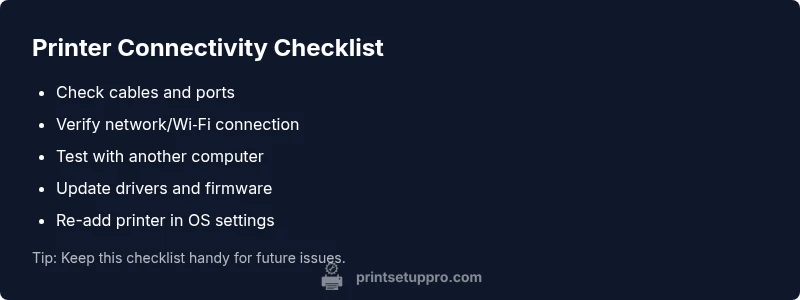
By following these practices, you’ll minimize the likelihood of a printer not connecting to computer issue and keep your workflow smooth. Print Setup Pro also recommends keeping a simple troubleshooting checklist handy for quick triage in future incidents.
Steps
Estimated time: 45-60 minutes
- 1
Power cycle and check basics
Power off the printer and computer, wait 15 seconds, then power them back on. Inspect cables and confirm the printer status lights indicate readiness. This resets most transient glitches.
Tip: Label the cables you test for quick rollback if needed. - 2
Test connection type
If you’re using USB, try a different USB port and cable. If Wi‑Fi, run a quick network test and confirm the printer is on the same network as the computer.
Tip: Avoid hubs for essential printer connections during tests. - 3
Update/repair drivers
Visit the manufacturer site to download the latest driver or firmware. Uninstall the old driver first, then install the new one and restart the device.
Tip: Use the exact model number to avoid installing the wrong driver. - 4
Re-add printer in OS
Remove the printer from your system settings, then re-add it using the detected printer or by manual port configuration. Test printing a page.
Tip: Document the exact port settings used for reinstatement. - 5
Network/IP sanity checks
If using a network printer, verify the IP address and ensure no conflicts exist. Update the printer IP in the OS if needed and retry.
Tip: Assign a reserved IP to prevent changes after router resets. - 6
Firewall/antivirus check
Temporarily disable security software to test connectivity. If printing works, configure an exception for the printer’s port.
Tip: Restore security settings promptly after testing. - 7
Escalation path
If the issue persists after all steps, gather logs and contact the printer vendor or a local IT professional for hands-on diagnostics.
Tip: Have the printer model, OS version, and network topology ready.
Diagnosis: Printer won't connect to computer
Possible Causes
- highLoose or faulty cables/ports
- highOutdated or corrupted drivers/firmware
- mediumIncorrect printer selection or port in OS
- mediumNetwork issues or IP conflicts
Fixes
- easyTest with a different USB cable and port; ensure USB mode is correct
- easyUpdate or reinstall the printer driver and firmware; restart devices
- easyRemove and re-add the printer in OS settings using the correct port
- mediumVerify network settings or IP address; ensure printer and computer share a network
- mediumTemporarily disable firewall/antivirus testing; re-enable after testing
People Also Ask
Why won't my printer connect to my computer even after updating drivers?
Driver updates fix many issues but some stubborn problems are caused by blocked ports or incorrect printer setup. Re-add the printer using the correct port and verify network configuration if it is a network printer.
Driver updates fix many issues, but sometimes ports or setup need rechecking. Re-add the printer and verify the port and network settings.
What should I check first when the printer is offline?
Ensure the printer is powered, cables are secure, and the printer is set as default in your OS. Then confirm it is online in the printer queue and that no print jobs are stuck in the queue.
First ensure power and cables, then set it as default and clear blocked print jobs.
Can a faulty USB cable cause this issue?
Yes. A damaged or low-quality USB cable can prevent data transmission. Try a known-good cable and port, and consider testing on another computer if available.
Yes, a bad USB cable can stop communication; test with a good cable and port.
Is it necessary to reinstall drivers on Mac and Windows?
Reinstalling drivers often resolves corruption or conflicts. For Macs, use the printer helper tool if available; for Windows, remove the old driver before a fresh install.
Reinstall drivers if issues persist, following OS-specific steps.
What about firewall settings blocking printing?
Firewalls can block printer ports. Temporarily disable to test, then create exceptions for the printer’s IP/port, and re-enable protection.
Test with firewall off, then add exceptions for printer ports.
When should I contact support?
If hardware faults or persistent network issues remain after all steps, contact printer support or a professional technician for hands-on diagnostics.
If it still fails after all steps, seek professional help.
Watch Video
Quick Summary
- Diagnose with a methodical, stepwise approach
- Update drivers and re-add the printer when in doubt
- Verify network and cable integrity to prevent repeat issues
- Use a simple escalation path if hardware failure is suspected