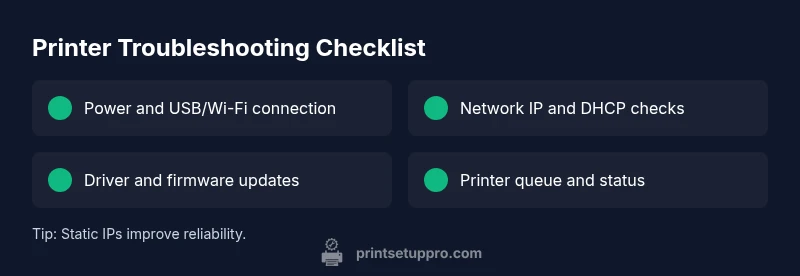
Printer Not Showing Up? A Pro Troubleshooting Guide
Urgent, step-by-step guide to diagnose and fix a printer not showing up on USB, Wi-Fi, and network setups. Includes quick checks, driver updates, and configuration tips for home offices, small businesses, and students.


Most often, a printer not showing up is caused by a connectivity or driver issue. Start with simple checks: confirm the printer is powered on, connected to the same network or USB port, and set as the default printer. If needed, reinstall the driver and reboot devices to restore visibility.
Start with the basics: verify power and connection
When a printer not showing up disrupts your workflow, the first thing to verify is the most tangible: power and cables. Confirm the printer is plugged in and powered on, with a steady status indicator. If you’re using USB, reseat the cable on both ends, try another USB port, or test with a different device to rule out a faulty cable. For wireless setups, ensure the printer and the controlling device are on the same Wi‑Fi network and that the network is functioning. If your router has client isolation or guest networks, temporarily disable those features to test discovery. Many visibility issues resolve after correcting a loose cable or a momentary network hiccup. After these checks, try printing a test page. If the printer still doesn’t appear, proceed to OS-specific checks to determine whether the issue is computer-side, printer-side, or network-side.
Quick network sanity check for the printer
Before diving into drivers, confirm the printer’s basic network identity. Check that the printer has a valid IP address on the same subnet as your computer. If your printer uses DHCP, consider reserving an address in your router to prevent IP churn. If you’re in a busy Wi‑Fi area, move the printer closer to the router or switch to a 2.4 GHz band for better compatibility. These steps help avoid the common pitfall where the printer is alive but simply not discoverable by the OS, which is a frequent cause of the printer not showing up problem.
OS discovery: Windows, macOS, and mobile devices
Different systems approach discovery differently, so follow OS-specific steps to ensure the printer is visible. On Windows, open Settings > Devices > Printers & scanners and look for the printer; enable Show Wi‑Fi or network printers if needed. On macOS, go to System Settings > Printers & Scanners and click the plus sign to add the printer; remove and re-add if necessary. On mobile, use the native print function and verify the correct printer is selected. If a device still can’t see the printer, it’s time to diagnose driver and queue issues rather than blaming the hardware.
Driver health: update, reinstall, and verify
Outdated or corrupted drivers are a leading cause of a printer not showing up. Check the manufacturer’s site for the latest driver version compatible with your OS. Uninstall any old driver remnants, restart the computer, then install the fresh driver. If your printer has firmware updates, apply them after driver installation. This sequence often resolves visibility problems by aligning software expectations with the printer’s actual capabilities.
Advanced networking: static IPs, firewall, and spooler
If basic checks fail, take a deeper look at network configuration. Assign a static IP to the printer or reserve an IP in the router’s DHCP table to prevent address changes. Temporarily disable firewall or antivirus features that might block printer discovery, then re-enable them after testing. On Windows, ensure the Print Spooler service is running and set to Automatic; a stuck spooler can make the printer disappear from the list even when it is connected. These advanced steps are for stubborn cases where the printer not showing up persists after standard fixes.
Prevention: maintain visibility for the long term
Once the printer is visible again, set a routine to prevent future issues. Keep drivers and firmware up to date, back up printer settings, and consider naming conventions that help identify devices on multi-printer networks. Reserve IP addresses for networked printers, document your installation steps, and schedule periodic rechecks. Simple maintenance now reduces the risk of repeated printer not showing up problems and minimizes downtime in your workflow.
Steps
Estimated time: 60-90 minutes
- 1
Power cycle and check cables
Unplug the printer and re-seat all cables. Plug back in and verify all indicators show normal operation.
Tip: Always power down devices before unplugging to avoid electrical damage. - 2
Verify device visibility in OS
Open your OS printer settings and look for the printer. If not listed, use Add Printer/Scanner to initiate discovery.
Tip: Choose the correct connection type (USB or network) when adding. - 3
Update or reinstall drivers
Download the latest driver from the manufacturer and install. Remove older drivers if needed.
Tip: Never mix drivers from different printer families. - 4
Test with another port or device
Try a different USB port or another computer to determine if the issue is port-related.
Tip: A different device can confirm whether the problem is printer-side or host-side. - 5
Check printer status and queue
Ensure the printer isn’t set to Offline in the queue and clear any stuck jobs.
Tip: If jobs are jammed, clear the queue before reattempting. - 6
Configure network settings
For network printers, assign a static IP or reserve one via DHCP. Confirm the printer’s IP in the printer menu.
Tip: Static IPs prevent IP changes that break discovery. - 7
Adjust firewall/antivirus
Temporarily disable security features that could block printer discovery, then re-enable after testing.
Tip: Only disable temporarily and revert settings after testing. - 8
Run OS troubleshooters
Use built-in troubleshooters to detect and fix common problems automatically.
Tip: Follow on-screen prompts; don’t skip steps. - 9
Seek professional help if unresolved
If the printer still doesn’t show up, contact the manufacturer or a local tech support service.
Tip: Document steps already taken to speed up diagnosis.
Diagnosis: Printer not showing up in the OS printer list
Possible Causes
- highPower or USB/Wi-Fi connectivity issue
- highOutdated, corrupted, or missing printer drivers
- mediumPrinter is offline or set to offline in settings
- lowIP address change or DHCP issues on the network
Fixes
- easyCheck that the printer is powered on and connected to the computer via USB or on the same network
- easyRestart printer, computer, and router to reset network state
- easyReinstall or update the printer driver from the official vendor site
- easyRun Windows Troubleshooter or macOS Add Printer wizard
- easyRemove the printer from the system and add it again
- mediumAssign a static IP or reserve an IP for the printer
- mediumDisable firewall temporarily if it blocks printer discovery
People Also Ask
Why is my printer not showing up on Windows 11?
Windows 11 visibility issues usually stem from driver problems or discovery service glitches. Ensure the printer is added in Settings > Bluetooth & devices > Printers & scanners, update the driver, and if necessary reinstall the printer software. A reset of the print spooler can also resolve stubborn cases.
Printer visibility on Windows 11 often comes down to drivers or discovery services. Check the Printers & scanners settings, update or reinstall the driver, and consider resetting the spooler if needed.
What should I do if the printer won’t show up on macOS?
On macOS, remove the printer from System Preferences > Printers, restart, then re-add it via System Preferences > Printers & Scanners. Ensure you download the latest macOS-compatible driver from the manufacturer. If the printer still doesn’t appear, test with a USB connection or reset the printing system.
If your printer won’t show up on Mac, remove and re-add the printer and update the driver. A reset of the printing system can help if needed.
How do I reinstall a printer driver safely?
Uninstall current drivers from Programs & Features (Windows) or Applications (macOS), reboot, then install the latest driver from the official vendor. Avoid mixing drivers from different brands and always use the supported version for your OS.
Uninstall old drivers, reboot, then install the latest from the vendor. Use the correct version for your OS.
Can a USB printer disappear after waking from sleep?
Yes, sleep modes can disrupt USB devices. Reconnect the USB cable, re-enable the printer, or reboot the computer and printer to reestablish the connection. If the issue recurs, try a different USB port.
Sleep can break USB connections. Reconnect, reboot, or use another USB port if needed.
What if the printer is listed but shows offline?
If the printer is listed but offline, check its status in the printer queue and uncheck 'Use Printer Offline' if set. Ensure the device is powered and connected, then restart the spooler service and reprint.
If it shows offline, check the queue and disable 'Use Printer Offline'. Make sure it’s connected and restart the spooler.
Is it safe to disable firewall to troubleshoot?
Temporarily disabling the firewall can help identify issues, but never leave it off. Re-enable it after testing and use targeted exceptions for the printer discovery ports if needed.
Disabling the firewall briefly can help diagnose, but re-enable it right away with proper exceptions.
Watch Video
Quick Summary
- Start with power and cable checks.
- Update or reinstall drivers before deeper fixes.
- Test USB and network paths separately to identify the culprit.
- Reserve a static IP to prevent future detours.
- Use OS troubleshooters as a guided fallback.