Printer Won’t Print from Computer? Quick Troubleshooter
Urgent, practical guide to diagnose and fix printer won't print from computer issues—from connectivity and drivers to spooler and firmware—so you can restore printing quickly in a home office or small business.


Most likely, the printer won’t print from computer due to a connectivity or driver problem. Start with quick checks: ensure the printer is online, confirm the correct default printer, and try printing a test page from a simple document. If this fails, follow the diagnostic flow to a concrete fix.
Problem overview and quick checks
When the printer won’t print from computer, the frustration is real. In many homes and small offices, the issue isn’t a dead printer but how the devices communicate. A misconfigured setting, an out-of-date driver, or a stalled print queue are the usual culprits. Print Setup Pro’s analysis for 2026 emphasizes that connectivity and software problems drive the majority of standstill printing sessions. With this in mind, begin with safe, quick wins that don’t require tools or disassembly. This section primes you for a disciplined troubleshooting flow and helps you avoid unnecessary hardware swaps. Keep in mind: small configuration tweaks often resolve what looks like a major fault. By staying methodical, you’ll pinpoint the layer at fault and move to targeted fixes quickly.
Check your connection types: USB, Wi-Fi, or Ethernet
The first question is how your computer talks to the printer. If you’re using USB, re-seat the cable, try a different USB port, and test another USB device to rule out the port. For wireless setups, verify the printer is connected to the same network as your computer and that the Wi‑Fi signal is stable. If you’re on Ethernet, confirm both the printer and the computer have valid IP addresses and that the switch or router isn’t blocking communication. Print Setup Pro recommends testing print capability from another device on the same network to confirm whether the issue is device-specific. Also, check that the printer shows as online in the control panel or system preferences. A quick network or cable reset often resolves most connectivity hiccups.
Verify printer status and the print queue
A blocked print queue is a common reason for a missing print job. Open the printer management panel and look for stuck jobs. If you see a stuck document, cancel it and try printing again. Clear any error states such as “out of paper” or “jam” even if you can’t see a physical jam. Restarting the printer can clear transient errors, but avoid turning off the printer during a job. In many cases, a simple refresh of the queue resolves the issue and re-establishes dialogue between the computer and printer. Print Setup Pro notes that spooler problems are frequently behind silent failures, so don’t skip this step.
Update or reinstall the printer driver
Outdated or corrupted drivers are a frequent root cause. On Windows, use Device Manager to locate the printer, then update or uninstall/reinstall the driver, allowing Windows to fetch the best match. On macOS, remove and re-add the printer in System Preferences > Printers & Scanners, then print a test page. Visit the manufacturer’s site for the latest driver or firmware if your OS detects incompatibilities. After updating, restart both the computer and the printer to ensure the new software is fully integrated.
Set and test the correct default printer
Sometimes the wrong default printer is selected, so your documents appear to fail to print. In Windows, go to Settings > Devices > Printers & scanners and set the correct device as default. On a Mac, open System Preferences > Printers & Scanners and drag the desired printer to the top of the list or choose “Default Printer” when possible. After setting the default, print a test page from multiple programs to confirm the change. If you work with virtual printers or PDF creators, ensure you’re sending to the real device. Print Setup Pro highlights that default-printer misconfigurations are a frequent yet solvable cause.
Advanced checks and safety: firmware, resets, and when to call a pro
If basic checks fail, firmware on the printer might be out-of-date or corrupted. Check for firmware updates on the manufacturer’s site and apply them following the guidance provided. Do not interrupt firmware updates, and never power off the printer during the process. A factory reset can also clear stubborn settings, but note that it will erase saved preferences and network configurations. If you suspect hardware issues (e.g., logic board or internal components) or if the printer is behaving erratically after firmware updates, contact the manufacturer’s support or a qualified technician. This is where professional help becomes a prudent option, especially for business-critical printers.
Common troubleshooting checklist
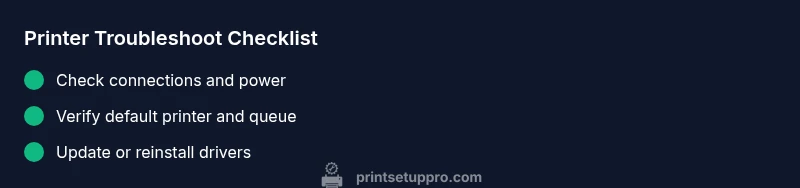
Keep this checklist handy as you work through issues: (1) Confirm physical connections and power status, (2) Validate network or USB setup, (3) Check for stuck print jobs and restart the spooler, (4) Update or reinstall drivers, (5) Confirm the correct default printer, (6) Apply firmware updates if available, (7) Test prints from multiple programs and devices, (8) Seek professional help if problems persist. Following a repeatable checklist reduces missed steps and speeds recovery.
Steps
Estimated time: 25-40 minutes
- 1
Check physical connections
Inspect power and data cables to ensure proper seating. If using USB, test alternate ports and replace a damaged cable. For network printers, verify the Ethernet/Wi‑Fi connection and confirm the printer is reachable by pinging its IP address.
Tip: Use a known-good cable and avoid long, damaged Ethernet runs. - 2
Restart devices
Power cycle both the computer and the printer. Turn off, wait 30 seconds, then turn on with the printer fully ready. This clears many transient issues and re-establishes hardware communication.
Tip: Log events or take note of any error codes displayed during startup. - 3
Clear and restart the print spooler
On Windows, open Services, locate Print Spooler, stop it, clear the spooler folder contents, then restart the service. On macOS, reset the print system and re-add the printer.
Tip: If you have multiple printers, temporarily remove non-essential ones to reduce confusion. - 4
Update or reinstall drivers
Download the latest driver or firmware from the manufacturer’s site and install. If already installed, perform a clean uninstall, then reinstall to ensure a clean registry/driver state.
Tip: Always download drivers from the official site to minimize malware risk. - 5
Set the default printer and test
Choose the correct printer as the default in OS settings and print a test page from two different apps. If the test succeeds, the issue was likely a misconfigured default or a stubborn queue.
Tip: Test from both a basic program and a complex document to cover format issues. - 6
Verify network printer settings (if applicable)
For wireless printers, confirm the printer’s IP address and ensure it matches in the printer queue. If using Wi‑Fi, verify the router allows device communication and consider placing devices closer to the router.
Tip: Avoid changing router settings unless you know the implications.
Diagnosis: Printer won't print from computer
Possible Causes
- highIncorrect or missing default printer
- highOutdated or corrupted printer driver
- mediumPrinter or print spooler service not running
- mediumConnectivity issue (USB/Wi‑Fi/Ethernet)
Fixes
- easySet the correct default printer in Windows/Mac settings
- easyUpdate or reinstall the printer driver from the manufacturer's site
- easyRestart the print spooler service and clear the print queue
- easyCheck USB cable or network connection; reconnect or switch to wired/wireless setup
People Also Ask
Why won’t my printer print from my computer after a Windows update?
Windows updates can reset printer settings or alter driver compatibility. Check the default printer, update or reinstall the driver, and verify the spooler status. If problems persist, roll back or reapply the update with the latest driver guidelines.
Windows updates can reset print settings or drivers. Check the default printer, update the driver, and verify the spooler. If needed, reapply the update with the correct driver.
How do I set the default printer on Windows or macOS?
On Windows, open Settings > Devices > Printers & scanners and choose the correct printer as default. On macOS, go to System Preferences > Printers & Scanners, select the printer, and set it as default when available.
Set the correct printer as default in your OS settings, either in Windows or macOS, so print jobs go to the right device.
What should I do if the print spooler won’t start?
Open Services, locate Print Spooler, and try restarting it. If it won’t start, stop dependent services, clear the spooler folder, and reinstall the driver. A corrupted spooler can block all print jobs.
If the spooler won’t start, restart it or clear the spooler folder, then reinstall the driver.
Can a faulty USB cable cause printing issues?
Yes. A loose or damaged USB cable can prevent communication. Try a different USB port and a known-good cable to rule out cable problems before pursuing software fixes.
Yes, a bad USB cable can stop printing—test with a new cable and port.
Is there a safe way to reset printer settings without losing important data?
Most printers offer a factory reset option, which resets network and preferences. Back up any custom settings if possible, then reconfigure after reset to minimize downtime.
A factory reset clears settings; back up options if you can, then reconfigure after.
When should I call a professional for printer issues?
If the printer exhibits hardware failure, persistent firmware issues, or non-standard error codes after all software steps, contact manufacturer support or a qualified technician. Hardware diagnostics often require tools beyond consumer access.
If hardware failure or stubborn firmware issues persist after all steps, seek professional help.
Watch Video
Quick Summary
- Verify simple connectivity first
- Update or reinstall drivers if needed
- Test prints from multiple apps/devices
- Reset spooler and retry before hardware checks