Why Your Printer Isn’t Working: A Practical Troubleshooting Guide
Urgent, practical guide to diagnose and fix printers that won't work, covering power, connectivity, drivers, and common faults with a clear, step-by-step flow.


The most common reasons a printer won’t work are power or connectivity problems. Start with the basics: confirm the printer is powered on, check cables, verify the device is online, and clear any stuck print jobs. Update drivers, reboot the printer and computer, then run a simple test page to isolate the issue.
Understanding the problem when your printer won't print
When you ask yourself why printer is not working, the root cause is rarely mysterious. Most issues fall into predictable buckets: power and cables, network or USB connectivity, software drivers, print queues, or a simple misconfiguration. This section explains how to interpret symptoms and quickly triage the situation. By starting with the most common failures, you can reduce downtime and avoid unnecessary repairs. Print setup and maintenance play a critical role, and a systematic approach saves time and frustration. Remember, many problems can be resolved with basic checks in under an hour, especially when you keep calm and follow a plan. This guide builds on the Print Setup Pro methodology to help home office users, students, and DIY enthusiasts fix problems quickly and safely.
Common root causes you should check first
This section lists frequent culprits in plain terms, so you can quickly identify the likely cause without guessing. Power issues are the easiest to diagnose: a loose outlet, a tripped breaker, or a damaged power cord can render the device invisible to your computer. Connectivity problems—whether Wi‑Fi, USB, or wired Ethernet—are the second most common reason for a non-printing state. Drivers or firmware that are out of date can produce compatibility errors that prevent printing. A stuck print queue, jammed paper, or low ink can also stop a job mid‑process. For home offices and schools, prioritizing these five areas will cover the majority of cases.
To prevent confusion, always start with the simplest failure mode first and document any error messages you see, as these guide you toward the next steps. Print Setup Pro’s practical approach emphasizes reproducible steps and safe handling to minimize downtime and avoid costly mistakes.
Quick checks you can perform today
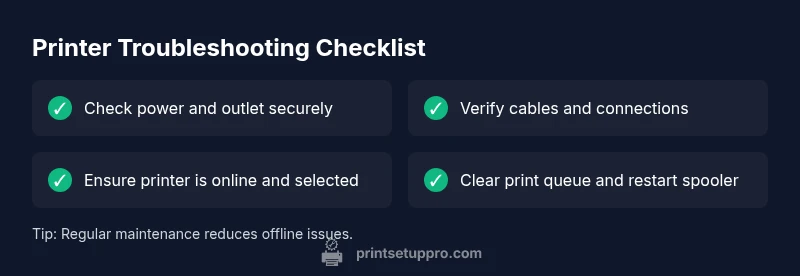
Start with the obvious checks. Verify the printer is powered on and shows a steady indicator light. Confirm the USB or network cable is firmly connected, or reconnect to the Wi‑Fi network. Open the operating system’s print queue and cancel any stuck jobs. Restart the printer, and restart your computer if needed. Then run a test page from the printer’s control panel or from the computer. These steps catch most outages without specialized tools. If the issue persists, move to the diagnostic flow to identify whether it’s hardware, software, or settings related.
In-depth diagnostics and flow
If the quick checks don’t fix the problem, follow this diagnostic flow: observe the symptom, match it to a likely cause, apply a targeted fix, and verify results. For example, if the printer is offline, check network status, rejoin the network, and print a test page. If messages appear on screen, note the exact error codes and consult the manufacturer’s knowledge base. Use the diagnostic flow to isolate whether the fault lies with hardware, software, or settings. Document each step so you can escalate with confidence if needed. This structured approach reduces guesswork and speeds up resolution.
Safety and maintenance: prevention tips
Safety comes first: unplug devices before inspecting cables, and avoid opening the printer’s internal assemblies unless you are trained. Regular maintenance reduces downtime: clean paper paths, replace cartridges before they run dry, and keep firmware up to date. Create a simple routine to check for software updates monthly, confirm the printer is visible to the network, and back up your print preferences. A proactive approach saves time and helps you avoid common pitfalls in the future. Remember to schedule routine checks and maintain a log of issues and fixes to aid future troubleshooting.
Steps
Estimated time: 45-60 minutes
- 1
Check power and cables
Inspect the power light to confirm the printer is receiving power. Unplug and replug the power cable, then test with a known-good outlet. Check USB or Ethernet cables for damage and reseat both ends to ensure a solid connection.
Tip: If the outlet has switched power, test with a different outlet or remove any daisy-chained power strips. - 2
Verify network or USB connection
For wireless printers, rejoin the device to the correct Wi‑Fi network and confirm signal strength. For USB printers, try a different USB port and use a known-good USB cable. Ensure the printer shows as online in the OS.
Tip: Disable and re-enable the network adapter if the printer remains invisible to the computer. - 3
Clear the print queue
Open the printer queue on your computer, cancel all jobs, and restart the spooler service. If the queue shows a stuck job, delete it and try printing again. Reboot the computer after clearing the queue.
Tip: Sometimes a single stuck job blocks every print; clearing it resolves the entire queue. - 4
Update or reinstall drivers/firmware
Visit the manufacturer’s site to download the latest drivers and firmware. Install and reboot the printer as prompted. If updates fail, uninstall the current driver and perform a clean install.
Tip: Always use drivers from the printer maker’s official site to avoid compatibility issues. - 5
Check ink, paper, and jams
Inspect toner or ink levels and replace cartridges if needed. Clear any paper jams and verify the paper path is unobstructed. Run a basic alignment or cleaning job if the printer offers these options.
Tip: Use quality paper and avoid overfilling trays to prevent jams. - 6
Test and verify results
Print a test page from the printer control panel or OS. If it prints, perform a few more test pages from different apps to confirm consistency. If not, capture error messages and escalate.
Tip: Document any error codes to speed up support if needed.
Diagnosis: Printer won't print or respond
Possible Causes
- highPower issue or faulty power supply
- highConnectivity problem (Wi-Fi, USB, or network share)
- mediumStuck print queue
- mediumOutdated or corrupted drivers/firmware
- lowHardware fault (paper jam, low ink, sensor error)
Fixes
- easyCheck power and outlet; try a different outlet and reseat the power cable
- easyReconnect to network/USB; restart router or switch, then reprint
- easyClear the print queue and restart the print spooler on the computer
- mediumReinstall or update drivers and firmware from the manufacturer site
- easyInspect for jams and ensure ink/toner is sufficient; perform basic maintenance
People Also Ask
Why is my printer not connecting to Wi-Fi?
Wi‑Fi connection problems are usually due to wrong credentials, weak signal, or misconfigured network settings. Reconnect to the correct network, enter the password again, and restart the router if needed. Verify the printer has a valid IP address.
Wi-Fi issues usually come from credentials or signal strength; reconnect and restart devices.
Why does my printer show offline even when connected?
Offline status typically means the printer is set to offline mode, the driver is broken, or the print queue is stuck. Ensure the printer is set as default, restart the print spooler, and clear stalled jobs.
Offline mode is usually settings or queue related; restart spooler and clear the queue.
How do I clear a stuck print job?
Open the printer queue, cancel all jobs, and restart the printer. If the queue persists, restart the PC or service and try printing again.
Clear the stuck job and retry printing.
Do I need new drivers or firmware?
Outdated drivers or firmware can cause non-printing issues. Check the manufacturer site for the latest versions and install them.
Yes, update drivers and firmware to fix compatibility issues.
Can hardware faults cause printer not to print?
Yes. Paper jams, empty cartridges, or sensor failures can stop printing. Inspect the paper path, replace cartridges, and run diagnostics.
Hardware faults can block printing; inspect physically.
When should I contact support?
If you’ve tried the steps without success, contact the manufacturer’s support or a local technician. Document the steps you’ve taken and any error codes.
If unresolved, contact support with details.
Watch Video
Quick Summary
- Power and connectivity first, then software
- Clear the print queue before deeper fixes
- Update drivers and firmware regularly
- Follow the diagnostic flow to isolate causes
- Escalate when basic steps fail