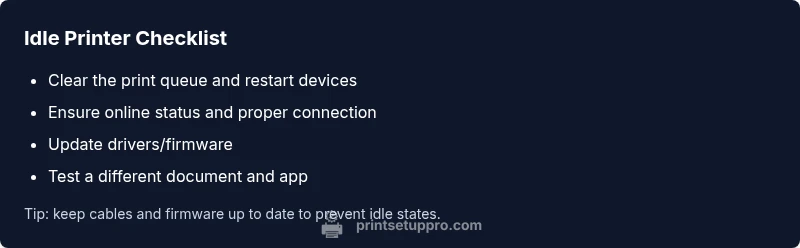
When Printer Says Idle: Urgent Troubleshooting Guide
Urgent guidance for home offices and students: diagnose why a printer says idle, run a rapid diagnostic flow, follow a step-by-step fix, and prevent idle states with proactive maintenance.


When the printer says idle, the most common causes are a stalled print job, a paused queue, or connectivity issues. According to Print Setup Pro, start by checking the print queue, restarting the printer, and validating USB/Wi‑Fi connections. If these don’t fix it, proceed with the diagnostic flow below. This quick triage can save you a trip to a service desk.
Why idle happens: root causes
When the printer says idle, you’re seeing a state where the device is waiting rather than actively processing a page. In most home-office scenarios, idle is triggered by a handful of common issues: a stuck print job in the queue, the printer itself being paused, or a miscommunication between your computer and the printer. Print Setup Pro analysis shows that idle states are most often caused by a stalled job or a connectivity problem rather than a hardware fault. Understanding the root cause is essential because the fix is usually quick and inexpensive. Start with the simplest checks: is the print job still in the queue? Is the printer shown as online on both the device and the computer? Are you connected via USB or Wi‑Fi, and is the cable or network functioning reliably? If the answer is yes to the obvious blockers, address those first before moving to deeper diagnostics. Even small hiccups in drivers or firmware can trigger idle states, so plan to verify software components as you work through the steps.
Quick checks you can perform now
- Check the print queue on your computer and cancel any stuck jobs. Restart the printer and try a fresh print.
- Ensure the printer is set to online and not paused. On Windows, open Devices and Printers, right-click the printer, and choose Resume or Use Printer Online.
- Verify cables and network status. For USB, try a different port or cable. For network, confirm Wi‑Fi strength or switch to a wired connection if possible.
- Look at the printer display for error codes or messages. A displayed error often points to a specific fix, such as jam, low ink, or paper out.
- Print a test page from the printer’s control panel to confirm the device can print independently of the computer.
If any of these checks reveals a specific issue, address it directly. If not, proceed to the diagnostic flow to identify less obvious causes.
Diagnostic flow: from symptom to solution
This section maps the typical symptom, possible causes, and practical fixes in a logical sequence. Start with the easiest checks and escalate only as needed. The aim is to restore printing with minimal disruption and avoid unnecessary service visits.
- Symptom:
- Printer shows idle despite sending a print job.
- Likely causes:
- Queue is blocked (high)
- Printer paused or offline (high)
- Communication issue (medium)
- Outdated driver/firmware (medium)
- Spooler service problem (low)
- Potential fixes:
- Clear the print queue and restart both computer and printer (easy)
- Bring printer online and resume printing (easy)
- Reconnect cables or rejoin the network, then reprint (easy)
- Update drivers/firmware, reboot (medium)
- Restart the spooler service (easy)
If the idle state persists after the above, move to the Step-by-Step fixes for a deeper, device-specific approach.
Step-by-step: most common fixes in order
- Clear the print queue and restart
- Open the print queue on your computer, cancel all documents, then restart the printer. This removes stuck jobs that can keep the device in idle. Tip: perform this action from a different user account if you share the printer.
- Verify online status and resume printing
- Check the printer’s status on the LCD and in your OS, then select Online/Resume. A paused or offline state is a frequent cause of idle messages. Tip: if you have a dual printer setup, ensure the correct device is selected.
- Reconnect physical and wireless connections
- For USB, unplug and re plug, trying a different port. For Wi‑Fi, rejoin the network, re-enter passwords if prompted, and run a network test from the printer. Tip: place the printer nearer to the router to improve signal.
- Update drivers and firmware
- From the manufacturer’s site, download the latest driver and firmware, install, then reboot both computer and printer. Tip: check for firmware notes about idle state fixes.
- Reset printing subsystem on your computer (if needed)
- On Windows, restart the Print Spooler service; on macOS, reset the printer system from System Preferences. Tip: back up any custom printer settings first.
- Test with a different application
- Print from another program to rule out application-specific issues. Tip: try a simple text document to reduce complexity.
- If the issue persists, perform a factory reset as a last resort
- Use the printer’s menu to reset settings to factory defaults, then reconfigure from scratch. Tip: note network Setup and personal preferences before resetting.
Estimated total time: 25–40 minutes depending on connections and driver updates.
Safety, best practices and common mistakes
- Do not unplug the printer while it is actively printing a job; always let the current task finish or cancel it first.
- Avoid using damaged cables; replace USB or Ethernet cables if there is any sign of wear.
- Keep firmware and drivers up to date to minimize idle states caused by software conflicts.
- If you feel unsure at any point, stop and seek help from a professional technician. Print Setup Pro recommends confirming basic fixes before escalating to service.
When to escalate: safety and professional help
If the printer still shows idle after exhausting basic checks, the issue may be hardware-related or a deep software fault. In this case, contact the manufacturer’s support or a qualified technician. Do not attempt invasive hardware repairs yourself if you are unsure about safety procedures. Print Setup Pro recommends documenting the steps you’ve taken and the exact error messages to speed up diagnostics.
Steps
Estimated time: 25-40 minutes
- 1
Check the print queue
Open the print queue on your computer and cancel all pending jobs. This clears any stuck documents that could keep the device in idle. Then try to print again.
Tip: If you see a corrupted job, delete it from the queue and restart the printer. - 2
Verify online status
Ensure the printer is online and not paused. On Windows, right-click the device and choose Online/Resume. On macOS, use the Print Center to re-enable the printer.
Tip: Sometimes a second attempt after a reboot resolves a temporary pause flag. - 3
Test USB/Wi‑Fi connection
For USB, swap cables or ports; for Wi‑Fi, re-connect to the network and run a test print from the printer's panel.
Tip: Prefer a direct wired connection for reliability while testing. - 4
Update drivers/firmware
Download and install the latest driver and firmware from the manufacturer’s site. Reboot both devices afterwards.
Tip: Check the release notes for idle-state fixes before updating. - 5
Reset spooler service (Windows)
Open Services, find Print Spooler, stop it, then start it again. Reprint to confirm if the problem was spooler-related.
Tip: Back up queued items if possible before restarting the spooler. - 6
Try a different app or document
If one program is the culprit, try printing from another app or a simple text file to verify a system-wide issue.
Tip: This helps isolate application-specific problems. - 7
Factory reset (as a last resort)
If all else fails, reset the printer to factory defaults and reconfigure settings from scratch.
Tip: Document network and printer settings before resetting.
Diagnosis: Printer shows idle while attempting to print
Possible Causes
- highStuck print job in the queue
- highPrinter paused or offline
- mediumCommunication issue between computer and printer (USB/Wi‑Fi)
- mediumOutdated or corrupted driver/firmware
- lowSpooler service problem
Fixes
- easyClear the print queue and restart the printer and computer
- easySet the printer online and resume printing from the control panel
- easyReconnect cables or rejoin the network, then reprint
- easyUpdate drivers and firmware, then reboot both devices
- easyRestart the spooler service if on Windows
People Also Ask
What does it mean when a printer says idle?
Idle means the printer is not actively processing a job, usually waiting due to a queue, offline state, or a connectivity issue. It is often fixable with quick checks.
Idle means the printer is waiting for a command or a fix, usually a small issue like a paused queue or offline state.
Why is my printer idle even after sending a print?
That usually points to a stuck job, paused printer, or a communication problem. Start by clearing the queue, ensuring online status, and verifying the connection.
If it stays idle after you press print, it’s often a queue or connection issue.
How do I fix idle state on USB vs wireless printers?
For USB, try different ports or cables and reboot. For wireless, re-connect to the network and ensure the printer is on the same network as your computer.
USB issues can be fixed with a different cable or port; wireless needs a network re-join.
Should I update drivers if idle keeps occurring?
Yes. Update both the printer driver and firmware from the manufacturer’s site, then reboot both devices and test again.
Updating drivers and firmware often resolves idle issues.
When is it necessary to seek professional help?
If the idle state persists after all basic fixes and software updates, contact the manufacturer’s support or a qualified technician.
If it won’t fix after basic steps, get professional help.
Can a factory reset help with idle issues?
A factory reset can resolve deep-rooted configuration conflicts, but it should be a last resort after backing up settings.
Factory reset is a last resort with potential data loss on per-device settings.
Watch Video
Quick Summary
- Identify root cause with the diagnostic flow.
- Clear the queue and resume online printing.
- Update drivers/firmware to prevent repeats.
- Escalate to support if idle persists after fixes.