Why Do Printers Stop Working? A Practical Troubleshooting Guide
Urgent, practical guide to diagnosing and fixing printers that suddenly stop working. Learn common causes, step-by-step fixes, safety notes, and prevention tips to get back to printing fast.


Printer issues usually stem from power, connections, or jam errors. Check the outlet, cables, and status lights, then print a test page. If it still fails, follow the step-by-step guide for a comprehensive diagnostic workflow to resolve the problem safely.
Why Printers Stop Working
If you’ve ever asked yourself, why do printers stop working, you’re not alone. In many homes and small offices, a stubborn printer can derail a productive day. The moment a printer stops, the first instinct is to panic or assume a complex fault. In reality, most interruptions fall into a few predictable categories: power and connection issues, paper path obstructions, outdated software, or simple misconfigurations. By addressing these essentials first, you can cut downtime dramatically and keep your setup productive. Print Setup Pro has analyzed thousands of home-office setups, and the most frequent culprits are predictable and fixable with a calm, methodical approach.
Common Causes in Plain Language
Printers stop working for reasons that often feel frustrating but are usually straightforward. First, power issues or a loose cable can render the device unresponsive. Second, software glitches—outdated drivers, corrupted print queues, or improper default settings—can prevent jobs from starting or finishing. Third, hardware roadblocks like paper jams, dirty rollers, or empty ink/toner cartridges disrupt normal operation. Finally, network problems—Wi‑Fi interference, IP conflicts, or misconfigured printers in multi-device environments—can sever access. Understanding these categories helps you triage quickly and avoid unnecessary replacements. Remember: systematic troubleshooting beats guesswork every time. The Print Setup Pro team has seen this pattern time and again, especially in busy households and small offices where convenience often clashes with maintenance.
Quick Checks You Can Do Right Now
Begin with the basics before diving into deeper diagnostics. Ensure the printer is powered on and connected to the correct outlet, and verify the status lights. Confirm the USB or network cable is firmly seated; if you’re on Wi‑Fi, make sure the printer and router are on the same network. Print a test page from the printer menu or computer to confirm basic functionality. If the test page fails, try a different USB cable, a different USB port, or a different network port. Check the paper tray, rollers, and paper path for jams or obstructions. Finally, review the ink or toner level and replace if necessary. These quick checks address the vast majority of incidents without specialized tools.
Diagnostic Flow Overview
A structured diagnostic flow helps you move from symptom to solution efficiently. Start with the most common, easy fixes and progressively test each potential cause. If a step doesn’t resolve the issue, continue to the next item in the flow. This approach minimizes frustration and reduces downtime. Print Setup Pro recommends keeping a short log of what you tried and the outcomes to avoid repeating steps and to assist any future troubleshooting.
Step-By-Step: Most Common Fixes
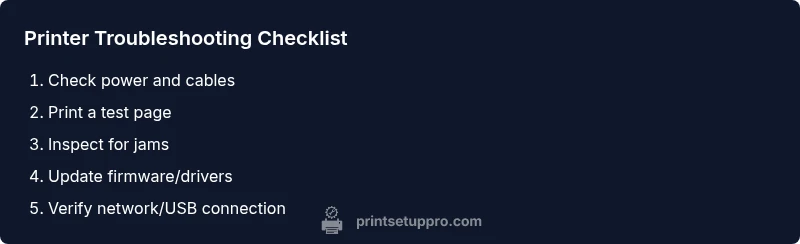
Below is a practical, action-oriented path designed for the most frequent problems. Use it as a checklist to restore printing quickly while maintaining safety and organization. Each step builds on the previous one, so you can stop at any point when the issue is resolved. If you reach a step that requires more advanced skills, proceed with caution or seek professional help.
Tips, Warnings, and Safe Practices
Safety comes first. Always unplug the printer before reaching inside trays or clearing jams. Do not attempt high-voltage components or fuser assemblies unless you are trained. When handling cables, use intact, manufacturer-approved parts. Keep your firmware and drivers up to date to prevent recurring issues and improve compatibility with your devices. If you’re ever unsure, consult the manufacturer’s manual or contact support for guidance.
Preventing Future Printer Problems
Adopt a routine maintenance plan to reduce downtime. Clean the paper path and rollers every few weeks, check for firmware updates quarterly, and keep a spare set of consumables (ink/toner) on hand to avoid mid-print shortages. Create a simple troubleshooting checklist and save error codes for quick reference. Regularly restarting both printer and computer during major updates can prevent strange, intermittent faults that crop up after long periods of inactivity.
Steps
Estimated time: 45-75 minutes
- 1
Power cycle the printer and check status lights
Turn the printer off, unplug it, wait 60 seconds, and plug it back in. Power it on and observe the status lights for any codes or indicators. If lights indicate an error, note the code and consult the manual or vendor support page.
Tip: A full power cycle clears many temporary glitches without risk. - 2
Verify outlet and cable integrity
Plug the printer into a known-good outlet. Inspect the power cord, USB, and Ethernet cables for wear or damage; reseat connections firmly. If possible, test with a different cable to rule out a faulty cord.
Tip: Use manufacturer cables when possible for reliable connections. - 3
Check the print queue and cancel stuck jobs
Open the print queue on your computer, cancel all pending jobs, and restart the spooler service if needed. Try printing again with a simple document to confirm the queue is clear.
Tip: Document each cleared job so you don’t re-run unnecessary tasks. - 4
Inspect paper path and jams
Open all trays and gently inspect the paper path for jams or stuck bits of paper. Remove any obstructions with clean hands and avoid tearing paper. Run a test page afterward.
Tip: Use a flashlight to reveal hidden scraps in tight rollers. - 5
Test with a basic document
From the printer’s control panel, print a configuration or test page. If the page prints, the device is communicating; if not, proceed to driver or network checks.
Tip: Choose a simple document to minimize variables during testing. - 6
Verify network or USB connectivity
If wired, confirm the printer has a valid IP address or is detected by your computer. If wireless, ensure the printer is connected to the correct Wi‑Fi network and the signal is strong.
Tip: Ping the printer IP or run a quick network diagnostic to confirm visibility. - 7
Update firmware and drivers
Download the latest firmware from the official vendor site and install it according to instructions. Likewise, update the printer driver on your computer and reboot.
Tip: Only use official sources to avoid corrupted firmware. - 8
Reset to factory defaults if necessary
If the problem persists, consider a factory reset to clear custom settings. Note that network configurations and preferences will be lost, so plan to reconfigure afterward.
Tip: Back up essential settings before resetting. - 9
Call support if the issue remains
If basic fixes fail, contact the printer manufacturer’s support with model, serial number, and exact error codes. They can guide you through hardware diagnostics and warranty options.
Tip: Have your purchase date and warranty status handy.
Diagnosis: Printer won't start or respond
Possible Causes
- highPower issue
- highLoose or damaged cable
- mediumPrinter not set as default or in queue
- mediumFirmware glitch
Fixes
- easyCheck power outlet, switch, and power cord; try a different outlet if needed
- easyReseat or replace USB/network cables; confirm connection between printer and PC/router
- easyRestart printer and computer; perform a cold reboot
- easyInspect for paper jams or sensor obstructions; remove debris gently
- mediumUpdate firmware and printer drivers from the official vendor site
- mediumReset network settings or reinstall the printer spooler if applicable
- hardIf unresolved, contact vendor support with model, serial, and error codes
People Also Ask
Why won't my printer connect to Wi-Fi?
Check that the printer and router share the same network, verify the Wi‑Fi password, and confirm the printer’s wireless status. If needed, re-run the printer’s wireless setup from its control panel or vendor app.
Make sure the printer is on the same network as your device and re-run the wireless setup if needed.
Why is the print queue stuck and not printing?
Cancel all jobs in the queue, restart the spooler service, and then try printing a simple page. If problems persist, remove all pending documents and re-add a fresh print job.
Cancel pending jobs, restart the spooler, and try again with a simple document.
There’s a jam I can’t see—what should I do?
Power off, remove the paper tray, and inspect every path the paper travels with a bright light. Clean rollers gently and check for small torn pieces.
Power off and inspect the paper path with a light; remove any debris you find.
Should I reset the printer to factory defaults?
Only reset if other fixes fail. A factory reset wipes custom settings, so back up preferences and note network configuration before proceeding.
Only reset if necessary and be ready to reconfigure your settings afterward.
When should I replace ink or toner?
If print quality is poor or inconsistent, replace cartridges after confirming the page shows consistent results. Do not wait if color or clarity is severely degraded.
Replace cartridges if print quality is poor or inconsistent.
When do I contact professional support?
If hardware failure is suspected or the problem persists after following the diagnostic flow, contact the manufacturer’s support with model, serial, and error codes.
If issues persist after troubleshooting, contact support with your model and error codes.
Watch Video
Quick Summary
- Power, cables, and status lights first
- Clear the print queue before deeper fixes
- Update firmware and drivers regularly
- Document error codes for support