Why Your Printer Cancels Print Jobs and How to Fix It
Urgent, step-by-step guide to diagnose and fix why your printer cancels print jobs. Learn common causes, quick checks, and preventative tips for home offices.


Understanding why print jobs cancel
Printers cancel print jobs for a few core reasons, and most are solvable with quick checks. According to Print Setup Pro, the most frequent culprits are a broken communication link between the computer and printer, a stuck print queue, or driver conflicts. Print Setup Pro Analysis, 2026 also notes that network interruptions and misconfigured defaults frequently trigger cancellations. Start by confirming your device is online, the correct printer is selected, and there are no stuck jobs waiting in the queue. A clear, calm approach saves time and prevents repeating the same mistake.
Start with the simplest checks
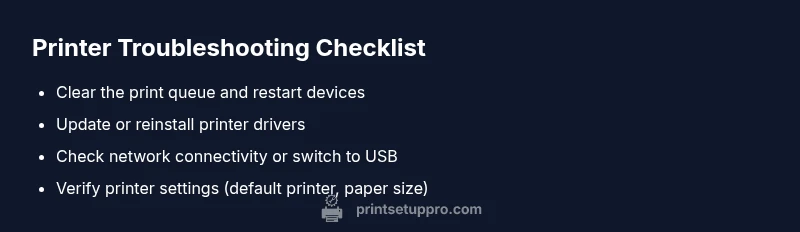
Many cancellations are caused by easily fixable issues. Begin with these steps: ensure the printer is shown as online and ready; verify you’re sending the job to the right printer; cancel all current print jobs and retry; restart both the printer and the computer; and check for any pending updates for the printer driver. If you notice a message on the printer display or in the software, log it before proceeding. These low-effort checks often resolve the problem without tools or vendor support. Print Setup Pro recommends proceeding in a predictable, repeatable order so you don’t miss a step.
Deep dive into common causes: queue, drivers, network
Queue problems happen when documents pile up in the spooler, leaving the printer with incomplete tasks. Driver conflicts occur when multiple software packages try to control the same printer. Network issues arise from Wi-Fi dropouts, VPN interference, or corporate firewalls. Each of these can cause the printer to cancel or fail to start a job. By isolating each element—queue, driver, and network—you can pinpoint the root cause. For example, printing a test page via USB bypasses the network and helps you decide if the issue is local or remote.
Mapping symptoms to likely culprits
If you see a status message like 'Job canceled' or the printer immediately clears the queue after sending, blame the queue or driver. If the job starts but stops mid-document, check for a corrupt spool file or a driver conflict. If the job never leaves the queue, examine the network setup or the default printer setting. In all cases, documenting the exact steps you took and the time of each attempt helps you rule out potential causes and speeds up the repair process.
Isolate the issue with one-change tests
To avoid chasing multiple issues, change one variable at a time. Try printing from a different device or using a USB connection, which can reveal whether the problem is network-related. Update or reinstall the printer driver from the official site, then print a test page. If you still experience cancellations, reset the printer’s settings to defaults and reconfigure essential options such as paper size and orientation. Keep a log of changes to track what worked.
Quick fix: most common cause (stuck queue) and how to resolve
If the queue is stuck, you’ll often see documents stuck in the print queue, with statuses like 'Printing' that never complete. Steps: 1) Open the print queue and cancel all documents. 2) Restart the spooler service (Windows) or the printer spooler (macOS). 3) Delete all files in the spool\PRINTERS directory (for Windows, usually C:\Windows\System32\spool\PRINTERS). 4) Restart the printer and the computer. 5) Re-add the printer and print a test page. 6) If problems persist, reinstall the driver. Tip: avoid turning off the printer mid-operation during steps.
tip":"Pro tip: Always back up current printer settings before resetting to defaults so you can restore them quickly."