Why Is Printer Not Available? A Quick Troubleshooting Guide
Struggling with a printer that won’t show up or print? This urgent guide from Print Setup Pro walks you through fast checks, diagnostics, and fixes to get your printer back online quickly.


The most likely cause is that the printer is offline or not correctly connected to power or the network, so your computer can’t see it. Start with the easiest fixes: verify power, reconnect USB or Ethernet, and ensure the printer is added to your devices list. If it’s still unavailable, update drivers/firmware and restart the print spooler. This quick sequence fixes most offline scenarios.
Why your printer isn't available
If you’re asking why is printer not available, or you see a persistent 'Printer offline' indicator, you’re not alone. In many homes and small offices, the problem isn’t a dead device but a status issue that prevents the OS from communicating with the printer. A printer might be powered on, idle, or connected to a wall outlet, yet still appear as unavailable in your computer or mobile device. The good news: most root causes are quick to identify and fix when you follow a structured approach. This guide from Print Setup Pro helps you move from symptom to solution with minimal downtime, using language you can act on today rather than technical jargon that slows you down.
According to Print Setup Pro, the most common cause is a simple network or power issue rather than a hardware failure. By focusing on the basics first—power, connections, and software settings—you can restore availability without specialized tools. The steps below are designed for home offices, students, and small businesses, so you won’t need a full IT team to apply them. As you progress, you’ll gain a clearer picture of why the printer isn’t available and how to prevent a recurrence.
Quick checks you can perform before deeper troubleshooting
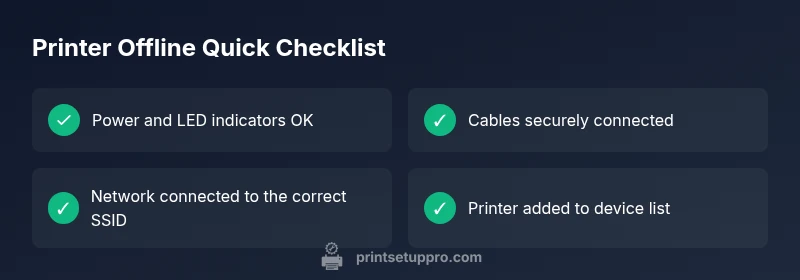
Before you dive into deeper diagnostics, run these quick checks to rule out obvious problems. These steps are safe, might be completed in under 10 minutes, and often resolve the issue without any tools:
- Ensure the printer is powered on and the power LED or status light is steady. A blinking light can indicate a fault or jam.
- Confirm the printer is physically connected to a power outlet and not powered by a surge protector that’s switched off.
- Verify USB or Ethernet cables are firmly plugged in on both ends and not damaged. If you’re on Wi‑Fi, ensure the printer is connected to the correct network.
- Check the print queue: cancel stuck jobs or clear the queue, then retry printing.
- Reboot the printer and your computer or mobile device. A simple restart often refreshes the connection state.
- In Windows or macOS, confirm the printer appears in the Devices and Printers (or Printers & Scanners) list and is set as the default if needed.
- Update any available driver or firmware updates from the manufacturer’s website or the printer’s built-in update tool. Outdated software can misreport status.
- If you’re sharing the printer over a network, test from another device to determine if the issue is device-specific or network-wide.
How different connection types influence availability
The way your printer connects to the host device dramatically affects the troubleshooting path. Each connection type has unique failure modes that can make a printer appear unavailable. USB connections are usually simpler to diagnose: if the cable is loose, damaged, or the port on the computer is failing, the printer may disappear from the OS. Ethernet (wired) connections can be disrupted by router changes, a bad switch, or a misconfigured IP address. Wi‑Fi printers hinge on network strength, correct SSID, and router settings. In mixed environments (USB on one PC, network on another), the 'availability' status can flip between devices, making a universal fix trickier. Print Setup Pro recommends isolating the problem by testing one connection type at a time and documenting any changes to avoid reintroducing errors.
Diagnostic flow: symptom to root-cause
When the printer shows as unavailable, start with the simplest possibilities: power, cables, and network status. If those pass, check software: driver compatibility, recent updates, and the print spooler. If the problem persists across multiple devices, the issue is more likely network or firmware-related. Failing hardware or jam-related faults are rarer but can present as 'not available' when the printer cannot initialize. Keeping a log of error messages and LED codes helps you identify the exact fault code and the corresponding fix. Print Setup Pro emphasizes a methodical approach: verify status indicators, then test connectivity, then verify software alignment, and finally consider a reset or professional support if nothing resolves the issue.
Steps
Estimated time: 20-35 minutes
- 1
Verify power and status lights
Check that the printer is plugged in and powered on. Look for solid status lights; blinking indicators can signal a fault such as jam, paper out, or overheating. If any fault is indicated, address that condition before proceeding.
Tip: If the power cord is loose, reseat it firmly and try a different wall outlet. - 2
Check cables and network connections
Inspect USB/Ethernet cables for damage; reseat in both ends. If using Wi‑Fi, confirm the printer is connected to the correct SSID and that signal strength is adequate.
Tip: Try a direct USB connection to rule out network-related issues. - 3
Test on another device
Add the printer to a second computer or mobile device to see if the issue is device-specific or network-wide. If it works on another device, the problem is likely the original host configuration.
Tip: Note any different error messages you see on the working device. - 4
Update software and drivers
Visit the manufacturer’s site or use the printer’s built-in update tool to install the latest drivers and firmware. Outdated software can misreport status or fail to communicate.
Tip: Prefer a clean reinstall to avoid driver remnants. - 5
Reset and re-add the printer
Remove the printer from the OS, restart devices, and then add the printer again. This can fix queue or address issues that simple updates miss.
Tip: Back up your print settings if you have custom defaults. - 6
Test print and monitor
Send a test page and verify that the printer responds promptly. If issues recur, capture logs and error codes for support.
Tip: Keep a simple checklist to reproduce the exact steps if you need to escalate.
Diagnosis: Printer shows offline or not available on all devices
Possible Causes
- highPower or hardware issue (printer not powered on, fault light, or power supply problem)
- highNetwork connectivity issue (Wi‑Fi, Ethernet, router), IP conflict, or DHCP problems
- mediumOutdated or corrupted drivers/firmware causing misreporting
- lowPrint spooler service stopped or a stuck queue
- lowPrinter not added to the correct device or misconfigured sharing settings
Fixes
- easyCheck printer power, cables, and status lights; ensure the device is on and not in error state
- easyTest network connectivity and select the correct network; verify IP address matches the printer’s configuration
- easyRemove and re-add the printer on the computer; reinstall or update drivers/firmware
- mediumReset the print spooler and clear any stuck jobs, then try printing again
- mediumReset network settings on the printer or assign a static IP; update firmware via the printer’s UI
- hardIf unresolved, contact support with logs and error codes from the printer, OS, and router
People Also Ask
What does 'printer not available' mean, and what should I check first?
It means the OS cannot access the printer, usually due to connectivity or status issues. Start by confirming power, checking cables, and verifying network or USB connections before diving into driver updates.
Printer unavailable means the computer can’t access it. Start with power and connection checks, then move to software settings.
How do I re-add a printer in Windows or macOS?
Open the Printers or Printers & Scanners settings, remove the device, and add it again. If prompted, install or update drivers. Restart your computer afterward if issues persist.
Remove and reinstall the printer from your settings, then restart if needed.
Can a simple restart fix most offline issues?
Yes. Restarting the printer, router, and computer clears temporary caches and refreshes connections. If the problem recurs after restarts, the cause is likely deeper in network or driver configuration.
A restart often fixes it, but if it comes back, you’ll need to check settings and drivers.
Is professional help required for printer not available?
Most cases can be resolved with guided troubleshooting. If you’ve tried all steps without success, contact the printer manufacturer or a local technician and provide error codes and logs.
Usually you can fix it yourself, but if nothing works, reach out to support with details.
What preventive steps reduce offline occurrences?
Keep drivers up to date, use a stable network, and assign a static IP for network printers. Regularly clear pending print jobs and perform periodic maintenance.
Update drivers, keep a stable network, and set a static IP to prevent future outages.
What should I collect when contacting support?
Note the exact error message, LED codes, recent changes to network or software, and the steps you’ve already tried. Include OS version and printer model.
Jot down error messages, LED codes, recent changes, and steps tried to speed up support.
My printer is shared on a network; what could go wrong?
Shared printers require proper sharing permissions and correct host device status. Ensure the host computer is awake, sharing is enabled, and the printer appears in the network’s device list.
If it’s shared, check host status and sharing permissions.
Could a firewall block printer availability?
Yes, some firewalls block printer ports. Ensure the printer’s ports are allowed and add exceptions if necessary. This is more common in office networks.
Firewalls can block printer ports; allow the printer’s ports if needed.
Watch Video
Quick Summary
- Verify power and connections first
- Isolate USB, Ethernet, and Wi‑Fi one at a time
- Update drivers and firmware to restore compatibility
- Reset spooler and re-add printer if needed
- Escalate with logs if the issue persists