Why Would a Printer Be Paused? A Troubleshooting Guide
Is your printer paused? This urgent troubleshooting guide from Print Setup Pro helps you diagnose common causes, resume jobs, and prevent future pauses.


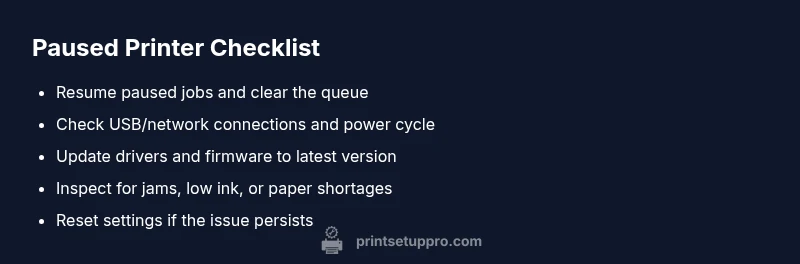
According to Print Setup Pro, the most common reason a printer appears paused is a queue hold, a user-initiated pause, or a communication hiccup between the PC, driver, and printer. Start by resuming paused jobs and clearing the queue. Then verify USB or network connections, update drivers and firmware, and restart the printer. If the issue persists, follow the step-by-step guidance below.
Why would a printer be paused
Is the printer showing a paused status and not printing? The phrase why would a printer be paused isn’t just a rhetorical question—it’s a practical header for diagnosing real issues that interrupt your workflow. In the Print Setup Pro ecosystem, pauses are treated as signals to investigate the print path: the queue, the driver, the connection, and the firmware. This section introduces the common reasons behind a paused printer and sets expectations for a safe, methodical approach that home office users, students, and small-business owners can follow under pressure.
Quick-start checks you can perform safely
Before you dive into deeper fixes, run through these quick checks. They’re designed to be completed in under 10 minutes and often resolve simple pause states:
- Confirm the printer isn’t showing a paused button on the control panel and that you didn’t accidentally press Pause.
- Open the print queue on your computer and look for any jobs stuck in the middle. If a job is stuck, try resuming or canceling it.
- Verify the USB or network connection is secure; reseat cables or reconnect to the correct network if needed.
- Restart both the computer and printer to refresh software and firmware state.
- Check for any low ink/paper or jams and clear them carefully if present. If these steps fix the pause, you’ve reduced downtime and preserved productivity. If not, proceed to the diagnostic flow.
How queues, drivers, and connectivity interact to pause printing
A pause often results from how the print job travels from your device to the printer. The queue holds jobs until the printer is ready; drivers translate your command into printer language; and connectivity ensures a steady data stream. Any weak link among these layers can trigger a pause. For example, a stuck job in the queue can freeze the entire print pipeline, or a driver conflict can halt communication between the PC and the printer. Understanding this interaction helps you pick the most efficient fix without unnecessary steps.
Common culprits by category
- Print queue issues: stuck jobs, software pauses, or incorrect job settings.
- Driver/firmware: outdated or corrupted drivers can misinterpret print data, causing a pause.
- Connectivity: unstable USB cables, flaky Wi‑Fi, or network printer discovery quirks can interrupt the data stream.
- Media and hardware: jams, out-of-paper states, or low ink/toner can trigger automatic pauses for safety.
- User settings: accidental presses of Pause or scheduled pauses in the driver can pause all activity. By categorizing problems, you can focus your diagnosis on the most likely areas first.
When to escalate and how to prevent future pauses
If your printer remains paused after completing the steps above, it’s time to escalate: check warranty status, consult the manufacturer’s knowledge base, or contact a professional technician. To prevent future pauses, adopt routine maintenance: keep drivers up to date, run printer diagnostics monthly, use consistent media types, and set up a simple print queue management policy. Proactive monitoring reduces downtime and keeps your printing flow steady.
Steps
Estimated time: 20-40 minutes
- 1
Verify paused state and resume
Check the printer control panel and the print dialog on your computer. If a Pause button is active, press Resume and verify the status changes to 'Printing' or 'Ready'.
Tip: Keep the original print job in the queue until you confirm printing resumes. - 2
Inspect the print queue
Open the Print Center/Devices and Printers window and look for jobs with status 'Paused' or 'Error'. Right-click and select 'Resume' or 'Cancel' as appropriate.
Tip: If many jobs are stalled, cancel all and reprint one test page. - 3
Check connections
If connected by USB, reseat the cable and try a different port. If on a network, verify the printer is online and reachable from your computer.
Tip: A bad USB hub or switch can create intermittent pauses. - 4
Update drivers/firmware
Download the latest driver package from the printer manufacturer’s site and install it. Restart devices after installation.
Tip: Back up settings if the firmware requires a reset. - 5
Clear jams and media issues
Open access panels and inspect for paper jams. Remove stuck sheets carefully and load fresh media, ensuring compatibility with the printer.
Tip: Never pull a jammed sheet with power on; use power off if needed. - 6
Reset or escalate
If still paused after steps 1–5, perform a factory reset or contact professional support. Document steps you’ve tried for faster service.
Tip: Note any error codes displayed on the panel.
Diagnosis: Printer shows 'Paused' status and refuses to print
Possible Causes
- highUser-initiated pause on the printer or in the print dialog
- highStuck or pending job in the print queue
- mediumDriver or firmware conflict causing communication pause
- mediumConnectivity issues (USB cable, network/Wi‑Fi) interrupting data flow
- lowPaper jam, out of paper, or low ink/toner triggering safety pause
- lowHardware fault or sensor error triggering automatic pause
Fixes
- easyResume or cancel all paused/stuck print jobs and clear the queue
- easyCheck and reseat USB/cable connections or reconnect to the network
- mediumUpdate or reinstall printer drivers and firmware to the latest version
- easyPower cycle the printer and computer (turn off, wait 30 seconds, turn on)
- easyInspect for jams, replace media, and ensure ink/toner levels are sufficient
- mediumIf the pause persists, reset the printer to factory defaults or contact support
People Also Ask
Why is my printer paused even though I sent a print job?
Pauses often occur due to a stuck job in the queue, a user-initiated pause, or a driver/firmware conflict. Start by resuming the queue and updating software, then check the connection and media state.
If you sent a job and the printer paused, check the queue first, then update drivers and verify the connection.
How do I resume a paused printer in Windows or macOS?
Open the Print dialog, look for paused or stalled jobs, and select Resume. If there’s an option to cancel and reprint, try that if the job is corrupted.
Open the print dialog, locate paused jobs, and hit Resume or cancel and reprint.
Can software updates cause a paused state?
Yes. Firmware or driver updates can momentarily pause printing as new code initializes. After updating, restart both the printer and computer and test with a small print.
Sometimes updates pause printing during installation; restart devices and try again.
Is it safe to reset the printer to factory defaults?
Factory resets can resolve persistent issues but erase custom settings. Use as a last resort and document current configurations before proceeding.
A factory reset can fix stubborn pauses, but it wipes settings—back up first.
What should I do if the printer shows 'offline'?
Check network or USB connections, ensure the printer is set as the default device, and verify that the printer is online in the device status. Reconnect and restart if needed.
If it's offline, fix connections and reselect the printer as online.
When should I contact support?
If the pause persists after all standard checks, contact the manufacturer or a certified technician. Gather error codes and system details to speed up diagnosis.
If the issue continues after basic steps, reach out to support with any error codes.
Watch Video
Quick Summary
- Diagnose pauses step-by-step, starting with the queue and connections.
- Keep drivers/firmware up to date to prevent compatibility issues.
- Power cycle devices to clear transient errors safely.
- Escalate when needed and document troubleshooting steps.